Megabits, megabytes, and the factor of eight
Search for a download time calculator and you will find several that quietly get this wrong. The trap is that the two numbers you are combining are measured in units that look almost identical and differ by a factor of eight.
Connection speeds are sold in Mbps, megabits per second. Every ISP tariff, every router box, every speed-test result uses it. File sizes are shown in MB and GB, megabytes and gigabytes: on the download page, in your file properties, in a game store listing. A byte is eight bits, so a connection advertised at 100 Mbps carries file data at 12.5 MB per second, not 100. Skip that division and every answer you produce is eight times too optimistic. Invert it and you are eight times too pessimistic.
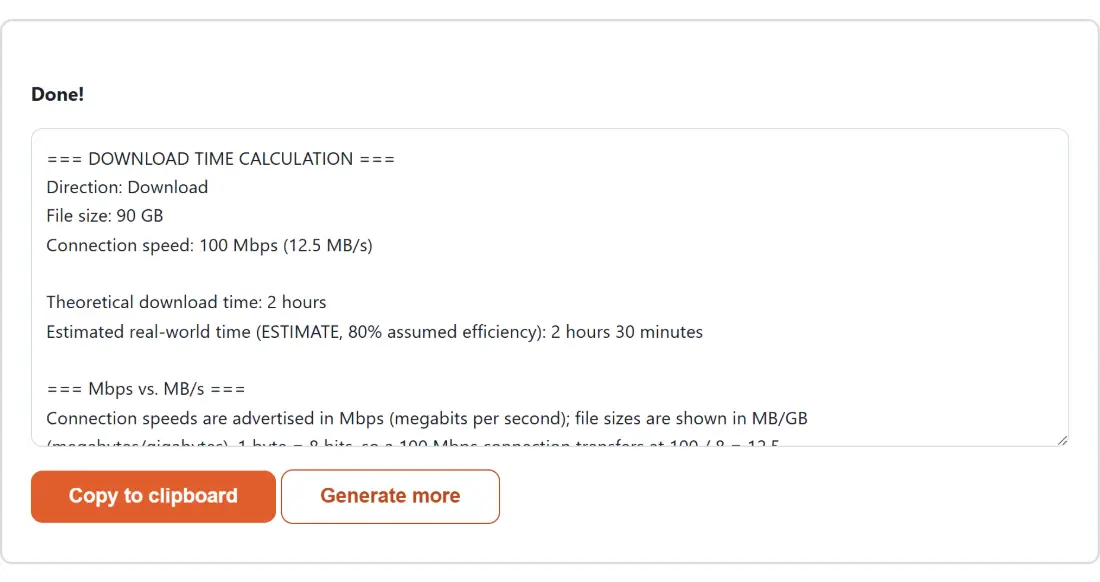
This page applies the division internally and then shows its work: the speed line of the report
reads 100 Mbps (12.5 MB/s) so you can confirm at a glance which figure went into the sum. If you
want to move between data-rate units in general rather than convert one into a duration, the
Bandwidth Converter covers the full Mbps, Gbps, MB/s and KB/s matrix.
Setting the size half and the speed half
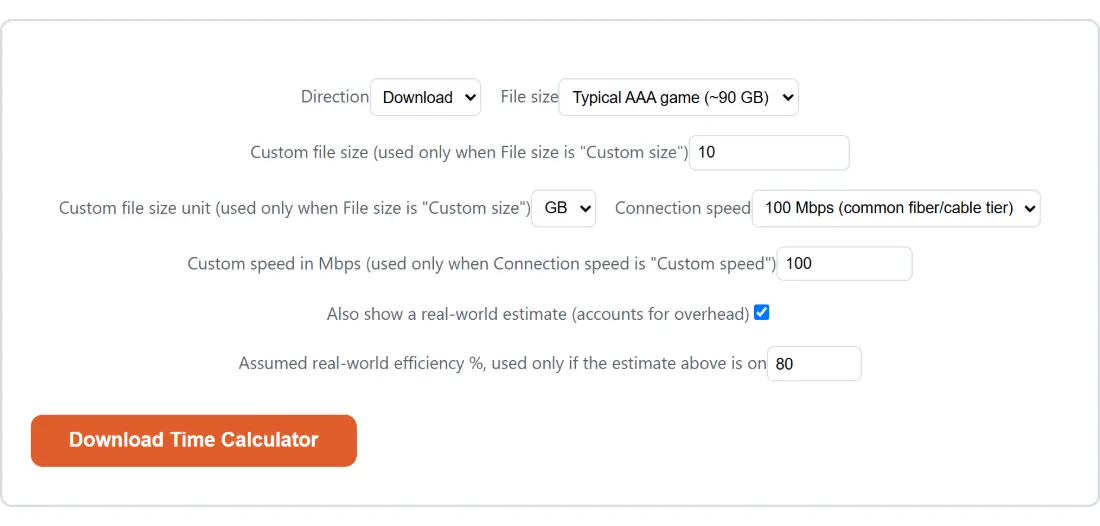
- Choose Direction: Download or Upload.
- Choose a File size preset. For a real file, pick “Custom size” and then fill in Custom file size (used only when File size is “Custom size”) together with Custom file size unit (used only when File size is “Custom size”), which offers MB, GB and TB.
- Choose a Connection speed preset, or pick “Custom speed” and enter your own number in Custom speed in Mbps (used only when Connection speed is “Custom speed”). Use your measured speed-test result rather than the advertised tier if you have one.
- Leave Also show a real-world estimate (accounts for overhead) ticked for a second, slower figure, and set Assumed real-world efficiency %, used only if the estimate above is on to whatever you think your connection really achieves.
- Press Download Time Calculator. The report appears in a read-only box with Copy to clipboard and Generate more beneath it.
A 90 GB game on a 100 Mbps line
Those defaults are already a useful worked example. Ninety gigabytes at 100 Mbps resolves to two hours flat, and the optional estimate at 80 percent efficiency adds half an hour on top. Change the size to a custom 10 GB and the same connection gives 13 minutes 20 seconds theoretical, 16 minutes 40 seconds estimated.
The presets are designed to make the shape of the problem obvious. A 5 MB photo on a gigabit line comes back as “less than 1 second”. An 8 MB song on basic 25 Mbps broadband is 3 seconds. A 6 GB HD film on a 50 Mbps line is 16 minutes. Switch Direction to Upload, choose the 30 GB 4K preset and 25 Mbps, and you get 2 hours 40 minutes, which is the calculation that most often changes somebody’s plans for the evening. If the answer is longer than you are prepared to wait, shrinking the source file is usually easier than upgrading the line, and Compress Video to a Target Size will squeeze a single MP4, MOV, M4V or WebM down to a size you name.
Theoretical time and the estimate sitting under it
The primary result is deliberately unmassaged. It is bytes divided by bytes per second with nothing subtracted, which makes it a best case rather than a prediction. Real throughput lands below the advertised rate for reasons no calculator can measure from here: TCP and IP header overhead, retransmissions, other devices on the same link, whatever rate limit the far end applies, and the gap between Wi-Fi and a cable.
Rather than baking a fudge factor into the headline number, the tool exposes it. The second line divides the theoretical time by an efficiency percentage you control, and the report labels it ESTIMATE in capitals so the two figures never get confused when someone copies the text out. Three explanatory blocks always follow the result: one on Mbps against MB/s, one on what the estimate does and does not mean, and one on unit conventions.
Decimal gigabytes here, binary gibibytes in your file browser
Every byte count on this page is decimal SI: 1 KB is 1000 bytes, 1 MB is 1000 KB, 1 GB is 1000 MB, 1 TB is 1000 GB. That is not an oversight, it is a consistency requirement. Mbps is decimal by definition, and mixing a decimal speed with a 1024-based file size is exactly how a calculator ends up a few percent off with no visible cause.
Your operating system may disagree with the number you typed in. Many file browsers still measure in binary units, where a gibibyte is 1024 mebibytes, while printing the label “GB”. The file has not changed size; only the convention used to describe it has. Nothing on this page needs you to resolve that, since the figure you type is taken at face value in decimal terms. For everyday conversions that have nothing to do with bytes, length, weight, temperature, volume, area and speed, the Unit Converter sits alongside this one on the calculators hub.
The limits the input fields impose
Custom sizes are accepted from 0.001 up to 1,000,000 in the unit you pick, and custom speeds from 0.1 Mbps up to 100,000 Mbps, so everything from a throttled mobile connection to a data-centre link fits. The efficiency field is confined to 10 through 100 percent, which stops an accidental zero from producing an infinite duration.
What the tool cannot do is watch your connection. It has no live speed test, no history of your line, and no knowledge of the server you are pulling from, so the quality of its answer depends entirely on the quality of the speed you feed it. Running a speed test first and typing that result into Custom speed will always beat using the number on your bill. If you then want to express the difference between two tiers as a percentage rather than as minutes, the Percentage Calculator is the quicker route.