The browser’s own MP3 decoder does this, not FFmpeg
Almost every audio converter on this site loads a WebAssembly build of FFmpeg, which is roughly 31 MB and has to be fetched before anything can happen. This page does not. Your browser already contains a fast, thoroughly tested MP3 decoder, because it needs one every time a web page plays audio, and the Web Audio API exposes it directly.
So the tool asks the browser to decode the file and hands back the raw samples, then writes the WAV container around them itself. That container is not complicated: a 44-byte header describing how many channels there are, how often the signal was sampled, and how many bytes of audio follow, and then the audio. The whole encoder is a few dozen lines of arithmetic.
The practical difference is speed. There is no large download on first use, no WebAssembly module to instantiate, and no encoding pass at the far end, because a WAV file is not encoded in any meaningful sense. A three-minute track is done about as fast as your device can read it.
Decoding an MP3 into PCM
- Drop your
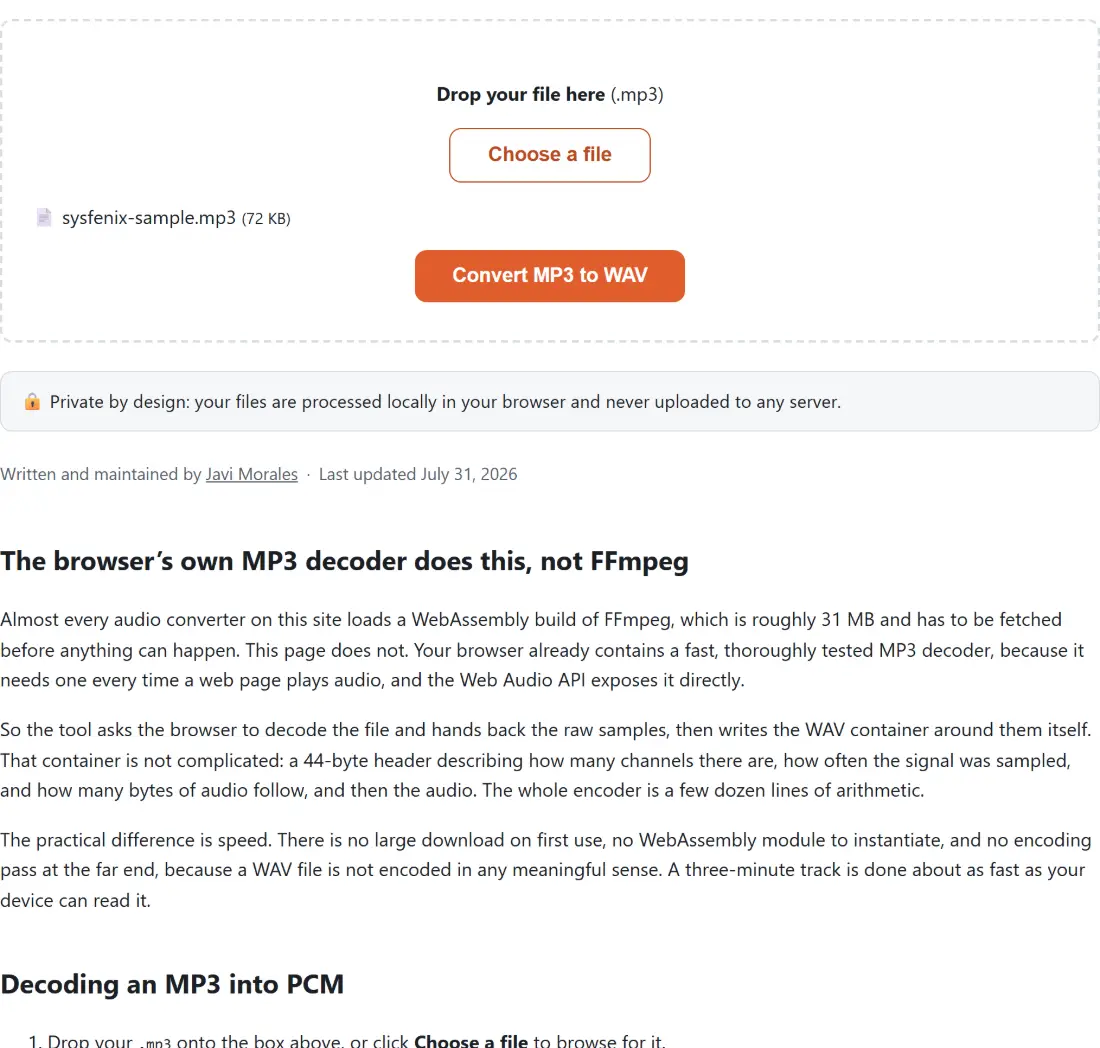
.mp3onto the box above, or click Choose a file to browse for it. - Click Convert MP3 to WAV. There are no settings to choose on this page, because the output format is fixed.
- Watch the progress indicator move in steps rather than sweeping. It reports 5 percent, then 60 once the decode returns, then 100 when the file is written.
- Download the WAV. It takes the original filename with
.wavin place of.mp3.
A 44-byte RIFF header and 16-bit samples, every time
The output is deliberately the most boring WAV that exists: linear 16-bit PCM, format tag 1, with the standard RIFF and fmt and data chunks in the standard order and nothing else. No extensible header, no floating point samples, no metadata chunks appended afterwards.
That choice is about compatibility rather than fashion. The hardware and software that demands WAV input tends to be old, and the exotic variants are exactly what trips it up: a 32-bit float WAV from a modern DAW will be refused by a sampler that was perfectly happy with a file written in 1998. The plain variant is what an audio CD track is, what an Akai sampler loads, and what a phone system expects for hold music.
Converting the decoded values into 16-bit integers involves one small safeguard worth knowing about. Anything the decoder returns outside the normal range gets clamped to the maximum rather than allowed to wrap around, which turns a potential burst of digital noise into ordinary clipping.
The sample rate you get belongs to your device, not the MP3
This is the one behaviour that surprises people, and it is worth being precise about. The decode runs through an audio context created without a requested sample rate, which means it uses your device’s own output rate. The Web Audio specification says a decode resamples to the context’s rate, so the samples that come back, and therefore the WAV that gets written, carry that rate rather than the MP3’s.
On a machine set to 44.1 kHz, a 44.1 kHz MP3 comes back at 44.1 kHz and nothing has changed. On a Mac or an interface running at 48 kHz, the same MP3 comes back at 48 kHz, resampled on the way. Neither is wrong and neither is audible, but if you are preparing tracks for a CD burner that insists on 44.1 kHz, set the system output rate before you convert rather than fixing it afterwards.
The channel layout is not touched: a mono MP3 produces a mono WAV, and a stereo one produces interleaved stereo.
The file grows, and the audio does not improve
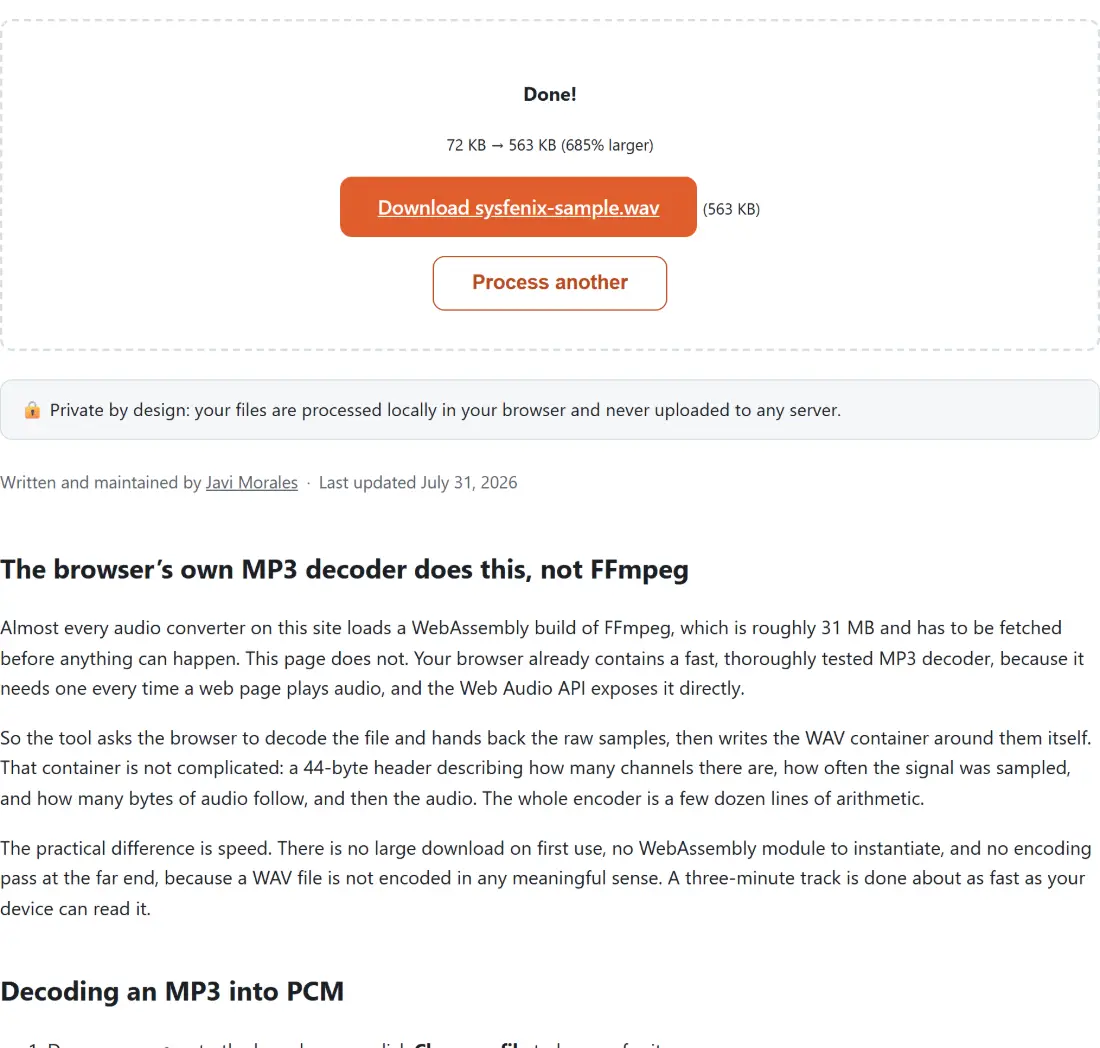
Expect a substantially larger file. Uncompressed CD-resolution stereo runs at about 1,411 kilobits per second, which is roughly ten times what a 128 kbps MP3 uses, and the shell says so plainly once the run finishes by reporting the new size with a “larger” percentage rather than a saving.
What you are not getting is better sound. MP3 discarded information permanently when it was created, and decoding it back to PCM reproduces the result of that decision faithfully. What the WAV holds is the decoder’s own output, resampled to your device’s rate as described above and rounded from the decoder’s floating point values into 16-bit integers. That is precisely what an editor needs, and it is not the same thing as a restoration. Any site claiming that this step recovers quality is selling something.
If you want the opposite direction, WAV to MP3 shrinks an uncompressed recording back down with a choice of bitrates.
Samplers, CD burners and the tools that insist on PCM
The reason so many applications refuse MP3 is not stubbornness. Compressed audio is stored in frames that have to be decoded before a single sample can be read, which makes cutting, looping and scrubbing awkward, and frame boundaries do not line up with musical ones. Tools that manipulate audio sample by sample therefore ask for PCM and let you do the conversion.
That group includes CD burning software, because the audio CD format is itself uncompressed PCM; hardware samplers and grooveboxes from the classic Akai and E-mu units through to current gear; older editors and firmware-based systems; and telephone and announcement systems that play hold music from a fixed WAV file.
A WAV is also the right starting point for further processing on this site. Feed one into Vocal Remover to separate a song into vocal and instrumental parts, or take a voiceover generated by Text to Speech and convert it here before editing. Most of the editing pages on the audio tools hub take WAV and MP3 alike, and where both are accepted the uncompressed one avoids stacking another lossy pass onto whatever you do next. The MP3-specific pages, Cut MP3 and Compress MP3 among them, are the exception and refuse a WAV at the dropzone.