WAV, RIFF and the 44.1 kHz CD heritage
A WAV file is barely a format at all. Microsoft and IBM defined it in 1991 on top of RIFF, a chunked layout borrowed from Electronic Arts, and what usually sits inside is raw PCM: the plain numbers a converter produced when it measured the voltage arriving from a microphone, written down in order with nothing clever applied to them.
That bluntness is where the size comes from. Measure the signal 44,100 times a second, store each measurement as a 16-bit number, do that for two channels, and you are writing about 1,411 kilobits every second, which is roughly 10 MB a minute. Those figures are not a coincidence. They are the audio CD specification, and WAV inherited them because ripping and burning discs was the job it was built for.
Two things follow. The first is that a WAV file is enormous relative to what it carries: a thirty-minute interview is around 300 MB of a recording that nobody needs at full resolution. The second is a hard structural limit, because RIFF stores its chunk sizes in 32-bit fields, so a conventional WAV tops out near 4 GB no matter how much disk you have. Long sessions run into that wall, which is one reason recorders and editors offer a compressed export at all.
MP3 answers the size problem and nothing else. It is not better audio and it was never meant to be; it is the format that plays on every phone, car head unit, smart speaker, podcast host and web form built in the last twenty-five years, at a fraction of the bytes.
The bitrate ladder: 320, 192 and 128 kbps
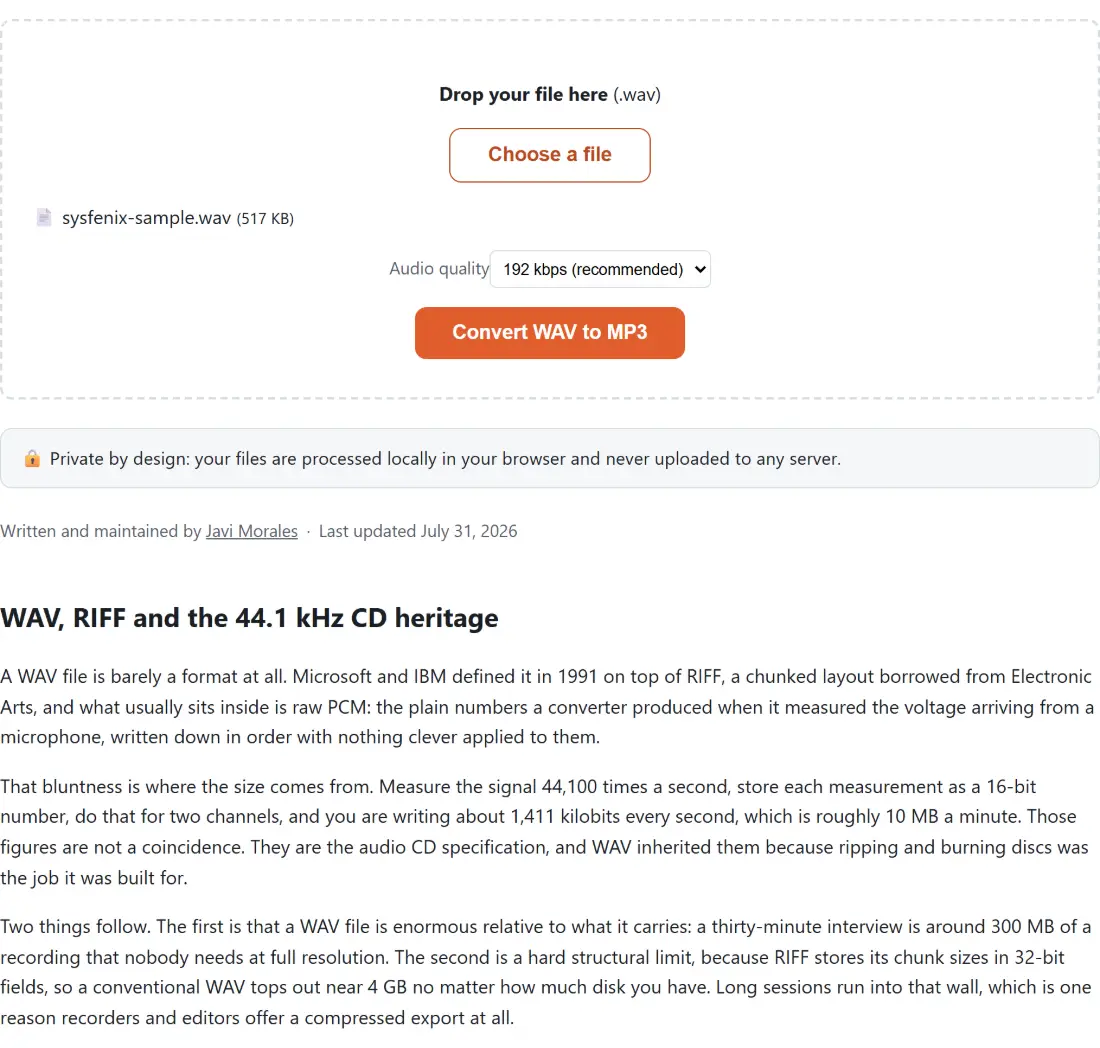
The Audio quality selector maps to exactly one FFmpeg argument, the target bitrate handed to the LAME encoder. 320 kbps (highest quality) is the top of what MP3 defines and the right pick for a finished mix, a mastered demo or a live recording you want to keep listening to. 192 kbps (recommended) is the default and covers almost everything else. 128 kbps (smaller file) takes a further third off that and is aimed at speech: lectures, dictation, interviews, rehearsal notes.
Speech and music genuinely want different numbers here, and the reason is that a voice occupies a narrow, predictable slice of the spectrum while a full mix does not. If you are unsure which rung to take, choosing a bitrate for voice versus music works through the trade in more detail than a dropdown can.
One quiet detail from the code: this is the only converter in the family that does not pass -vn to FFmpeg, the flag that strips non-audio streams. Its siblings need it because M4A, FLAC and Ogg files routinely carry cover art that FFmpeg reports as a video stream. A plain PCM WAV has nothing in it but audio, so there is nothing to strip.
Running a WAV file through the encoder
- Drop your
.wavfile onto the box above, or click Choose a file and pick it from your device. - Set Audio quality. Leave it on 192 kbps (recommended) unless the recording is music you care about, in which case take 320 kbps (highest quality).
- Click Convert WAV to MP3. The button is replaced by a progress bar and a Cancel button while the encoder runs.
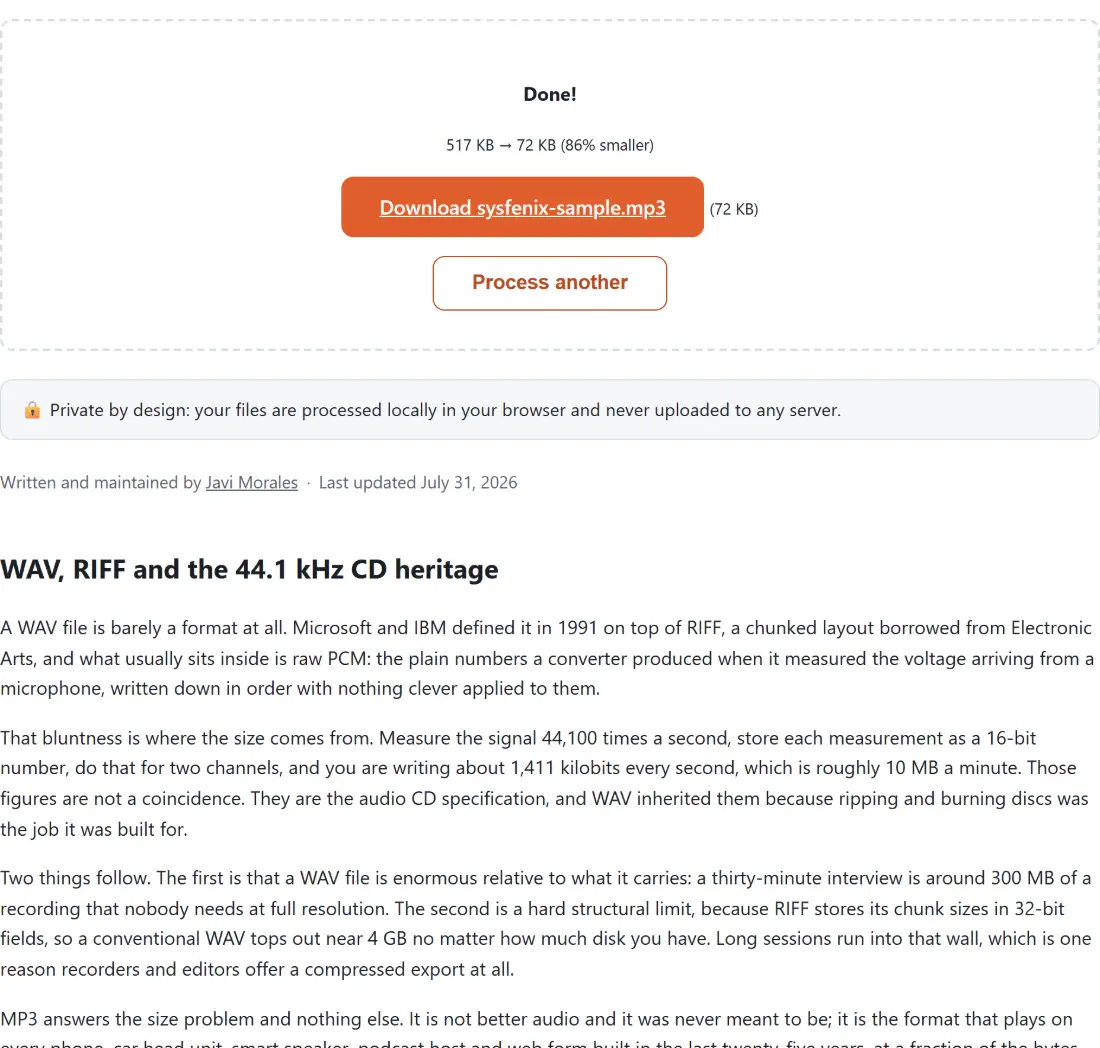
- Download the result. The MP3 keeps your original filename with the extension swapped, so
rehearsal-take-4.wavcomes back asrehearsal-take-4.mp3.
What LAME keeps and what it throws away
The encoder here is libmp3lame, the reference open-source MP3 encoder, and what it does is not compression in the zip sense. It splits the audio into short blocks, transforms each one into the frequency domain, and then spends its bit budget unevenly according to a psychoacoustic model: quiet detail sitting next to a loud neighbouring frequency is thrown away entirely, on the reasoning that your ear was never going to resolve it.
That is why the result is smaller by a factor of roughly ten and still sounds right, and also why it is irreversible. The discarded coefficients are gone. Converting the MP3 back with MP3 to WAV gives you an uncompressed file again, but it contains what the MP3 contains, not what the original recording did.
Practically, this means one rule: encode once, from the best source you have. Running audio through MP3 twice, or editing an MP3 and re-exporting it, stacks the losses. If a recording needs levelling before it is shared, run it through Normalize Audio while it is still WAV, which hands back a finished MP3 directly rather than a WAV to bring back here.
Where a WAV master still beats the MP3 copy
Keep the WAV whenever the file has a future beyond listening. Editors and DAWs cut, loop and fade PCM instantly because there are no frames to decode and re-frame. Hardware samplers and most CD burning software refuse anything else. Mastering engineers, distributors and broadcast ingest systems all ask for uncompressed audio, and sending them an MP3 means they master something that has already been degraded.
The MP3 is the delivery copy: the version you email to a client, load onto a phone, attach to a message or hand to a transcription service. Treating the two files as master and copy rather than as old and new version is the whole discipline. The rest of the audio tools on this site follow the same logic, though several of them take an MP3 only, so the delivery copy is what you hand those.