Online Teleprompter

A browser teleprompter with ten scroll speeds, a font size slider, mirror mode for beam-splitter rigs and a 3-2-1 countdown. Your script stays on your device.

🌐 Español

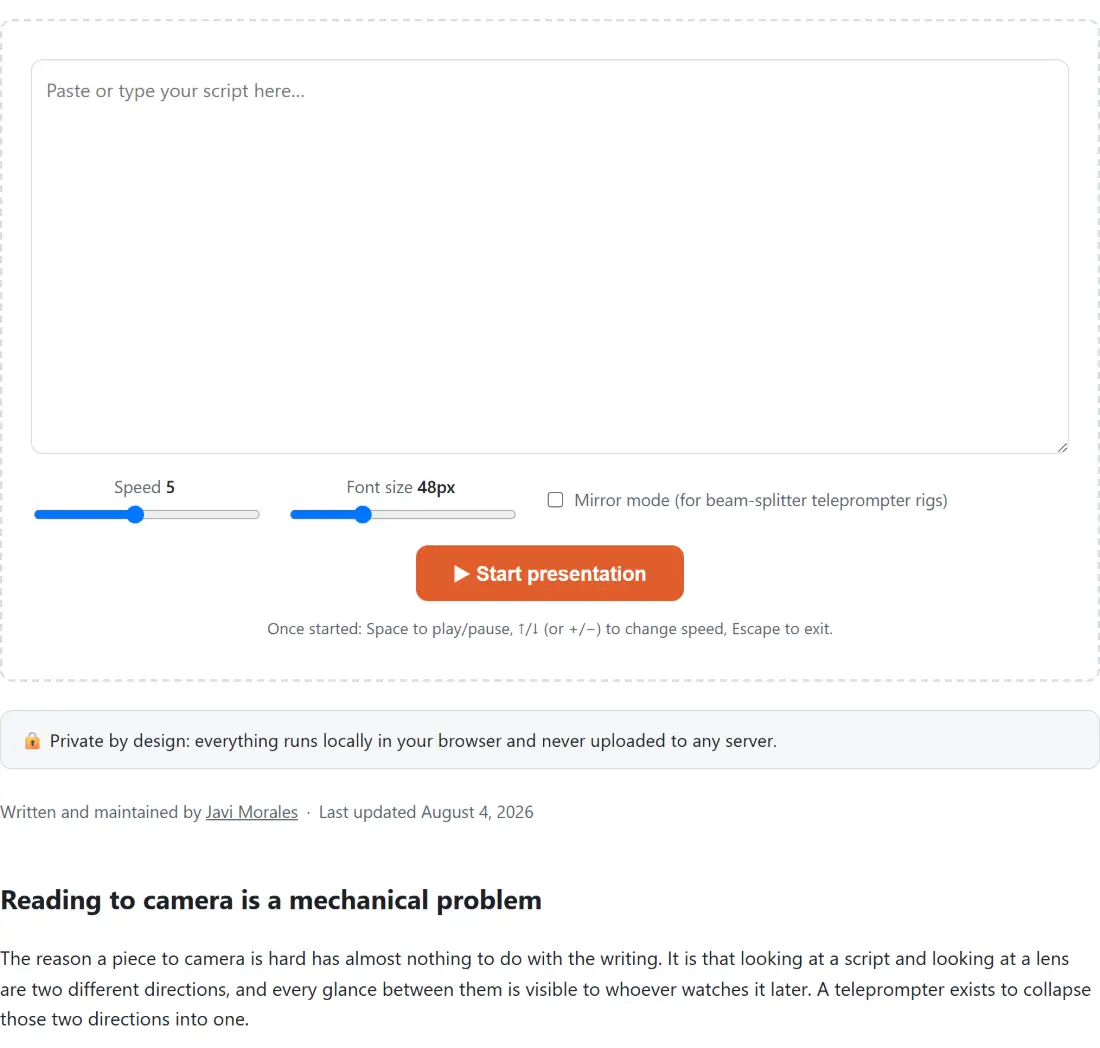
Once started: Space to play/pause, ↑/↓ (or +/āˆ’) to change speed, Escape to exit.

šŸ”’ Private by design: everything runs locally in your browser and never uploaded to any server.

Reading to camera is a mechanical problem

The reason a piece to camera is hard has almost nothing to do with the writing. It is that looking at a script and looking at a lens are two different directions, and every glance between them is visible to whoever watches it later. A teleprompter exists to collapse those two directions into one.

A dedicated hardware prompter does this with a beam splitter and costs real money. A software prompter on the screen you already have gets you most of the way, provided the text is large enough to read from where you are sitting and moves at a pace you do not have to think about.

Both of those are settings on this page, and both are the things people get wrong on their first attempt. The font is usually too small, because it looks fine while you are typing at desk distance and is unreadable from where the camera wants you. The speed is usually too fast, because reading silently is quicker than reading aloud.

Setting up a take

  1. Paste or type your script into the editor. It is kept in your browser between visits.
  2. Set Font size first. Sit where you will actually sit and check you can read it comfortably.
  3. Set Speed second, since the two interact.
  4. Enable Mirror mode only if you are using a beam splitter rig.
  5. Press start. A three second countdown runs, then the text begins to move.
  6. Use space to pause, the arrow keys to adjust speed and escape to get back to the editor.

Why speed is ten steps and not a slider

Scroll speed is quantised into ten levels, each twenty pixels per second faster than the last. That is a design decision rather than a limitation.

The moment you need to change speed is the moment you have started reading and discovered the pace is wrong. At that moment you have a fraction of a second, your eyes are on the text and your hands should not be visible. A discrete step you can nudge with an arrow key is usable in that situation. A continuous slider is not, because it requires you to look at it.

The same reasoning drives the keyboard shortcuts. Space, arrows and escape are all findable without looking, and adjusting speed mid take is normal rather than a failure.

Set the font before the speed

Because the scroll is measured in pixels rather than in words, the two settings are not independent. Doubling the font size at a fixed speed halves the rate at which words pass, since each line is now twice as tall.

That is why the order matters. Choose the font size from where you will be sitting, which is nearly always larger than feels right while you are setting it up, and only then find the speed that matches your speaking pace. Doing it the other way round means re-finding the speed every time you touch the font.

If you want to know in advance roughly how long the script will run, Speech Time Calculator estimates it from the word count at three delivery rates, and that estimate is a better starting point than guessing.

Recording alongside it

Nothing here records anything, which is deliberate: a prompter that also captured video would need the camera and the screen at once and would compete with whatever you are actually recording on. Use it next to your real recording setup.

If the take is a screen capture rather than a piece to camera, Screen Recorder captures the screen in the browser. For audio only, Voice Recorder writes an MP3 or WAV. If you would rather have the words spoken than read them yourself, Text to Speech generates the audio from the same script. The rest of the tools for checking a setup are on the testers hub.
See it in action

Screenshot of the Online Teleprompter tool with a teleprompter with scroll speed and a 48px font size, a mirror mode for beam-splitter rigs, and the keyboard controls listed up front - Space to play or pause, arrow keys or plus and minus to change speed
Online Teleprompter mid-process: a teleprompter with scroll speed and a 48px font size, a mirror mode for beam-splitter rigs, and the keyboard controls listed up front - Space to play or pause, arrow keys or plus and minus to change speed.
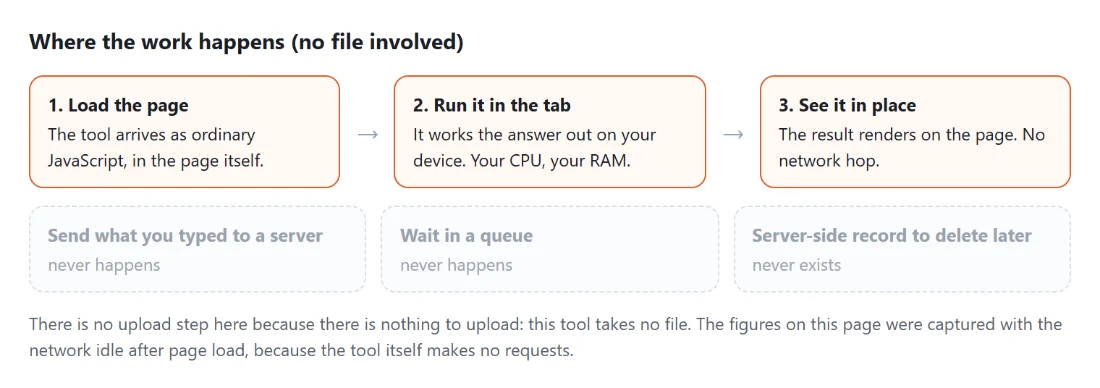
Diagram: where the work happens on a SysFenix page that has no file input at all: the tool arrives as ordinary JavaScript inside the page, works the answer out on your own device and renders it in place, so the upload, queue and server-side record a typical online tool needs never happen
Where the work happens on a SysFenix page that has no file input at all: the tool arrives as ordinary JavaScript inside the page, works the answer out on your own device and renders it in place, so the upload, queue and server-side record a typical online tool needs never happen.

Frequently asked questions

How fast does each speed level actually scroll?

Twenty pixels per second per level, so level 1 moves 20 pixels a second and level 10 moves 200. Ten levels is deliberately a small set, because a continuous slider invites fiddling and what you want mid take is a step you can hit blind. Since the movement is in pixels rather than words, the reading pace you get from a given level also depends on the font size, so set the font first and then find the speed.

Why is the scroll tied to elapsed time rather than to frames?

Because a frame based scroll runs at whatever rate the display and the browser happen to manage, which means the same speed setting reads differently on a 60 Hz laptop and a 120 Hz tablet, and slows down whenever something else on the machine competes for the processor. Each frame here advances by the real milliseconds elapsed since the previous one, so the pace stays honest even when frames are dropped.

What does mirror mode do and when do I need it?

It flips the text horizontally. That is only useful with a beam splitter rig, the sheet of half silvered glass mounted at an angle in front of a camera lens so you can read the script while looking straight down the barrel. The glass reverses the image, so the text has to be pre-reversed to come out readable. If you are simply reading off a laptop next to the camera, leave it off.

Which keys work once the presentation starts?

Space plays and pauses. The up and down arrows change speed, as do the plus and minus keys. Escape exits back to the editor. The on screen buttons do the same things, but the keyboard is what you want in practice because a hand moving to a mouse is visible on camera and a thumb on the space bar is not.

Does my script get saved or uploaded?

It is saved, locally, and never uploaded. The script and your speed, font size and mirror settings are written to your browser's own storage on your device, so closing the tab and coming back leaves everything as you left it. Nothing is transmitted and there is no account. If storage is unavailable, for example in a private window, the tool still works and simply does not remember anything next time.

What is the countdown for?

It gives you three seconds between pressing start and the text beginning to move, which is the gap you need to get your hand off the keyboard, settle your posture and start the recording cleanly. Without it the first line scrolls away while you are still reaching for the camera, which is why almost every take needs a second attempt.

Related tools