Video Info Viewer

Read a video's container, codec, resolution, frame rate, bitrate, rotation and audio details in your browser. Read only, nothing is uploaded or altered.

🌐 Español

Drop your file here (.mp4, .mov, .m4v, .webm, .mkv, .avi, .flv, .wmv, .mpg, .mpeg, .3gp, .ts, .ogv)

🔒 Private by design: your files are processed locally in your browser and never uploaded to any server.

The questions a video file will not answer by itself

A file manager tells you a video’s name, size and duration. Everything that actually determines whether it will play, edit or upload cleanly is invisible from there.

Which codec is inside, which is different from the container extension. What the real resolution is, as opposed to how it appears after rotation. What frame rate it was shot at. What the bitrate is, which decides whether it is worth compressing further. Whether there is an audio track at all, and in what format.

Those are the questions this page answers. It is deliberately read only, so it inspects and reports and never touches the file.

Inspecting a file

  1. Drop a video onto the box. Thirteen container extensions are accepted, one file at a time.
  2. Wait for the engine to load, which is the slow part on the first file in a session.
  3. Read the report, laid out as container, video stream and audio stream sections.
  4. Download it as a text file if you want to keep it next to the video.

Container and codec are different things

The single most useful thing this report clears up is the difference between the wrapper and what is inside it.

The extension names the container, which is the packaging. The codec is the compression scheme used for the actual picture, and the two vary independently. Two files both called .mp4 can hold entirely different codecs, and one of them may play everywhere while the other is refused by the same software. When a video will not open, this mismatch is the explanation far more often than genuine corruption.

The report names both, with the video codec’s profile alongside it where the file declares one, because profile is what a hardware decoder actually checks against.

Rotation, and why the resolution looks wrong

Portrait video from a phone is one of the most confusing things in this report until you know how it works.

The camera records landscape frames and writes a display matrix into the file saying rotate this on playback. Players honour it, so the video appears upright. The stored resolution, however, is the landscape one, which is why a portrait clip is reported as wider than it is tall.

The report shows the rotation as its own line whenever the file carries one, which turns an apparently wrong resolution into an explained one. It also matters practically, because some editing software ignores the flag and shows the video sideways, and knowing the flag exists points straight at the cause. Rotate Video is the tool for changing it.

Where the bitrate figure comes from

The report always names the source of the overall bitrate, and there are two.

Some containers record it directly, and where they do that figure is used and labelled as container reported. Others do not, and in that case the file size is divided by the duration and the result is labelled as an estimate.

Both are useful and they are not the same thing, which is why they are distinguished. A container reported figure is what the file claims. An estimate derived from size and duration includes container overhead and averages across a variable bitrate encode. Being told which one you are looking at is the difference between a number and a fact.

What comes after the diagnosis

If the file is large for its content, the bitrate figure is what tells you so, and Compress Video reduces it. If the codec is the problem rather than the size, Video Converter re-encodes to a widely playable target and MKV to MP4 covers the specific case of a container nothing will open.

For the equivalent inspection of a photo rather than a video, EXIF Viewer reads camera and location metadata from an image file. The rest are on the video hub.
See it in action

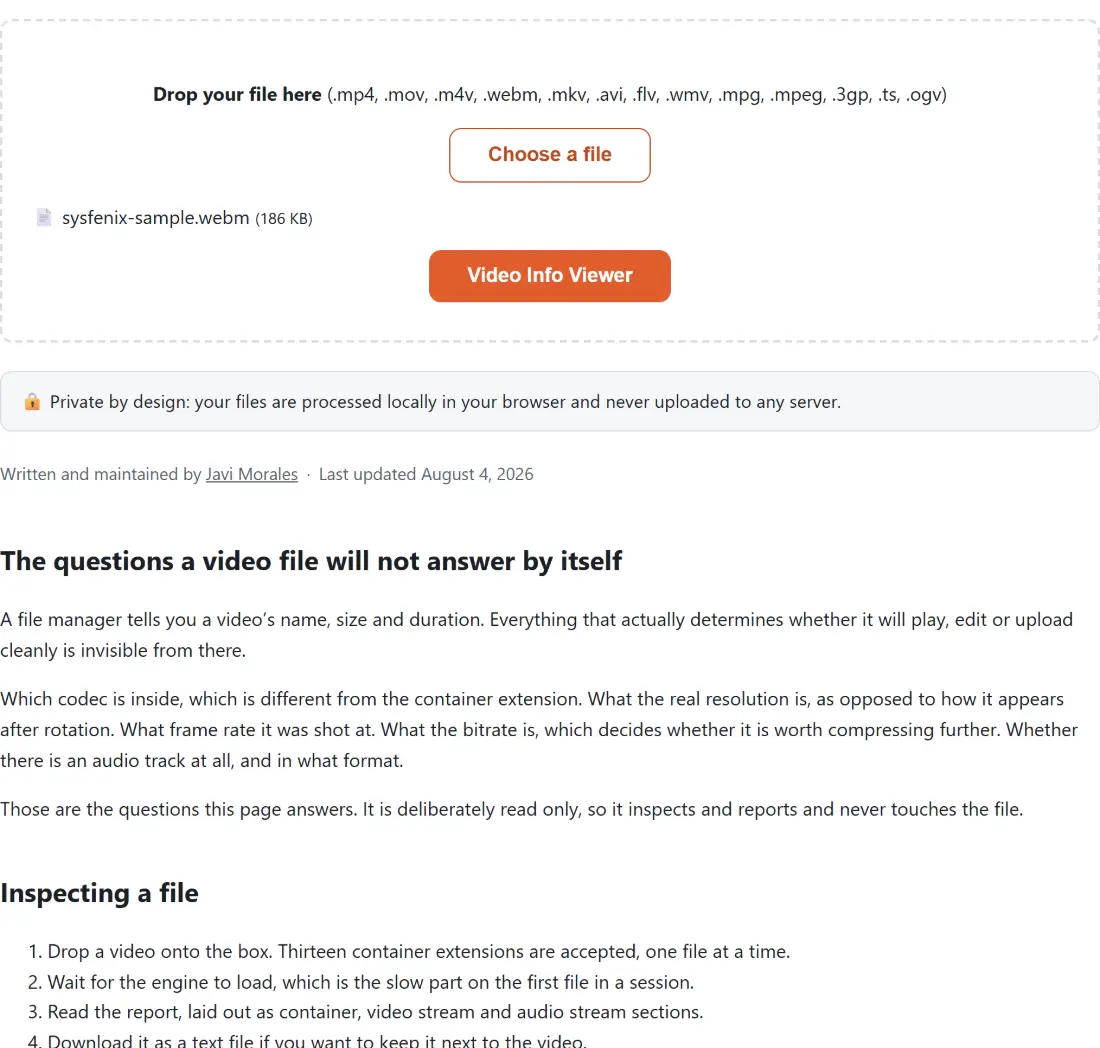
Screenshot of the Video Info Viewer tool with sysfenix-sample.webm (186 KB) loaded
Video Info Viewer mid-process: sysfenix-sample.webm (186 KB) loaded.
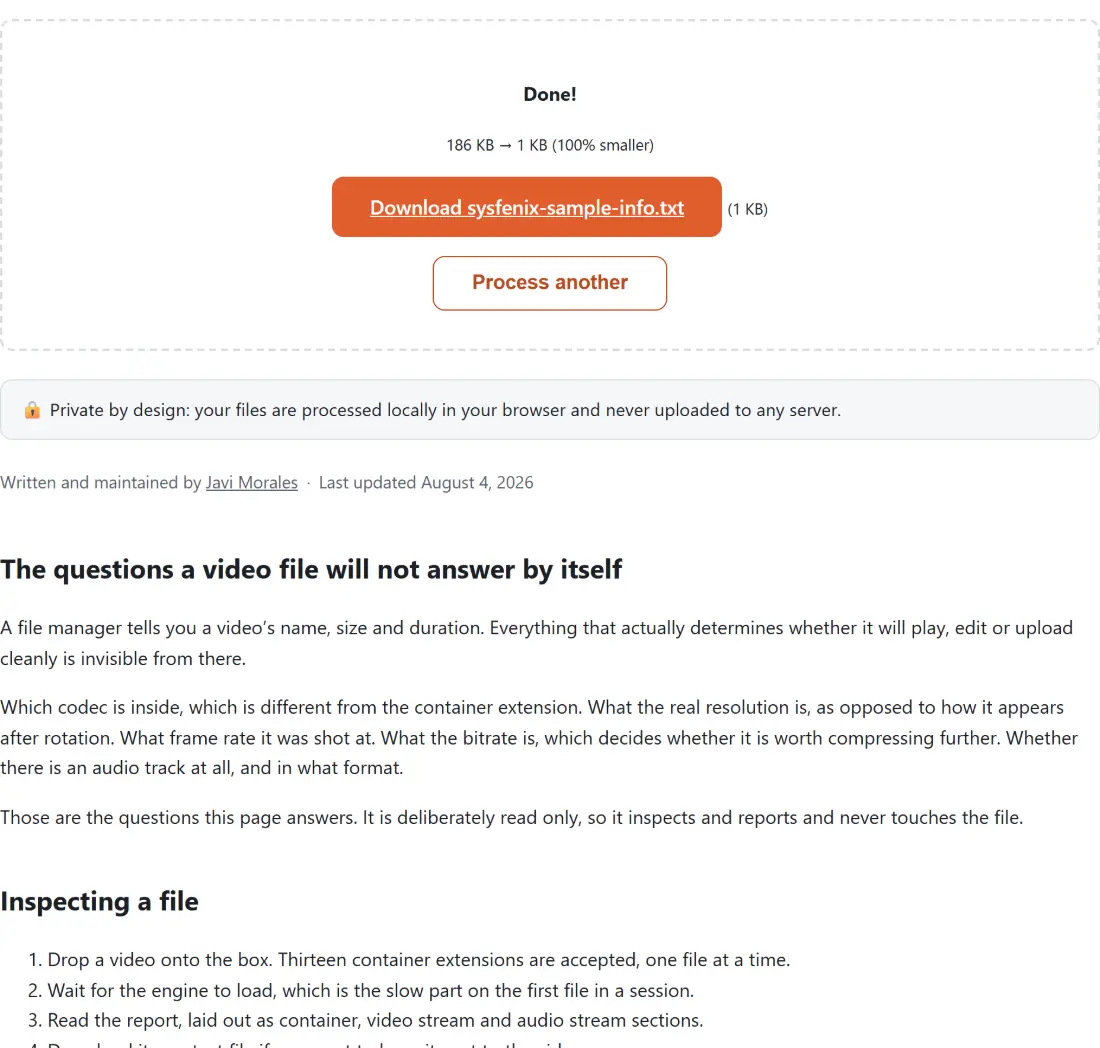
Screenshot of the Video Info Viewer result screen showing sysfenix-sample-info.txt ready to download (402 B, 100% smaller)
The finished result: sysfenix-sample-info.txt ready to download (402 B, 100% smaller). The download link is a local blob URL — the file never leaves your device.

Frequently asked questions

Does it change my file in any way?

No. It reads the file and writes a text report, and that report is the only thing produced. There is no re-encoding, no conversion and no rewriting of any kind, so the video you inspected is byte for byte what it was before. The report downloads as a plain text file named after the video.

What is in the report?

Three labelled sections. The container section gives the format, the file size in both readable and exact byte form, the duration in both a clock reading and seconds, and the overall bitrate. The video section gives codec and profile, resolution, display aspect ratio, frame rate, pixel format, per stream bitrate and rotation. The audio section covers the sound track's own codec, sample rate, channel layout, sample format and bitrate.

Why does the bitrate sometimes say it was estimated?

Because not every container records one. When the file states its overall bitrate, that figure is used and labelled as coming from the container. When it does not, the report divides the file size by the duration instead and labels the result as an estimate. The two are close for most files and can differ noticeably for one with an unusual structure, which is why the source is always named rather than left implicit.

What does the rotation line mean?

That the file carries a display matrix instructing players to rotate the picture on playback, which is how a phone records portrait video without actually storing rotated frames. The stored resolution stays landscape and the rotation flag tells the player what to do. That is why a video can be listed as wider than it is tall and still play upright, and why the flag matters when the file behaves oddly in an editor.

Does it show HDR metadata or per frame information?

No, and it does not pretend to. Everything reported comes from a basic probe of the file, which prints stream level properties and nothing more. Per frame data, the structure of keyframe groups and HDR mastering metadata are simply not in that output, so they are absent from the report rather than being guessed at.

My file produced no information at all. What does that mean?

That the probe found no audio or video streams in it, and the report says so directly rather than showing empty sections. The realistic causes are a file that is empty or truncated, a download that did not finish, or something that is not actually a media file despite its extension. It is worth checking the file plays anywhere before concluding the tool cannot read it.

Why does it take a moment before anything happens?

Because the media engine is a large WebAssembly build that has to load before it can read anything, and the file has to be brought into memory. The probe itself is quick, since it inspects the file's headers rather than decoding it, so almost all the time you wait is the one time engine load. A second file in the same session is much faster.

Related tools