If you’ve ever tried to shrink a video for email, fix an out-of-sync subtitle file, or just get an old camcorder clip to open on a modern phone, you’ve probably searched for “video converter online” and landed on a site full of upload limits, watermarks, and a mystery bill for the “Pro” version. This guide walks through every video tool on SysFenix — what each one actually does, when to reach for it, and which one to pick when several of them look similar.
The short version: every tool here runs entirely in your browser tab, using ffmpeg compiled to WebAssembly. Nothing you upload ever reaches a server. That’s not a marketing line — it’s the only way this whole toolset can exist for free, with no account, no daily limit, and no watermark.
Converting between video formats
Different cameras, phones and screen-capture tools save video in different containers — and plenty of apps and platforms only accept one of them. These tools all convert INTO the widely-compatible MP4 container (H.264 video + AAC audio), the safest target for compatibility across phones, editors, and social platforms:
- Convert MOV to MP4 — the classic iPhone/QuickTime format
- Convert MKV to MP4 — fast when possible (a lossless remux), falls back to a full re-encode automatically
- Convert WEBM to MP4 — for footage saved from web recorders or downloaded clips
- Convert AVI to MP4 — for older Windows-era video files
- Convert 3GP to MP4 — for very old feature-phone recordings
- Convert MTS to MP4 — for AVCHD camcorder footage (Sony/Panasonic/Canon camcorders)
Going the other direction, Convert MP4 to WEBM is useful if you specifically need the open WebM container (e.g. for a site that prefers it over MP4).
Compressing and resizing for upload limits
The single most common video-tool search is “make my video smaller.” Two tools handle this differently, and picking the right one matters:
- Compress Video shrinks an existing MP4 with presets built around real-world limits (email attachments, WhatsApp, Discord) by lowering bitrate/quality rather than resolution alone.
- Resize Video for Social Media is for a different problem: reframing landscape footage into TikTok/Reels/Shorts-friendly 9:16 (or 1:1, or 16:9) — it standardizes the aspect ratio and resolution, not just the file size, with a crop-to-fill or letterbox-pad choice.
- Crop Video is the simpler sibling of Resize Video — it just crops to a fixed aspect ratio at whatever resolution the source already has, without forcing a specific output size.
If your source file is already an animated GIF rather than a video, see the GIF section below instead.
Trimming, cropping, rotating and speed
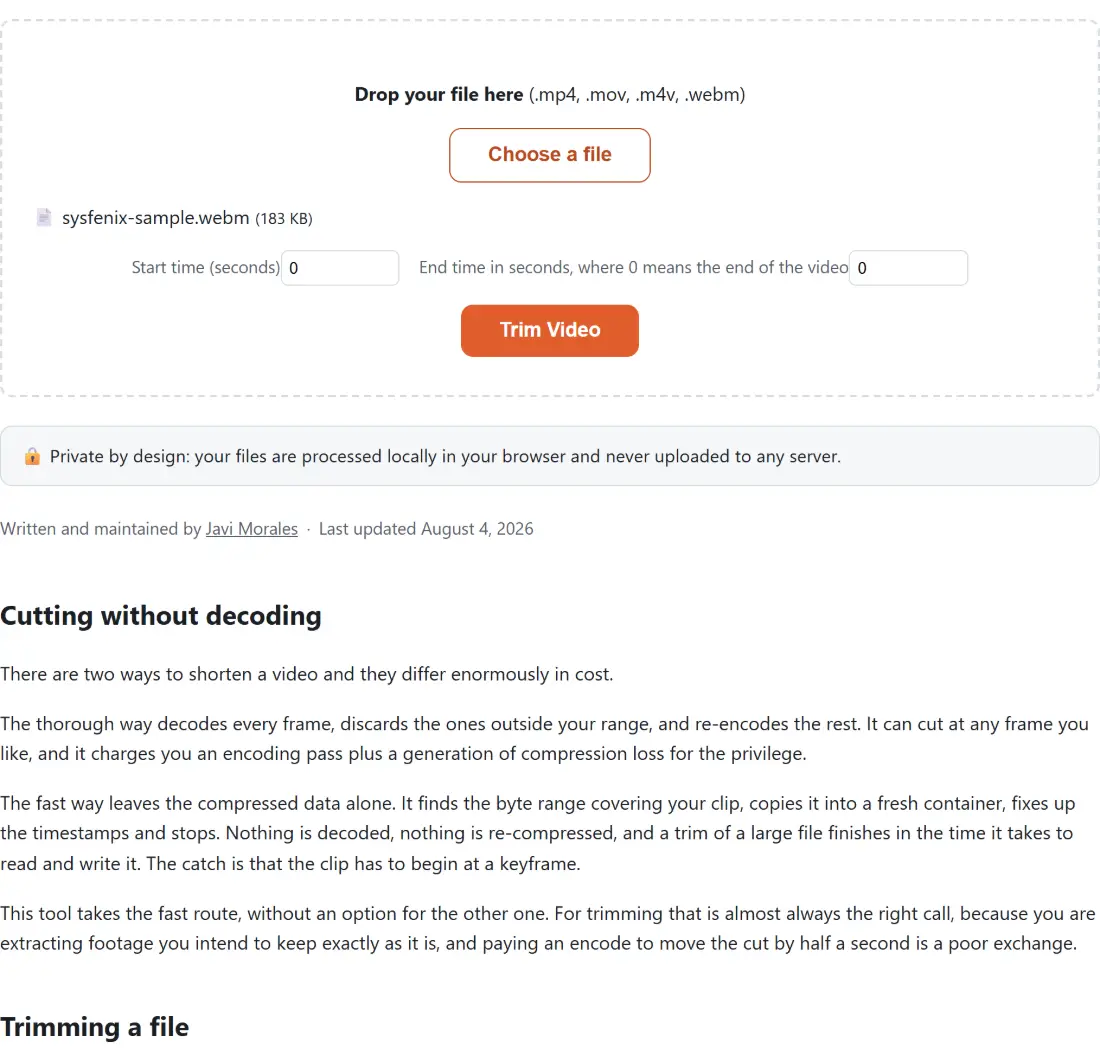
- Trim Video cuts a clip down to a start/end range — this is a fast, lossless stream-copy operation (no re-encode), so it’s near-instant even for long files.
- Rotate Video fixes footage that plays sideways or upside-down (a common phone-recording mistake), also fast when a lossless flag-rewrite is possible.
- Flip / Mirror Video horizontally or vertically mirrors every frame — useful for correcting a front-camera “mirrored selfie” recording. Unlike rotation, this always re-encodes (every pixel must move), so expect it to take a little longer.
- Change Video Speed speeds up or slows down a clip from 0.5x to 2x while keeping pitch-corrected audio in sync.
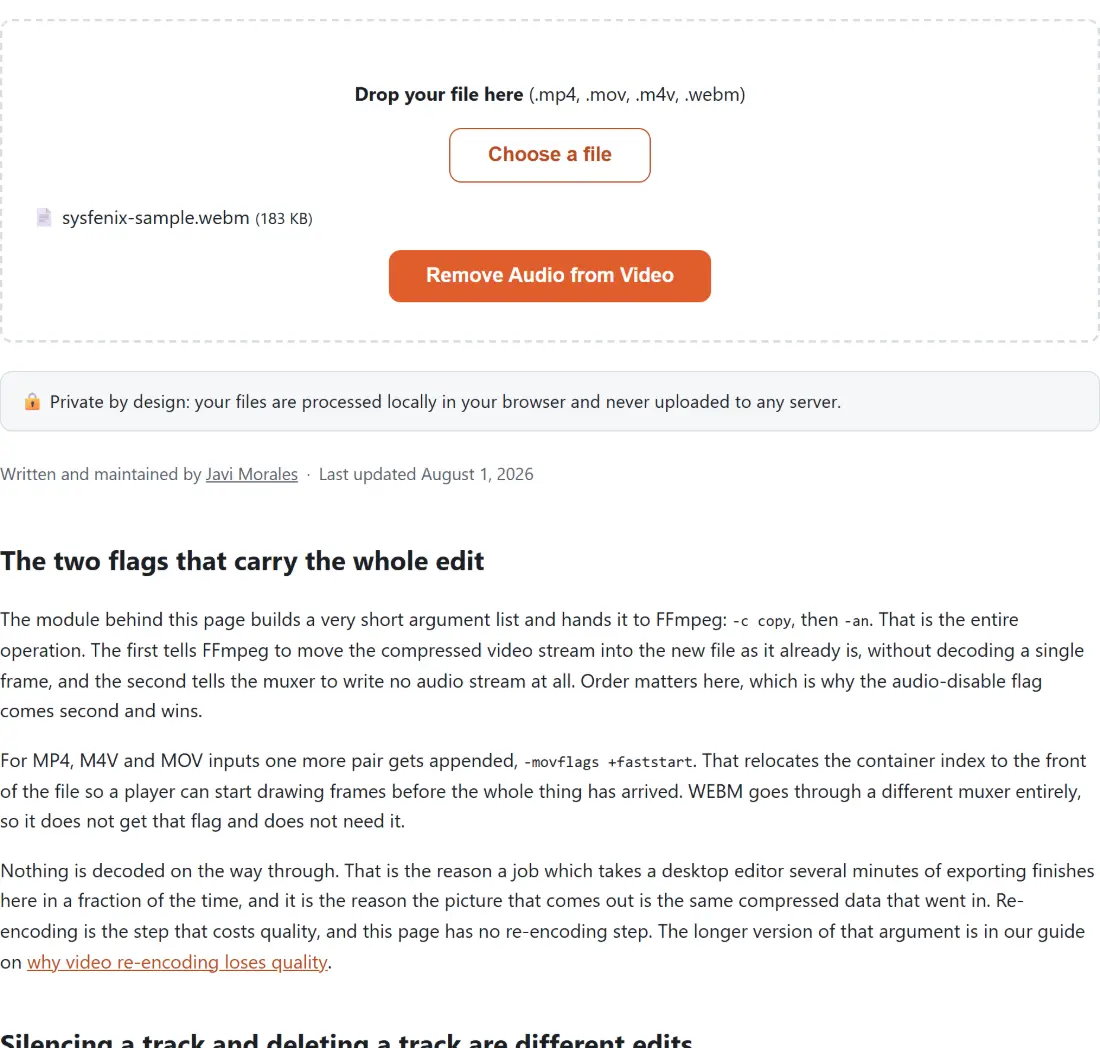
- Remove Audio from Video strips the audio track entirely (fast, lossless) — handy before adding your own soundtrack.
- Add Audio to Video does the reverse: replace or mix in a new audio track, including an option to blend the new audio with the original rather than replacing it outright.
- Video Volume Booster turns a video’s existing audio track up or down (with an optional clipping-safe limiter) without touching the picture at all.
- Merge Videos joins several clips into one file, automatically detecting whether a fast lossless join is possible or whether a full re-encode is needed to make mismatched clips (different resolution, codec, or frame rate) fit together cleanly.
Screen recording
Screen Recorder captures your screen (a tab, a window, or your whole desktop), optionally with microphone audio, and saves the result as a WebM file — again, entirely locally, using your browser’s native screen-capture permission with no third-party server in the loop.
GIFs and animated images
- Convert MP4 to GIF and Convert GIF to MP4 move in either direction between video and animated-GIF.
- Make a GIF from Photos builds an animated GIF directly from a batch of still photos, with per-frame timing control.
- Compress GIF shrinks an existing GIF’s file size using the same two-pass palette technique as the conversion tools, with light/balanced/aggressive presets.
- GIF Speed Changer speeds up or slows down an existing animated GIF (0.25x to 4x) while preserving its infinite-loop behavior.
Subtitles
- Add Subtitles to Video permanently burns an SRT or VTT subtitle file into the video frames themselves (useful for platforms that don’t support separate subtitle tracks).
- Convert SRT to VTT converts between the two most common subtitle-file formats (auto-detected by file extension, works in both directions).
- Shift Subtitle Timing fixes out-of-sync subtitles by shifting every timestamp earlier or later by a fixed offset, with an optional linear stretch for framerate mismatches — without ever changing the file format.
Getting audio or video from mixed sources
MP3 to MP4 Video Converter solves the opposite problem from most tools here: turning a plain MP3 (or WAV/M4A/OGG/FLAC) into an MP4 video file with a static image background, for platforms like YouTube that require a video track even for audio-only content.
Which tool should I use?
| I want to… | Use this tool |
|---|---|
| Make a video small enough to email or attach to a message | Compress Video |
| Reframe landscape video for TikTok/Reels/Shorts | Resize Video for Social Media |
| Cut out a specific segment of a clip | Trim Video |
| Fix sideways or upside-down footage | Rotate Video |
| Mirror a front-camera recording | Flip / Mirror Video |
| Speed up or slow down a video | Change Video Speed |
| Turn my phone/camera video into MP4 | MOV to MP4 / MKV to MP4 / AVI to MP4 |
| Remove the audio from a video | Remove Audio from Video |
| Replace or add a soundtrack | Add Audio to Video |
| Make my video’s audio louder or quieter | Video Volume Booster |
| Combine several clips into one file | Merge Videos |
| Record my screen | Screen Recorder |
| Turn a clip into a shareable animated GIF | Convert MP4 to GIF |
| Shrink an already-made GIF | Compress GIF |
| Burn subtitles permanently into the video | Add Subtitles to Video |
| Fix subtitles that are out of sync | Shift Subtitle Timing |
| Turn an MP3 into a video file for YouTube | MP3 to MP4 Video Converter |
Whatever you pick, the promise is the same across every tool above: your file is processed on your own device, downloaded straight back to you, and never touches a server. Since video files are typically much larger than photos or text documents, skipping the upload step isn’t just a privacy win — it’s also noticeably faster than waiting for a multi-gigabyte file to round-trip through someone else’s server before you even see a progress bar.