“Nothing is uploaded” is the sort of claim that is easy to print on a page and hard to check. It is also, when it is true, the result of a specific and slightly unusual way of building a web application. This is what that actually looks like from the inside: what the browser hands the page, where the work happens, what genuinely does cross the network, and how to confirm any of it for yourself.
The file input does not move anything
The mental model most people carry is that choosing a file in a web page copies it somewhere. It does not. A file input, or a drop target, gives JavaScript a File object, and a File is a handle: a name, a size, a MIME type and a permission to read bytes that are still exactly where they were on your disk.
Nothing happens to those bytes until code asks. When it does ask, it can ask in two very different ways, and the difference matters more than it sounds:
file.arrayBuffer()reads the whole thing into memory at once.file.stream()returns a readable stream that delivers the file in chunks.
Both are local disk reads. Neither involves a server. Uploading is a separate, deliberate act that some code has to perform: passing the file as the body of a fetch or XMLHttpRequest call. It is not a side effect of selecting a file, and it never happens by accident. The privacy property is not that uploads are blocked, it is that the upload call is simply never written.
The work happens in the page, not in a server process
A browser can decode a JPEG and draw on a canvas natively, which covers a surprising amount of image work. It cannot natively transcode an H.264 video, rasterise a PDF page, or run optical character recognition. Those need a real library shipped to the page along with it. Usually that means WebAssembly: the same C or Rust library a desktop application would link against, compiled to a binary format the browser executes directly. Sometimes, where the algorithm is small enough that JavaScript is already fast at it, it just means JavaScript.
That is why compressing a video in a browser is possible at all. The video compressor runs a genuine build of ffmpeg. Its presets are ordinary ffmpeg arguments: libx264 at a constant rate factor of 26, 28, 30 or 32 depending on the target, the fast encoder preset, AAC audio at 128 kbps for the balanced preset and 96 kbps for the smaller ones. Nothing is simulated or approximated. The identical command line would produce the identical file on a laptop.
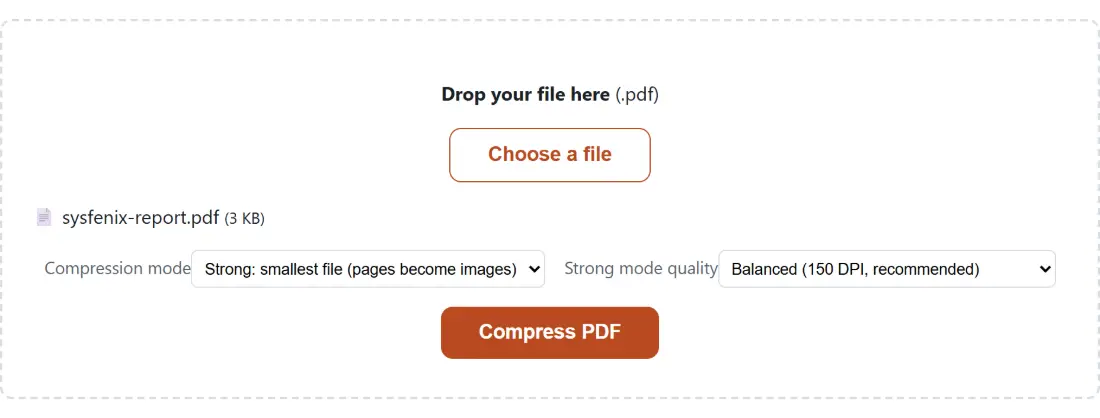
The PDF compressor works the same way with a different library. Its heavy mode loads each page through pdf.js, renders it to a canvas at 150 DPI (or 100 DPI at the most aggressive setting, since a PDF page is defined at 72 points to the inch, making 150 DPI a render scale of just over two), re-encodes that canvas as JPEG, and rebuilds a new document around the images. Its light mode never rasterises anything and just re-serialises the existing objects.
This has a consequence people rarely connect to privacy: the tools are slower than a server would be, and that slowness is structural rather than sloppy. A tab here gets one thread. The multi-threaded builds of ffmpeg and similar libraries require SharedArrayBuffer, which browsers only grant to pages that send cross-origin isolation headers, and those headers break embedded third-party iframes. Choosing not to send them is choosing the single-threaded codec. A four-core machine will use one core for your encode. That is the price of the architecture, paid openly.
What does cross the network
Here is the part that a marketing page tends to skip. Something is definitely downloaded.
The ffmpeg core is a WebAssembly binary large enough to exceed the per-file limit of the static host this site runs on, so it is fetched from a public package CDN at a pinned version, converted into a same-origin blob URL, and then loaded. The PDF tools fetch their render worker from the same CDN, pinned to the exact installed library version. The OCR tools fetch a trained language model.
Those are real network requests, and they are worth understanding rather than glossing over. They move code towards your machine. They never carry your file, because the file is not part of the request. What an observer on that path can learn is which artefact you requested, which suggests the category of tool you opened. What they cannot learn is anything about the document, because the document was never a parameter in the exchange.
That distinction, inbound code versus outbound content, is the whole architecture in one sentence. It is also exactly what the Network tab in your browser’s developer tools shows you, which is why it is a checkable claim rather than a promise.
Memory is the real constraint
Since the processing happens inside a tab, the tab’s memory budget is the ceiling. A codec typically needs three things resident at once: the input, its own working buffers, and the output being assembled. So the honest limit for a whole-file operation is closer to a third of your available RAM than to your free disk space, and a tab that overruns it is terminated by the browser rather than slowed down.
Well-built tools avoid the whole-file read wherever the operation allows it. The checksum tool is the clearest example, because hashing is inherently incremental. It reads the file through file.stream() and feeds each chunk to the hasher as it arrives, so peak memory is bounded by the chunk size rather than by the file. That choice also explains a slightly surprising implementation detail: the browser’s built-in Web Crypto API supports SHA-1, SHA-256 and SHA-512, but its digest method takes one complete buffer and returns one complete digest, with no incremental interface at all. To hash a multi-gigabyte disk image without buffering it, you need a library that exposes a real init, update and digest cycle, which is why all four algorithms offered there (MD5, SHA-1, SHA-256 and SHA-512) run through a WebAssembly hashing library instead of the native API.
Transcoding cannot be streamed the same way, which is why a very long video will fail in a tab where a 40 MB one succeeds. That is not a policy limit imposed by a plan tier. It is arithmetic.
Cryptography without a server is not a compromise
There is an assumption that anything security-related has to happen server-side to be trustworthy. For password-based file encryption the opposite is true, because the alternative is sending both your file and your password to somebody else.
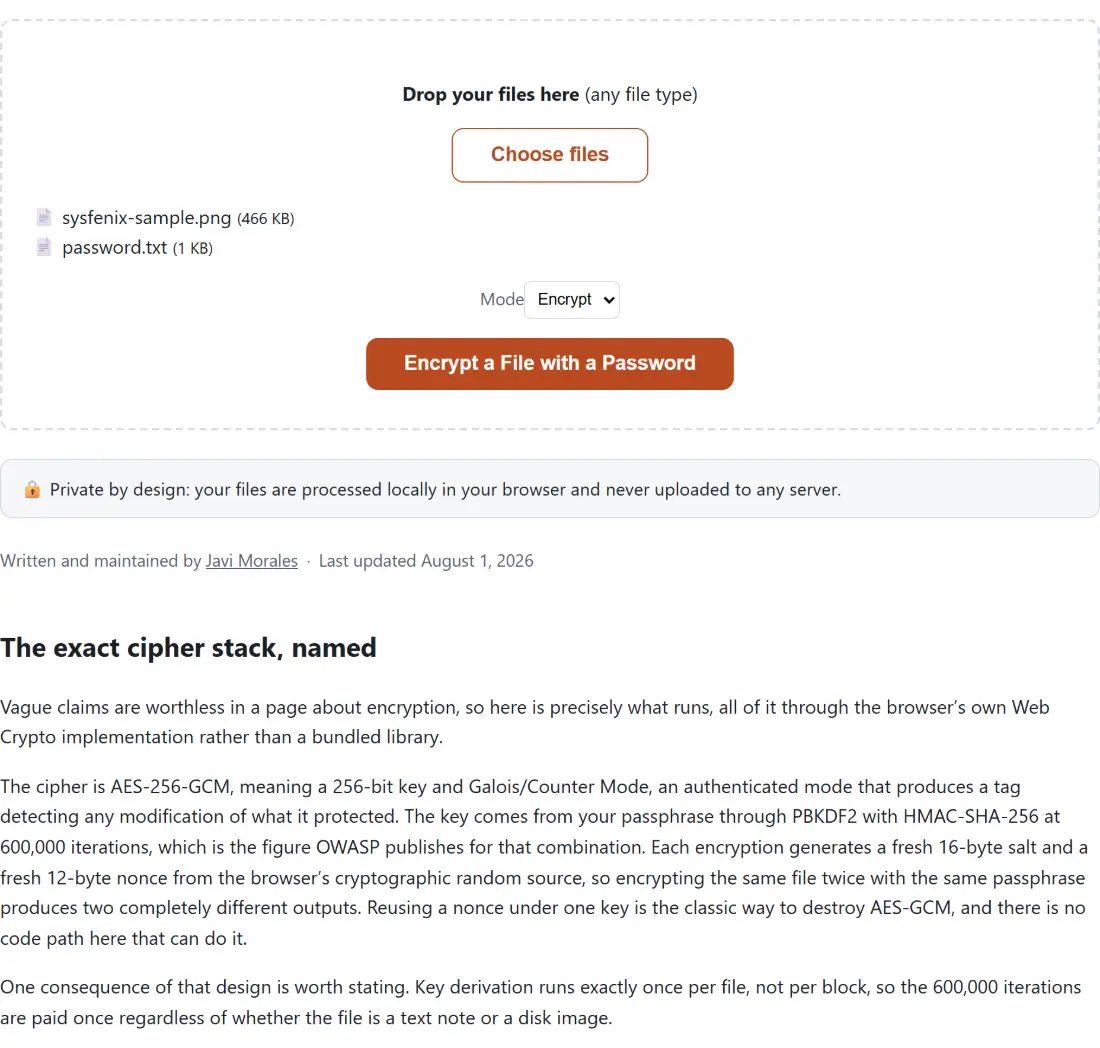
Every primitive needed is already in the browser as part of Web Crypto. The file encryption tool derives a 256-bit AES-GCM key from your password with PBKDF2-HMAC-SHA256 at 600,000 iterations, the figure OWASP’s Password Storage Cheat Sheet currently recommends for that combination. It generates a fresh 16-byte random salt on every single encryption, which comfortably clears the 128-bit minimum NIST SP 800-132 sets, and a fresh 12-byte random nonce, the standard length for AES-GCM. The container’s own header, including the iteration count, the salt and the nonce, is passed to the cipher as additional authenticated data, so altering any byte of it makes decryption fail loudly instead of quietly producing garbage.
Two honest caveats, because a guide that only lists strengths is an advert. The original file name is stored in that header as readable text, authenticated but not encrypted, so that decryption can restore it; anyone with the encrypted file can see what it was called. And a password typed into a page is only as private as the device you typed it on. Client-side does not mean invulnerable, it means the blast radius is your machine rather than a shared database.
The same principle applies to the more mundane archive builder, which assembles a real ZIP with a DEFLATE implementation running in the page, at compression level 0, 6 or 9 depending on the preset you pick. That one is the counter-example to the section above: there is no WebAssembly involved at all, because DEFLATE is compact enough that a plain JavaScript implementation is genuinely fast, and open the Network tab on that page and you will find no codec being fetched. There is still no reason for a file to make a round trip across the internet so that a remote CPU can run DEFLATE on it, when the CPU in front of you runs the same algorithm instantly.
How to check any of this yourself
Do not take a claim like this on trust, from this site or any other. Two tests settle it.
Open the Network tab in developer tools before you run a tool. You will see the page’s own assets and any codec being fetched. If your file were being uploaded there would be a request whose payload size is roughly the size of your file, and it would take roughly as long as an upload takes. Its absence is visible.
The stronger version: load the page, then disconnect from the network completely, then process a file. If the tool still runs to completion and hands you a result, the processing demonstrably involved no server. That test is not available to anything that quietly does the work elsewhere, which is precisely what makes it worth running.