Where the megabytes in a PDF actually sit
A PDF that will not fit through an upload form is almost never full of text. Text is stored as instructions (set this font at this size, move here, draw these glyphs) and compresses down to very little. What makes a document heavy is pixels. A phone camera “scan” is a full resolution JPEG per page in a PDF wrapper. A report exported from a design tool carries its photographs at whatever resolution they were imported at. A screenshot pasted into a slide deck arrives at the size of somebody’s monitor and stays there.
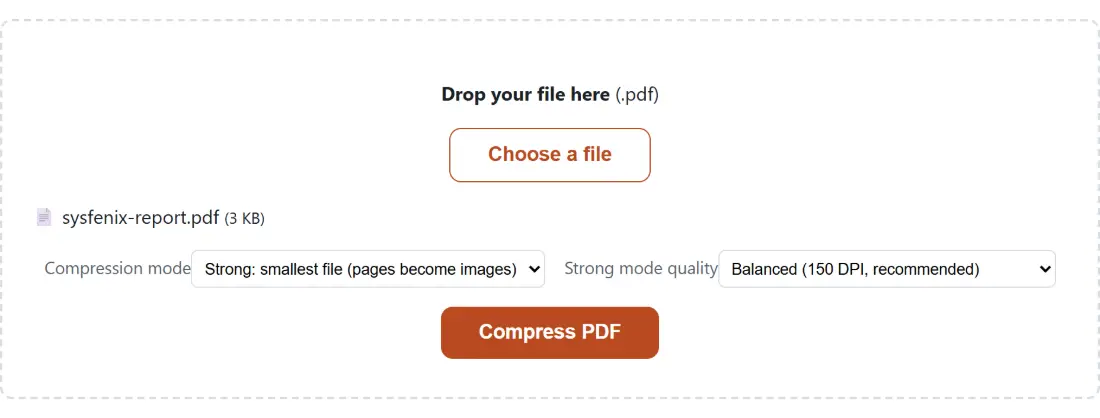
That leaves two honest ways to shrink the file. Re-encode the pictures at a lower resolution, which changes what is on the page, or leave the page contents completely alone and squeeze the container around them. The Compression mode select is that choice, and the two options work by genuinely different mechanisms rather than being two settings of one dial.
Strong mode rasterises, clean-up rewrites
Strong: smallest file (pages become images) is the default and much the bigger lever. Each page is opened with pdf.js, drawn onto a canvas at the chosen resolution over a white background, and encoded to JPEG. A fresh document is then assembled with pdf-lib in which every page keeps its original size in PDF points and is filled edge to edge by that one JPEG, saved with object streams switched on so the small internal objects pack together.
The consequence is worth stating plainly rather than burying. Whenever the rebuilt file is the one handed back to you, the page is a photograph of itself. Text cannot be selected, copied, searched or read aloud, and links, form fields, bookmarks and annotations do not survive either, because a new document was built rather than the old one edited. On a scan that costs nothing, since scanned text was already pixels. On a contract you still need to search or fill in, it costs a great deal. The size guard described further down is the one case where none of it happens, because there your original file comes back unchanged.
Lossless clean-up: keeps selectable text goes the other way. pdf-lib loads the file without updating its metadata, deletes the Metadata and PieceInfo entries from the document catalog, drops the trailer’s Info dictionary, and writes everything back out using compressed object streams. Not one page is touched. Text stays live, links keep working, form fields still fill in, and what disappears from that rewritten copy is the pointer to the document’s identifying metadata, along with its structural slack. Whether the copy reaches you is decided by the same size guard: it is handed over only when it came out smaller than the input, and otherwise you get your original back unchanged. On a file from a tidy generator that is a modest win. On something exported by an older office suite it can be a large one.
Running the compression
- Drop your PDF into the box above, or click Choose a file.
- Pick a Compression mode. Leave it on strong for a scan or a photo-heavy report; switch to the lossless clean-up when the text has to stay selectable.
- If you stayed on strong, choose a Strong mode quality from the three fixed presets.
- Click Compress PDF. If you stayed on strong, the bar advances one page at a time while the pages render, then holds near the end while the new document is assembled. The lossless clean-up has no per-page stage to report, so its bar simply sits at the start until the rewritten file is finished.
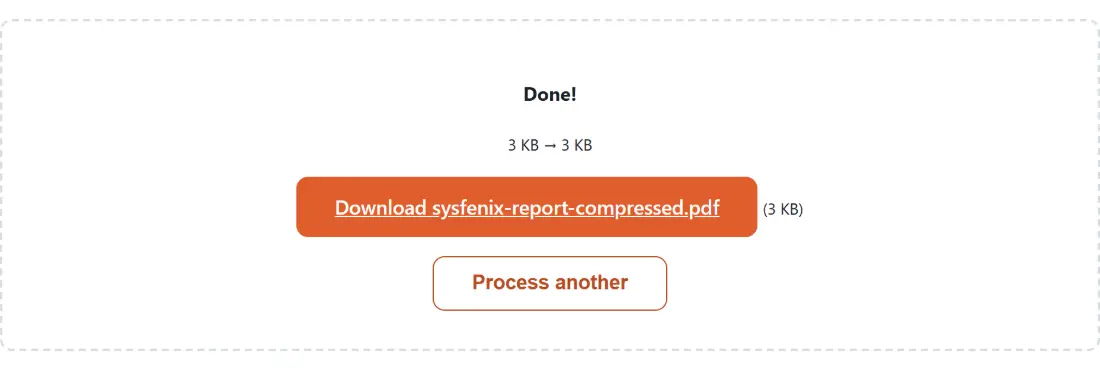
- Read the before and after size line, then save the file from the download link. A file called
report.pdfcomes back asreport-compressed.pdf.
Reading the DPI and JPEG quality behind each preset
Each strong-mode preset is a fixed pair of numbers, not a vague slider. Better quality (150 DPI, light compression) renders at 150 dots per inch and encodes at JPEG quality 0.85. Balanced (150 DPI, recommended) keeps the same 150 DPI and lowers the JPEG quality to 0.7. Smallest file (100 DPI) renders at 100 DPI and encodes at 0.5.
DPI here is a real scale factor rather than a label, because a PDF page is measured in points at 72 to the inch. Rendering at 150 DPI therefore draws the page at just over twice its nominal size, which turns an A4 page into roughly 1240 by 1754 pixels. At 100 DPI the same page lands near 827 by 1169: still readable, visibly softer once you zoom.
The two ends of the range protect different things. The higher preset spends its budget on JPEG fidelity, so small print and thin rules keep their edges. The smallest preset cuts resolution and fidelity at once, which is the right trade for a photographed receipt and the wrong one for a page of eight point legal text. If colour is what is costing you, Grayscale PDF removes it as a separate step, and Resize PDF Pages is the tool for changing the physical page dimensions.
When the download is the same size as the original
Before handing anything back, the tool compares the rebuilt file against the input and returns your untouched original if the new one is not smaller. That guard is there because compression really can backfire. A text-only PDF is already compact, and converting crisp vector glyphs into JPEG pixels adds data instead of removing it. A well built document can also come out fractionally larger from the lossless path once its objects are re-laid out.
When that happens you still get a download named -compressed.pdf, and the size line simply shows the same figure twice. Read that as the honest answer rather than a failure. If the file has to be smaller anyway, the remaining levers are structural: strip the document metadata with Remove PDF Metadata, or drop what you do not need to send at all.
Scans, payslips and the reason this one runs locally
The documents people compress are the ones they should think twice about uploading: signed contracts, bank statements, photographed passports, discharge letters from a hospital. A conventional online compressor needs the whole file on its server to do the work, which means your paperwork exists, however briefly, on a machine whose retention policy you have never read.
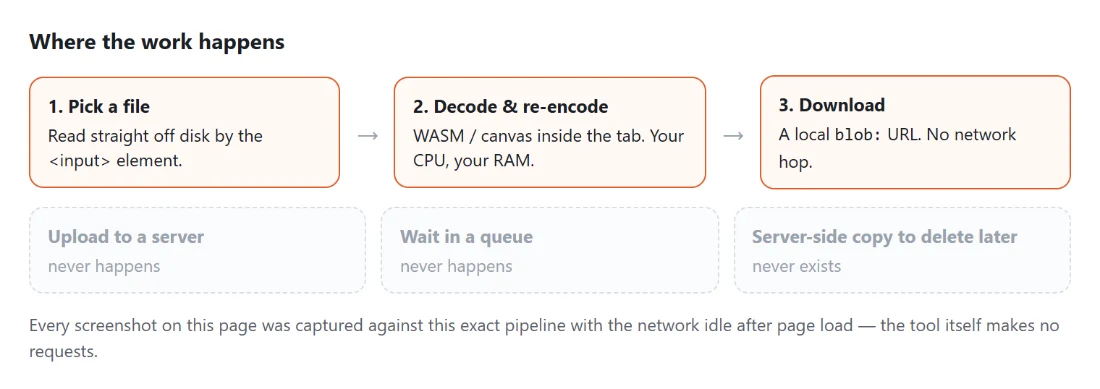
Here the file is read straight out of your device’s memory and rendered by pdf.js in the same tab. The only thing fetched over the network is the pdf.js render worker, pulled from unpkg the first time strong mode runs in a tab and pinned to the exact installed version; the lossless path does not even need that, since it is pure pdf-lib. Your document is never part of any request. The practical ceiling is memory rather than policy, because the input, every rendered page and the finished output all live in the tab at once. For the rest of the toolkit see all PDF tools, or read the best PDF tools, compared.