Two files, both a ten page document, both looking identical on screen. One is 90 kilobytes and the other is 30 megabytes. Nothing is wrong with either, and the difference is entirely explained by what is actually stored inside them.
PDF is a container, and its size is dominated by which kind of content it holds. Understanding the categories tells you immediately whether a given file has anything to gain from compression, and which operation will actually recover the space.
The three things a PDF is made of
Text is astonishingly cheap. A page of body text is a few thousand characters plus positioning information, and the whole lot is compressed by the format itself. Ten pages of text can genuinely be tens of kilobytes.
Fonts are where the first surprise lives. A PDF that will render identically anywhere has to embed the fonts it uses, and a full font file is often hundreds of kilobytes for a single weight. A document using four weights of a family can carry more font data than text by an order of magnitude. Good producers subset, embedding only the glyphs actually used, which reduces this dramatically. Poor ones embed everything.
There is one exception worth knowing because it explains why some tiny PDFs render slightly differently on different machines. Fourteen fonts are considered standard and every reader is expected to provide them, so a file using one refers to it by name rather than shipping it. That costs nothing and looks marginally different depending on what the reader substitutes.
Images are where the bytes actually go, and they are the reason for the tenfold differences. A photograph or a scanned page is millions of pixels, and no amount of cleverness elsewhere in the file competes with that.
A scan is a photograph of words
This is the single most useful distinction, and it explains most size complaints.
When a word processor exports a PDF, the words are stored as characters. When a scanner produces one, the words are stored as a picture of a page. To a reader both look like a document. To the file, one is a few kilobytes of text and the other is a high-resolution photograph, most of whose pixels are recording the subtle variations of an almost-white sheet of paper.
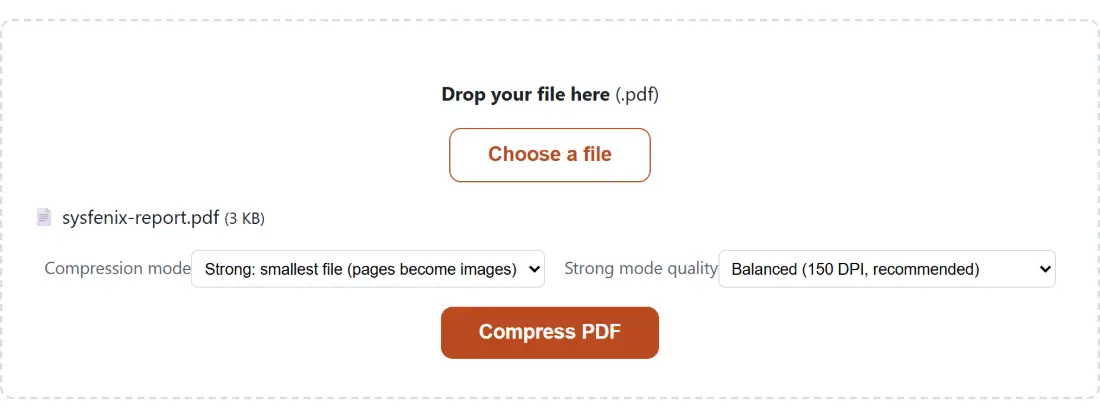
That is also why the two respond so differently to compression. Our PDF compressor works by rendering each page and re-encoding it as an image at a chosen resolution and quality. Its levels are concrete: the high setting renders at 150 dots per inch with JPEG quality 0.85, the balanced setting keeps 150 dots per inch and drops quality to 0.7, and the most aggressive setting drops to 100 dots per inch at quality 0.5. For context, PDF’s own coordinate system is 72 points to the inch, so a scale factor of 1 is 72 dots per inch, and these settings are all rendering above that baseline.
On a scanned document, that process is transformative, because it replaces a set of oversized photographs with smaller ones. On a text document it is a poor trade, because it converts real text into pictures of text: the file may not shrink much, and the output is no longer searchable or selectable. Knowing which kind of file you have before compressing is most of the skill.
Colour is a multiplier on every image
A colour image stores three channels. A greyscale image stores one. That is roughly a threefold reduction before any other compression, applied to the part of the file that dominates its size.
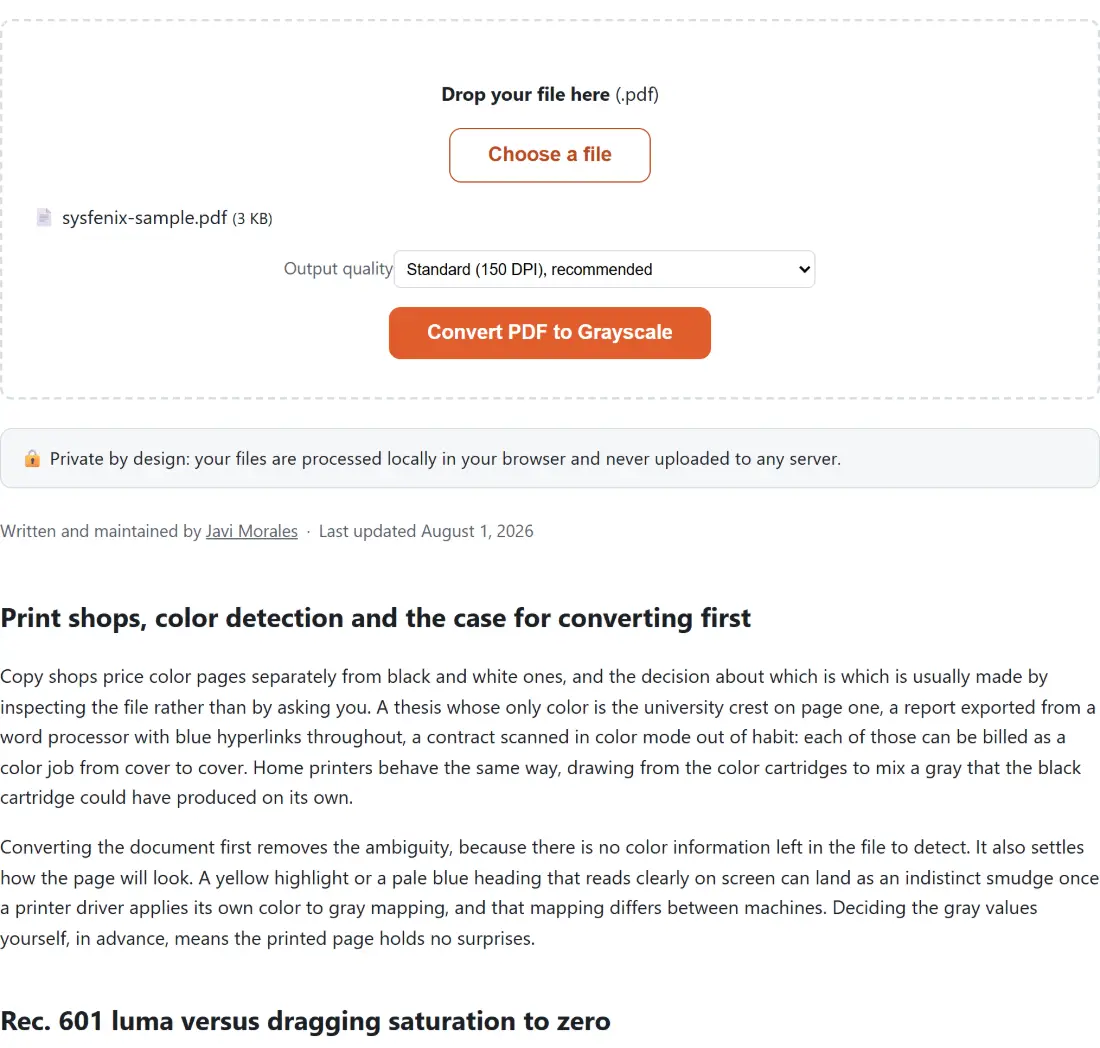
For a huge proportion of scanned material, colour carries no information at all. A contract, a receipt, a form, a photocopied article: all of them are black marks on white paper, and the colour channels are recording nothing but the paper’s tint and the scanner’s noise. Running a PDF through greyscale conversion is often the largest single reduction available on that kind of document, and unlike aggressive quality reduction it does not blur anything.
That tool exposes its own resolution and quality pairs, and they are deliberately different from the compressor’s, because the intent is different: a print setting at 300 dots per inch and quality 0.92, a standard setting at 150 and 0.85, and a small setting at 100 and 0.7. The print setting exists precisely because greyscale conversion is frequently applied to documents that will be printed, where dropping resolution would be the wrong economy.
The conversion is a weighted sum rather than an average of the channels, using the same perceptual weights as photographic greyscale conversion, so text keeps its contrast against the page instead of going muddy.
Page size is a coordinate box, not a size
A recurring assumption is that shrinking the page dimensions shrinks the file. It does not, and the reason is worth stating clearly.
Page dimensions in a PDF are a box: a statement about the coordinate space the content is drawn in. Changing it rescales where things sit. The text objects, the embedded fonts and, crucially, the embedded images are all still there at their original data size. Resizing PDF pages is the correct tool when a document needs to fit a paper size, when a printer has rejected a job for the wrong dimensions, or when a set of documents needs to be consistent for binding. It is the wrong tool for making a file smaller, and expecting otherwise leads to the conclusion that it did not work.
Finding out what is actually inside
Before compressing anything, it is worth knowing where the bytes are, and there are two useful ways to look.
Extracting the images from a PDF pulls out the embedded picture data as separate files. If a supposedly text-based document yields a handful of enormous images, you have found your problem, and the answer may be to replace those images rather than to compress the whole document. It is also the honest way to discover that a document you thought was text is a scan: a ten page file that yields ten full-page images is a scan, whatever it looks like.
That extraction is genuinely reading the embedded objects rather than photographing pages. Small one-bit images are skipped deliberately, because those are usually drawing masks rather than content, and an exotic colour space that cannot be decoded safely is skipped rather than written out as a broken file.
Going the other direction, converting PDF pages to JPG renders each page as an image. That is not a size optimisation, since it destroys any real text, but it is the right move when the destination wants pictures rather than a document, such as a slide deck, a social post or a system that will not accept PDFs.
A short decision procedure
Try selecting text in your document. If the text highlights, it is a real text document: compression has little to offer, the size is probably fonts and any embedded images, and the compressor will cost you searchability for a modest gain. If nothing highlights, it is a scan: greyscale conversion first if the content is monochrome anyway, then compression at a level matched to whether the file is destined for a screen or a printer.
And keep the original either way. Every operation described here is lossy in some direction, and the version you compressed for email is not the version you want in the archive.