Print shops, color detection and the case for converting first
Copy shops price color pages separately from black and white ones, and the decision about which is which is usually made by inspecting the file rather than by asking you. A thesis whose only color is the university crest on page one, a report exported from a word processor with blue hyperlinks throughout, a contract scanned in color mode out of habit: each of those can be billed as a color job from cover to cover. Home printers behave the same way, drawing from the color cartridges to mix a gray that the black cartridge could have produced on its own.
Converting the document first removes the ambiguity, because there is no color information left in the file to detect. It also settles how the page will look. A yellow highlight or a pale blue heading that reads clearly on screen can land as an indistinct smudge once a printer driver applies its own color to gray mapping, and that mapping differs between machines. Deciding the gray values yourself, in advance, means the printed page holds no surprises.
Rec. 601 luma versus dragging saturation to zero
Every pixel is collapsed to one gray level with the Rec. 601 luma weighting, 0.299 x red + 0.587 x green + 0.114 x blue, and that value is written back into all three channels. The weights are not arbitrary. Human vision is far more sensitive to green light than to blue, so the same formula that broadcast television used to derive a monochrome signal from a color one is the one that makes a photograph read correctly in gray.
The difference from simply desaturating shows up on saturated colors. Pure red becomes 76, pure green becomes 150 and pure blue becomes 29, which preserves the sense that the green was the brightest of the three. A naive average would flatten all three to 85 and turn a red chart bar and a blue one into the same indistinguishable shade. The identical helper drives grayscale-image for photos, so a JPG converted there and a page converted here agree on their gray levels.
Choosing between 100, 150 and 300 DPI
The quality setting is a rendering resolution, and it decides both sharpness and weight. A page rendered at Print quality is drawn at 300 dots per inch, which for an A4 page means a bitmap of roughly 2480 by 3508 pixels before it is compressed. Standard halves that to about 1240 by 1754, and Smaller file drops to about 827 by 1169. The JPEG compression tightens as the resolution falls, so the three settings are not just three sizes of the same picture.
Standard is the default because it is the setting that survives an office laser printer without inflating the file. Print quality is worth the wait when the destination is a commercial press or the source contains fine rules, small type or a detailed scan. Smaller file is for a quick reference copy that nobody is going to print.
Converting a document and what you get back
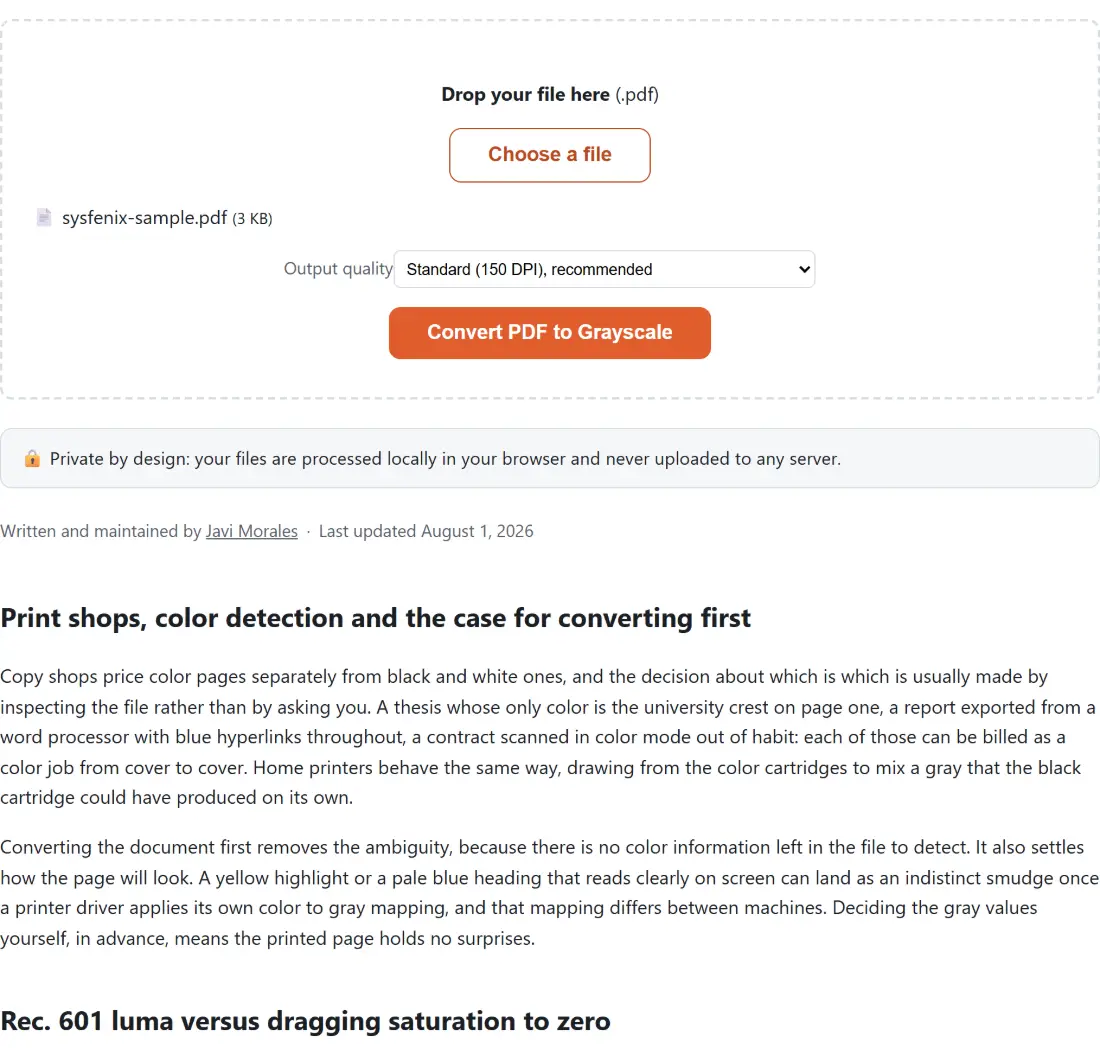
- Drop your color PDF onto the box above, or press Choose a file and pick it. One document at a time.
- Set Output quality to Standard (150 DPI), recommended for everyday printing, Print quality (300 DPI), best for a professional print run for a press job, or Smaller file (100 DPI) for a lightweight reference copy.
- Press Convert PDF to Grayscale. Progress climbs page by page and reaches ninety percent once the last page has been redrawn, with the remainder spent assembling the new document.
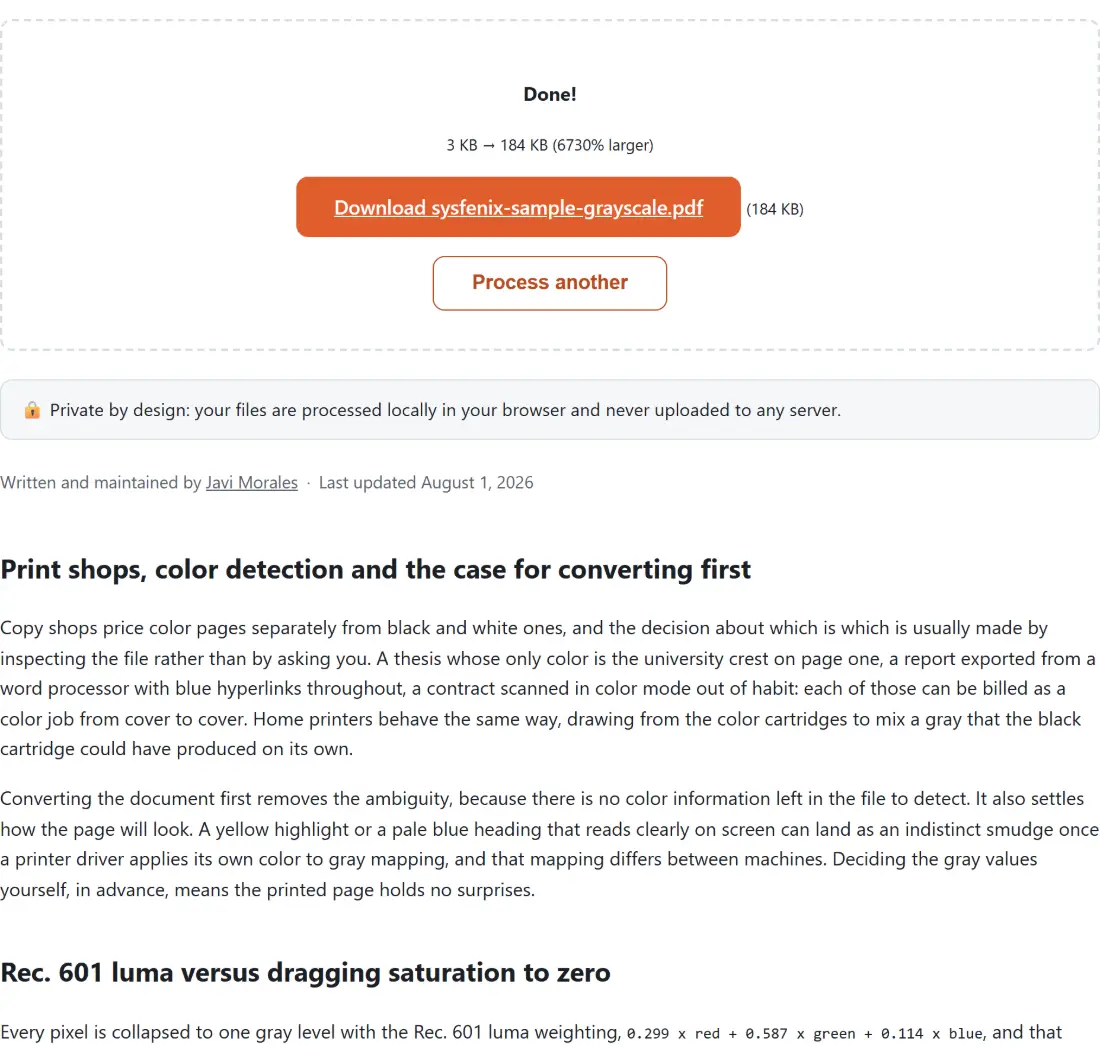
- Download the result, which arrives named after your file with
-grayscaleon the end, soreport.pdfbecomesreport-grayscale.pdf.
Everything the rebuilt file leaves behind
The honest description of the method is that each page is rendered to a canvas, recolored pixel by pixel, encoded as a JPEG, and then placed into a freshly created document as a full bleed image. That produces a faithful looking page and nothing else. Selectable text, searchable text, hyperlinks, outline bookmarks, annotations and form fields do not carry across, because none of them exist in the new file. Transparent areas are painted white before the conversion runs, so nothing comes out on a checkerboard.
There are two sensible responses. Pull the words out of the original before you convert, using pdf-to-text, if you need them as a document. Or put searchability back afterwards by running the grayscale copy through ocr-pdf, which reads the page images and writes an invisible text layer over them. Neither restores the links or the bookmarks.
When the grayscale copy comes out bigger
Nothing in this tool compares the output against the input, and nothing quietly returns your original when the rebuild is heavier. That behavior belongs to compress-pdf, which does keep your untouched file whenever its own rebuild fails to save bytes. If the grayscale copy is bulkier than you would like, its default strong mode re-renders pages at 150 DPI with firmer JPEG compression and will usually take a slice out of it.
A document that needs a password to open cannot be converted, because nothing here ever asks you for one and the renderer stops there. A file carrying only an owner password, the kind that restricts printing or copying rather than opening, is read with the empty password and converts normally. Reading at night rather than printing is a different job, handled by invert-pdf-colors, which shares this rendering ladder but flips the page instead of draining it, and the rest of the PDF tools cover the merging, splitting and page ordering steps around it.