Three different things people mean by resize
Ask for a PDF to be resized and you could mean any of three operations, which is why the mode dropdown is the first thing to set rather than an afterthought.
The first is the common one: make this document print properly on a different paper size. A Letter document sent to a European printer, or an A4 document sent to an American one. Here the content has to be scaled and centred so nothing falls off the edge.
The second is a page box change with no scaling at all. The content stays exactly the size it was and only the sheet around it changes. That is what you want when a print shop has asked for a specific page box and the artwork is already correct, and it is emphatically not what you want if you have not thought about it, because anything larger than the new box is clipped.
The third has nothing to do with paper sizes. Scale everything, page and content together, by a percentage. Half size, double size, or anything between.
Bringing a Letter document to A4
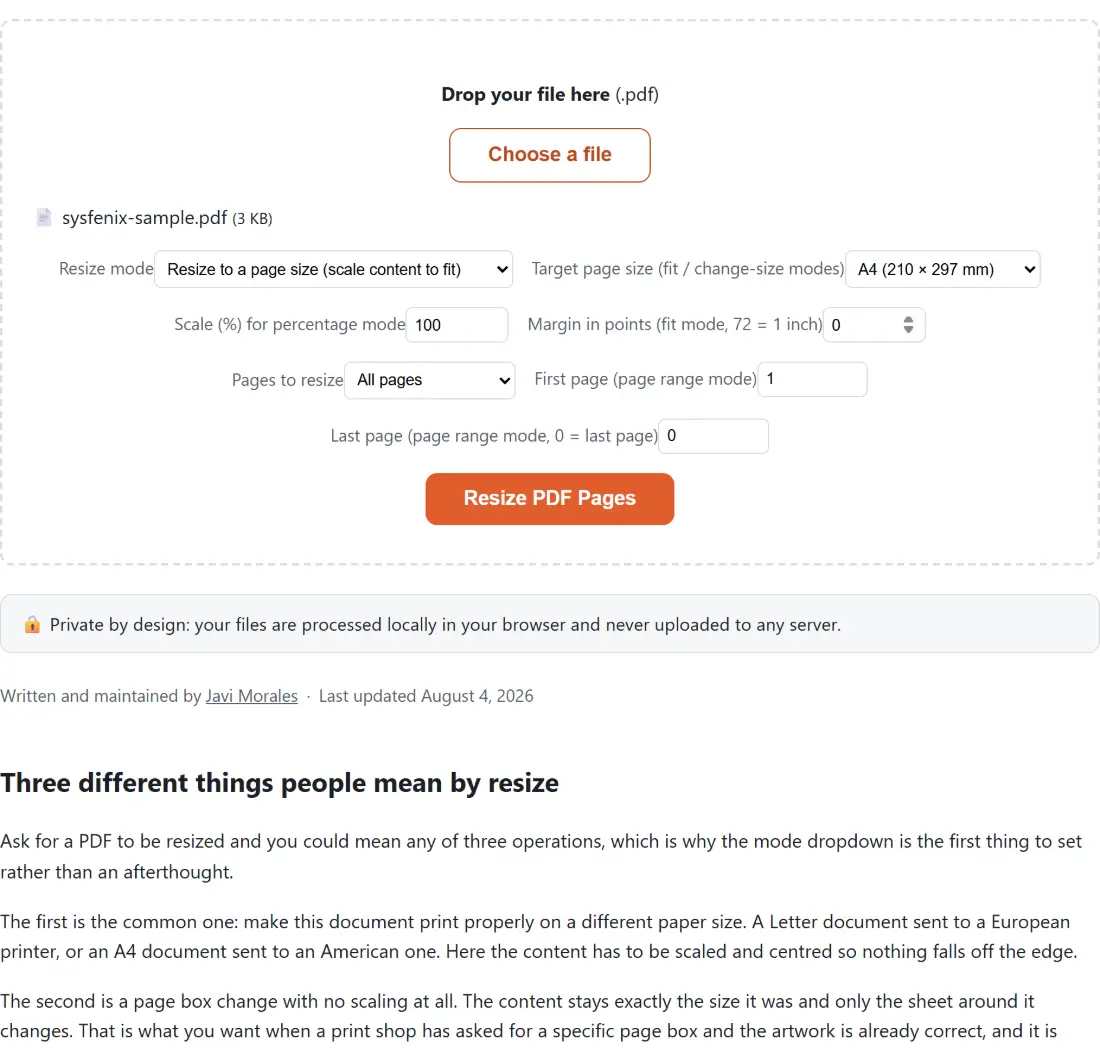
- Drop your PDF on the box or use Choose a file. One at a time.
- Leave Resize mode on Resize to a page size (scale content to fit).
- Set Target page size (fit / change-size modes) to A4 (210 × 297 mm).
- Leave Margin in points (fit mode, 72 = 1 inch) at 0, or set 36 for a half inch border on every side.
- Leave Pages to resize on All pages, or switch to the range option and set the first and last page.
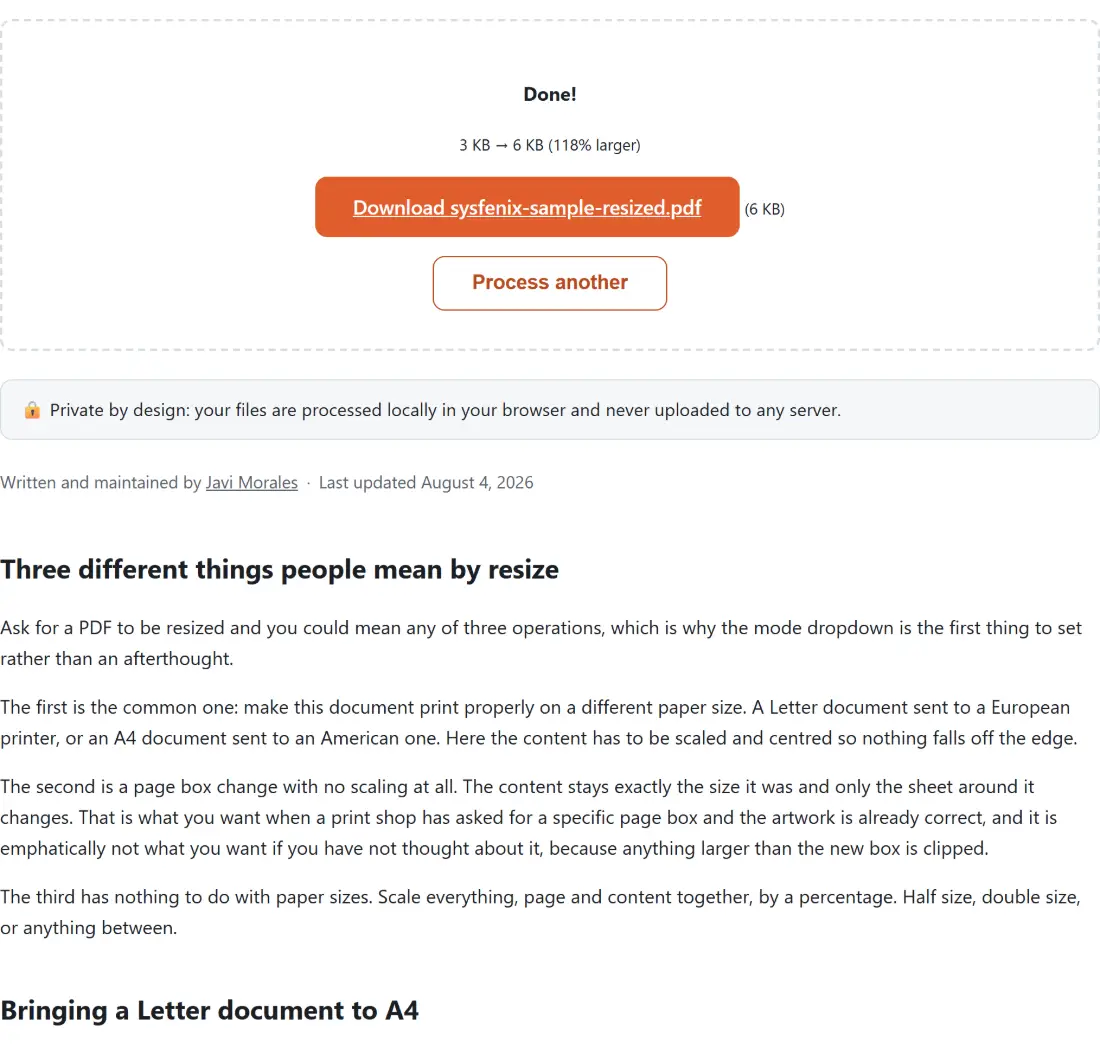
- Click Resize PDF Pages and download the result, named with a resized suffix.
- Process another clears the box.
The named sizes are real. A4 is converted from 210 by 297 millimetres and Letter and Legal are exact inch measurements, all expressed in the points a PDF actually works in, at 72 to the inch.
Fitting, and why the scale factor is a minimum
Fit mode computes one scale factor and applies it to both dimensions. The factor is the smaller of the two ratios: available width over source width, and available height over source height.
Taking the smaller of the two is what guarantees the content fits. Taking the larger would fill the page and push part of the content off the edge, and scaling the two axes independently would fill the page perfectly while stretching the artwork, which is worse than either.
The consequence is that the content usually does not touch two of the four edges, since the source and target proportions rarely match exactly. The leftover space is split evenly so the content sits in the middle of the page rather than in a corner.
Adding a margin simply shrinks the available area before that calculation runs, so it reduces the scale factor and pushes the content further from every edge.
Orientation follows the source
A page wider than it is tall is matched to a target of the same orientation, with the named size’s two dimensions swapped if necessary.
Without that rule, a landscape diagram mapped onto A4 would be squeezed into a portrait sheet, scaled down far more than necessary, and surrounded by wasted white space at the top and bottom. Swapping the target keeps the content large and the sheet sensible.
Pages whose orientation already matches the target are left with the size exactly as named.
Working on part of a document
The page range option exists for the common case where a document is mostly fine. A report with one oversized inserted scan does not need every page rebuilt; it needs that one page brought into line.
Pages outside the range are copied through untouched at their original size, so they are bit for bit the pages you started with. The range is inclusive and one-based, and setting the last page to zero means run to the end of the document.
One honest limitation: a genuinely blank page has no content to place, so it comes out as a correctly sized empty page rather than failing the run.
Related page work
Compress PDF is the tool for making a file smaller in bytes, which is a different problem from making its pages smaller in millimetres and the one people usually mean when a file is too big to email.
For fitting several pages onto one sheet, N-up PDF does the layout rather than the scaling. Rotate PDF handles a sideways page, Split PDF extracts a range into its own file, and Add Page Numbers to PDF stamps a resized document once its layout is final. The rest is on the PDF tools hub.