A JPG page is a photograph of a document
Converting a PDF page to JPG is not really a conversion in the way that swapping a video container is. Nothing inside the PDF is translated into JPEG. Instead the page is drawn, exactly as a PDF reader would draw it on screen, onto an off-screen canvas, and then that canvas is photographed. The engine doing the drawing is pdf.js, the open-source renderer Mozilla built for Firefox’s built-in PDF viewer, so what you get is the same rendering you would see if you opened the file in a browser tab.
That framing explains most of the behaviour people find surprising. The output has no text layer, no links, no form fields and no page structure, because none of those things are pixels. Fonts do not need to be installed on your machine when the PDF embeds them, which most do, while a document that leaves its fonts out is drawn with a lookalike taken from your own system. And a page that looks fine in your reader will look fine as a JPG, since the same code drew both.
What you get in return is universality. A JPG opens in every chat app, every social platform, every slide editor and every upload form built in the last thirty years, none of which will render a PDF inline for you.
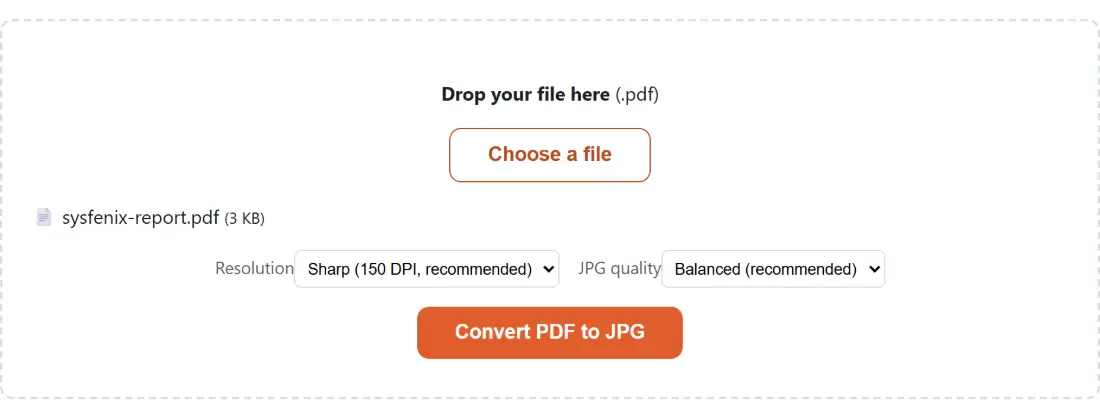
The Resolution setting decides the pixel dimensions
A PDF has no pixels of its own. Its pages are measured in points, at 72 points to the inch, which is why the Resolution values map so cleanly onto a scale factor: 72 DPI renders the page at exactly its nominal size, 150 DPI at just over twice that, 300 DPI at just over four times.
In practice that means an A4 page comes out around 595 by 842 pixels at 72 DPI, roughly 1240 by 1754 at 150 DPI, and about 2480 by 3508 at 300 DPI. Sharp (150 DPI, recommended) is the default because it is the point where screen viewing stops improving for most documents. Print (300 DPI, largest) is what a print shop will ask for and what you want if anyone will zoom into small print. Screen (72 DPI, smallest) is really a thumbnail setting.
Resolution is also the single biggest driver of how long the job takes and how much memory it needs, since doubling the DPI quadruples the pixel count of every page. A three hundred page document at 300 DPI is a real amount of work for a laptop.
JPG quality: 0.95, 0.85 and 0.70
The second select controls the JPEG encoder rather than the renderer. High (largest file) encodes at quality 0.95, Balanced (recommended) at 0.85, and Small (smaller file) at 0.7. These are passed straight to the browser’s own JPEG encoder, so the exact result depends slightly on which browser you are using.
Resolution and quality are worth thinking about separately. Resolution decides how much detail is captured; quality decides how faithfully that detail is stored. For a page of dense text, high resolution at moderate quality reads better than low resolution at maximum quality, because JPEG artefacts shrink with the pixels while missing detail never comes back.
If the page is a diagram, a screenshot or anything with flat colour and hard edges, JPEG is the wrong encoder entirely and PDF to PNG will serve you better. JPEG earns its place on photographic content and on scans, where its compression is nearly invisible and its files are far more manageable.
One JPG, or a numbered ZIP of them
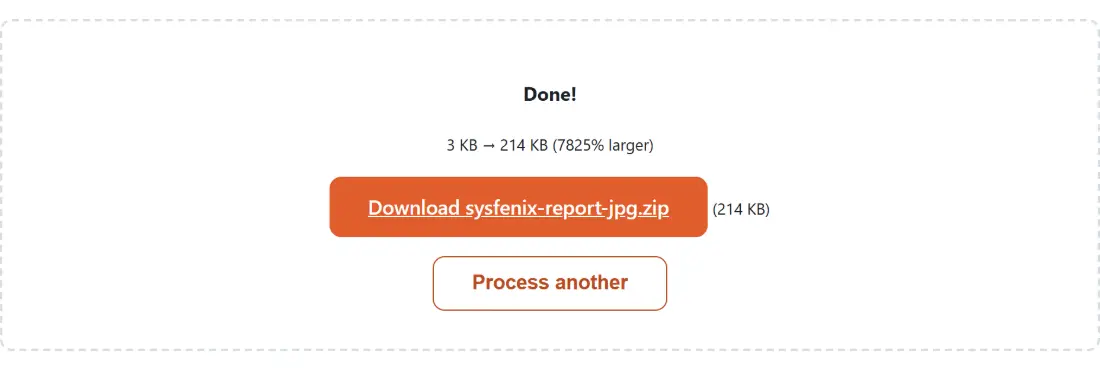
A single-page PDF downloads as a single image named after the source file, so invoice.pdf becomes invoice.jpg. Anything longer is bundled into one archive named invoice-jpg.zip, containing invoice-page-1.jpg, invoice-page-2.jpg and so on, with the numbers zero-padded to whatever width the page count needs so they sort correctly in a file manager.
That bundling is not optional, which matters if you only wanted one page out of a long report. The quicker route there is to extract the page first with Split PDF and then convert the one-page result. Going the other way, if the reason you are rasterising is to get at pictures that were embedded in the document rather than the pages themselves, Extract Images from PDF pulls the original bitmaps out at their own resolution instead of re-rendering the page around them.
Rendering the pages
- Drop your PDF into the box above, or click Choose a file.
- Pick a Resolution. Leave it on Sharp (150 DPI, recommended) for screen use and switch to Print (300 DPI, largest) only when the images will be printed or zoomed.
- Pick a JPG quality. Balanced (recommended) suits most documents.
- Click Convert PDF to JPG. The bar moves as each page finishes rendering, with the last stretch reserved for building the archive.
- Save the result, which is one JPG for a single-page PDF and one ZIP for anything longer.
Everything above happens in the tab. The PDF is read out of your device’s memory, rendered on a local canvas and encoded there, and the only network request involved is the one that fetches the pdf.js worker script from unpkg the first time a tab needs it. Bank statements, medical letters and signed contracts are the documents people rasterise most often, and none of them go anywhere. Further reading: the best PDF tools, compared.