One bit per colour byte, and what that costs the picture
A decoded image is just four numbers per pixel, each from 0 to 255: red, green, blue and alpha. This tool rewrites the last bit of the red, green and blue numbers to carry your message. Flipping that bit shifts a channel by one step out of 256. I ran the embedder over a flat grey buffer and compared every byte afterwards, and the largest change to any single channel was exactly 1.
Alpha is excluded on purpose, and the encoder goes further than skipping it: it forces every pixel’s alpha to 255 as it writes. There is a reason. A PNG encoder is free to throw away the colour values of a fully transparent pixel, and canvas compositing can nudge RGB around under partial transparency, so bits parked in those places can evaporate between save and reload. The component also paints its working canvas white before drawing your picture, which flattens transparency before anything is embedded. Say the consequence plainly, because it is a real trade: hand this tool a logo with a see-through background and the file you get back has a white one.
Reading the capacity line, and what a 1000 by 1000 photo really holds
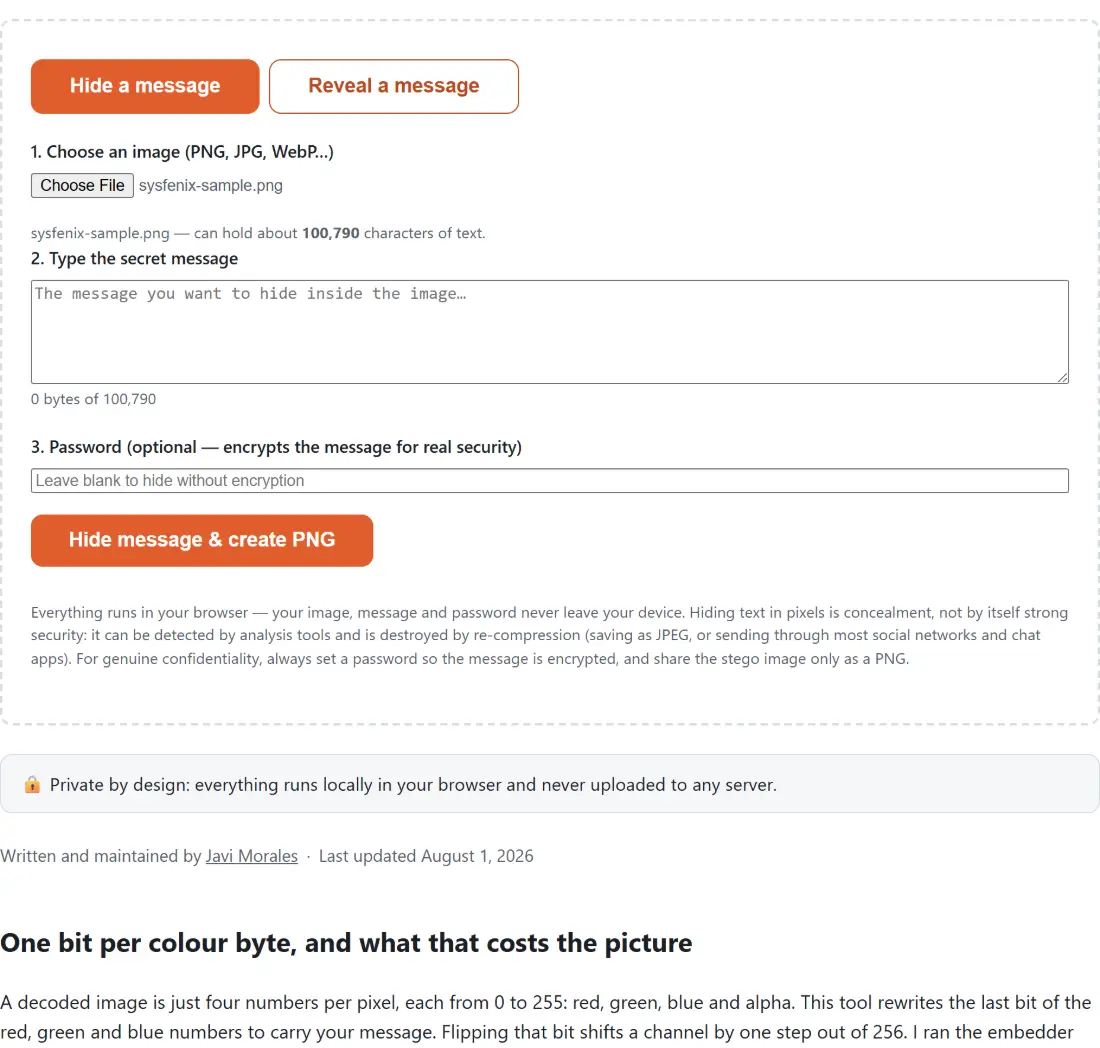
Choose a file and a line appears under it giving the file name and how much text the image can hold. That figure is not a rule of thumb. It is the width times the height times three, divided by eight, minus the ten-byte header. I put three real sizes through the module rather than doing the arithmetic in my head: a 1000 by 1000 square takes 374,990 bytes, a 1920 by 1080 screenshot takes 777,590, and an 800 by 600 thumbnail takes 179,990.
That capacity line calls those units characters, which is friendly rather than exact. The counter under the message box states the true unit and measures UTF-8 bytes, so plain English costs one byte a letter, an accented Latin letter costs two, most CJK characters cost three, and an emoji costs four. None of that matters for a paragraph of notes. It starts to matter if you try to hide a whole document.
One quirk to know about. The live “too long for this image” warning is only evaluated while the password box is empty, because encryption changes the payload length. Type a password and the counter drops its comparison against the capacity. If the encrypted message then genuinely will not fit, the module refuses rather than truncating, and the page shows you the sentence it threw.
The ten bytes in front of your message
Every embed is prefixed with a fixed ten-byte header, and the whole tool leans on it. Four bytes are an ASCII signature, one byte is a format version, one byte carries flags (bit zero records that the payload is encrypted), and the last four are a big-endian length. Without a length field the extractor would have no idea where your text stopped and would keep converting pixels into nonsense until it ran out of image.
The signature earns its place too. It is what turns “there is nothing here” into an honest sentence instead of a screenful of garbage, and it is why the reveal step can tell you a message is present but locked rather than handing you ciphertext and letting you work it out.
Hiding a message inside a photo
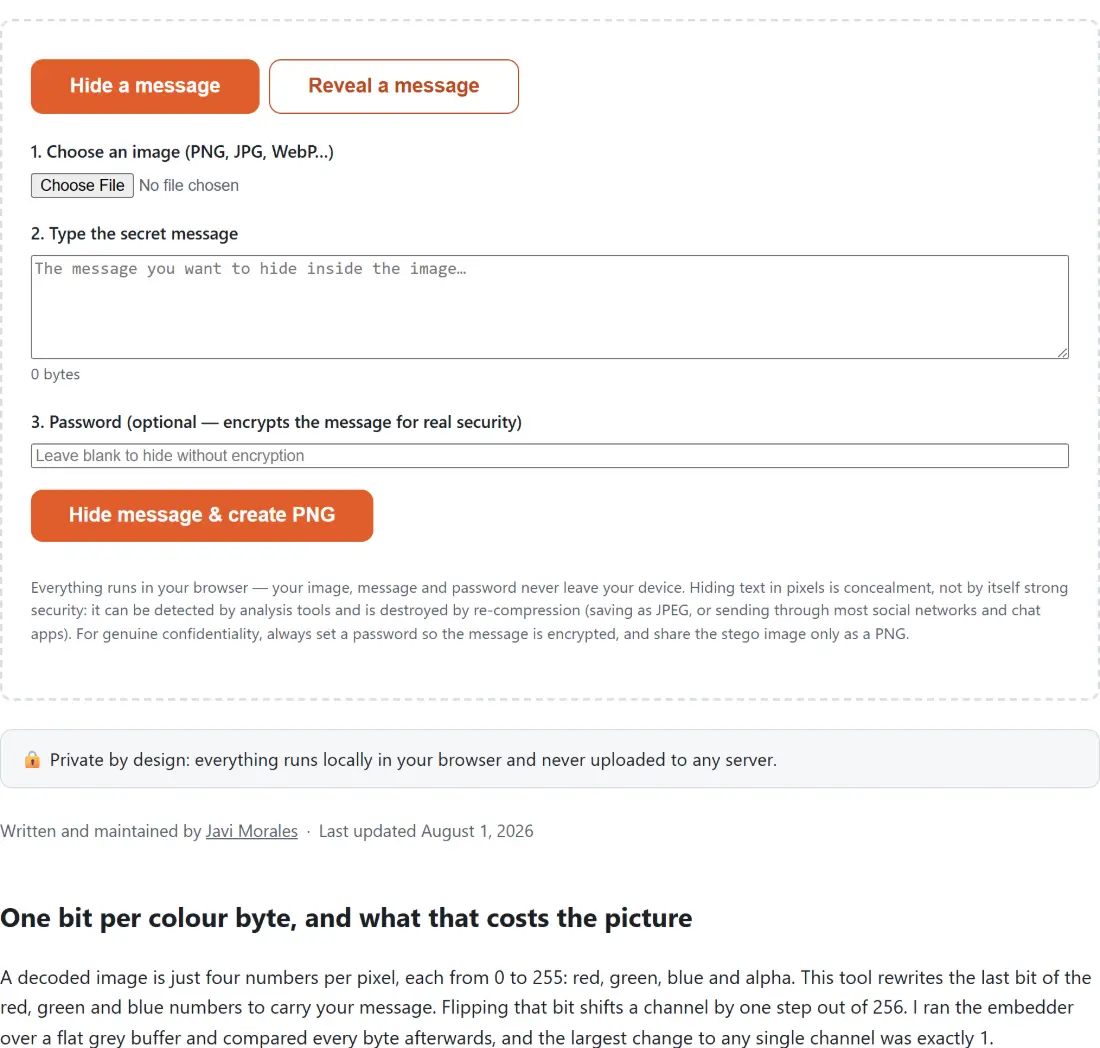
- On the Hide a message tab, pick a file with Choose an image. It is read at full resolution, so nothing is downscaled and the capacity stays as high as the picture allows.
- Write your text in Type the secret message. As long as the password box is still empty, the byte counter underneath turns red and the action button greys out the moment you overflow the image.
- Fill in the Password field if the text is sensitive. Leaving it blank embeds your message as plain readable bytes.
- Press Hide message & create PNG, then download the file the page offers. It is named after your original with
-hidden.pngon the end. - To read it back, switch to Reveal a message, load that file under Choose the stego PNG, retype the password if you set one, and press Reveal hidden message.
The password field is the only part that is really encryption
Concealment and confidentiality are different jobs, and this tool only does the second one when you ask it to. With a password set, your text is handed to the same encryption routine that powers encrypt file and encrypt text: PBKDF2-HMAC-SHA256 at 600,000 iterations to stretch the password into a key, then AES-256-GCM with a fresh sixteen-byte salt and twelve-byte nonce per message. I encrypted a 58-byte sentence through the real function and measured the embedded payload at 115 bytes, so the overhead is a flat 57 bytes regardless of message length. The flags byte records that the payload is encrypted, which is how the reveal step knows to ask for a password instead of handing back ciphertext.
Leave the password blank and there is no encryption at all, only hiding. That is a genuinely weaker thing. If you want signed or public-key messaging with no shared secret to arrange in advance, the PGP tool is the better instrument for the job.
PNG out, and the one thing that erases everything
The output is always a PNG, and that is not a stylistic preference. JPEG saves space by re-quantising blocks of pixels, which scrambles precisely the low-order bits the message occupies. Re-save the file as JPEG and there is nothing left to recover. The same applies to most social networks, most chat apps, and any optimiser that re-encodes what you upload. The reveal tab watches for the obvious version of this mistake and warns you before you press anything if the file you loaded looks like a JPEG.
So the discipline is simple. Do your editing first, on the original picture, using the image tools or a local editor. Blur part of an image if a face needs covering, crop it, adjust it, and only then hide the message. Afterwards, move the exact PNG the tool gave you, as an attachment or on storage that keeps files byte for byte. If you want to see what else is riding along inside that file, the EXIF metadata viewer reads PNG metadata as well as JPEG and will tell you.