A grid editor, not a paint program
Pixel art is a discipline of constraints. Every cell is a decision, the palette is small on purpose, and the whole point is that you can see each individual square. A general purpose paint program fights that: brushes have soft edges, colours blend, and zoom levels blur.
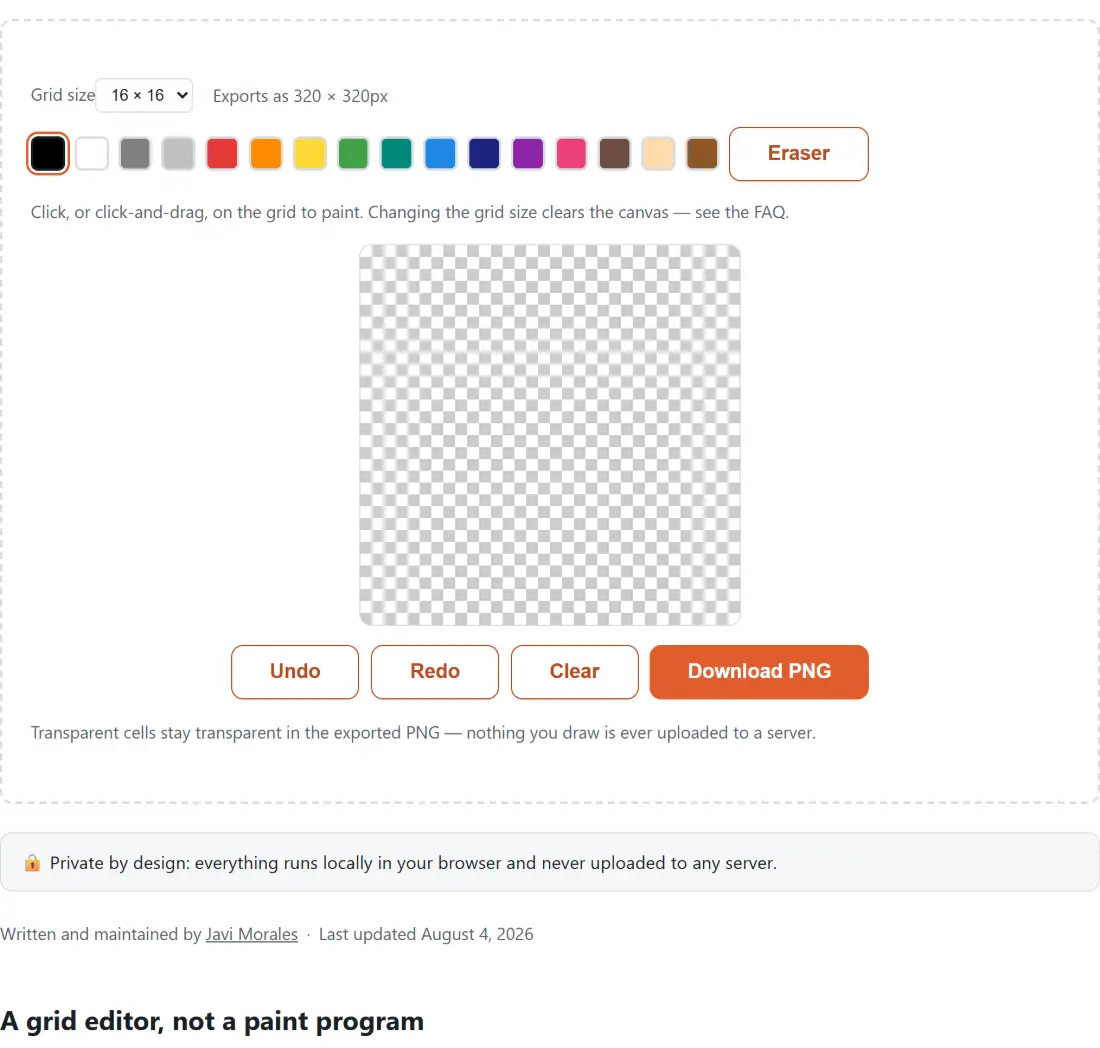
So this is a grid and nothing else. Four sizes, sixteen colours, an eraser, undo, redo, clear, and an export button. There are no layers, no brush shapes and no gradients, because none of them belong in a 16 by 16 sprite.
Everything lives in the page while it is open. Nothing is uploaded and nothing is saved to your device automatically, so treat the export as the save button.
Drawing a 16 by 16 sprite
- Pick a Grid size. The four options are 8, 16, 24 and 32 cells square, and the hint beside the dropdown tells you the pixel size of the export.
- Click a colour swatch in the palette. Hovering over a swatch shows its name.
- Click a cell to paint it, or click and drag to paint a run of cells in one stroke.
- Click Eraser to clear cells back to transparent, and click any swatch again to go back to painting.
- Undo and Redo step through your strokes. Both buttons disable themselves when there is nothing left to step to.
- Clear empties the canvas without changing the grid size, and is itself undoable.
- Click Download PNG to save the result. The file is named after the grid, so a 16 cell drawing becomes pixel-art-16x16.png.
Start at 16 unless you have a reason not to. It is the size most sprite work assumes, it is big enough for a recognisable character and small enough to finish, and 8 is genuinely hard rather than easy.
Twenty pixels a cell, and why that matters
The canvas you draw on and the file you download are the same resolution: twenty screen pixels for every cell of the grid. That is not an accident of layout. Keeping one scale for both means the drawing you see is exactly the drawing you get, with no separate downscaled preview to disagree with the export.
The blocky look survives because smoothing is switched off before every draw. Browsers interpolate scaled images by default, which is right for photographs and completely wrong here, so the flag is turned off explicitly and each cell renders as a hard square.
The practical consequence is that your export is already a usable asset. A 32 cell drawing lands at 640 by 640, which is large enough to post, to use as an avatar, or to drop into a design without anything upscaling it further and softening the edges.
Undo that matches what you expect
Two details make the history behave the way a drawing tool should.
The first is stroke granularity. While you hold the pointer down, painting happens on a working copy of the grid, and only when you release is the finished result committed as one history entry. Drag a diagonal across thirty cells and one undo removes all thirty.
The second is the redo rule. Undo something, then draw something new, and the redo stack is emptied. This is the correct invariant and it is easy to get wrong: keeping the old redo path alive would let you jump to a state that never existed on the path you are currently on.
History is capped at a hundred entries in each direction, so a long session cannot grow it without limit.
Where the export goes next
A transparent PNG at 320 or 640 pixels square is a good starting point for several things. For a browser tab icon, Favicon Generator will produce the sizes and formats a site needs from a single square image.
If you want to choose your own colours rather than work from the built-in sixteen, Color Palette Generator will give you a coordinated set of hex values to sample from in another editor. For freehand drawing with real brushes rather than cells, Online Whiteboard is the right tool, and Signature Generator covers the specific case of a transparent handwritten signature. The rest of the set is on the image tools hub.