Subtitling needs the video, and that is the whole problem
You can write subtitle text in any editor. What you cannot do in a text editor is decide when a line should appear, because that judgement only exists in relation to the picture and the sound. Every timestamp is an answer to a question you can only ask while watching.
Which is why subtitle work usually means either desktop software with a learning curve, or a web service that wants your footage uploaded first. This page takes a third route: the video plays locally in the page next to a cue table, using a reference to the file on your own disk, and the timings come from wherever you paused it. No installation and no upload.
Building a subtitle file
- Choose a video file. It loads into the player immediately and never leaves your device.
- Optionally import an existing .srt or .vtt to start from, or begin with an empty table.
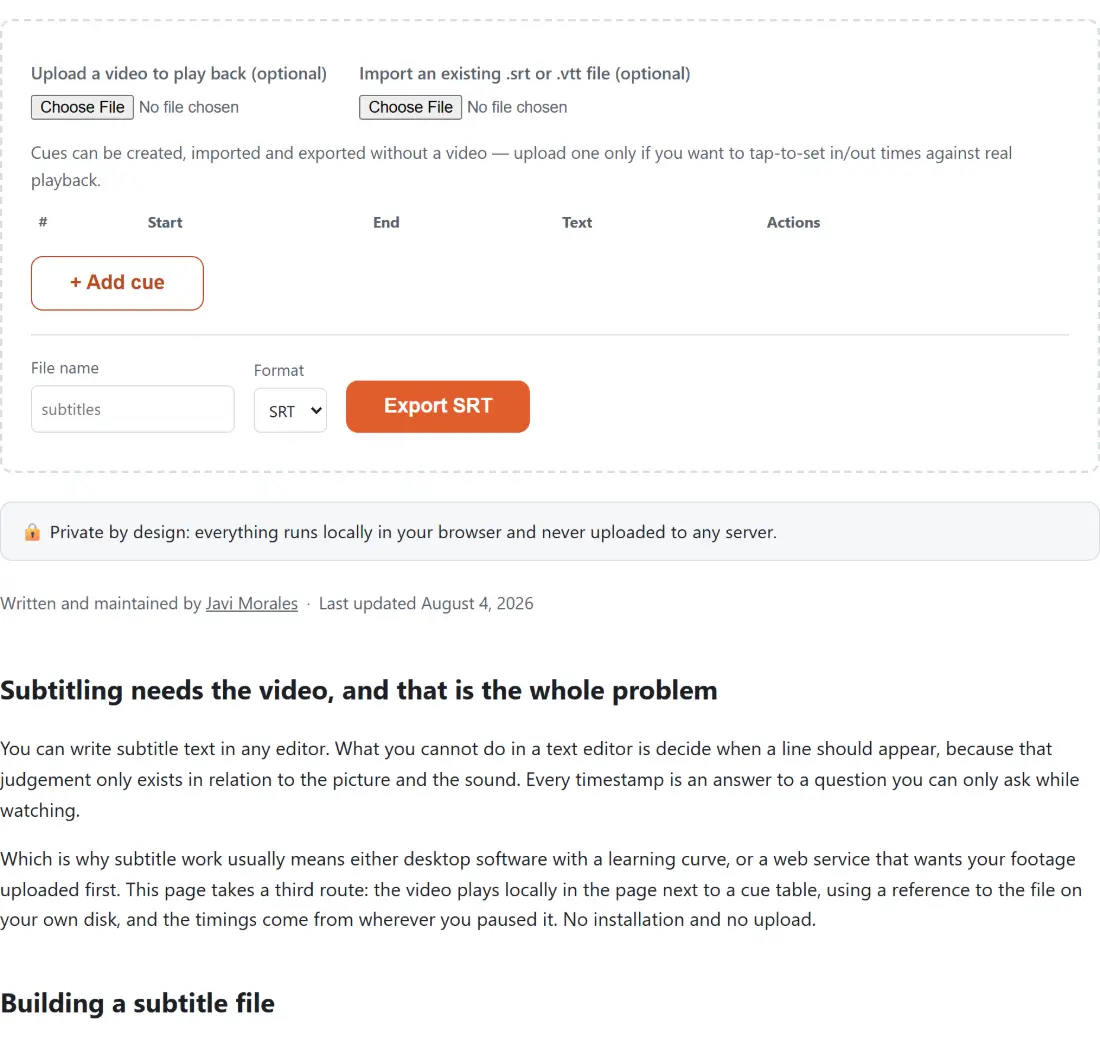
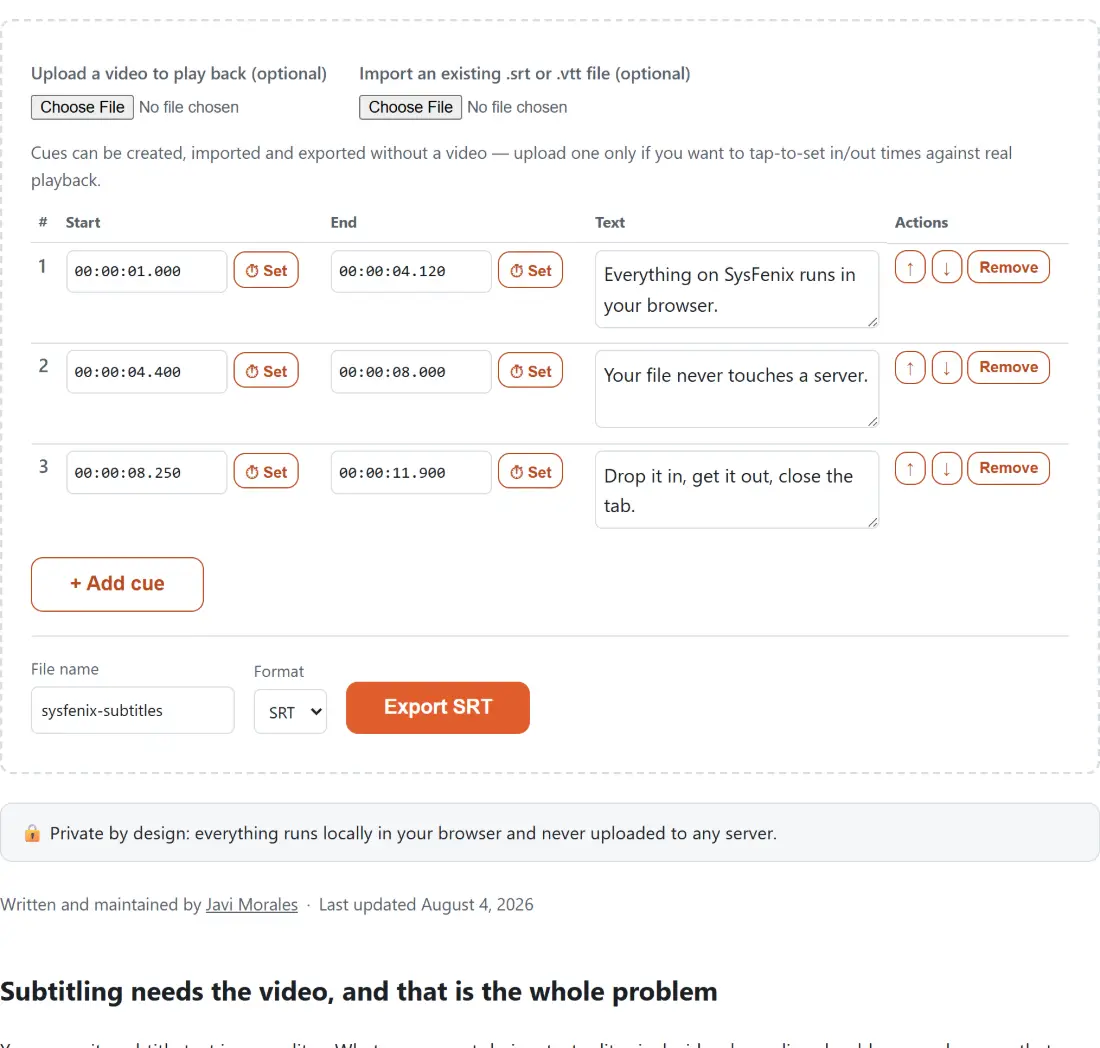
- Press + Add cue. Each new cue starts where the latest existing one ended and runs for two seconds.
- Scrub the video to where the line should begin and use the set button on that row’s start field, then do the same for the end.
- Type the line into the cue’s text box. A newline in the box becomes a real line break in the subtitle.
- Set a File name, choose SRT or VTT, and export.
Why new cues appear where they do
A freshly added cue does not start at zero and it does not start at the end of the last row in the table. It starts at the latest end time of any cue in the list, and runs for two seconds.
That distinction matters once you have edited for a while. Table order and chronological order drift apart the moment you insert a line you forgot, and anchoring to the latest end time means a new cue lands after everything that already exists rather than colliding with it. Two seconds is a working default rather than a rule, since it is close to a comfortable reading duration for a short line and you are going to adjust the end anyway.
Overlaps are flagged and permitted
The table marks any cue whose time range intersects another. It does not prevent you from exporting one.
This is a deliberate split, because overlapping cues are both a common mistake and a legitimate technique. Two speakers talking over each other, or a translated sign held on screen while dialogue continues, are properly expressed as simultaneous cues and both subtitle formats support them. Blocking them would make the editor unable to produce correct files for those cases.
What the badge protects against is the far more common version, where an end time was set a few seconds too late and the next line now starts before the previous one has cleared. Touching boundaries, where one cue ends at exactly the moment the next begins, are not flagged, because that is the normal shape of consecutive dialogue.
What is refused, and why those two things
An export is stopped only for problems that would produce a file that is broken rather than merely imperfect.
An empty list has nothing to write. A cue whose end is at or before its start is worse than useless: it occupies a slot in the file and never appears on screen, so the failure shows up as a missing line during review rather than as an error at the point of creation. Both refusals name the problem on screen, and the second one counts the affected cues.
Everything else is left to your judgement. Very short cues, very long ones, empty text, and unusual reading speeds are all allowed, because the right answer to any of them depends on the material.
Where this sits among the other subtitle tools
If all you need is a format change with no editing, SRT to VTT does the conversion directly, and this editor reuses the same parsing and writing code rather than a second implementation, so both produce identical output for identical cues. If the timings are right but uniformly early or late, Shift Subtitles offsets the whole file in one step, which is far quicker than touching every cue here.
To recover a subtitle track already embedded in a video, Extract Subtitles pulls it out to a file you can then import here. To burn a finished file into the picture, Add Subtitles to Video is the last step. The rest are on the video hub.