systemd Service Generator

Build a systemd .service unit with ExecStart, User, Restart, environment and dependencies, plus a matching .timer unit, live in your browser.

🌐 Español

Environment variables

No environment variables yet β€” add one below.

Dependencies (other units)

"Start after" (ordering) and "requires it running" (a hard/soft dependency) are independent β€” set either, both, or neither per unit.

No dependencies yet β€” add one below.

my-service.service

Install it

πŸ”’ Private by design: everything runs locally in your browser and never uploaded to any server.

Unit files are short, and that is exactly why they are hard

A systemd unit is a handful of lines in three sections, which makes it look like something you should be able to write from memory. In practice almost nobody does, because the difficulty is not the length, it is that every field name is precise, most of them have a small closed set of legal values, and getting one wrong produces a service that either refuses to start or starts in a way you did not intend.

The classic failures are all small. An ExecStart that is relative rather than absolute. A restart policy chosen from vague memory. A dependency declared with the wrong keyword, so the unit starts before the thing it needs. A timer schedule written in cron because cron is what everyone knows.

This generator puts every one of those choices in front of you as a labelled field with real values, and writes the file as you type.

Building a unit

  1. Fill in a Description and the unit’s name. The name is sanitised into something systemd will accept.
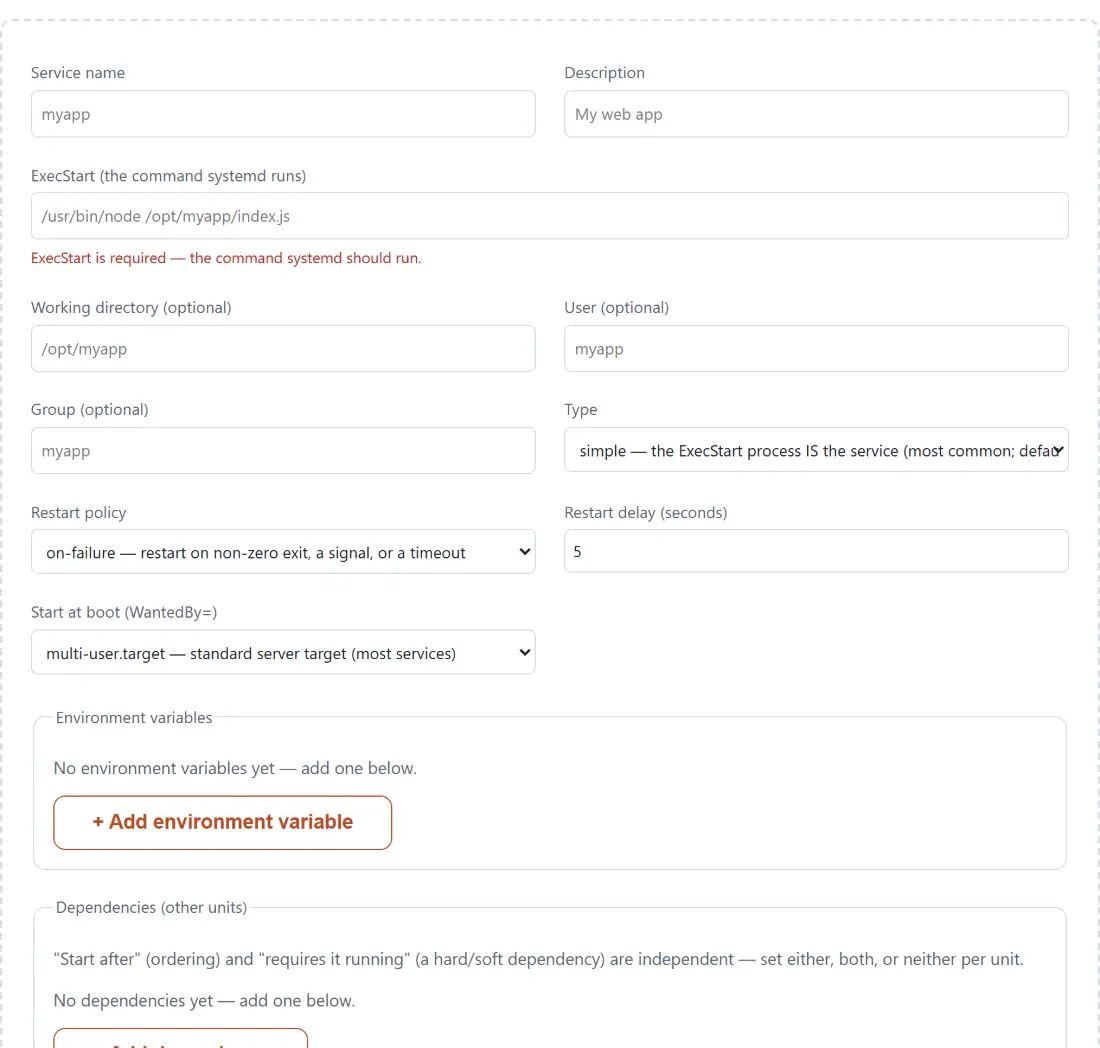
  2. Enter ExecStart, the command to run. Check the note under the field before moving on.
  3. Set the service type, an optional user, group and working directory, and a restart policy.
  4. Add environment variables and dependencies as rows, one at a time.
  5. Choose the install target that decides when the unit is enabled at boot.
  6. Enable a timer if the job should run on a schedule rather than continuously.
  7. Copy or download each generated file, and follow the install instructions shown underneath.

The ExecStart rule, stated correctly

Almost every guide says the command must be an absolute path. That is good advice and it is not quite the rule.

The real requirement is that the first argument is either an absolute path or a plain file name with no slashes in it. A bare name is legal because systemd resolves it against a fixed, compiled in search path. So a unit whose ExecStart is just a program name will usually work, which is why the tool flags it as a suggestion rather than an error while pointing out that a full path is more reliable, since that search path is not your shell’s and does not follow your environment.

What actually fails is the middle case, a relative path with a slash in it. That is neither of the two accepted forms and systemd will not resolve it against anything. That one is reported as an error under the field, though it still does not stop the file being generated, because refusing to show output while you are halfway through typing a path is obnoxious.

Timers instead of cron

The timer half of this tool writes a second unit that triggers the first one. Two scheduling modes are offered.

Calendar mode fires at wall clock times and takes either a shortcut keyword or your own expression. Boot relative mode fires a set duration after boot and then repeatedly at an interval, which is the right shape for a job that should run every hour regardless of what time it starts. Durations there are validated against systemd’s own time span vocabulary, so an unrecognised unit is caught in the field rather than at load time.

The persistent option is the one worth understanding. With it enabled, a scheduled run that was missed because the machine was off is executed once the machine comes back, which is the behaviour people usually assume a cron job has and which cron does not provide.

The reason to prefer a timer over a crontab at all is the logging. A timer triggered service writes to the journal like any other unit, with its own status, exit code and output, so a failed run is visible in the same place as everything else instead of vanishing into a mail spool nobody reads.

For the container equivalent of this problem, Dockerfile Generator builds an image definition, and a service that ships as a container often needs both. Config Generator covers other server configuration files.

If you are working on a machine that genuinely uses cron rather than systemd, Cron Generator writes the five field expression correctly, and it is the tool to use rather than pasting cron syntax into the timer field here. The rest are on the dev tools hub.
See it in action

Screenshot of the systemd Service Generator tool with a unit-file builder with service name, description and the required ExecStart command, plus optional working directory, user, group and service type, producing the .service file beneath it
systemd Service Generator mid-process: a unit-file builder with service name, description and the required ExecStart command, plus optional working directory, user, group and service type, producing the .service file beneath it.
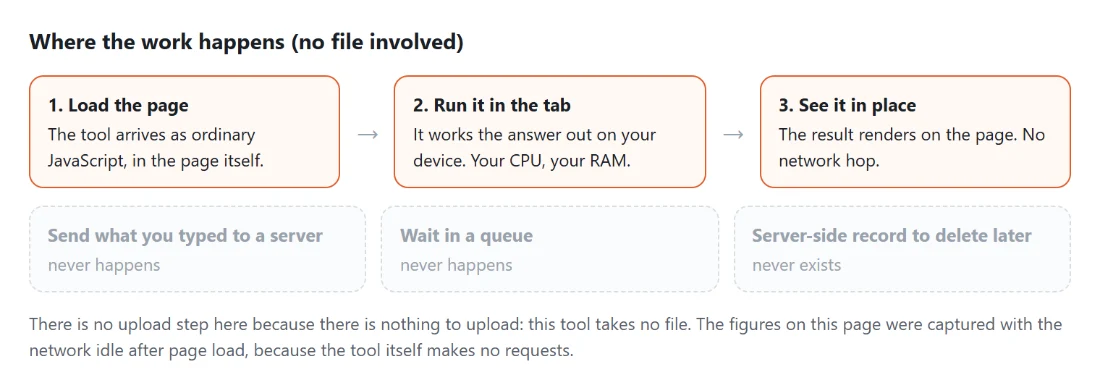
Diagram: where the work happens on a SysFenix page that has no file input at all: the tool arrives as ordinary JavaScript inside the page, works the answer out on your own device and renders it in place, so the upload, queue and server-side record a typical online tool needs never happen
Where the work happens on a SysFenix page that has no file input at all: the tool arrives as ordinary JavaScript inside the page, works the answer out on your own device and renders it in place, so the upload, queue and server-side record a typical online tool needs never happen.

Frequently asked questions

Does it warn me about a relative ExecStart path?

Yes, right under the field, and the rule is more subtle than the usual advice suggests. An absolute path is accepted silently. A bare command name with no slash at all is also legal, because systemd resolves it against a fixed search path, so that gets a suggestion to use the full path rather than an error. What is genuinely rejected is a relative path containing a slash, because that is neither an absolute path nor a bare name and systemd cannot resolve it.

Can I paste a cron expression into the timer schedule?

You can paste it, and the tool will tell you not to. systemd's calendar syntax is a different grammar from cron and is not compatible with it, so a five field expression made of digits, stars, commas, hyphens and slashes triggers a warning under the field. It is a warning rather than a block, since a real calendar expression could in principle look like that, but if you got the expression from a crontab it is almost certainly wrong.

What do the schedule shortcuts actually become in the file?

The shortcut keyword itself is written into the file, so choosing daily writes the literal word daily rather than an expanded expression. The expansions are shown next to each choice purely so you can see what they mean, and they are the ones systemd's own documentation gives. Hourly means every hour on the hour, daily means midnight, weekly means midnight on Monday, and monthly means midnight on the first.

How are environment variables quoted?

Each variable gets its own line, always, so adding or removing one never disturbs another. A value containing whitespace or a double quote is wrapped in double quotes with the whole assignment inside them, and any backslash or quote in the value is escaped first so the quoting cannot be broken out of. A percent sign is escaped too, since systemd treats it as a specifier prefix.

Why is RestartSec sometimes missing from the output?

Because it is only written when the restart policy is something other than no. A delay before restarting is meaningless for a unit that is never restarted, and emitting it anyway would be noise in a file people read carefully. Seven restart policies are offered, matching the real set systemd defines rather than a simplified subset.

What happens to spaces and odd characters in the unit name?

They are converted. systemd only accepts a specific character set in a unit name, so anything outside it becomes a hyphen, runs of hyphens collapse to one, leading and trailing hyphens are trimmed and the result is lowercased for the conventional look. The sanitised name is used for the file name and for the timer's reference back to the service, so the two can never disagree.

Do I get one file or two?

One always, two when you enable the timer. The service unit is generated continuously as you type, with no generate button, and each file has its own copy and download control under its real file name. When a timer is enabled you also get a second unit alongside it, with the reference between them already filled in correctly.

Related tools