Five fields in one line, and the order everyone forgets
A crontab line is five space-separated fields in a fixed order: minute, hour, day of month, month, day of week. It is a compact notation that becomes obvious once you have written a few and stubbornly slippery when you have not written one for a year. Is the hour first or the minute? Does */15 mean a quarter past, or every quarter hour? Which end of the line does the weekday live at?
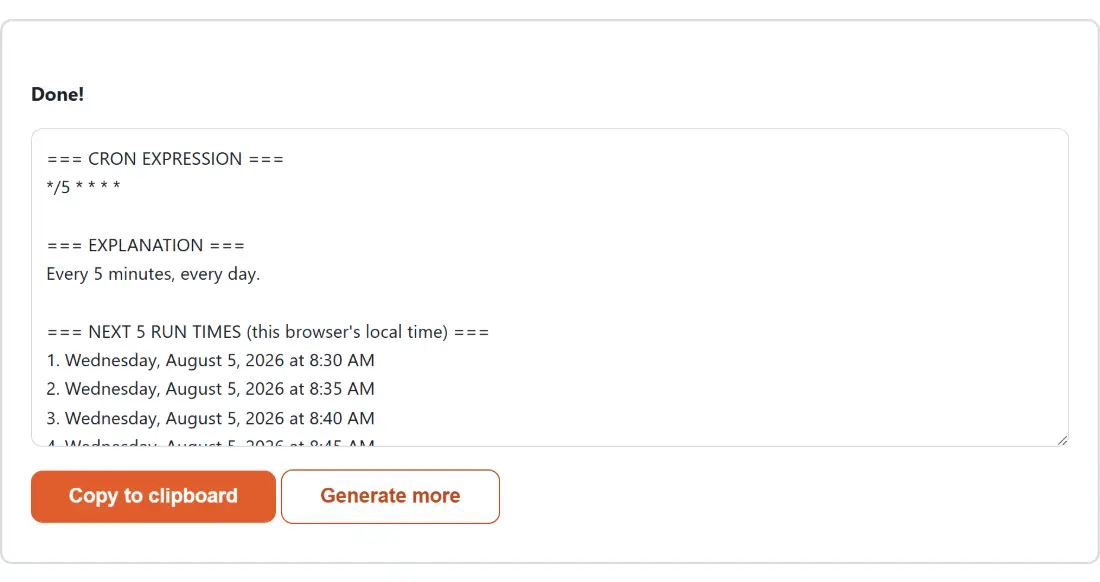
Building the line from dropdowns removes all of that from memory, and the report you get back is deliberately three things rather than one: the expression itself, a sentence explaining what it means, and the next five moments it would actually fire. The last of those is the one that catches mistakes, because a wrong expression usually looks perfectly reasonable and only reveals itself in the timestamps.
Each preset and the exact string it emits
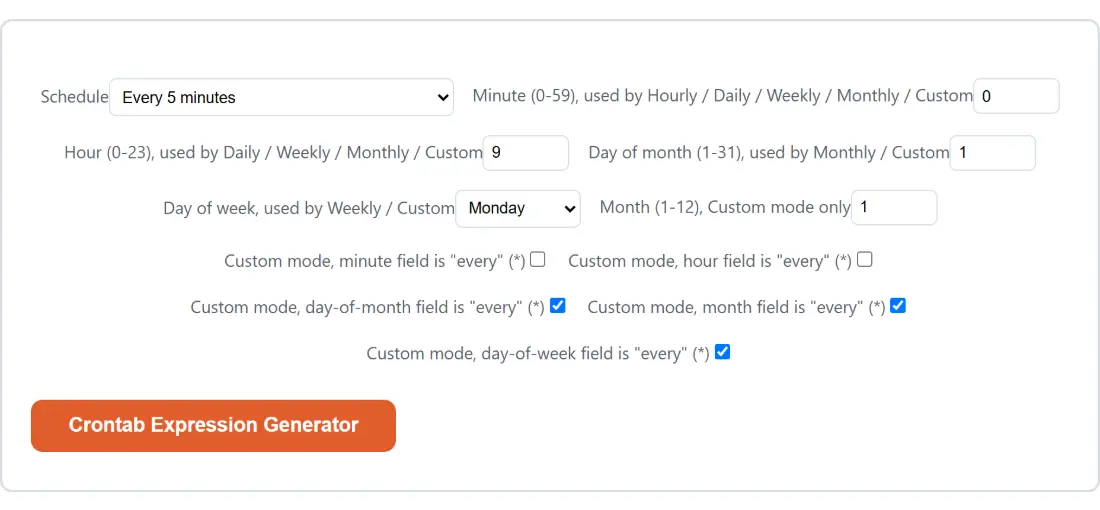
The Schedule menu opens on Every 5 minutes, and the presets only ever restrict the fields they name, leaving everything else as a star.
| Schedule | Expression it builds |
|---|---|
| Every minute | * * * * * |
| Every 5 minutes | */5 * * * * |
| Every 15 minutes | */15 * * * * |
| Every 30 minutes | */30 * * * * |
| Hourly at minute 30 | 30 * * * * |
| Daily at 09:00 | 0 9 * * * |
| Weekly, Monday at 09:00 | 0 9 * * 1 |
| Monthly, day 1 at 09:00 | 0 9 1 * * |
The daily, weekly and monthly rows use the page’s own starting values of minute 0, hour 9, Monday and day 1; the hourly row is shown with minute 30 instead, so the single field it reads is actually visible. The explanations read as plainly as the expressions do, so 0 9 * * 1 comes back described as firing at 09:00, only on Mondays, and 30 * * * * as firing at minute 30 of every hour, every day.
Building an expression and sanity-checking it
- Open Schedule and pick a preset, or Custom (all 5 fields) if you need control of every position.
- Fill in whichever numbered fields your choice reads. Minute (0-59) feeds everything from Hourly downwards, Hour (0-23) joins from Daily downwards, Day of month (1-31) matters for Monthly, and Day of week for Weekly. Those names are quoted here by their opening words, because each label on screen continues with a list of the schedules that read it.
- In Custom mode, decide field by field whether a position should hold a number or a star, using the five checkboxes. Month (1-12) exists only in this mode.
- Click Crontab Expression Generator. The button carries the tool’s own name, and the options panel is replaced by the report.
- Read all three sections before you copy anything, especially the run times. Then use Copy to clipboard, or Generate more to go back to the options with your values still set.
The day-of-month and day-of-week trap, with a run list that proves it
Three of the five fields, minute, hour and month, combine with AND, as you would expect. Day of month and day of week do not. When both of them are restricted, meaning neither is a star, standard cron combines them with OR and the job fires if either one matches.
This tool cannot hide that from you, because the explanation and the run-time simulation are built on the same matching helper, so they can never contradict each other. Build 0 9 15 * 5 in Custom mode, which is nine in the morning on the 15th and also on Fridays, and simulate it from the end of July 2026. The list comes back as Friday 7 August, Friday 14 August, Saturday 15 August, Friday 21 August and Friday 28 August. The Saturday in the middle is the 15th, firing on a day that is not a Friday, which is precisely the behavior nobody expects and everybody eventually gets bitten by.
There is no way to write “the 15th, but only when it is a Friday” in one standard five-field expression. That test belongs inside the job script, which checks the date and exits early. Only Custom mode can even produce the combination, since every preset leaves at least one of the two day fields as a star.
Reading the next five run times
The simulator starts at the next whole minute and steps forward one minute at a time, checking each candidate against the expanded value sets for every field. That is why a quarter-hour schedule always lands on the quarter hours instead of counting fifteen minutes from whenever you clicked. If it cannot find five matches within about four years of simulated minutes it stops and reports a failure, which is how an impossible date shows up.
The times are shown in the clock of the browser you are using. That is the right default, since an unconfigured crontab evaluates in the server’s own local time, but it is worth a glance if your machines run on UTC and your laptop does not. For converting a specific moment between epoch seconds and a readable date while you are debugging that, Unix Timestamp Converter does both directions.
The expressions these dropdowns deliberately cannot build
Every field the dropdowns produce is either a single value or a star, with the fixed step presets as the only exception. Ranges like 1-5, lists like 1,3,5 and arbitrary steps are all understood by the parser behind the explanation, but there is no control here that emits them, which keeps the interface to plain menus and checkboxes.
If the schedule is the smaller half of your problem, two neighbors are worth knowing. systemd Service Generator builds a unit file and a matching timer, which is the modern replacement for a cron line on most Linux boxes and behaves differently after downtime; its own FAQ explains how its calendar syntax differs from these five fields. And when the job fails because the script is not executable rather than because the schedule was wrong, Chmod Calculator converts between octal and symbolic permissions and hands you the command. The rest of the sysadmin set lives under developer tools and in our guide to the developer tools here.