Zip is solved, until the machine you are on says otherwise
Extracting a zip is the one archive operation every desktop already does. Windows has had it in the shell for over two decades and macOS unpacks one on a double click. So a browser based unzipper is not competing with your own computer, it is competing with the situation where your own computer is not the one in front of you.
That situation is more common than it sounds. A managed work laptop with archive handling stripped out. A Chromebook where the file manager helps only some of the time. A phone, where getting a zip out of an email attachment and into something that can read it is several more steps than it should be. Or a machine that is not yours, where extracting a folder full of documents leaves a trail you would rather not leave.
This page unpacks the archive inside the tab and hands you downloads. Nothing is uploaded and nothing is written anywhere except your downloads folder.
Extracting an archive
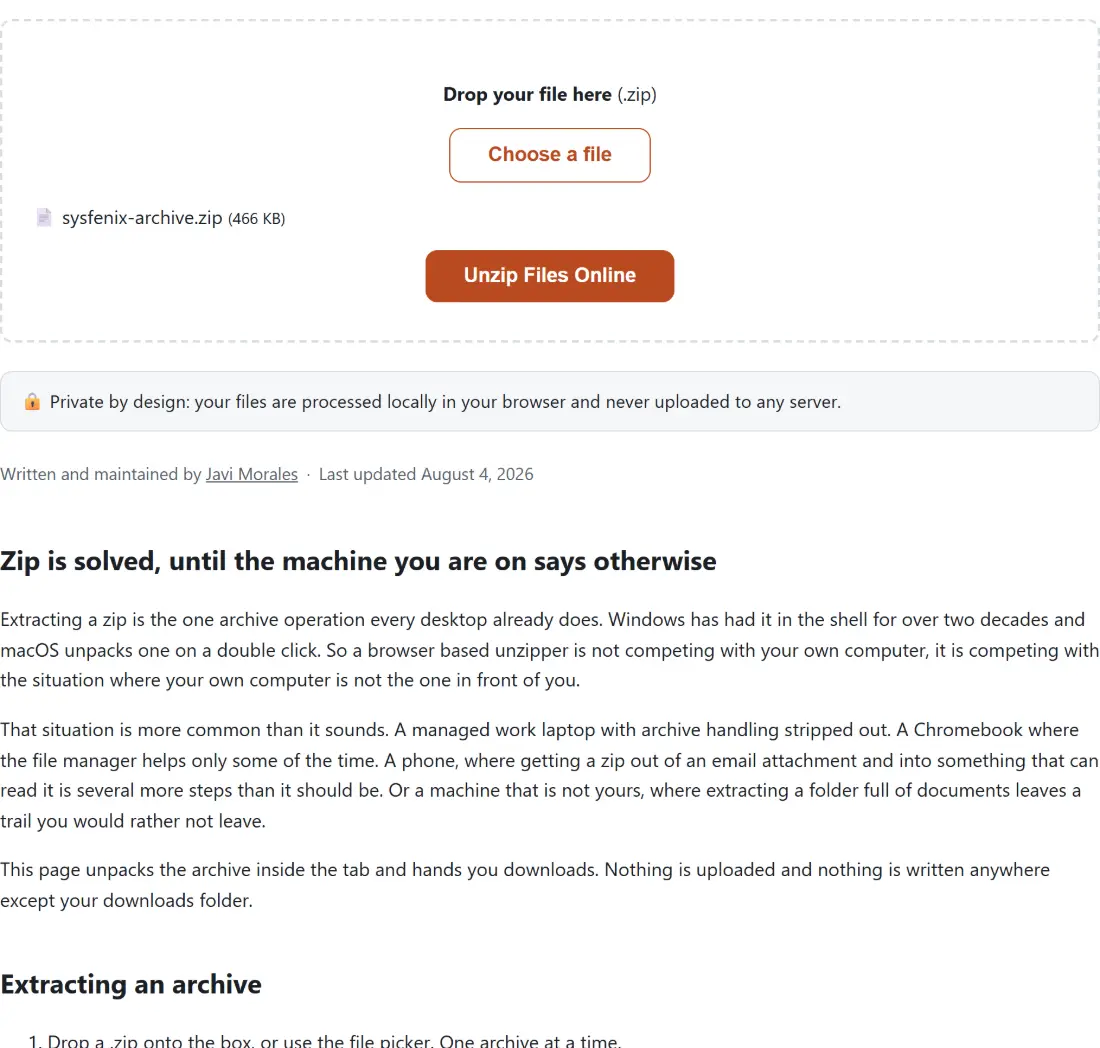
- Drop a .zip onto the box, or use the file picker. One archive at a time.
- Run it. The archive index is read, checked for encryption and size, then decompressed.
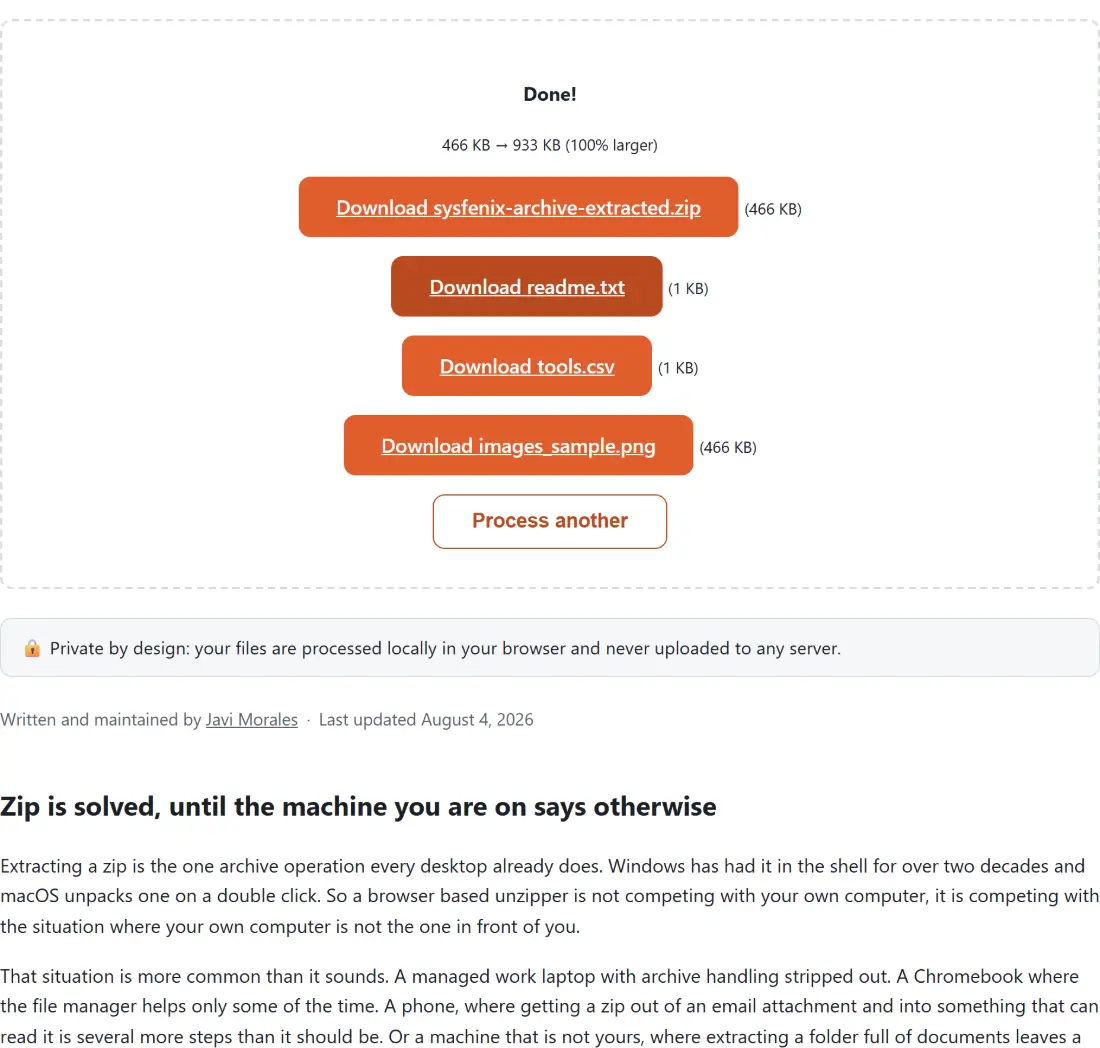
- Take the individual files, the bundled zip, or both, depending on how many files were inside.
- Clear the box for the next archive.
Why the result changes shape with the file count
Three outcomes, and each is the right answer for its case.
A single file inside comes back on its own. Wrapping one file in a zip so you can unwrap it again would be an odd thing to hand someone who just asked for the opposite.
Two to two hundred files come back as individual downloads plus one zip of everything. Both are genuinely useful, since half the time you want the one document you came for and the other half you want the lot, and offering both costs nothing.
Above two hundred, only the zip. The results are a flat list of links with no folder browser, and past a couple of hundred entries that list stops being navigable. Note that this cap is about the interface being usable, not about the tool being able to cope.
The size check happens before anything is decompressed
The archive’s own index records the uncompressed size of every entry, and those figures are added up and checked before a single byte is inflated.
The ordering is the whole point. A hostile archive built out of highly repetitive data can be a few megabytes on disk and terabytes once expanded, and the only safe moment to refuse it is before decompression rather than during. Checking the declared totals first means a zip bomb is turned away at the door rather than taking the tab down with it.
The same check catches the innocent version, which is far more common: a backup or a media archive that is simply larger than a browser tab can hold in memory.
Names come out flat, and never collide
An entry in a zip stores its full path, so a photo might be recorded several folders deep. A download cannot recreate that, so the path is collapsed into a single name with the separators replaced by underscores, which keeps the original structure readable in the name itself.
Two entries from different folders can flatten to the same name. Rather than let the second overwrite the first, a numeric suffix is added before the extension, so a duplicate arrives as a second file rather than as a missing one. The bundled zip uses those same flattened names, which means it is a convenience for taking everything at once and not a way to recover the original folder tree.
What to do with what comes out
If the archive held data rather than documents, Excel to JSON and JSON to CSV convert the usual formats, and JSON Formatter makes a machine written file readable. A pass file that arrived as an archive is handled by pkpass to PDF.
To go the other way and build an archive, Zip Files packs a set of files with a compression level you choose. For the formats a fresh machine cannot open at all, RAR Extractor, 7z Extractor and TAR.GZ Extractor each cover one. The rest are on the dev tools hub.