The output is rebuilt from parsed values, not re-indented text
A re-indenter hands back your own characters with the spacing changed. This tool does something else. It hands the input to the JavaScript engine’s own JSON parser, gets back real values, and asks the engine to write those values out again with the spacing you chose. Parsing succeeding is the validation, which is why there is no separate check button anywhere on the page.
That round trip is the reason the tool is reliable, and it is also the reason the result is a normalized copy rather than a reformatted original. Three consequences follow, and none of them is a bug. Numbers are re-rendered from the value the parser produced. A key that appeared twice appears once. Escape sequences are rewritten in their shortest correct form, so a string written with a Unicode escape for an accented letter comes back holding that letter directly, while a real newline inside a string stays written as an escape.
For nearly everything, equivalent is what you want. If you are auditing a signed payload or anything where the exact bytes matter, read the next two sections before you paste.
From a wall of characters to indented JSON
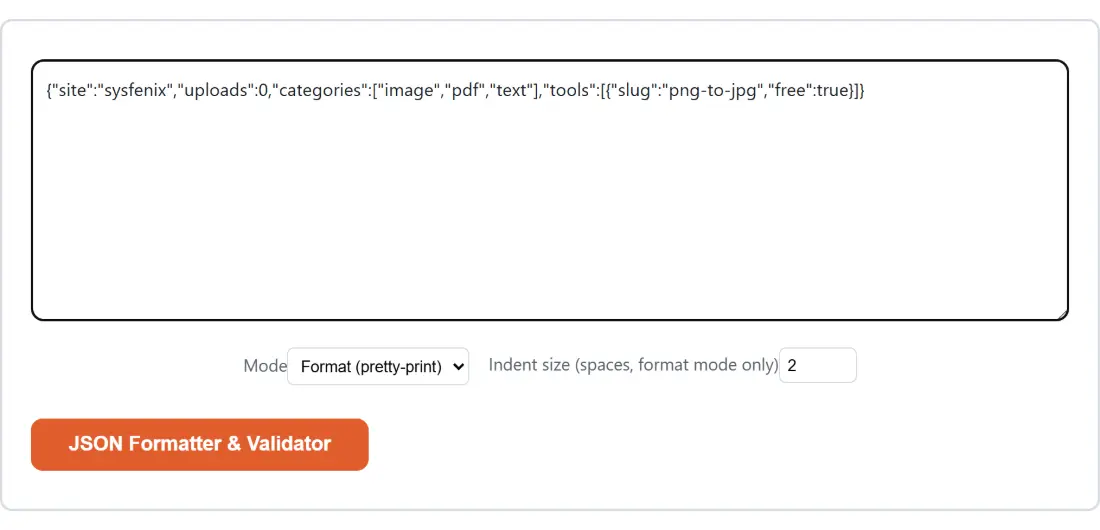
- Paste the JSON into the box above. An API response, the contents of a config file or a single line pulled from a log all work.
- Leave Mode on Format (pretty-print) and set Indent size (spaces, format mode only) to your preference, or switch to Minify to strip the whitespace out.
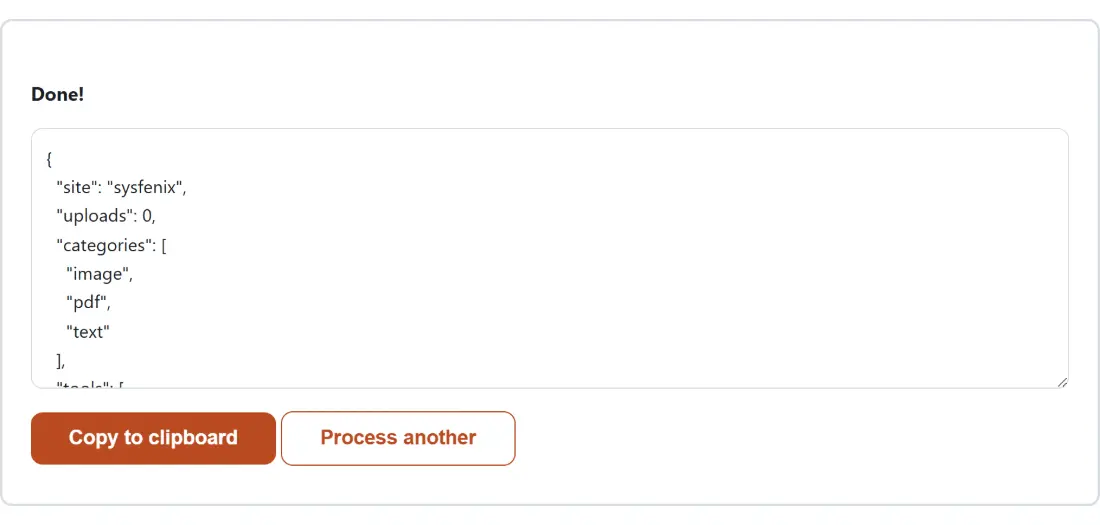
- Click JSON Formatter & Validator. If the text parses, the result replaces the input box straight away. If it does not, a warning appears and the input stays where it is.
- Take the result with Copy to clipboard, or use Process another to empty the box and paste the next one.
The indent field accepts one to eight spaces and is clamped to that range, so an out-of-range value cannot produce something unreadable. Minify ignores it.
Numbers that come back different from the ones you pasted
JSON’s grammar allows a number of any length. The parser that reads it stores every one as a double-precision float, and the printer writes that float back in its shortest round-trip form. Paste this:
{"n": 12345678901234567890, "f": 1.0, "e": 1e3}and formatting returns "n": 12345678901234567000, "f": 1 and "e": 1000. The long integer lost its last digits because a double cannot hold that many significant figures. The trailing zero on 1.0 vanished because the value is exactly one and the shortest spelling of one is 1. The exponent expanded because 1000 is shorter than 1e3.
Nothing here is unique to this page; any tool that parses JSON in a browser behaves the same way, which is precisely why it is worth knowing. If you are handling large database identifiers, send them as strings. And if what you actually want is to explore a huge payload rather than reprint it, the JSON Tree Viewer renders it as a collapsible tree with a search box and leaves the underlying text alone.
Duplicate keys, and keys that look like array indexes
Two normalizations catch people out often enough to deserve their own section.
A repeated key is legal to write and ambiguous by definition. Feed in {"b":1,"a":2,"b":3} and the minified result is {"b":3,"a":2}. The last value wins, but the position of the first occurrence is what survives, so the recovered document is neither of the readings you might have expected. If a hand-merged config is behaving strangely, formatting it is a quick way to find out whether a key is in there twice.
The second one is stranger. Keys that look like non-negative integers are moved to the front and sorted numerically, because that is how JavaScript objects order their own properties. Paste {"10":"a","2":"b","name":"c","1":"d"} and the minified result reads {"1":"d","2":"b","10":"a","name":"c"}. Ordinary string keys keep their original order after them. If key order carries meaning in your system, and integer-like keys are involved, do not use a reformat as the last step before shipping.
What happens when the text does not parse
The module builds a genuinely useful message when the parse fails. It pulls the character offset out of the engine’s error when one is present, counts newlines in your own pasted text up to that offset, and reports a real line, column and character position. For {"a":1,} that is line 1, column 8.
Be aware that the page itself does not show you that. The shared text-tool wrapper catches everything raised by a module and prints one generic sentence asking you to check the input, so the detailed message ends up in the browser’s developer console rather than on screen. Open the console and it is right there. Sibling tools built later work around the same wrapper by returning their errors as ordinary result text instead of raising them, and one of them reuses this module’s error builder directly. Set the YAML to JSON Converter to its JSON to YAML direction and paste the broken document there, and the identical line and column arrives in the result box where you can read it.
The button is also disabled while the box is empty, so a truly empty paste never reaches the parser at all.
Where a formatter stops being the right tool
Pretty-printing is the right answer to a small document you need to read once. It stops being the right answer surprisingly quickly.
When two documents differ and you need to know how, a reformat tells you nothing; JSON Diff compares them structurally, so a difference in key order does not register as a change. When the document is large and you want one buried value, an expression is faster than scrolling, and the JSONPath Tester evaluates one live against your data. And when the reason you are reading the JSON at all is to write code against it, JSON to TypeScript infers interfaces from the same sample, including which keys are sometimes missing.