Five marks, and the one shape that is missing
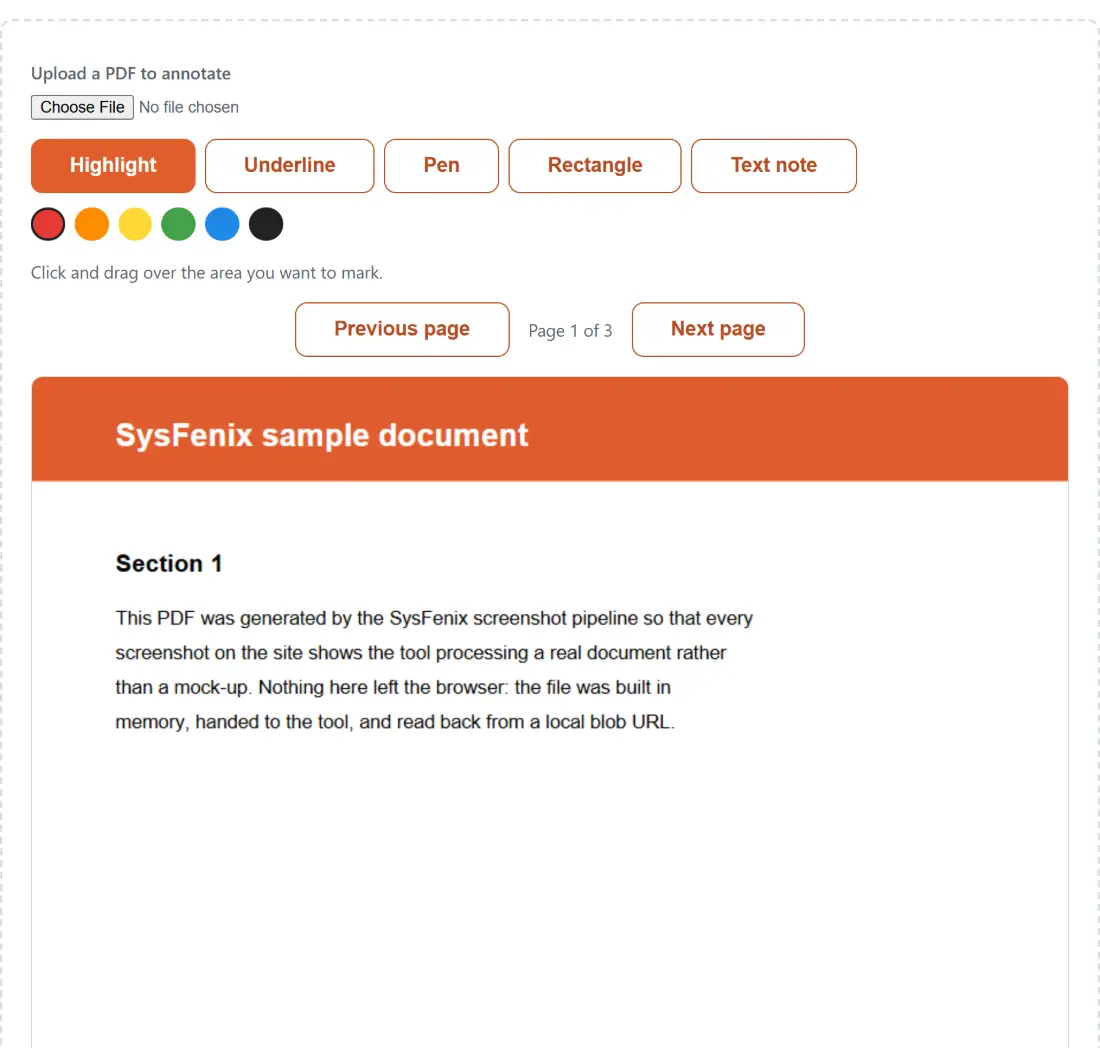
The toolbar carries highlight, underline, freehand pen, rectangle and text note, in a palette of six colours (red, orange, yellow, green, blue, black) with red selected by default. That set is deliberate rather than partial. Highlight and underline are drag operations over a span of text, the pen is a freehand drag for circling and scribbling, the rectangle boxes a region, and a text note drops a filled label with your words in white on top of it, sized to the text at 16 point Helvetica with a few points of padding.
What is missing is arrows, circles and ellipses. We left them out of the first pass because they multiply the geometry work (an arrowhead needs an angle, a rotation and a fill) without covering ground the pen and rectangle do not already cover in practice. If you need a proper arrow today, draw it with the pen; it is not elegant, but it exports cleanly.
Marking up a page
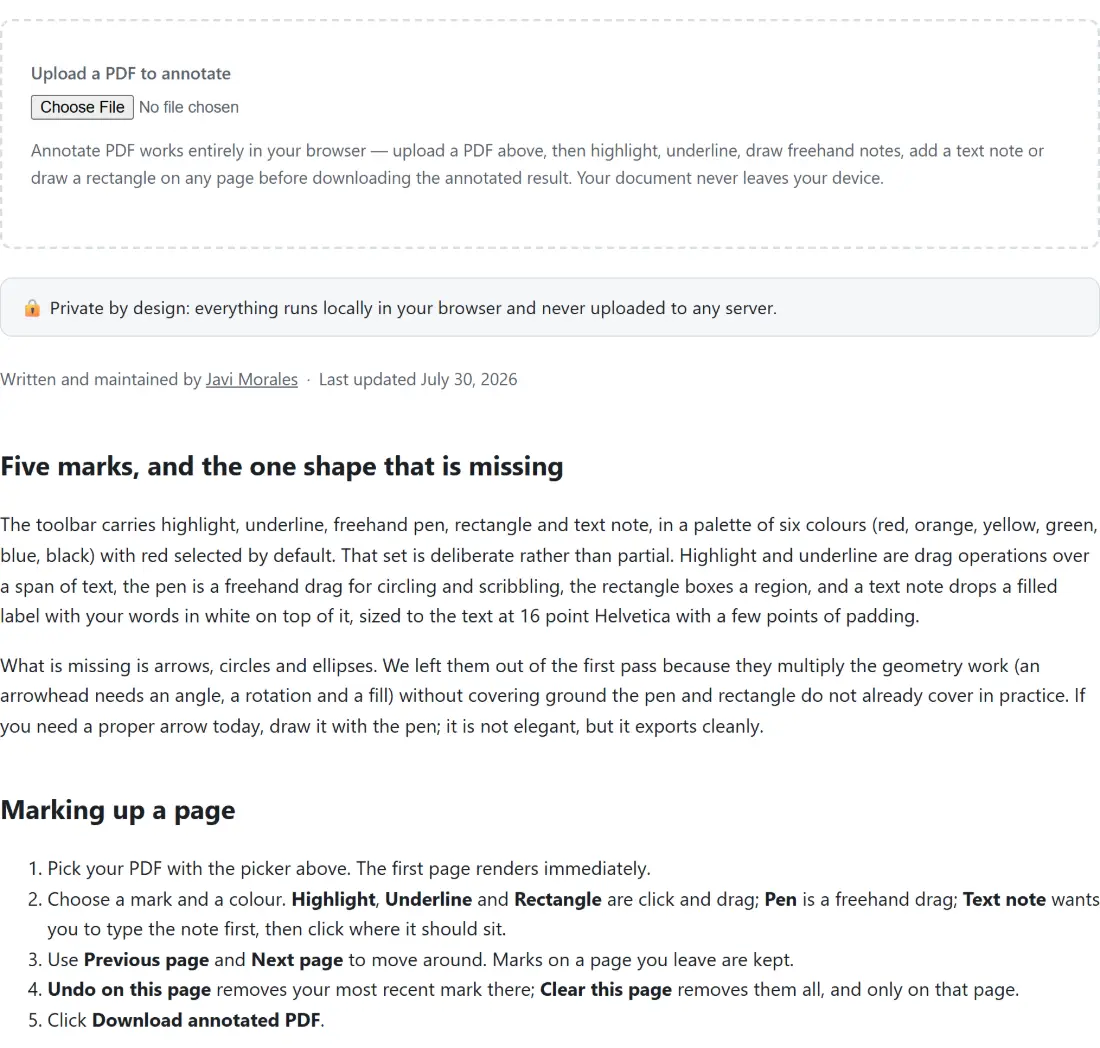
- Pick your PDF with the picker above. The first page renders immediately.
- Choose a mark and a colour. Highlight, Underline and Rectangle are click and drag; Pen is a freehand drag; Text note wants you to type the note first, then click where it should sit.
- Use Previous page and Next page to move around. Marks on a page you leave are kept.
- Undo on this page removes your most recent mark there; Clear this page removes them all, and only on that page.
- Click Download annotated PDF.
Because undo and clear are scoped per page, a mistake at the end of a long review session never risks the marks you made on page two.
The two axes that have to be flipped on export
This is the part of the tool that could quietly be wrong, so it is worth explaining. While you draw, everything is captured in canvas pixels: origin at the top left of the on-screen canvas, y growing downward, exactly the space your pointer events report in. PDF page space is different on two axes at once. It is measured in points, not device pixels, related to canvas pixels by whatever scale the page was rendered at, and its origin is the bottom left corner with y growing upward.
So baking a mark into the file needs both an unscale and a vertical flip, and getting either wrong produces annotations that look perfect while editing and land mirrored or offset in the saved file. Every geometry transform in the tool is built from a single primitive with a worked example the tests assert verbatim: on a page 800 points tall rendered at scale 2, a click at canvas pixel (100, 150) becomes PDF point (50, 725), because 150 pixels down is 75 points down, and 800 minus 75 is the distance from the bottom that a PDF y coordinate actually measures.
Pages are fitted to a 900 pixel wide editing canvas, so the render scale differs per document and even per page in a PDF with mixed page sizes. Each page’s scale is remembered alongside its marks and used for that page only. Stroke thicknesses (3 points for the pen and underline, 2 for the rectangle border) are fixed in PDF points rather than converted from screen pixels, so on an unusually large or small page a stroke can export a little heavier or lighter than it looked while you drew it.
Freehand strokes are thinned before export too. A slow drag fires hundreds of pointer events, so points closer than two pixels to the last kept one are dropped, with the first and last always preserved. Without that, one circled paragraph could add a thousand line segments to the file.
Baked-in ink versus real annotation objects
The PDF specification has a whole class of markup annotation objects, and a highlight made in Acrobat is one of them: a separate object with an author, a timestamp and a comment thread, which any reader can list, toggle, reply to or delete. This tool does not produce those. It draws your marks into the page content itself, the same way Sign PDF places a signature and Watermark PDF places a watermark.
That is a real trade-off, so pick the tool by what you need. Baked-in ink renders identically in every viewer, on every device, including printers and previews that ignore annotation layers entirely, and it cannot be stripped by someone who clicks “hide comments”. Real annotation objects are editable and reviewable later, and they carry a threaded conversation. If your workflow is a round-trip review with colleagues who reply to each other’s comments, a desktop reader is the better fit. If it is “mark this up, send it, done”, baked ink is the more reliable result, and there is nothing left afterwards for Flatten PDF to do.
What touches the network, and what never does
Your document does not. It is read as bytes, rendered page by page in the tab, and rebuilt with pdf-lib in the same tab, then handed to your browser as a download.
One honest detail worth stating rather than glossing over: rendering uses pdf.js, and pdf.js does its parsing in a web worker whose script is fetched from the unpkg CDN the first time you load a PDF into the tool, the same way this site’s video tools load their ffmpeg core. That request carries the worker’s URL and nothing else. Your PDF is never part of it, no page of it is ever posted anywhere, and once the worker script is cached the tool works offline. For the kind of file people actually annotate, a lease, a diagnosis, an offer letter, a contract under negotiation, that distinction between “the tool’s own code came over the wire” and “your document came over the wire” is the one that matters.