Grade 1, uncontracted, and nothing beyond it
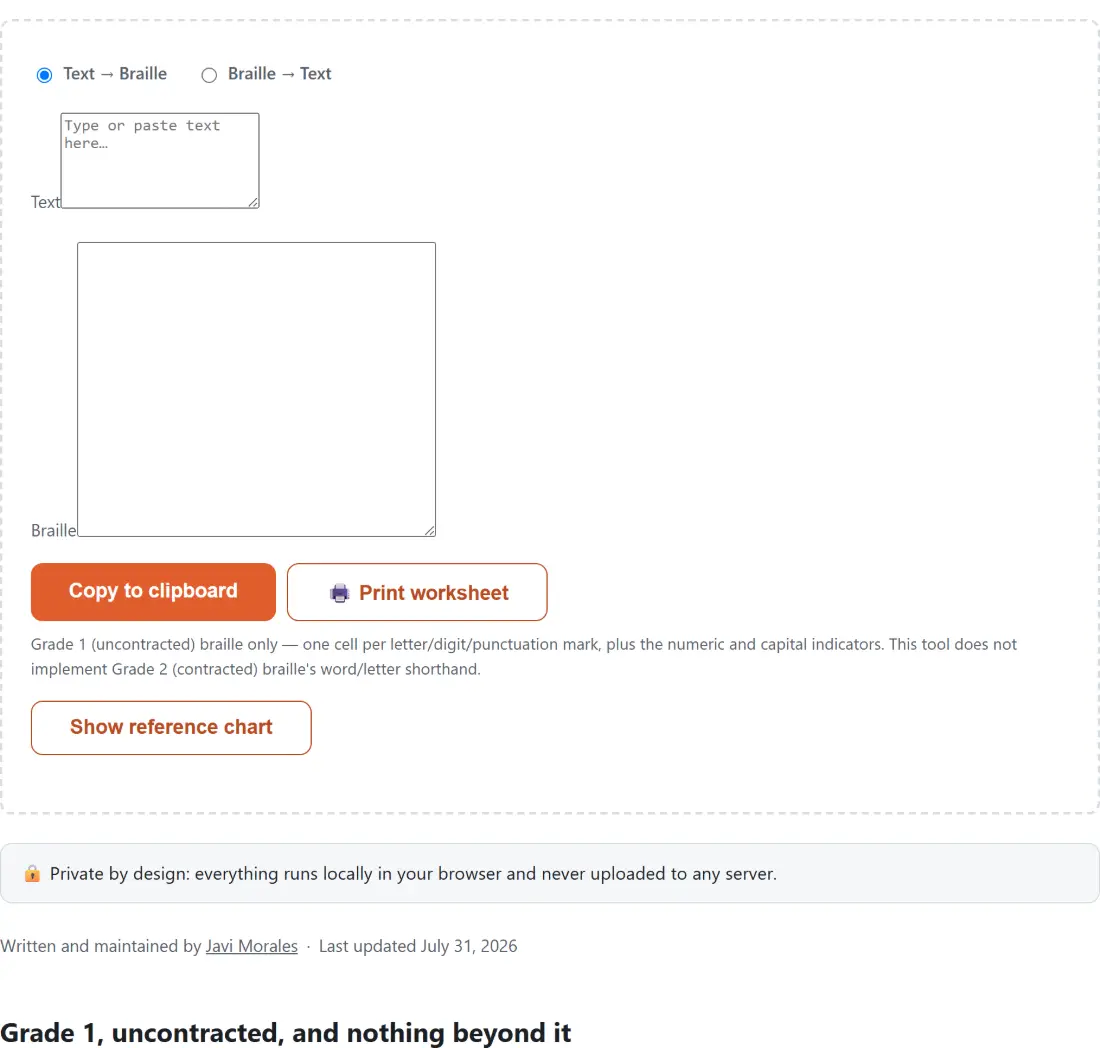
Braille is a tactile writing system: cells of up to six raised dots, arranged in two columns of three, read by fingertip. Grade 1 (uncontracted) braille assigns exactly one cell to each letter, digit and punctuation mark, plus the two indicator cells that mark numbers and capitals, so a Grade 1 page is a straight transliteration of print rather than an abbreviated rendering of it. That is what this translator implements, and the widget repeats it in a note under its own buttons.
Grade 2 (contracted) braille is a further system layered on top. It replaces common letter groups and whole words with shorthand cells, so “the” or “and” collapse into a single cell, and it is what most published braille books actually use. It needs a large standardized contraction table with its own placement rules, and none of it is implemented here. If a transcription has to match a real Grade 2 book, this page will not produce it, and there is no setting that switches it on.
The dot numbering that generates every cell
Dot positions are numbered 1, 2, 3 down the left column and 4, 5, 6 down the right, and each letter is simply a subset of those six. The pattern is far more regular than it looks. Letters a through j use only the top four positions (1, 2, 4 and 5, never 3 or 6). Letters k through t repeat those same ten shapes with dot 3 added. Letters u, v, x, y and z repeat the shapes of a through e with both dot 3 and dot 6 added. Letter w is the single irregular one, because it was not part of the French alphabet Louis Braille built the system around, so it sits outside that progression with a shape of its own.
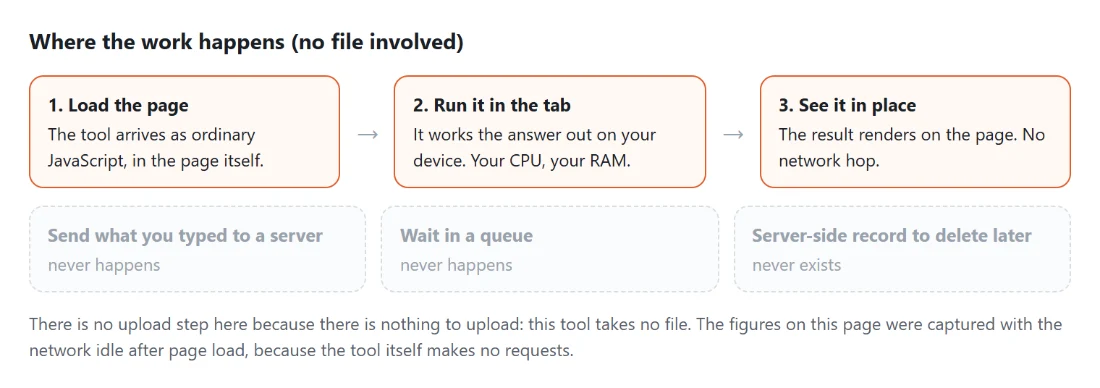
Under the hood, every cell here is arithmetic rather than a picture. The Unicode Braille Patterns block packs those six dots into six bits added to a base codepoint, so one cell is one character and the output you copy is real text you can paste anywhere, not a font trick or an image.
Numbers and capitals ride on indicator cells
Braille has no separate digit glyphs at all. Digits 1 to 9 and 0 reuse the cells for a to j, and a numeric indicator cell tells the reader to read them as numbers. This tool emits that indicator once per unbroken run of digits; a letter, space, punctuation mark or line break ends the run, and the next digit begins a fresh one. Decoding mirrors the same rule in reverse.
Capitals work one letter at a time: a capital indicator goes immediately before each individual uppercase letter, and the double-capital “this whole word is uppercase” convention is not implemented. A useful side effect is that those markers survive a round trip, so decoding this tool’s own output gives back your exact mixed case. The Morse code translator cannot do that, because Morse carries no case information at all and always decodes to uppercase.
Turning a translation into a printed worksheet
- Choose a direction with the radio buttons, Text → Braille or Braille → Text. Switching moves whatever is in the output box into the input box, so a phrase can go back and forth without being re-pasted.
- Type or paste into the first box. There is no Translate button; the second box updates on every keystroke.
- Click Copy to clipboard to take the result as text, or 🖨️ Print worksheet to open a separate page holding your original text as a small caption above the braille set in a large face, handed straight to your browser’s print dialog.
- Click Show reference chart for the full letter, digit and punctuation tables inline on the page.
That printed sheet is ordinary HTML at a large type size. It is a visual reference for a sighted learner, parent or teacher, not embosser output: it produces no raised dots and no BRF file, and physical tactile braille needs an actual embosser.
Characters it refuses, and why that is deliberate
The supported set is the 26 letters, the 10 digits, and eight punctuation marks: period, comma, question mark, exclamation mark, apostrophe, hyphen, colon and semicolon. Spaces and tabs become the blank braille cell, which is how a real tactile page represents a word gap rather than a narrower typographic space, and line breaks are kept as line breaks. Anything else stops the translation and shows an error naming the exact character that was not recognized, with the output box cleared rather than quietly filled with a partial result.
Decoding is deliberately more forgiving than encoding. It accepts either the blank cell or an ordinary space between words, and a pattern outside the Grade 1 table is reported together with its Unicode codepoint, which is usually enough to spot the stray character that rode in with a copy and paste. In practice the thing that catches people out is not the braille at all; it is a curly apostrophe pasted from a word processor, which is a different character from the straight one in the table.
For classroom material around the same lesson, the NATO phonetic alphabet converter covers the spoken spelling alphabet with its own reference chart, and the handwriting practice sheets generator prints traceable letter rows in print or cursive.