Seven style letters, and what each row of the table gives you
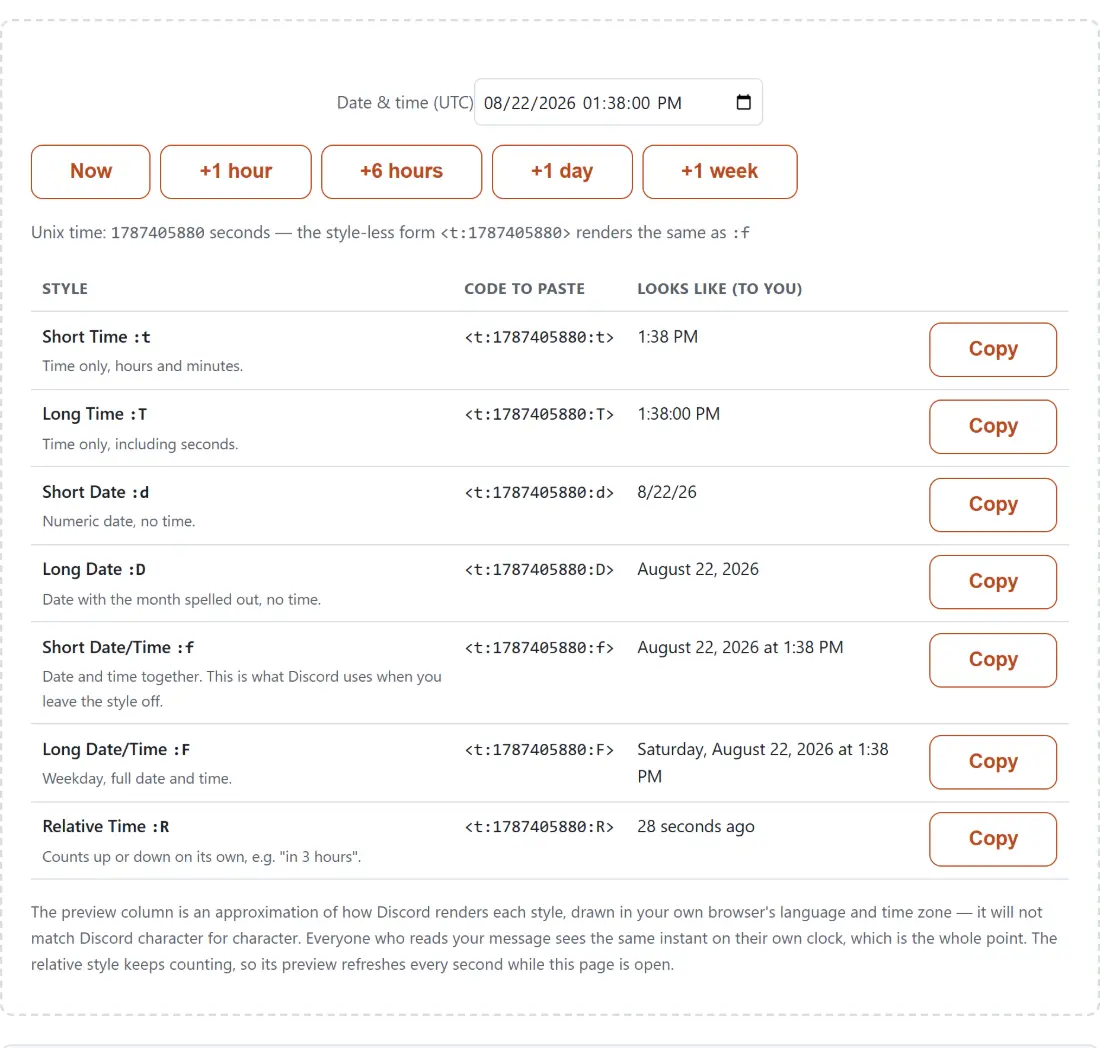
Discord’s dynamic timestamp is literal text you type into a message: an angle bracket, t, a colon, a Unix time in seconds, optionally another colon and a single style letter, then a closing bracket. The client swaps it for a rendered date on the way to every reader’s screen, in that reader’s language and zone.
The table lists all seven documented styles in Discord’s own order. t is short time, hours and minutes. T is long time, with seconds. d is a numeric date. D spells out the month. f puts date and time together, and F adds the weekday to that. R is the relative one that counts down and then up on its own.
There is an eighth thing to know: the style suffix is optional. Post <t:1789245000> with nothing after the number and Discord renders it as though you had written f. The line above the table shows you that style-less form alongside the raw seconds, which is handy when you are hand-writing the code into a bot payload.
A worked example, seconds and all
Set the picker to 12 September 2026 at 20:30 with your browser in UTC and the tool reports a Unix time of 1789245000. The F row then hands you <t:1789245000:F>, and the preview column, in a US English locale, reads “Saturday, September 12, 2026 at 8:30 PM”. The R row for the same instant, viewed ten hours earlier, reads “in 10 hours”.
Move that same wall-clock time to a zone two hours ahead of UTC and the number changes to 1789237800, because 20:30 in that zone is an earlier absolute instant. That is the correct behavior and the reason the zone label sits next to the picker. The code encodes a moment, not a clock reading.
Picking the instant, and the round-minute detail
- Set the Date & time field. Its label carries your browser’s IANA zone name, so you can see which clock you are working in.
- Or skip typing and press Now, +1 hour, +6 hours, +1 day or +1 week to jump to a round offset from the current moment.
- Read down the Code to paste column and find the style you want.
- Press Copy on that row, then paste the code straight into your Discord message and send it.
One detail worth knowing about those buttons: the value they write into the picker is precise only to the minute, so pressing Now at 13:45:37 gives you 13:45:00. If you genuinely need the seconds, the field accepts them and the tool will encode them.
The preview column is an approximation on purpose
Each preview is produced with Intl.DateTimeFormat in your own locale and zone, mapped to a plausible option set per style: short time style for t, medium for T, short date for d, long date for D, long date plus short time for f, and full date plus short time for F. It is a demonstration of the shape of each style, not a reimplementation of Discord’s renderer, and it will differ from the real thing in small details.
That is not a shortcoming so much as the point being made. There is no single correct rendering of a Discord timestamp, because every reader gets a different one. What the generator guarantees is the code, which is a pure function of the instant you picked.
Relative time truncates rather than rounds
The R preview picks the largest unit that fits the gap and then truncates toward zero. Ninety minutes from now therefore reads “in 1 hour”, not “in 2 hours”, and the month and year buckets use the usual thirty and three hundred and sixty five day approximations. Relative labels are inherently fuzzy, and Discord’s own are bucketed the same way.
The preview refreshes about once a second while the page is open so it stays truthful as the gap closes. The copied code never changes on that tick, because it pins one fixed instant and it is Discord that recalculates the wording for each reader, every time they look at the message. Pairing F with R in the same announcement gives readers both the exact date and the countdown, and since both encode the same number they can never disagree.
Where the same number is useful outside Discord
The value inside the brackets is an ordinary Unix timestamp, so it travels. If someone posts a raw number at you and you want to know what it means, the Unix Timestamp Converter reads it back both ways and can tell seconds from milliseconds automatically. For working out what 20:30 in one city is in three others before you commit to a time, the Time Zone Converter and the World Clock are the right stops first.
Discord’s R style already gives a self-updating countdown inside the message, so it usually beats posting a screenshot of a timer. When the countdown needs to live on a page instead, on a stream overlay or a landing page, Countdown to Date does that job, and the other event and scheduling helpers sit in generators.