Where the time really goes when you write a table by hand
Typing <table>, <tr> and <td> is tedious but not hard. The part that eats an afternoon is arithmetic. Every row in an HTML table has to account for the same number of columns, and a rowspan in row two silently steals a slot from rows three and four, so the moment cells start spanning you are keeping a mental ledger of how many <td> elements each row still needs. Get one wrong and the browser does not complain; it just renders a table with a step in the side of it, and you go looking for the row that lied about its width.
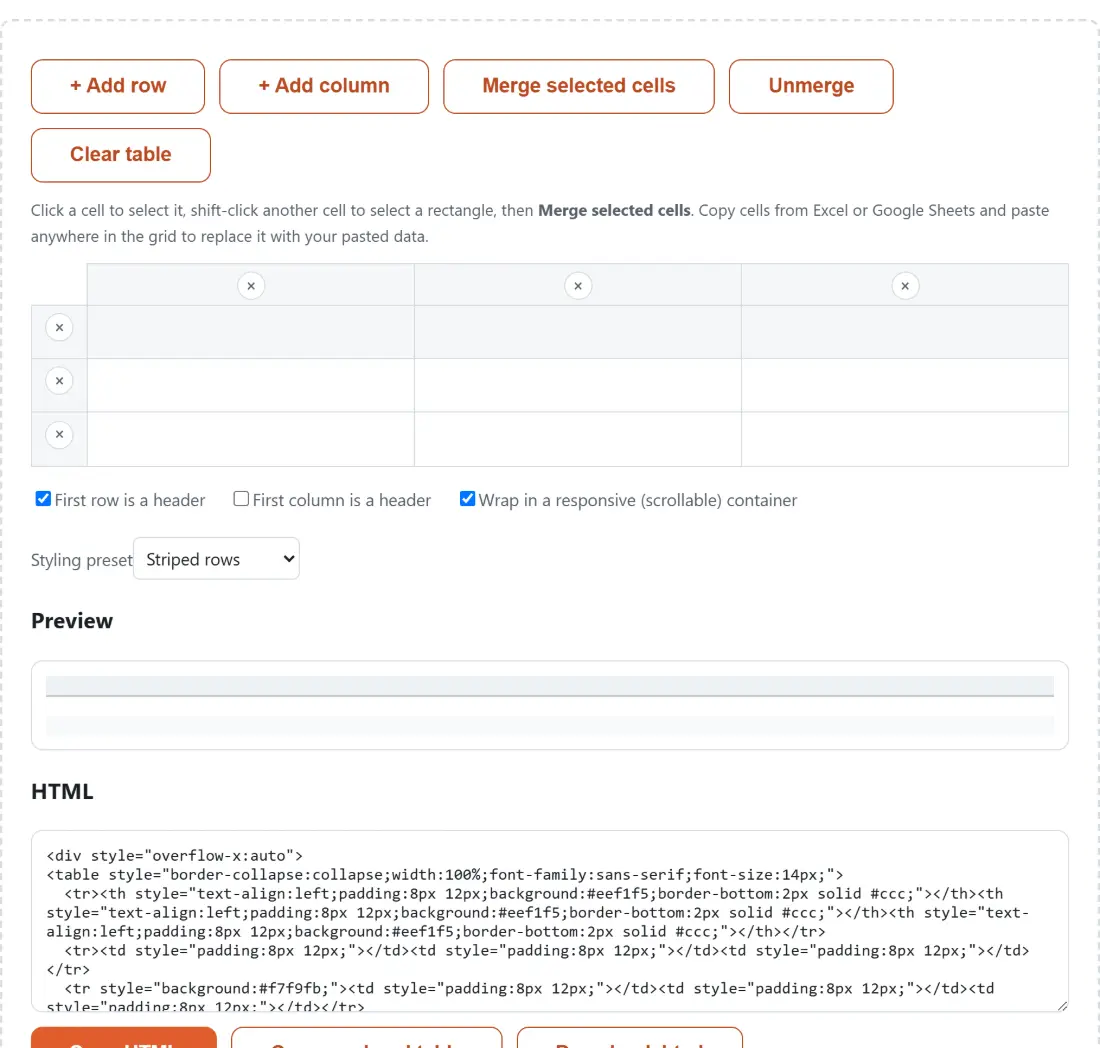
A grid editor removes the ledger. You select the rectangle you want joined and the spans are computed for you, along with the corresponding removal of the cells that rectangle absorbed. What you see in the preview is the markup you are about to copy.
The grid opens as a three by three, with the first row already marked as a header, the striped preset selected and the responsive wrapper on, which is the shape most people want. Add rows and columns from the toolbar; remove them with the small × buttons along the top edge and down the left side, which stay disabled once you are down to a single row or column. Click a cell to select it, shift-click another to extend the selection into a rectangle. There is no drag-select and no undo history, so the escape hatch for a mess is Clear table, which resets to a fresh three by three.
How merges are stored, and the one restriction that follows
Internally the table is a plain two-dimensional array of cell text plus a separate flat list of merge rectangles. Each merge records only its top-left anchor and how many rows and columns it spans, and every other cell inside that rectangle is treated as covered: its text is still stored, but no <td> is emitted for it. That is what makes the output valid by construction, because “which cells are hidden” is always derived from the merge list rather than tracked as a second flag that could drift out of step with it.
Keeping the covered text also means unmerging is genuinely reversible. Break a merge apart and every cell inside it comes back with whatever it held before, which is not true of most spreadsheet applications.
The restriction that falls out of this design is that merges cannot overlap or nest. Selecting a rectangle that touches an existing merged block is refused with a message rather than half-dissolving the old one, because supporting a merge of merges would need a genuinely different data structure to serve a case this tool does not need. To grow a merged block, unmerge it and merge the bigger rectangle. Deleting a row or column that a merge spans is handled the same honest way: the merge dissolves into ordinary cells first, then the deletion happens, and merges positioned after the deleted line shift to stay correct.
Header cells, striped rows, and the two Copy buttons
The two header checkboxes are independent, and both do exactly one thing: they switch the first row’s cells, or the first column’s cells, from <td> to <th>. Turn on both and the top-left corner is a <th> as well. Note what is not produced, since it occasionally matters: there is no <thead> or <tbody> element and no scope attribute on the header cells, so if you are shipping this into a context with strict accessibility review you will want to add those yourself. For a merged block, header status is decided by its anchor cell’s own position rather than by the whole rectangle’s overlap.
Five presets are available: Plain, Minimal, Striped rows, Bordered and Dark mode. Striped rows counts body rows only, so the shading starts with the second real data row and is not thrown off by the header sitting above it. The responsive checkbox wraps the finished table in a <div style="overflow-x:auto">, which is what stops a twelve-column table from blowing out the layout of a blog post on a phone.
Getting the result out works three ways, and the difference between the first two catches people. Copy HTML puts the markup on your clipboard as text, for pasting into a template or an editor. Copy rendered table puts it on the clipboard as text/html, so pasting into Google Docs, Word or an email composer produces an actual formatted table instead of a wall of tags. Download .html saves the markup as a file.
Put together, building one table runs like this:
- Size the grid with + Add row and + Add column, or paste a block copied from Excel or Google Sheets anywhere in the grid to replace it wholesale.
- Type into the cells. Click one cell, then shift-click another, to select a rectangle.
- With a rectangle selected, press Merge selected cells; Unmerge puts a merged block back with every cell’s text intact.
- Set the header checkboxes, pick a style preset, and decide on the responsive wrapper, watching the live preview.
- Take the result with Copy HTML, Copy rendered table or Download .html, depending on where it is going.
Grid editor, JSON, or Markdown
Three tools here overlap and the right one depends on what you already have. If your data is a JSON array, JSON to HTML Table skips the grid entirely and lets you choose which keys become columns; it shares these exact styling presets, so switching between the two changes nothing about the look. If the destination is a README, a wiki or a chat message, Markdown Table Generator uses the same grid-editing approach and emits pipe syntax instead. And if the table is really the whole deliverable, download the .html here and run it through HTML to PDF.
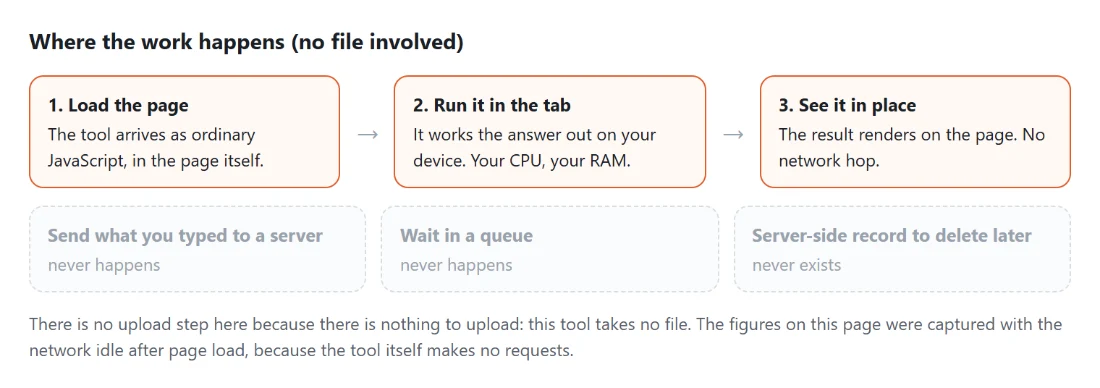
Everything runs in the tab, which is worth a sentence given what tends to get pasted into a grid like this: pricing not yet announced, salary bands, client lists. The clipboard data never leaves the page.