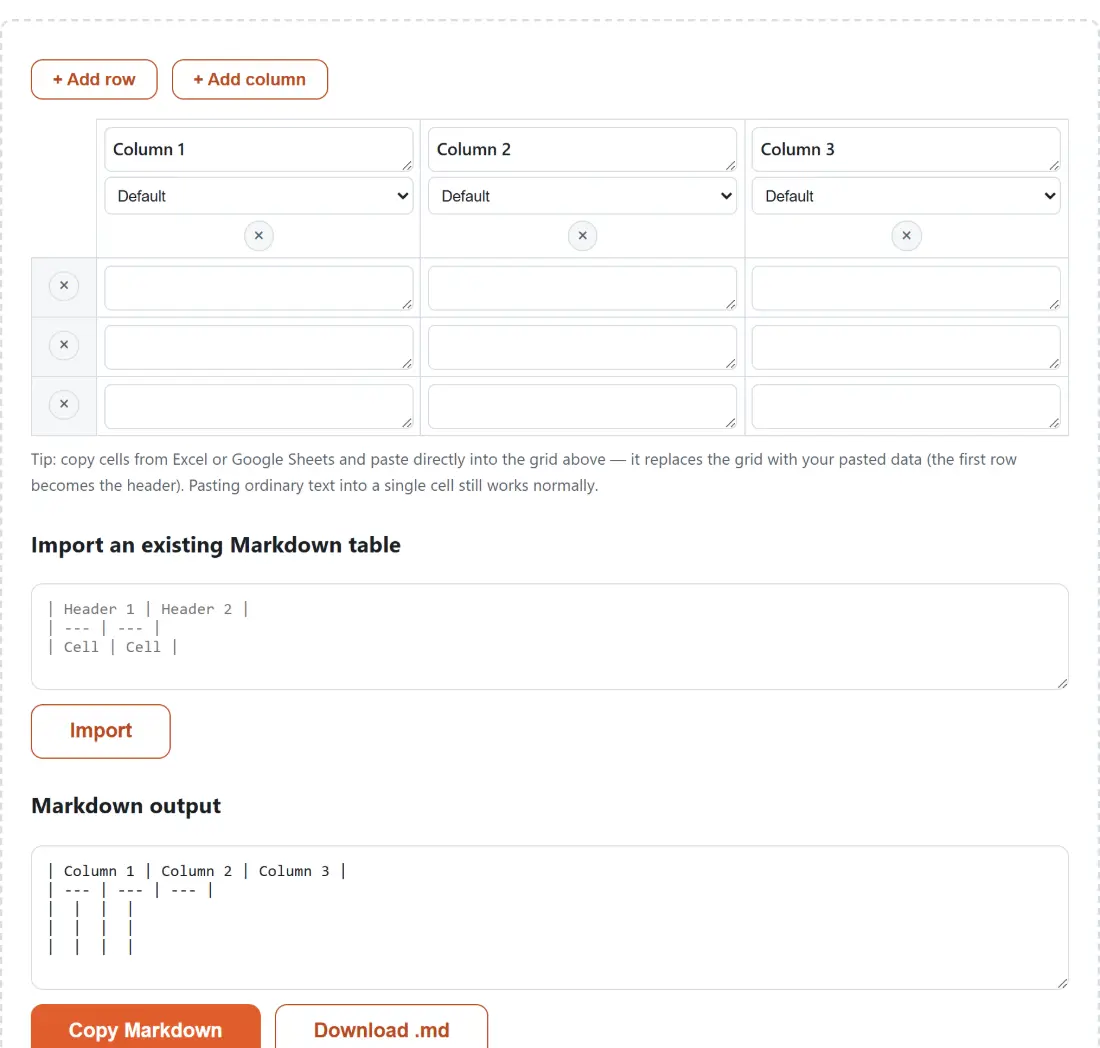
Markdown table syntax is simple to read and miserable to write by hand. Every row needs the same number of pipes, the separator line underneath the header is mandatory and easy to get wrong, and adding one column to a table that already has eight rows means editing eight lines. This page gives you a grid instead, and keeps a correct table in sync with it as you type.
Building a table from the toolbar down
- Type into the header cells and the body cells directly. Each header has an alignment select under it offering Default, Left, Center and Right.
- Use + Add row and + Add column to grow the grid. The small remove button on each row handle and each header deletes that row or column.
- To start from data you already have, copy a range in Excel or Google Sheets and paste it anywhere inside the grid. It replaces the whole grid, and the first pasted row becomes the header.
- To keep editing a table you wrote earlier, paste it under Import an existing Markdown table and press Import.
- Read the result out of the Markdown output box, then use Copy Markdown or Download .md, which saves a file named table.md.
The grid starts at three columns and three empty rows
A fresh page gives you headers reading Column 1 through Column 3, three blank body rows, and every column on Default alignment, which emits a plain dashed separator with no colons. That skeleton is already rendered in the output box before you type anything, which makes the relationship between the grid and the syntax obvious from the first keystroke.
The remove buttons are asymmetric on purpose. Column removal is blocked once you are down to a single column, since a zero-column table is meaningless. Row removal has no floor at all, because a header row and its separator line, with no body rows underneath, is a perfectly legal Markdown table.
Pipes, line breaks and the two characters that get rewritten
Only two things in your text are altered on the way out, and both have to be.
- A literal pipe becomes a backslash followed by a pipe. Left alone it would be read as a column boundary and shift every cell after it.
- A line break inside a cell becomes an HTML break tag. Markdown tables are line-oriented, so a real newline would terminate the row.
Both are reversed on import, so text with a pipe and text with an embedded newline survive a round trip through the output box and back into the grid. The edge the module documents openly is a backslash you typed yourself immediately before a pipe: the tool escapes pipes but not backslashes, and the importer reads a backslash as an escape only when a pipe follows it directly, so that pair comes back intact too rather than collapsing.
The paste scanner that reads Excel, Sheets and CSV
Copying cells out of a spreadsheet puts tab-separated text on the clipboard; a CSV file uses commas. The scanner here picks the delimiter by looking for any tab anywhere in the pasted text and falling back to comma if there is none. It then handles double-quoted fields the way RFC 4180 describes, including a delimiter inside quotes, a doubled quote standing for a literal one, and a real newline inside a quoted field.
A paste only takes over the grid when it looks like genuine tabular data, meaning it contains a tab or spans more than one line. Paste a plain word into a cell and the browser’s ordinary single-field paste happens instead, leaving the rest of the grid alone. Ragged input is squared up to the widest row, so a two-cell row pasted alongside three-cell rows gains an empty cell rather than breaking the table.
If your starting point is a CSV file rather than a clipboard selection, open it in the CSV Viewer first to sort and inspect it, then copy the rows you want across.
Round-tripping a table you already wrote
The import box does not require you to paste a bare table. It scans for the first line that parses as a separator row whose cell count matches the line above it, which means prose before and after the table is fine; paste an entire README section and it finds the table inside. Body rows are collected from there until the first blank line or the first line without a pipe.
Alignment survives the trip. A colon on the left reads as left, a colon on the right as right, both as center, and a bare run of dashes as Default. A line whose cells are not all valid separator cells is simply passed over by that scan, and text with no header and separator pair in it at all produces a specific error naming what is missing, shown above the grid rather than swallowed, which is one advantage of this page having its own component instead of a shared shell.
Merged cells, and the wall GFM syntax puts up
There is no merge feature here and there never will be, because Markdown table syntax has no concept of a spanned cell or a nested table. Every Markdown table is a strict rectangle. That limitation belongs to the format, not to this tool.
When you actually need a merged cell, the answer is HTML. The HTML Table Generator supports merges, and it reuses this page’s own spreadsheet-paste scanner, so the clipboard behavior you learned here carries over unchanged. If the source data is a JSON array, the JSON to HTML Table tool turns pasted JSON into HTML directly, with column picking and style presets. To see how your finished Markdown will render, run it through the Markdown to HTML Converter, and if the table is destined for a project README, the README Generator shows a live preview of the whole document. The text tools hub lists the rest.