Nested tables and inline styles, because Outlook renders through Word
The markup this tool emits looks like it was written in 2004, and that is the point. Desktop
Outlook renders HTML mail through Microsoft Word’s engine, and Gmail strips <style> blocks out of
anything you paste into its signature box. Between them, they rule out the entire modern toolkit:
no stylesheet, no classes, no flexbox, no grid.
What survives is a nested <table> with every rule written directly onto the cell as an inline
style attribute, which is exactly what gets built here. A signature laid out with <div> elements
would look immaculate in the preview on this page and then collapse into a stack of unstyled lines
the first time a colleague opened it in Outlook. The table is a compatibility decision, not a
stylistic one.
Classic, Modern and Minimal, and what each one changes
The three templates are not just color swaps, so it is worth knowing what you are picking.
Classic sets a Georgia and Times serif stack, puts the photo in a lightly rounded square with a two pixel accent stripe running down its right edge, draws a horizontal accent rule under your name, and italicizes the job title line. Modern switches to Arial and Helvetica, crops the photo to a circle, prints your name in the accent color and drops both rules. Minimal (no photo) uses a Segoe UI stack, has no photo cell whatsoever and no dividers, which makes it the right pick for a signature that has to stay small on a phone.
Whatever you choose, the name sits at 16 pixels bold, the title and company combine into a single “Title at Company” line at 13 pixels grey, and the contact rows follow underneath in the same size.
From an empty form to a signature sitting in Gmail
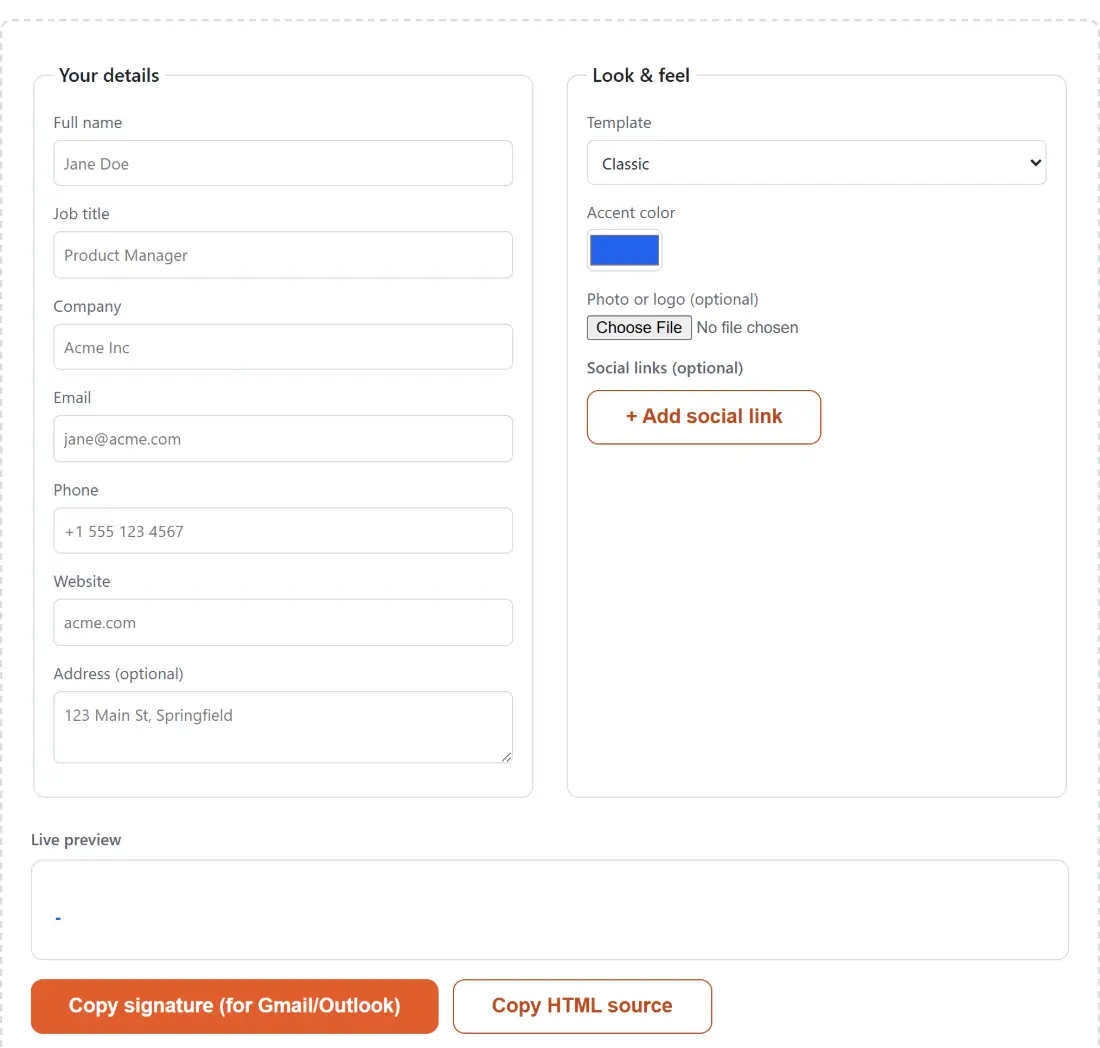
- Fill in Full name, Job title and Company, then whichever of Email, Phone, Website and Address (optional) you want visible. Every field is optional, and a blank contact field simply produces no row, though leaving the name empty does leave a blank line at the top.
- Pick a Template and set the Accent color with the color picker beside it.
- Add a Photo or logo (optional) if your template supports one, and press + Add social link once per profile you want to show.
- Watch the Live preview underneath the form. It rebuilds on every keystroke, and it is the real signature rather than an approximation of it.
- Click Copy signature (for Gmail/Outlook), then paste into your client’s signature box. In Gmail that is Settings, then See all settings, then Signature. In Outlook it is File, Options, Mail, Signatures.
That first button copies two flavors at once, the formatted HTML and a plain-text summary of the same details, so a client that refuses rich content still receives something readable instead of a wall of tags. Copy HTML source is the second button, for clients that want to import a raw HTML file.
The photo becomes a data URI, at 80 pixels square
A purely browser-based tool has nowhere to host an image, so the photo you choose is read locally
and embedded into the signature as a base64 data: URI. That is genuinely self-contained, which is
its own advantage: there is no remote asset to break when a domain moves, and no tracking pixel
smell about a signature that fetches an image from a third party.
The cost is size. Base64 inflates the bytes, and that inflated blob travels with every message you send, so the 2 MB ceiling is a guardrail rather than a target. The image renders at 80 by 80 pixels regardless, and it takes a rounded square in Classic, a circle in Modern, and no place at all in Minimal. If what you actually want is a handwritten-looking mark rather than a headshot, the Signature Generator draws one and hands back a PNG.
Colored badges instead of brand logos
The social links render as 24 pixel circles carrying a short abbreviation in white bold text, in each platform’s own color, covering LinkedIn, X, Instagram, Facebook, GitHub and YouTube. They are built from styled table cells, not images.
Two email-client realities pushed that decision. Most clients block remote images by default, so real logos would have to be embedded as data URIs too, adding weight for each one, and inline SVG is not reliably rendered by Outlook at all. A badge built out of a table cell has neither problem and looks identical everywhere. Each + Add social link press picks the first platform you are not already using, and every row has its own remove button.
Fields that quietly drop out of the generated HTML
The builder never fails; it just omits what it cannot use, which is worth knowing so you are not
hunting for an error message that does not exist. An email without an at sign is not turned into a
row. A phone field with no digits left after punctuation is skipped. A website that cannot be
normalized into an http or https address is printed as plain text instead of a link, and a social
URL using something like a javascript: scheme is discarded rather than published.
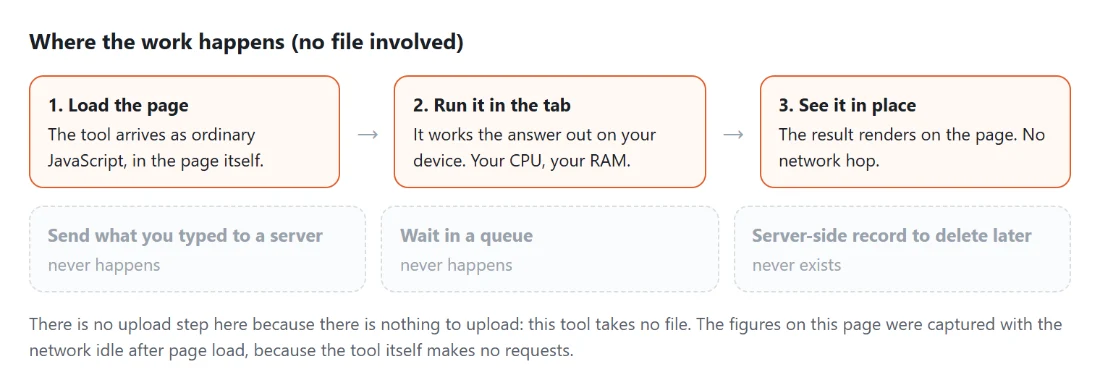
Nothing you type is transmitted anywhere, which is a real difference from the signature builders that ask you to submit a form full of your name, direct line and physical address to their server before they will show you a result. The same approach runs through the rest of the generators hub, and if you need an inline-styled table for something other than a signature, the HTML Table Generator emits the same email-safe markup for arbitrary grids.