Paste, build, trim, and take the markup
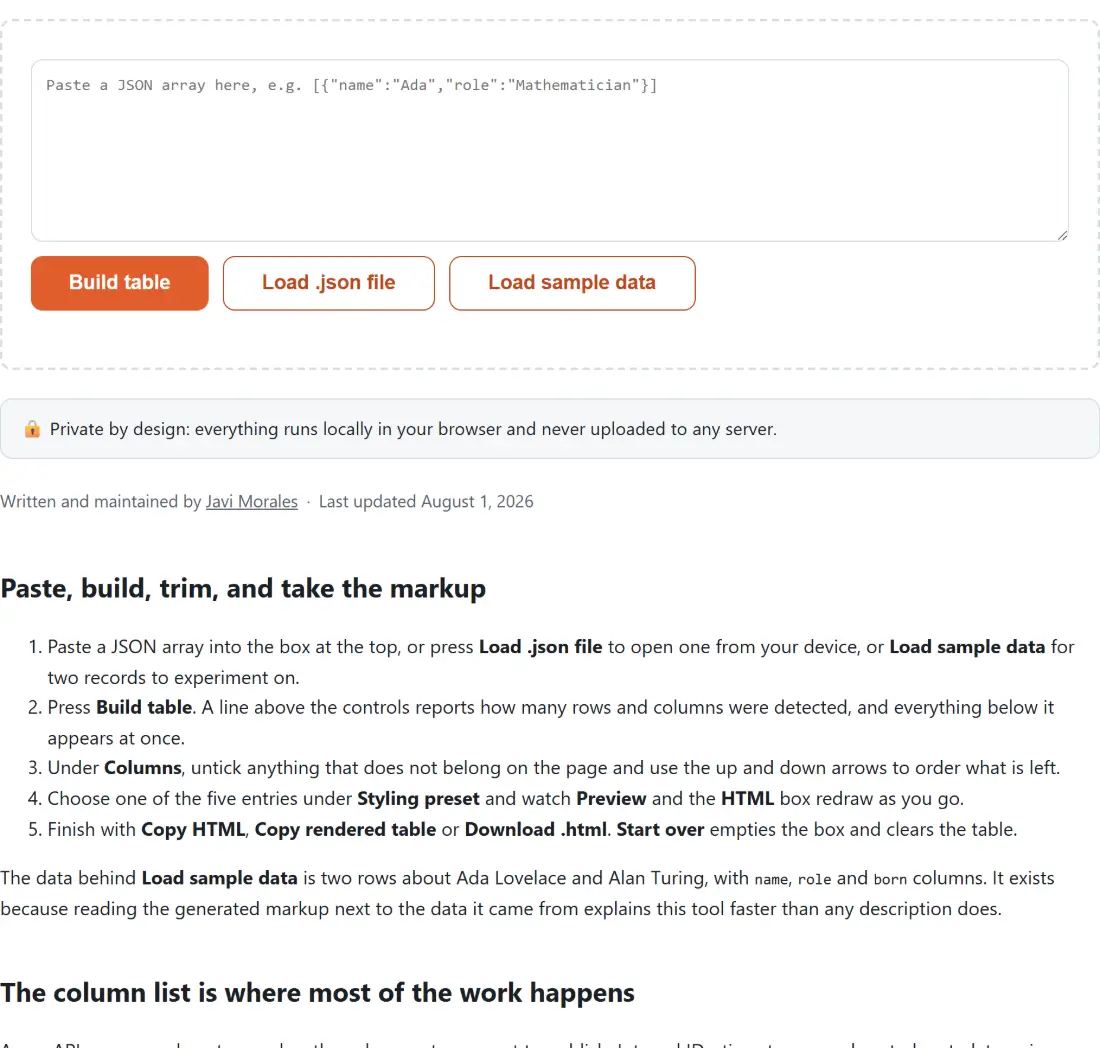
- Paste a JSON array into the box at the top, or press Load .json file to open one from your device, or Load sample data for two records to experiment on.
- Press Build table. A line above the controls reports how many rows and columns were detected, and everything below it appears at once.
- Under Columns, untick anything that does not belong on the page and use the up and down arrows to order what is left.
- Choose one of the five entries under Styling preset and watch Preview and the HTML box redraw as you go.
- Finish with Copy HTML, Copy rendered table or Download .html. Start over empties the box and clears the table.
The data behind Load sample data is two rows about Ada Lovelace and Alan Turing, with name, role and born columns. It exists because reading the generated markup next to the data it came from explains this tool faster than any description does.
The column list is where most of the work happens
A raw API response almost never has the column set you want to publish. Internal IDs, timestamps and nested metadata arrive alongside the three fields anyone reading the page cares about, and trimming that list is the part of the job a straight conversion cannot do for you.
Every key seen anywhere in your data appears in the list, in the order it was first encountered while scanning the rows from the top, so a key that exists only on the last record sits at the far right until you move it. Rows missing a key are not a problem: they get an empty cell in that column rather than shifting every later column across, which is the failure mode of tables assembled by hand from inconsistent data.
Two behaviours are worth learning early. Unticking a column drops it out of the kept order and moves its entry below the ticked ones, where it loses its arrows; ticking it again puts it back at the end rather than where it was. And rebuilding resets the whole selection, so do the trimming once the final JSON is in the box.
Flattening borrowed wholesale from the CSV converter
Nested structure is the one thing a grid cannot represent, and this page does not invent its own answer. It imports the flattening and the column derivation from Convert JSON to CSV, so both tools treat identical input identically.
An object nested inside a record becomes dot-notation columns, to any depth, so {"user":{"city":"NYC"}} gives you a column headed user.city. An array value is not exploded into tags.0 and tags.1, because that would make the column count depend on the longest array in the data; it is written into a single cell as its JSON text instead. A null and a missing key both become an empty cell, since HTML has no null either.
One consequence catches people out. A top-level key literally named user.city produces exactly the same heading as a nested city inside a user object, and nothing in the finished table records which one it was.
What the striped preset writes into every row
There is no stylesheet, no class attribute and no <style> block in the output. Every preset that styles anything at all is a set of inline style attributes written onto the <table>, <th>, <td> and <tr> elements themselves, which is the only styling that survives being pasted into an email client, a CMS editor or a wiki.
Build the sample and switch to Plain (no styling) to see the bare structure the other four decorate:
<table>
  <thead>
    <tr><th>name</th><th>role</th><th>born</th></tr>
  </thead>
  <tbody>
    <tr><td>Ada Lovelace</td><td>Mathematician</td><td>1815</td></tr>
    <tr><td>Alan Turing</td><td>Computer scientist</td><td>1912</td></tr>
  </tbody>
</table>
On Striped rows, the default, the table opens with border-collapse:collapse;width:100%;font-family:sans-serif;font-size:14px;, each header cell carries a padded left-aligned style with a #eef1f5 background, each body cell gets padding:8px 12px;, and every second row counting from zero picks up background:#f7f9fb; on the <tr> itself, so the Ada row is untinted and the Turing row is tinted. Striping is unique to that preset: Bordered puts a line around every cell, Dark mode swaps in dark backgrounds with pale text, and Minimal drops the header fill in favour of a rule underneath it.
Values are escaped on the way in, so a cell holding <script>alert(1)</script> is written as text with its angle brackets turned into entities. That is what makes the live preview safe to render, since the preview is the generated markup inserted into this page.
Copy HTML, copy the rendered table, or download table.html
The three output buttons are genuinely different, and picking the wrong one is the most common way to end up pasting source code into a document.
Copy HTML puts the markup on the clipboard as plain text, which is what a template, a code editor or a CMS in source mode wants. Copy rendered table writes both an HTML and a plain-text flavour, so a word processor or a mail composer receives a real table with its styling already applied while a plain-text target still gets the source. If the browser refuses clipboard access, a message asks you to select the text and copy it by hand. Download .html saves the markup as table.html, the table element on its own with no doctype or <body> wrapper, so add one if you need a standalone page.
The HTML Table Generator is the neighbour to know about: a grid you type or paste into, importing these exact five preset definitions rather than defining its own, so a Bordered table looks identical whichever tool made it. It also handles merged cells, which the converter here has no way to express. For a README or a wiki that speaks Markdown instead, the Markdown Table Generator produces GFM pipe tables.
Odd inputs, and the two messages that stop it
The parser is deliberately lenient about what counts as a table. A single top-level object, not wrapped in an array, becomes a one-row table with its keys as columns, and an array of plain values such as ["x","y"] becomes a one-column table headed value.
Exactly two inputs are refused, each with a message above the controls. Text that will not parse reports that it does not look like valid JSON and suggests checking for a missing comma, bracket or quote. A genuinely empty array is rejected too, because zero rows give no column set to derive anything from. Either refusal also takes down whatever table was on screen, so a failed rebuild leaves you with the message and nothing else.
When the source will not parse and you cannot see why, the JSON Formatter is the fastest check and the JSON Editor lets you repair the document as a tree. Data that starts life in a spreadsheet can come through Convert Excel to JSON, which returns a plain array of objects for a single-sheet workbook and an object keyed by sheet name for a multi-sheet one unless you untick its include-every-sheet option. And if you want to read and sort the data rather than publish it, the CSV Viewer opens a .csv or .tsv file as a sortable, searchable grid.