One press, one count
A spacebar counter is trivially easy to build badly. Listen for key events, add one each time, show the number. That version can be beaten by holding the key down, because the operating system will happily send hundreds of events a second while a key is depressed.
Auto-repeat events arrive with a flag saying exactly that, and they are rejected here before anything is counted. So the number on screen is a count of physical presses, and holding the bar down adds precisely nothing after the first.
The other half of a trustworthy counter is knowing which key was pressed. Three different properties can identify the spacebar depending on browser vintage, and any of them is accepted, so an older browser is not silently counting nothing.
Running a timed test
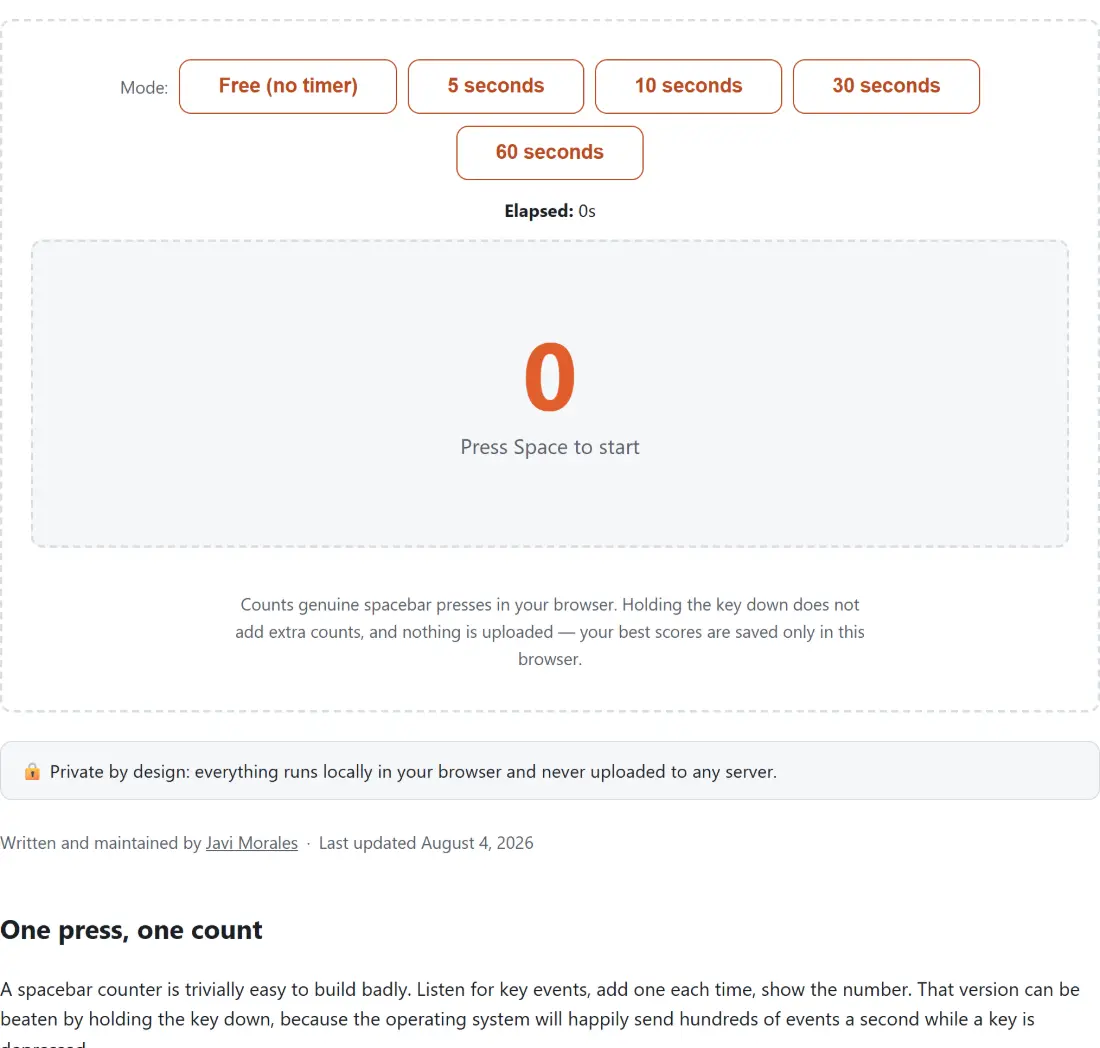
- Choose a Mode from the buttons. The options are free with no timer, or windows of 5, 10, 30 and 60 seconds.
- Press the spacebar. The first press starts the run, so there is no separate start button and no reaction time penalty.
- Keep pressing. The large number is your live count and the pad label tells you the run is in progress.
- In a timed mode the run ends automatically when the window elapses. A result panel appears with your count, the window length and your presses per second.
- In the free mode there is no automatic end. Press Reset to stop and clear.
- Your best count for the current mode is shown alongside the timer once one exists.
Mode buttons are disabled while a run is in progress. Reset first, then switch.
Free counting against a timed challenge
The five modes serve two different purposes and it is worth being clear which you want.
The timed windows are a test. A fixed window makes counts comparable, both against your own previous attempts and against anybody else running the same window, and the presses per second figure is then a straightforward division by a known number. Five and ten seconds measure burst speed; thirty and sixty measure whether you can sustain it, which for most people is a very different number.
The free mode is a tally. It never stops, the rate is computed against however long you have actually been going, and it is genuinely useful away from any competitive framing. Counting people through a door, counting repetitions, counting anything where a big obvious number and a key you can hit without looking is what you want.
What the presses per second figure divides by
In a timed mode the divisor is the window length, not the time you spent pressing. Fifty-five presses in the ten second test is 5.5 per second even if you stopped after eight seconds, because the test was ten seconds long and you chose not to use two of them.
In the free mode there is no window, so the divisor is the time elapsed since your first press. That figure updates live, which makes it a reasonable pacing indicator, and it drifts downward the moment you pause.
Both use the same rounding to two decimals, and both return zero rather than an arithmetic error when there is nothing to divide.
Scores that stay on your machine
Each mode keeps its own best count. That separation matters, because a sixty second record and a five second record are not comparable achievements and merging them would make the number meaningless.
Storage is this browser’s local storage, under a key belonging to this tool alone, so there is no chance of collision with any other tool on the site that stores a score. Nothing is transmitted, there is no leaderboard, and no account exists.
The stored value is parsed defensively. A missing, corrupt or hand-edited entry degrades to no record at all rather than breaking the widget, and any individual entry whose value is not a real number is dropped.
Related keyboard and reflex tests
For mouse clicks rather than key presses, CPS Test is the direct equivalent and shares the same rate arithmetic. For measuring how fast you respond to a signal rather than how fast you can repeat an action, Reaction Time Test is the one you want.
Keyboard Tester checks whether every key on a keyboard registers at all, which is the diagnostic to run first if a key seems to be missing presses. And Typing Speed Test measures the thing all of this is a proxy for. The rest is on the testers hub.