The 63 keys on screen, and the ones that are not
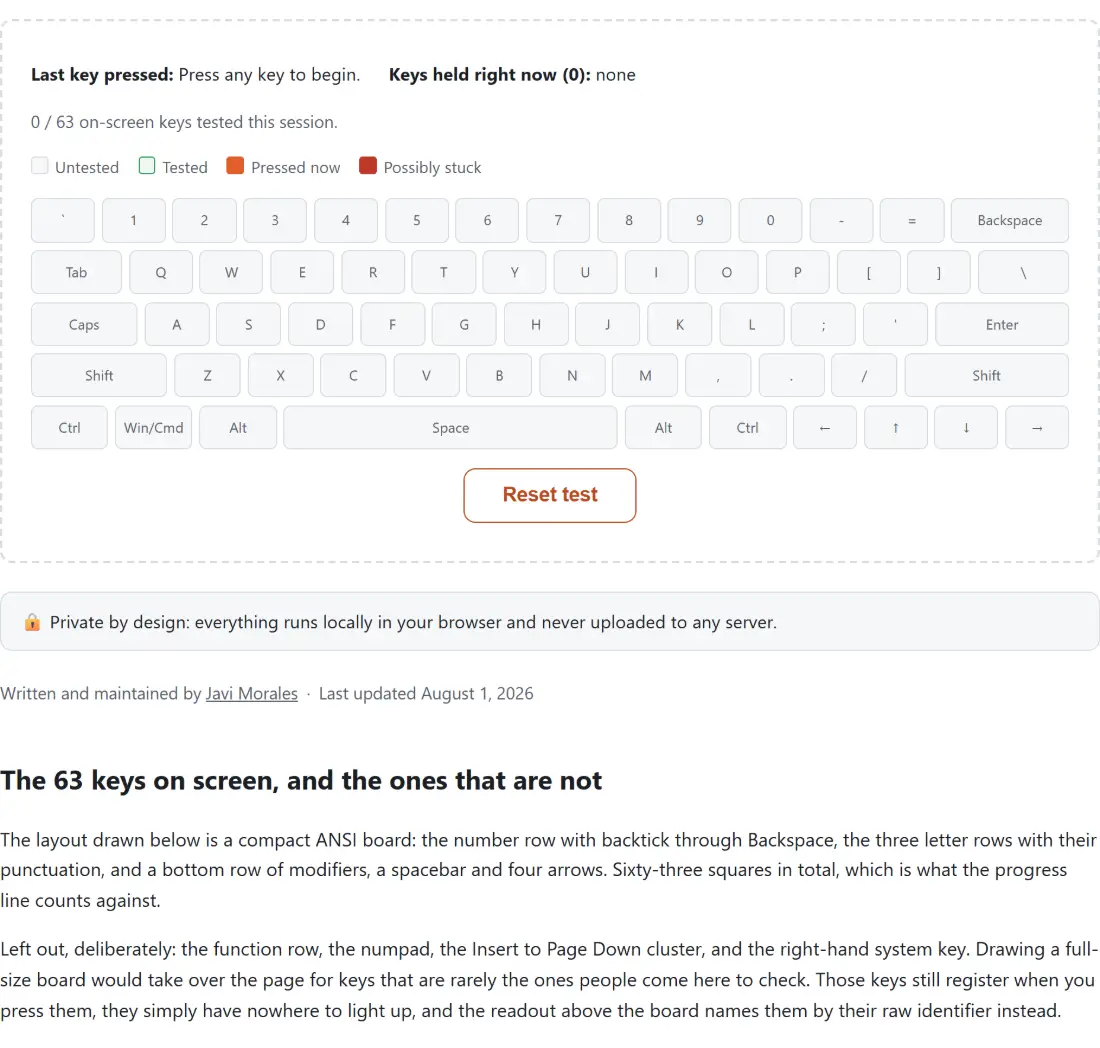
The layout drawn below is a compact ANSI board: the number row with backtick through Backspace, the three letter rows with their punctuation, and a bottom row of modifiers, a spacebar and four arrows. Sixty-three squares in total, which is what the progress line counts against.
Left out, deliberately: the function row, the numpad, the Insert to Page Down cluster, and the right-hand system key. Drawing a full-size board would take over the page for keys that are rarely the ones people come here to check. Those keys still register when you press them, they simply have nowhere to light up, and the readout above the board names them by their raw identifier instead.
Working through the whole keyboard in one pass
- Click once on an empty part of the page, so the focus is not in a text field, then start pressing. There is no start button.
- Watch the square light up as you hold, and check the readout above for the two values the browser reported for that press.
- Release, and the square turns green and stays that way. That is the record you build up.
- Work along each row in order rather than at random. The point of the pass is to end with a board of green squares and to notice the one that stayed grey.
- Press several keys together and watch the Keys held right now count and list.
- Click Reset test to clear the green squares, the held list and the last-key readout in one go.
The legend under the readout names all four states a square can be in: untested, tested, pressed now, and possibly stuck. Space, Tab, Backspace and the arrows have their normal page behaviour suppressed while you test, so the page will not scroll or jump under you as you work.
Position against character, and why the highlight follows the position
Each key press hands the page two different values. One describes the physical key in its place on the board and does not change with your language or layout. The other is the character that key currently produces, which very much does. On an AZERTY keyboard the key sitting where a QWERTY board puts Q reports the physical identifier for Q and the character A.
Highlighting is driven by the physical identifier, so the square that lights up is always the key your finger is on, whatever layout the operating system has loaded. Both values appear in the readout so you can see the pair for yourself, which is quietly the most useful thing on this page when you are debugging keyboard shortcuts in your own application and cannot work out why they misfire on somebody else’s machine.
Twelve seconds without a release
A key is flagged as possibly stuck once it has been held for twelve seconds with no release event. That threshold is a compromise. Short enough to catch a switch that never came back up, long enough that ordinary use does not trip it, and it will still fire if you genuinely hold a modifier down that long while reading something, which the warning admits in its own wording.
One implementation note that shows up if you watch closely. Nothing re-renders on its own while a key is simply held, so a timer ticks twice a second whenever at least one key is down, purely to keep the elapsed time honest, and shuts itself off the moment nothing is held. The warning can therefore appear up to half a second after the twelve-second mark rather than exactly on it.
Holding six keys at once, and what the count cannot see
The held list is a live view of every key with a press but no release yet. Hold W, A, S, D, Shift and Ctrl together, the combination that matters in a lot of games, and either all six appear or they do not. That is a real rollover check, and on cheaper membrane boards and some wireless ones it is common to find that certain combinations simply cannot all arrive.
The limit is worth being blunt about. This can only report events that reached the browser. When the keyboard matrix or the operating system drops a press before it becomes an event, which is precisely the failure you are testing for, nothing in JavaScript can observe the drop directly. What you see is the count coming in lower than the number of keys under your fingers, which is the symptom rather than the cause. Pair it with the Mouse Tester if you are auditing a whole desk setup, and with the Gamepad Tester for controllers, which report through a different browser interface entirely.
A dead key is an absence, so the test runs backwards
There is no way to detect a key that sends nothing. A non-event cannot be observed, here or in any other web page, so any tool promising dead-key detection is really promising something else. What this does instead is track the inverse: every key that has fired at least once is marked, and stays marked, for the rest of the session.
That turns the question into one you can answer by elimination. Go along each row, then look for a square that never turned green despite being pressed. That key is the suspect, whether the switch has failed, the cable or receiver is dropping it, or a remapping layer is swallowing it. When a new machine is what you are checking over, the Dead Pixel Test covers the screen the same way, the Typing Speed Test confirms the keyboard behaves under real speed, and the rest of the hardware testers cover the other inputs.