Converting forward in time, on purpose
Almost every format conversion on this site moves toward something better. This one deliberately goes the other way, turning a modern efficient format into one designed in 1987, and it is worth being clear that this is a compatibility decision rather than a technical improvement.
WebP compresses better, supports proper alpha transparency and handles photographs and graphics equally well. GIF is limited to 256 colours per image, has only all or nothing transparency, and produces larger files for the same content.
What GIF has is universal acceptance. Forum software, older content systems, email clients, internal tools and a long tail of applications that stopped being updated all recognise a GIF and refuse a WebP. When something on the other end demands a GIF, the format’s merits are irrelevant.
Converting a file
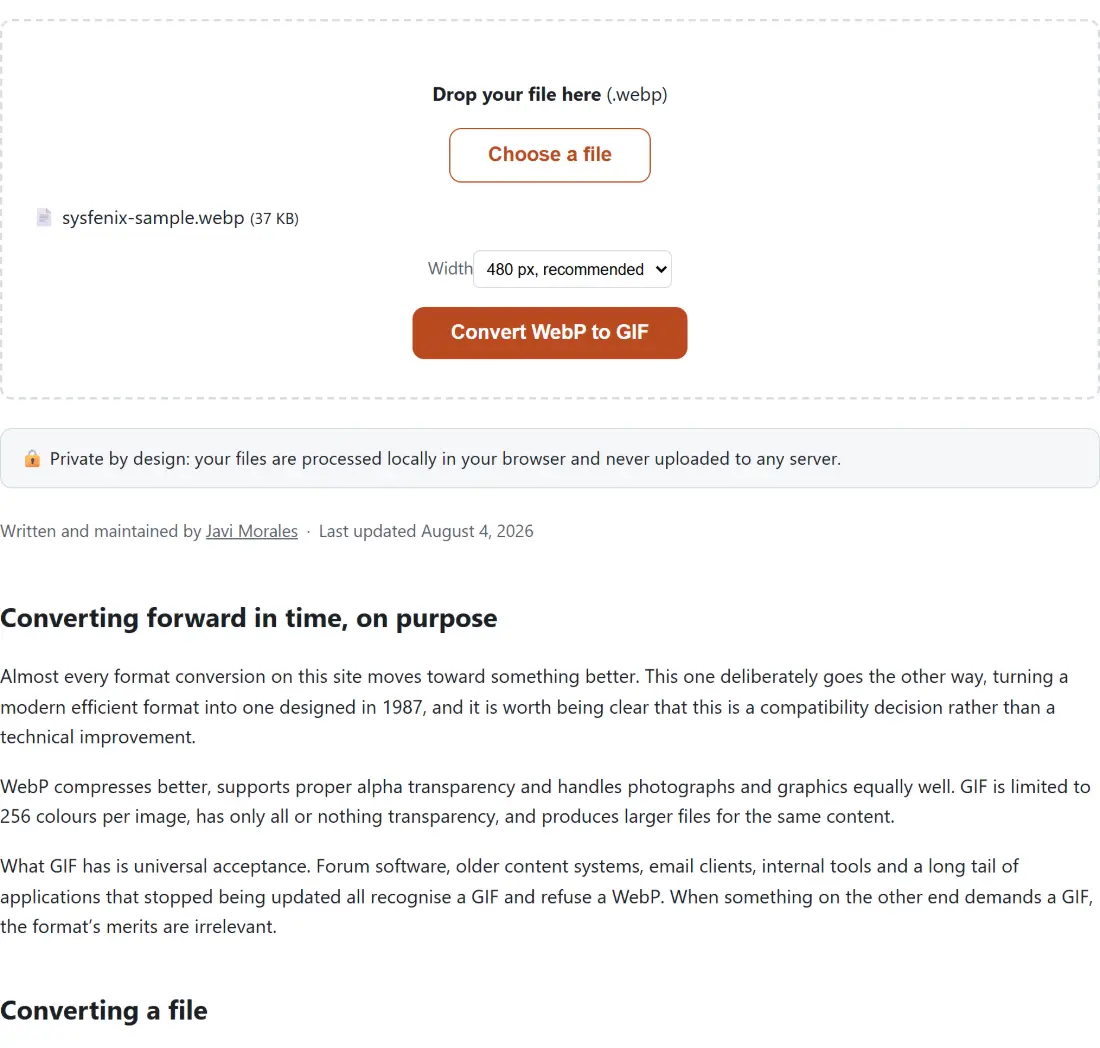
- Drop a .webp onto the box. One file at a time.
- Choose a Width. 480 pixels is the default and suits most uses.
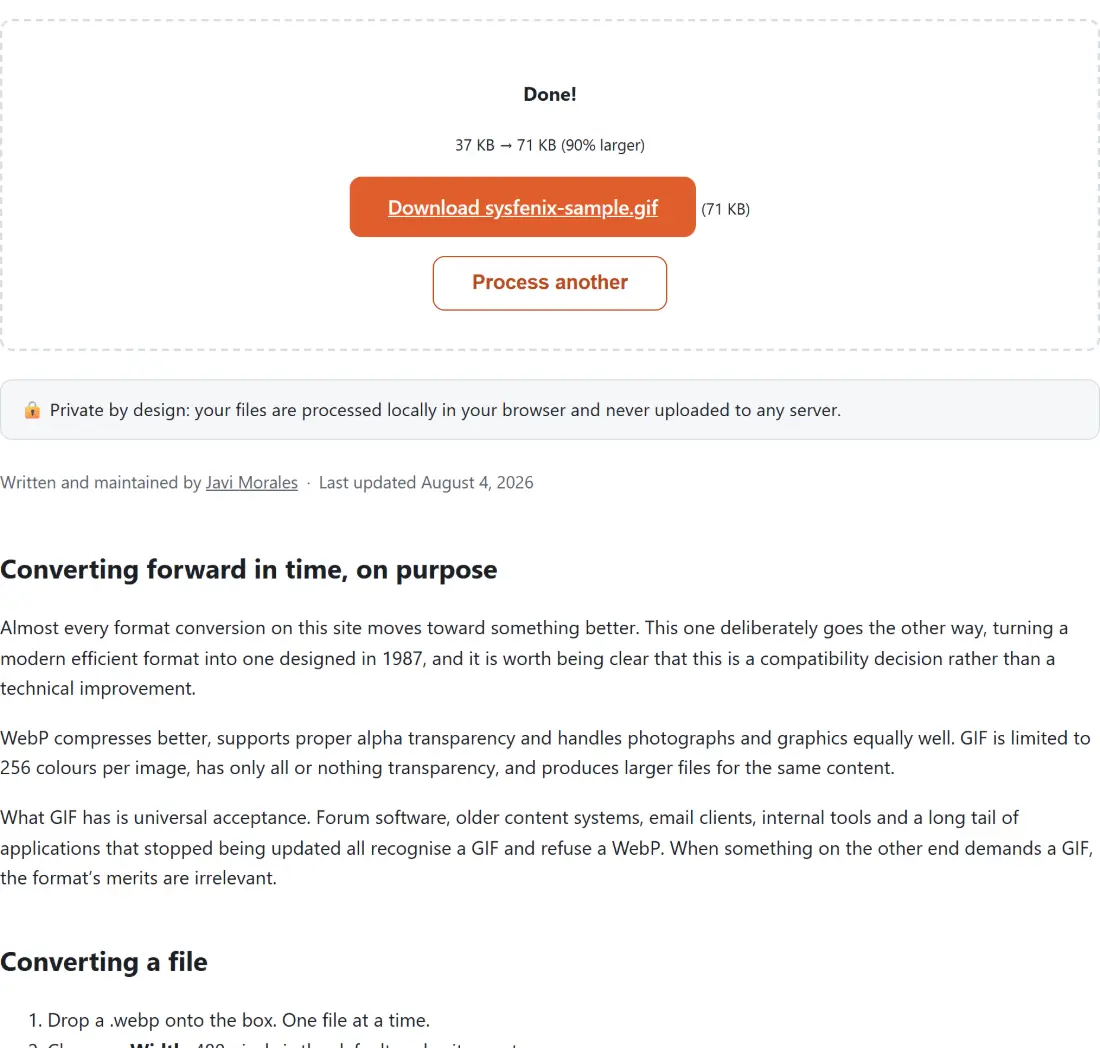
- Run it and download the GIF, named after your original.
Animated WebP is refused, and that is the safe behaviour
This is the most important thing to know about this page.
The media engine here reports itself as FFmpeg 5.1.4, and the ability to read the chunks holding an animated WebP’s frames was only added upstream in 6.1. That would be a straightforward limitation except for how it fails: pushed an animated file, the pipeline logs that it is skipping chunks it does not understand, finds no image data, and writes a zero byte file without raising any error at all.
A silently empty download is a worse outcome than a refusal, because you may not notice until much later. So every file is checked before conversion, by reading the container header rather than by decoding anything, and an animated one is stopped there.
If you have an animation to convert, the route is through video. GIF to MP4 and MP4 to GIF handle animated content properly, so converting the WebP to video elsewhere and then to GIF is the workaround.
The palette is built from your image
A GIF holds at most 256 colours, which means every conversion involves choosing which 256. Doing that badly is what makes converted GIFs look cheap.
A fixed generic palette handles nothing well. Gradients band into visible stripes, skin tones go blotchy, and a photograph with a narrow colour range wastes most of its palette on colours it never uses.
This conversion runs two passes instead. The first analyses your specific image and derives a palette suited to the colours actually present in it. The second writes the GIF using that palette. The improvement on anything with a gradient or a photographic subject is not subtle.
Width, and why it never upscales
The width setting caps the output rather than setting it. The scale is expressed as a comparison against the source width, so an image narrower than your chosen width is left at its own size rather than being enlarged.
That is deliberate. Upscaling a small image adds no detail whatsoever and makes the file substantially larger, which is the opposite of what anyone wants from a GIF. Choosing original skips the resize entirely and keeps the source dimensions.
Since GIF files are large by nature, width is the main control you have over the result’s size, which is why 480 pixels rather than original is the default.
Related image tools
If the target does accept modern formats, WebP to PNG and WebP to JPG are better conversions from the same source. To go the other way and modernise an image, PNG to WebP does that.
If the resulting GIF is too large, Compress GIF reduces it further, and Crop GIF trims the frame. To build a GIF from several stills rather than convert one, Images to GIF assembles them. The rest are on the image hub.