Twelve extensions in, six formats out
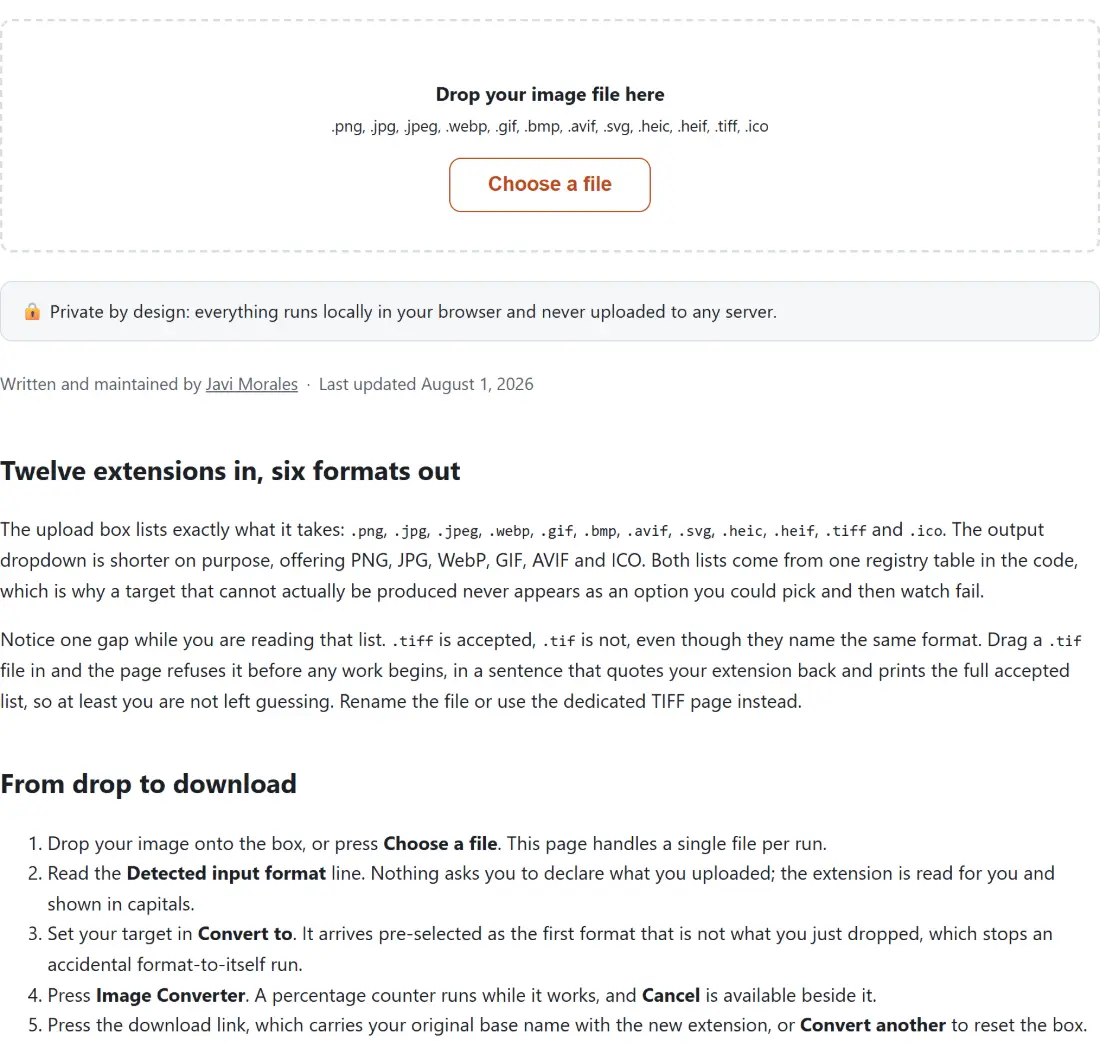
The upload box lists exactly what it takes: .png, .jpg, .jpeg, .webp, .gif, .bmp, .avif, .svg, .heic, .heif, .tiff and .ico. The output dropdown is shorter on purpose, offering PNG, JPG, WebP, GIF, AVIF and ICO. Both lists come from one registry table in the code, which is why a target that cannot actually be produced never appears as an option you could pick and then watch fail.
Notice one gap while you are reading that list. .tiff is accepted, .tif is not, even though they name the same format. Drag a .tif file in and the page refuses it before any work begins, in a sentence that quotes your extension back and prints the full accepted list, so at least you are not left guessing. Rename the file or use the dedicated TIFF page instead.
From drop to download
- Drop your image onto the box, or press Choose a file. This page handles a single file per run.
- Read the Detected input format line. Nothing asks you to declare what you uploaded; the extension is read for you and shown in capitals.
- Set your target in Convert to. It arrives pre-selected as the first format that is not what you just dropped, which stops an accidental format-to-itself run.
- Press Image Converter. A percentage counter runs while it works, and Cancel is available beside it.
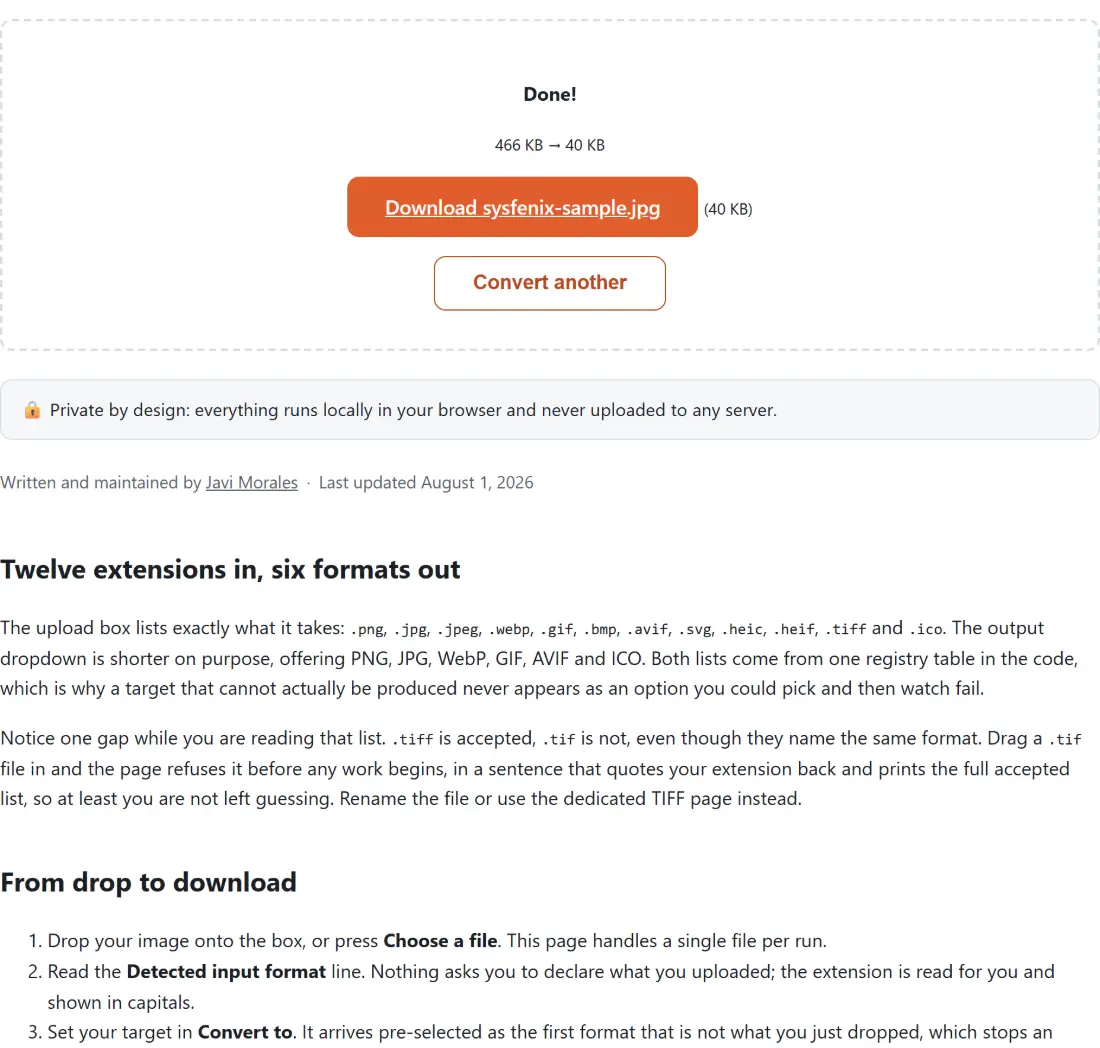
- Press the download link, which carries your original base name with the new extension, or Convert another to reset the box.
One honesty note about that Cancel button. It terminates the shared FFmpeg core, which is what a GIF conversion runs on, so a long GIF job really does stop. A canvas or WebAssembly encode cannot be interrupted part way through a single call, so pressing Cancel during a PNG or AVIF run clears the page and discards the result rather than halting the maths.
The four inputs that lean on your browser rather than on this page
Every image target except GIF goes through the browser’s own image decoder. That is exactly why PNG, JPG, WebP, GIF, BMP and AVIF are dependable here, since every current browser reads all six. It is also why I am not going to promise you HEIC, HEIF, TIFF or SVG.
Those four are on the accepted list, and if your browser happens to decode them then the conversion runs normally. But this page carries no decoder of its own for them, so on a browser that does not read HEIC natively, an iPhone photo will not convert here. The single-purpose pages are built differently and do carry one. HEIC to JPG runs a real HEIF decoder compiled to WebAssembly and takes a whole batch at once. TIFF to JPG runs a pure JavaScript TIFF decoder and accepts both .tif and .tiff. SVG to PNG rasterises through an image element rather than the bitmap decoder, which is the reliable path for vector files and lets you choose the output width. If a file of one of those four types fails on this page, those are where to take it, not a bug report.
The settings the encoders are actually called with
There is no quality slider here, which is the trade you make for a hub that never asks a question it does not need to. The numbers are fixed, and worth knowing:
- JPG is encoded at canvas quality 0.9, which is a deliberately conservative setting that keeps visible artefacts away from text and skin tones at the cost of a slightly larger file.
- WebP is encoded at 0.85. Lossy, with an alpha channel, and generally the best all-round choice for anything going onto a web page.
- AVIF is encoded at quality 60 on its own encoder’s 0 to 100 scale. Smaller than WebP at similar visual quality, and slower to produce.
- PNG takes no quality parameter at all, because the canvas PNG encoder is lossless and ignores one.
- ICO packs three square renders at 16, 32 and 48 pixels.
- GIF runs the source through FFmpeg’s two-pass palette pipeline, generating a palette from the whole input and then applying it, at the original resolution with no downscale.
If what you actually want is a smaller file in the same format rather than a different format, this is the wrong page and compress image is the right one, with a real quality control and an optional downscale. To change dimensions, resize image does that job on its own.
Transparency, animation, and the white that JPG leaves behind
PNG, WebP, AVIF and ICO all carry a real alpha channel, so transparency survives a conversion between any two of those four. JPG has no alpha at all, and the code handles that explicitly by filling a white rectangle before drawing your image on top. That is a decision, not a default, and it is the right one: drawing onto an empty canvas would composite every transparent pixel against black and give you a photo with a dark halo.
Animation is the narrower case. GIF is the only animated target, and it is the only one that can keep more than a single frame. Convert an animated GIF to PNG, JPG, WebP or AVIF and you get frame one, because the browser decoder hands back a single bitmap. Animated WebP deserves its own warning. The FFmpeg build this site pins cannot read the animation chunks inside a WebP file, so the dedicated WebP to GIF page detects animated WebP files and refuses them outright rather than writing an empty result. This hub does not run that check, so an animated WebP sent here reaches FFmpeg anyway and comes back as an empty GIF, while the dedicated page stops the run instead. Neither page can turn one into a moving GIF on the pinned build.
When a single-purpose page beats the hub
This page exists for the moment when you have a file and want it to be some other kind of file, without thinking about it. The narrower pages beat it in three situations. They usually accept several files at once, where this one takes exactly one. They often expose the setting you actually care about, such as the JPG quality on AVIF to JPG or the icon size set on PNG to ICO. And a few of them, as described above, carry decoders this page simply does not have.
For the common one-way trips there is a page each: WebP to PNG, PNG to WebP and JPG to WebP among them. For a complete favicon set rather than a single icon file, the favicon generator produces the whole bundle. And if you want to understand what an iPhone conversion is actually costing you before you run a few hundred of them, the guide on what changes when you convert HEIC to JPG covers it. The full set lives on the image tools page.