One delta corrects a whole trip’s timestamps
Wrong photo dates almost never happen one photo at a time. A camera comes out of a drawer with a dead backup battery and a clock reset to the factory date. A phone crosses three time zones with automatic time switched off. In both cases every single frame taken afterwards is wrong by exactly the same amount, and that is the shape of the problem this page is built around.
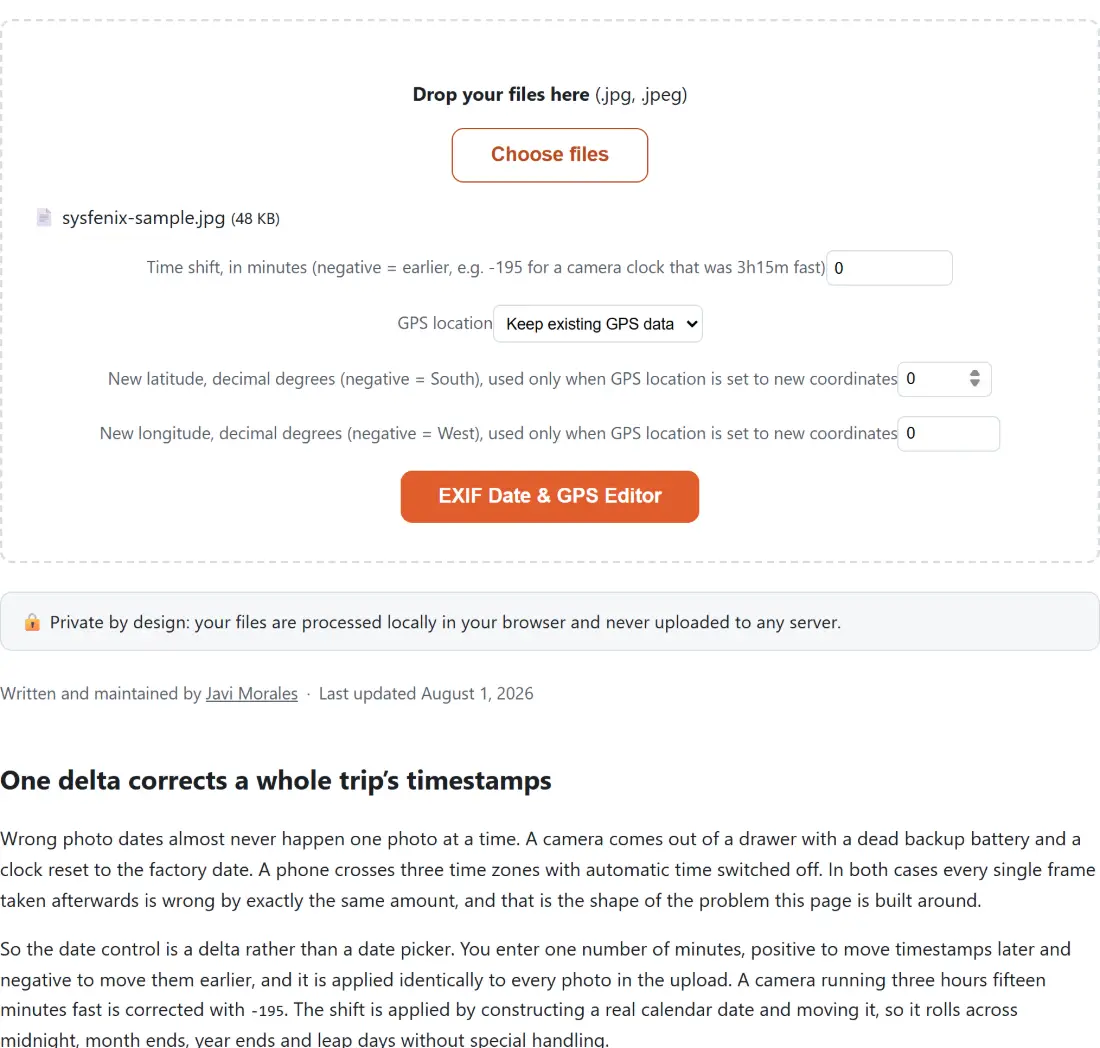
So the date control is a delta rather than a date picker. You enter one number of minutes, positive
to move timestamps later and negative to move them earlier, and it is applied identically to every
photo in the upload. A camera running three hours fifteen minutes fast is corrected with -195.
The shift is applied by constructing a real calendar date and moving it, so it rolls across
midnight, month ends, year ends and leap days without special handling.
A picker would have been the more obvious interface and a worse one: it fixes exactly one photo, and a folder of two hundred holiday pictures is the common case.
Correcting a batch of JPEGs from a mis-set clock
- Drop your JPEG files onto the box above or press Choose files. Only
.jpgand.jpegare accepted, and anything else is refused with a message naming the accepted extensions. - Enter your correction in Time shift, in minutes (negative = earlier, e.g. -195 for a camera clock that was 3h15m fast). Leave it at 0 if the dates are already right.
- Set GPS location to Keep existing GPS data, Set new coordinates, or Remove GPS data.
- If you chose to set coordinates, fill in the latitude and longitude fields in decimal degrees, using negative numbers for South and West.
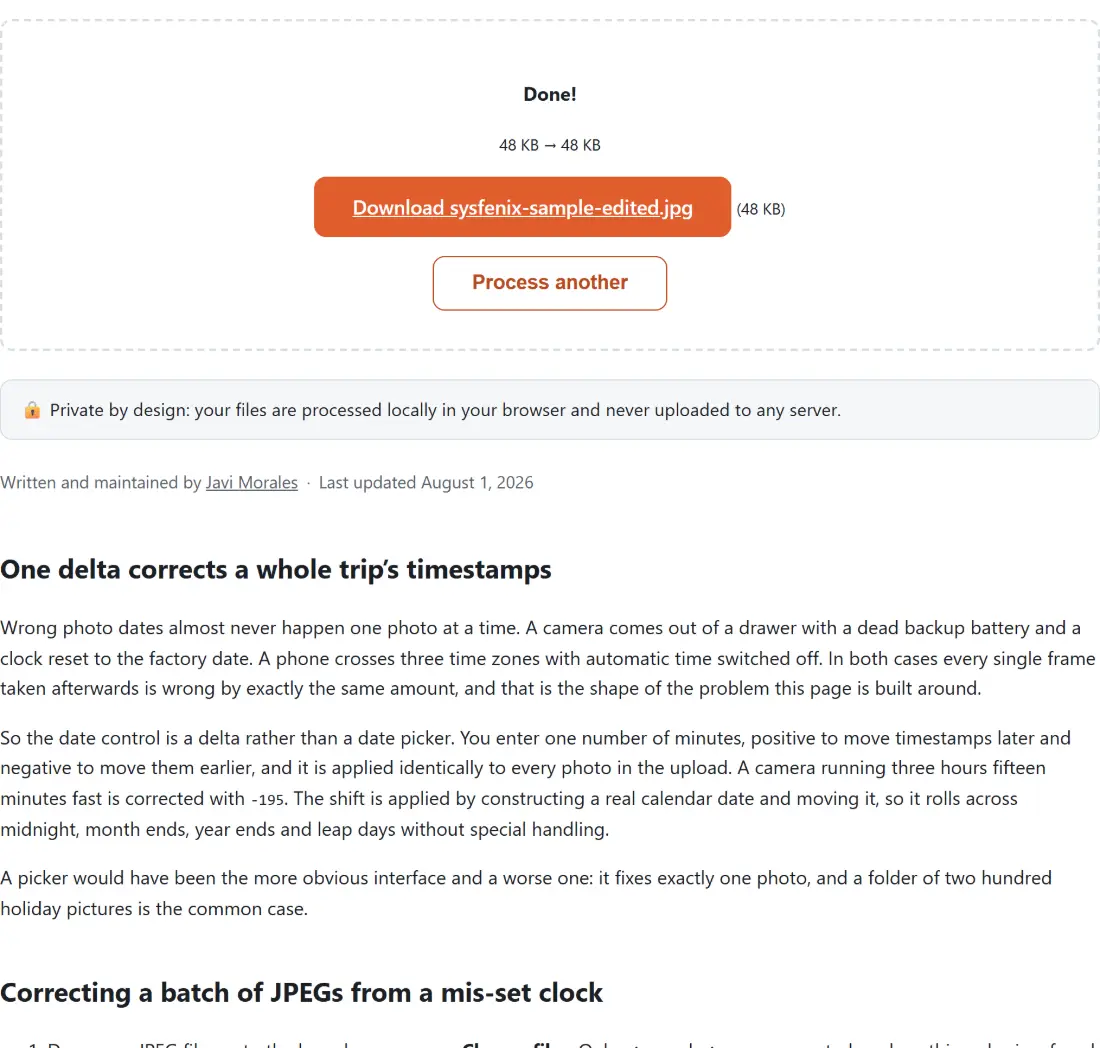
- Press EXIF Date & GPS Editor, watch the percentage counter, then use the download link that
appears for each photo. Outputs keep the original name with
-editedappended before the extension, soIMG_1234.jpgcomes back asIMG_1234-edited.jpg.
Nothing you drop in is altered on disk. The tool reads each file, builds a new one in memory and hands you a fresh download, so the originals are still sitting where they were if the result is not what you wanted.
The exact tags that get written back
Rather than patching the existing metadata in place, the tool discards the photo’s Exif block and builds a replacement out of a fixed, short list of fields. Knowing that list is the difference between using this tool safely and being surprised by it.
Written into the main image directory: camera Make and Model, carried forward unchanged from whatever the photo already said, plus the file-change DateTime. Written into the Exif sub-directory: DateTimeOriginal and DateTimeDigitized, both set to the shifted timestamp. Written into a GPS sub-directory, when there are coordinates to write: a version marker, the latitude and its hemisphere reference, and the longitude and its hemisphere reference.
That is the whole set. If the photo carried no original timestamp that could be read, no date tags are emitted at all, which is why a shift can appear to have done nothing on a screenshot or on an image that has already been through a metadata stripper.
Everything the rebuild leaves behind
Because the block is rebuilt rather than edited, every Exif field outside that list is gone from the output: exposure time, aperture, ISO, focal length, lens model, white balance, orientation, the embedded preview thumbnail. Preserving them generically would mean writing a full incremental patcher for arbitrary tag structures, and rebuilding a small known set is the honest, testable alternative.
The practical consequence is that a zero-minute shift with GPS left on keep is not a no-op. It still strips those fields. Look at what a photo carries before you commit with the EXIF Metadata Viewer, which reads JPEG, PNG and TIFF and reports everything it finds, and keep a copy of the original either way.
If your goal is the opposite, removing everything rather than editing two fields, use Remove EXIF Data from Photos instead. It takes a different route, decoding to a canvas and re-encoding, which drops all metadata by construction but also re-compresses a JPEG in the process. This editor never does that.
Latitude and longitude as plain decimal degrees
There is no map on this page and no place-name lookup, just two number fields. Paste the decimal coordinates you already have, negative for the Southern and Western hemispheres, and they are converted into the degrees, minutes and seconds triplet the format actually stores, with the hemisphere letter chosen from the sign. Seconds are stored against a denominator of one million, so nothing meaningful is lost in the conversion.
Three situations cover most of the reasons people come here. An older camera with no receiver never recorded a position and you want to add one so a library sorts by place. A device wrote a stale cached fix and the photo now claims to have been taken somewhere you have never been. Or the photo is about to be posted publicly and the exact coordinates of your home are the last thing you want travelling with it, in which case Remove GPS data drops the whole GPS directory from the output.
Pixels are copied through, not re-encoded
A JPEG is a sequence of segments, and the metadata lives in one of them. The tool locates that segment, cuts it out, and splices the new one into its place. If the photo never had one, the new segment is inserted at the front instead, immediately after any JFIF header. Every byte outside that single segment is copied straight through, including the compression tables and the entropy-coded scan data that is the actual image.
So the picture is not decoded and it is not re-compressed. There is no generation loss, no quality setting to worry about, and the output is visually identical to the input because it is bit-for-bit identical everywhere the pixels live. That is a real difference from most image tools in this catalogue: when you genuinely want to re-encode, Compress Images and Resize Images exist for that, and the rest of the image tools hub covers the neighbouring jobs. Editing a timestamp should not cost you image quality, and here it does not.