One colour, written three ways
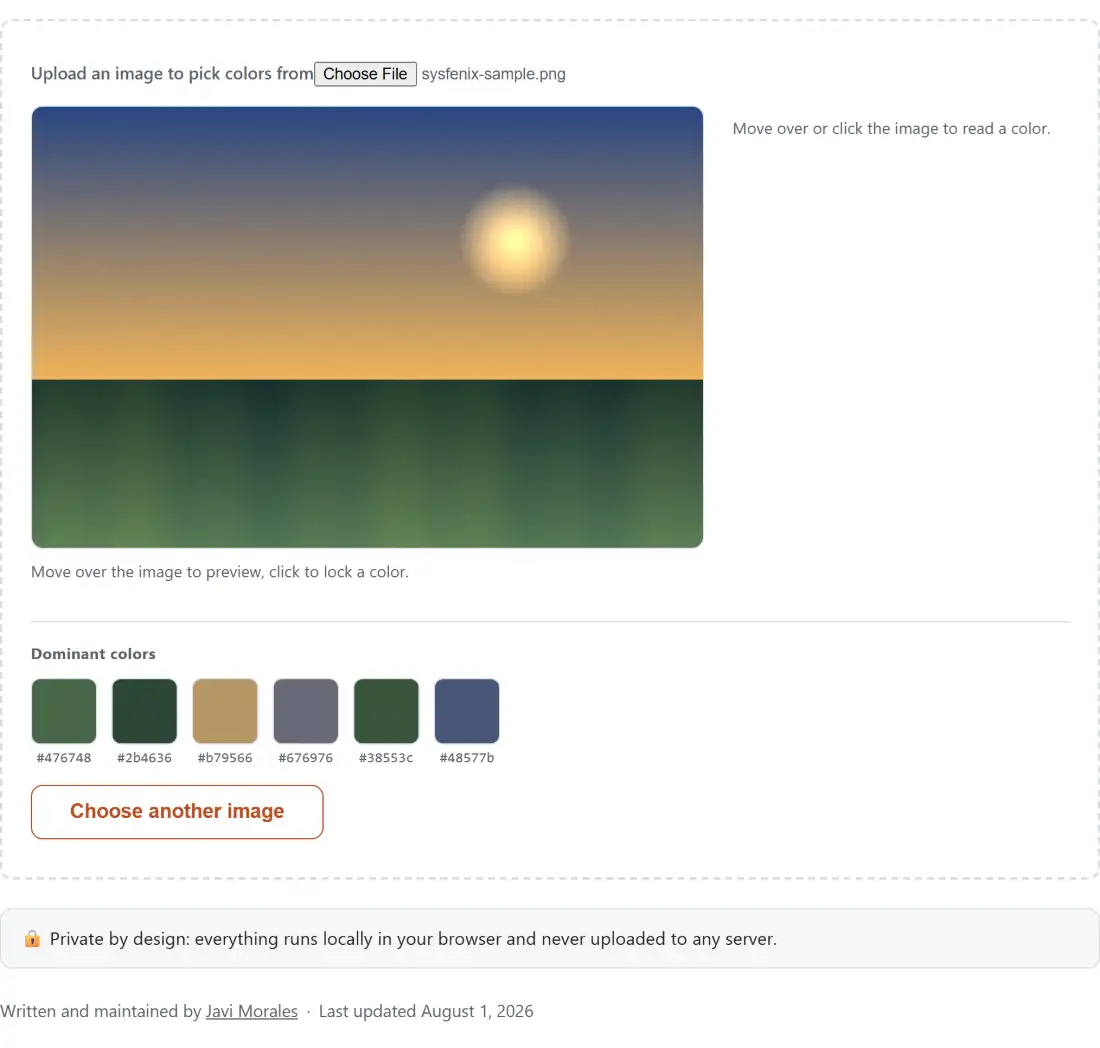
The panel next to the picture shows the same colour in three grammars, because three different jobs want three different notations. HEX is what stylesheets, design files and brand documents almost always want. RGB is what canvas code, image processing and most graphics APIs speak. HSL is the one to reach for when you are not copying a colour so much as adjusting it, since nudging lightness or saturation by hand is arithmetic in HSL and guesswork in hex.
Each row has its own copy button, so you never have to retype a value or convert between the forms afterwards. If you do want to go the other way, from a value you already have to the other two notations, that is a separate job and the colour converter is where it lives.
The 1400 pixel working copy, and when it changes the answer
Your file is decoded and drawn onto a canvas that is capped at 1400 pixels on its longest side. Under that cap nothing is touched and the numbers you read are the exact bytes from the file. Over it, the picture is drawn down to fit, and a scaled draw interpolates, which means a pixel that sat on a hard boundary in the original can come back as a blend of the two colours that met there.
That is a real limitation and it is worth knowing where it bites. Sampling the fill of a button, a logo’s flat body, or a patch of sky is unaffected, because a whole neighbourhood of identical pixels averages to itself. Sampling one pixel of anti-aliased text, or the exact edge of a shape, in a twenty-megapixel photo is where the cap can shift your answer. Click a little way inside the shape instead.
The cap buys something in return. Palette extraction walks every pixel, and both the hover preview and the click read from the same buffer, so the ceiling is what keeps a huge photo responsive under a moving cursor rather than stuttering.
Lifting a colour off a screenshot
- Press Upload an image to pick colors from and choose a file. Anything your browser can decode works, and the Dominant colors strip appears as soon as decoding finishes.
- Move the pointer across the picture. The panel follows it and is labelled Hovering (click to lock) while it does.
- Click the pixel you want. The label changes to Picked color and the values stop tracking your cursor.
- Press Copy beside HEX, RGB or HSL, whichever notation you need. The button reads Copied! for about a second.
- To clear everything and start over, press Choose another image. Loading a second picture straight from the upload control clears the canvas, the readout and the palette just the same.
Six swatches out of 4096 buckets
The strip under the picture is not a list of the six most common individual pixel values, which on a photograph would give you six near-identical shades of the same thing. Each channel is first rounded down to four bits, which puts every pixel into one of 4096 coarse boxes in RGB space, so colours that merely look alike land together. Pixels whose alpha byte is 8 or lower are skipped, so a transparent PNG’s empty background never takes the top slot.
The boxes are then sorted by population and the top six are drawn. Each swatch shows the average of every pixel that fell into its box, so it is a representative colour rather than the corner of a grid cell. Ties are broken by the box’s own numeric key, which means the same image always produces the same strip in the same order.
Click a swatch and it loads into the main readout as if you had clicked that pixel. Click its hex label instead and it copies straight to the clipboard. This is the fastest route from a moodboard, a photograph or a competitor’s screenshot to a set of values you can paste into a theme file, and it pairs naturally with the CSS gradient generator when two of those colours want to become a background.
Alpha survives the pixel readout, not the palette
The canvas the picture is drawn onto is never given a background fill, so transparency is preserved. Click a fully opaque pixel and you get a six-digit hex, an rgb() string and an hsl() string. Click a semi-transparent one and all three grow an alpha component: an eight-digit hex, an rgba() string and an hsla() string. That distinction matters if you are pulling values out of a UI mockup where overlays and scrims carry meaningful opacity.
The palette works differently and cannot do the same thing. Every entry there is an average across many pixels, and averaging alpha would produce a number that describes no actual pixel, so palette swatches are always emitted fully opaque.
Where the picker stops and other colour tools start
This tool answers one question well: what colour is that, exactly. It does not invent colours. If you need a harmonious set built from a rule rather than lifted from a photograph, the colour palette generator rolls five swatches under random, complementary, analogous or triadic harmony instead.
Two checks are worth running on anything you pick before it ships. The contrast checker will tell you whether a foreground and background pair clears WCAG’s 4.5 to 1 threshold for AA body text or the stricter 7 to 1 for AAA. The colour blindness simulator shows what the same combination looks like to someone who does not separate red and green. And if the source photograph itself is too dark or too flat to sample confidently, adjust image brightness and colour first, then come back and pick from the corrected version. The rest of the image tools cover the editing side of that workflow.