Opening a file and reading the strip above the table
- Drop a
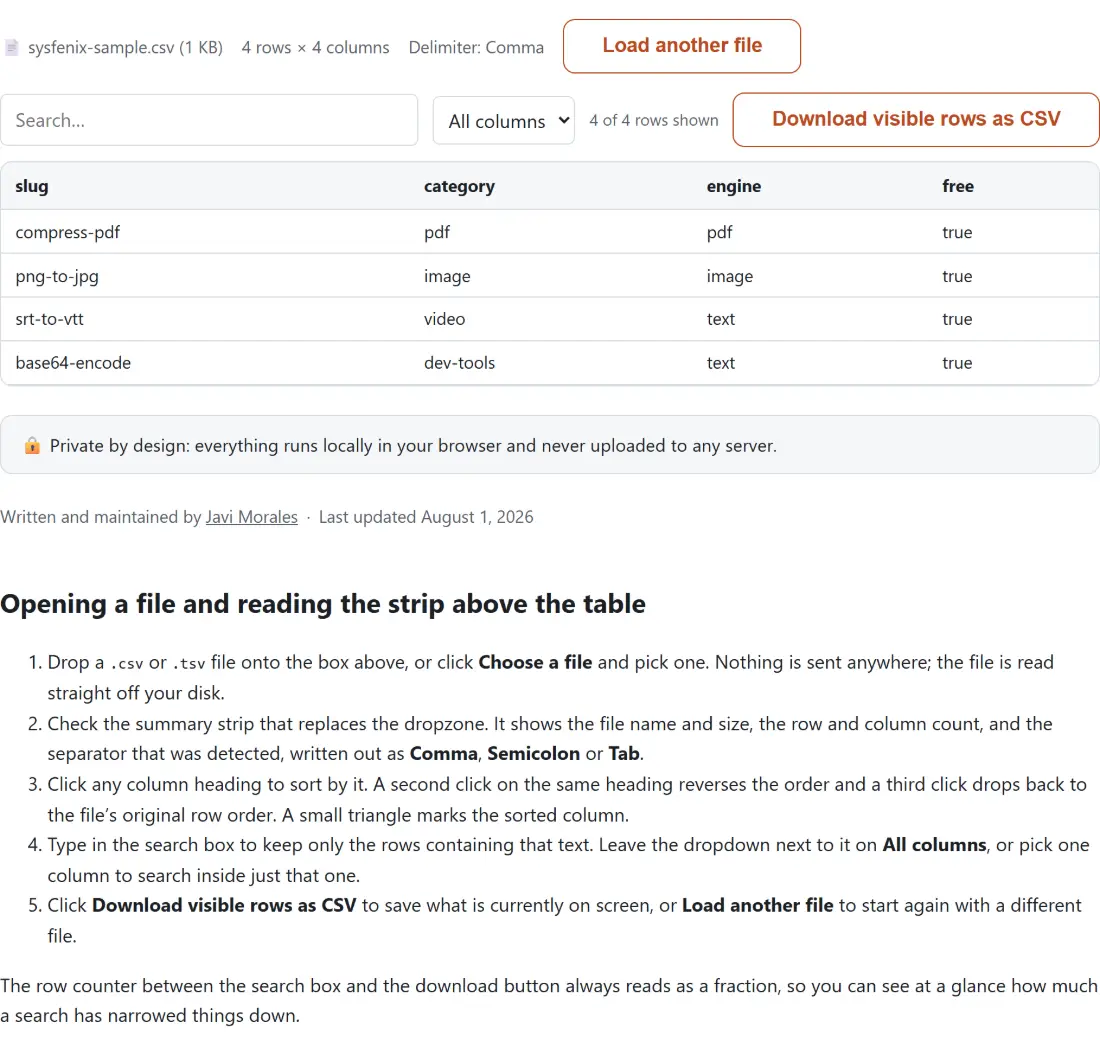
.csvor.tsvfile onto the box above, or click Choose a file and pick one. Nothing is sent anywhere; the file is read straight off your disk. - Check the summary strip that replaces the dropzone. It shows the file name and size, the row and column count, and the separator that was detected, written out as Comma, Semicolon or Tab.
- Click any column heading to sort by it. A second click on the same heading reverses the order and a third click drops back to the file’s original row order. A small triangle marks the sorted column.
- Type in the search box to keep only the rows containing that text. Leave the dropdown next to it on All columns, or pick one column to search inside just that one.
- Click Download visible rows as CSV to save what is currently on screen, or Load another file to start again with a different file.
The row counter between the search box and the download button always reads as a fraction, so you can see at a glance how much a search has narrowed things down.
Delimiter detection, and the semicolon exports Excel makes in Europe
A .csv file is not reliably comma-separated. Export the same sheet on a machine set to a locale where the comma is the decimal mark and you get semicolons, with the same extension and no warning. Tab-separated exports show up with a .csv name often enough too.
So the separator is worked out before parsing rather than assumed. A short sample from the front of the file is taken, up to the first ten non-empty lines, and comma, semicolon and tab are each counted on every one of those lines. Crucially the count ignores anything inside a quoted field, so a "Last, First" name column in a semicolon-separated file does not make commas look like the separator. A candidate has to appear at least once on every sampled line to be considered at all. Candidates with an identical count on every line beat the rest, since a constant count is what a real field separator looks like, and among equals the most frequent one wins with the comma taking a tie. When nothing qualifies, which is what happens with a genuine single-column file, it falls back to the comma.
The winner is then handed to the parser explicitly, so the parser never has to guess for itself. Quoted fields are handled properly at that stage: a field can hold the separator, a line break in the middle of it, or a doubled quote mark standing in for one literal quote, and it still counts as one cell of one row.
Sorting that knows 2 comes before 10
The classic annoyance with quick table viewers is a numeric column sorted as text, where 10 and 100 crowd in ahead of 2. A cell counts as numeric here only when the whole trimmed value is a plain number, optionally negative, optionally with a decimal point. If both cells being compared pass that test they are compared as numbers. If only one does, the numeric one comes first in ascending order, which keeps a column of amounts contaminated by a stray “n/a” from scattering. Everything else falls back to a case-insensitive comparison.
Two honest limitations. Thousands separators and scientific notation are not recognised as numeric, so 1,234 sorts as text. And dates are not understood as dates at all, so an ISO 2026-03-09 sorts correctly by luck (its text order matches its date order) while 09/03/2026 does not.
Search, then export what is left
Search is a plain case-insensitive substring match, not a query language, and it runs before sorting rather than after. That ordering matters more than it sounds: narrowing to one region and then sorting by revenue gives you that region ranked, instead of a ranking of everything with some rows hidden.
The download button captures exactly that state. It writes the header row plus every row that survived your search, in the order shown, as standard comma-separated text, and names the file after your original with -filtered on the end. Scroll position makes no difference, so rows scrolled out of view are still included. Trimming a huge export down to the handful of rows you actually need, then saving just those, is the single most useful thing this page does. From there the smaller file can go into CSV to SQL as INSERT statements, or into the Chart Maker if the point was to show someone the shape of the data.
Rendering only the rows on screen
Handing a browser a table element with tens of thousands of rows in it is what makes most in-page viewers crawl. Here the parsed rows live in memory and only the slice inside the scroll window is actually drawn, with a small buffer above and below so fast scrolling does not flash blank. Two spacer rows of calculated height stand in for everything off-screen, which keeps the scrollbar honest about the real size of the file.
The part that is not instant is the initial parse, which happens in one pass when you drop the file. A very large file will pause for a moment before the table appears. Sorting and searching after that are fast, because they work on data already in memory.
What it will not do, and where to go instead
This is a viewer. There is no cell editing, no formulas, no adding or deleting rows, and no saving back over your file. It also only opens .csv and .tsv; an .xlsx workbook is refused, and for those the Excel to JSON converter reads the real workbook format instead. Comparing two exports row by row is a different job again, handled by Compare Excel and CSV Files, which accepts spreadsheets and delimited text alike. For a captured browser session rather than a spreadsheet, the HAR File Viewer offers the same sortable and filterable treatment for .har files. The rest of the data cluster sits on the developer tools hub.