Two ways FFmpeg joins clips, and how the tool picks
FFmpeg can concatenate video by two very different mechanisms, and the difference between them is the whole story of this page.
The concat demuxer reads a plain text list of filenames and copies packets from each file straight into the output without decoding anything. It is close to instantaneous and completely lossless, because no frame is ever re-compressed. It is also entirely unvalidated: the demuxer does not check whether your clips are compatible, it just copies. Feed it a 4K clip followed by a 720p one and it will exit with a success code and hand you a file that stutters, glitches or plays only the first segment.
The concat filter is the other route. It decodes every input, re-samples the frames onto a shared canvas and re-encodes the lot. That costs real time and real quality, and it produces a correct file from inputs that have nothing in common.
An exit code cannot tell those two situations apart, so this tool does not rely on one. It inspects the clips itself and only takes the fast route when it has evidence the fast route is safe.
What the probe compares before trusting a stream copy
Before anything is joined, each file is run through FFmpeg once with no output, and the tool parses the stream dump from the log. From the first video line it pulls the codec name, the pixel dimensions and the frame rate; from the first audio line it pulls the audio codec.
Every clip after the first is then compared against the first one on four points: same video codec, same width, same height, and a frame rate within 0.05 of it. The audio codec has to match too, and clips with no audio at all count as matching each other. A single disagreement anywhere sends the whole job down the re-encode path.
Two details in that check are conservative on purpose. A frame rate that could not be read out of the log is treated as a mismatch rather than as “probably fine”, because the cost of guessing wrong is a broken file rather than a slow one. And even when the probe approves the copy, a failure during the copy itself falls through to the re-encode instead of surfacing the wreckage.
The order clips are joined in
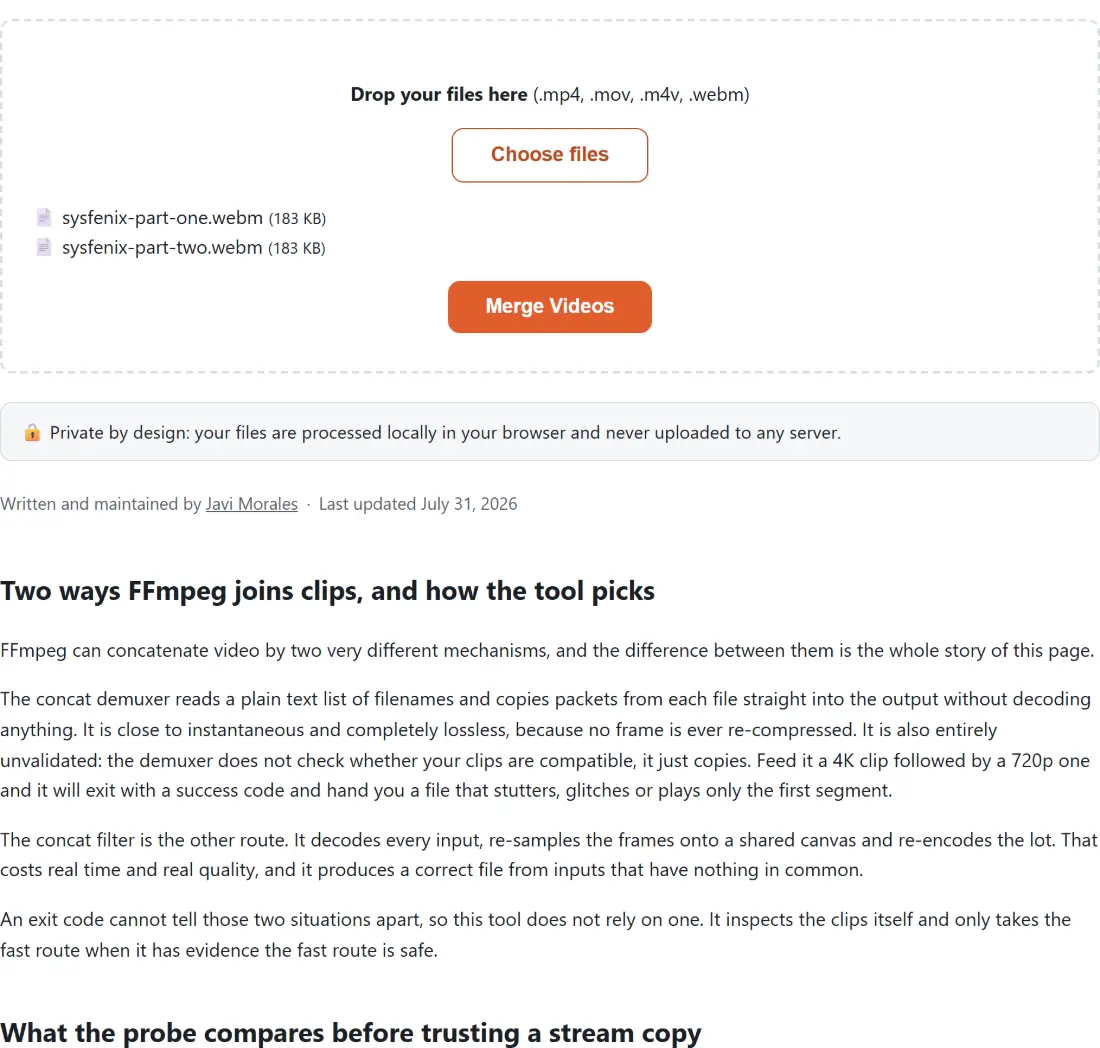
Clips are joined in the order they were added, top to bottom, exactly as the list under the dropzone shows them. That order feeds both the text manifest the demuxer reads and the filter graph the re-encode builds, so there is only one sequence and it is the one on screen.
What the shell does not give you is any way to change it. There are no drag handles, no up and down arrows, and no button to remove one file from the list. Dropping more files adds them to the end, and duplicates of a file already in the list (same name, same size) are ignored. If the order is wrong, reload the page and add the clips again in the sequence you want.
Mismatched clips are letterboxed onto the first clip’s frame
When the re-encode path runs, it needs one frame size for all the material, and it takes that from the first clip that reported a readable resolution, rounded down to even numbers because H.264 will not accept odd ones. If nothing could be probed at all it falls back to 1280x720.
Each clip is then scaled to fit inside that frame with its aspect ratio intact and padded with black to fill the remainder. The scaling works in both directions: an oversized clip is reduced, and a clip smaller than the frame is enlarged until one of its edges meets the frame. Nothing is cropped and nothing is stretched, so a vertical phone clip joined onto landscape footage keeps all of its content between two black bars. Frame rates are normalised to 30, which is where a 60 fps clip loses half its frames; if you would rather control that conversion yourself, Convert Video FPS does it as a separate step.
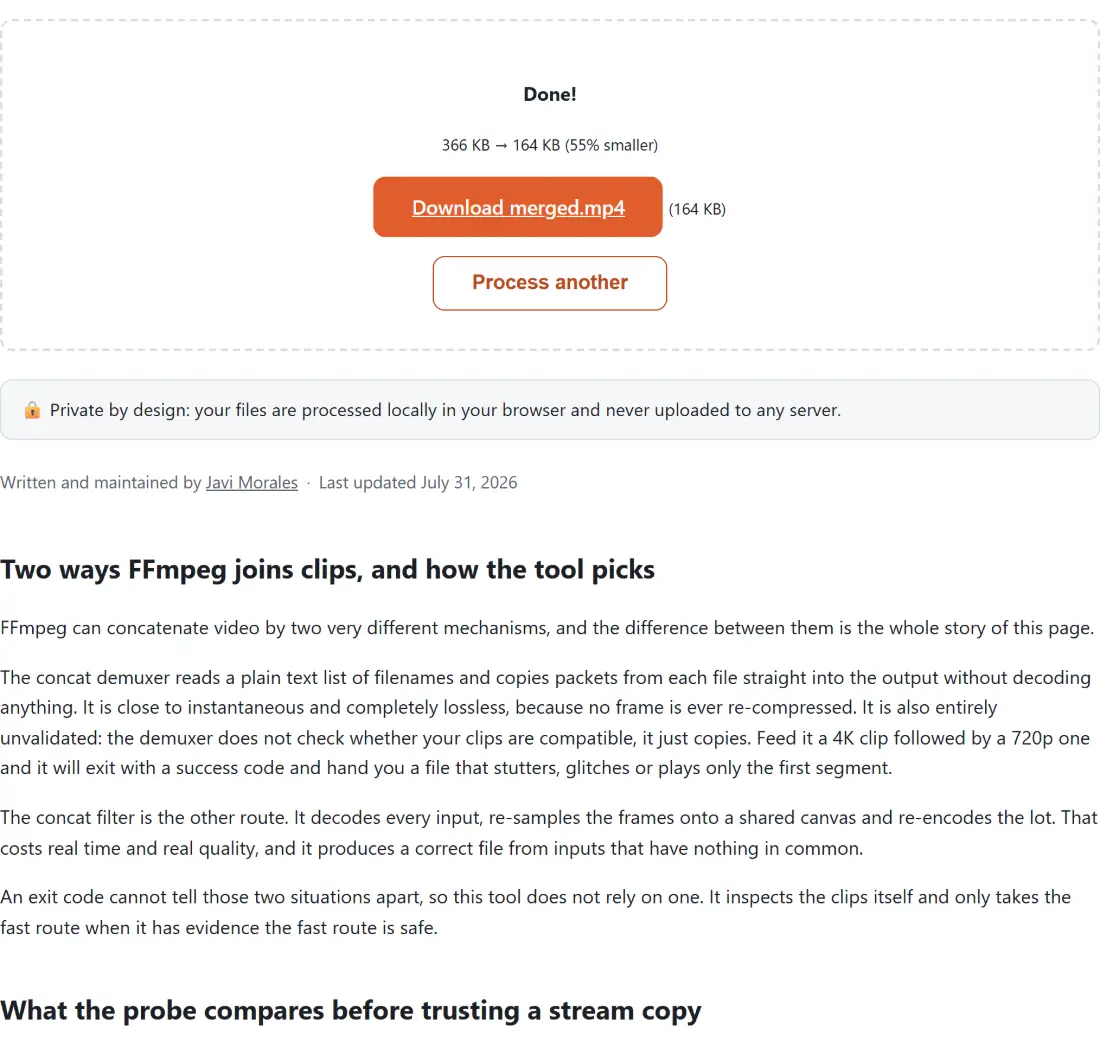
The encode itself is libx264 at CRF 20 with the fast preset, plus AAC audio at 128 kbps when audio is included. That is a quality-leaning setting rather than a compression-leaning one, but it is still lossy, and why re-encoding loses quality covers what that costs.
Running the merge
- Drop your clips into the box above, or click Choose files. MP4, MOV, M4V and WEBM are accepted, and they can be mixed.
- Read the list that appears and check the sequence, because it cannot be changed afterwards.
- Click Merge Videos. A stream copy of matching clips finishes quickly; a re-encode takes time proportional to the total footage.
- Download the result, named
mergedwith either the first clip’s extension or.mp4.
One silent clip mutes the whole merge
Audio is all or nothing here. The re-encode only maps an audio stream when every input has one, so a single muted screen capture in a batch of talking-head clips produces a silent merged file. It is worth checking your inputs for this before a long encode rather than after it.
There are gentler ways to reach the same result. Cut the unwanted parts out first with Trim Video so there is less to encode, or break a long recording apart with Split Video, which hands back a ZIP you unpack before feeding the pieces you want to this page. If the clips need reframing to a common shape anyway, Crop Video does that before the join. The full set is on the video tools hub.