An instant that is fixed the moment you press Set alarm
The design decision underneath this widget is that an alarm is a point in time, not a countdown. When you add one, the target instant is worked out immediately and stored, and everything after that is just the page reading the real clock and comparing. Nothing counts down internally, so nothing can drift.
That matters more than it sounds. A tab that gets backgrounded, throttled, suspended for a while and then brought forward again has lost track of how much time passed, but it has not lost track of what time it is. The countdown you see on screen is recalculated from the system clock a few times a second, and the page also re-checks the moment you switch back to the tab specifically to catch a throttled background alarm the instant it can.
The wall clock case is subtler than it looks. An alarm set for 7:00 on the night before a daylight saving change has to land on 7:00 as the clock will actually read it, and that calendar day is 23 or 25 hours long rather than 24. The target is therefore built from calendar components, a year, a month, a day, an hour and a minute, and never by adding a day’s worth of milliseconds. There are tests pinned to the 2026 spring forward and autumn back dates that fail if anyone changes that.
Setting a wake-up and a kitchen timer, step by step
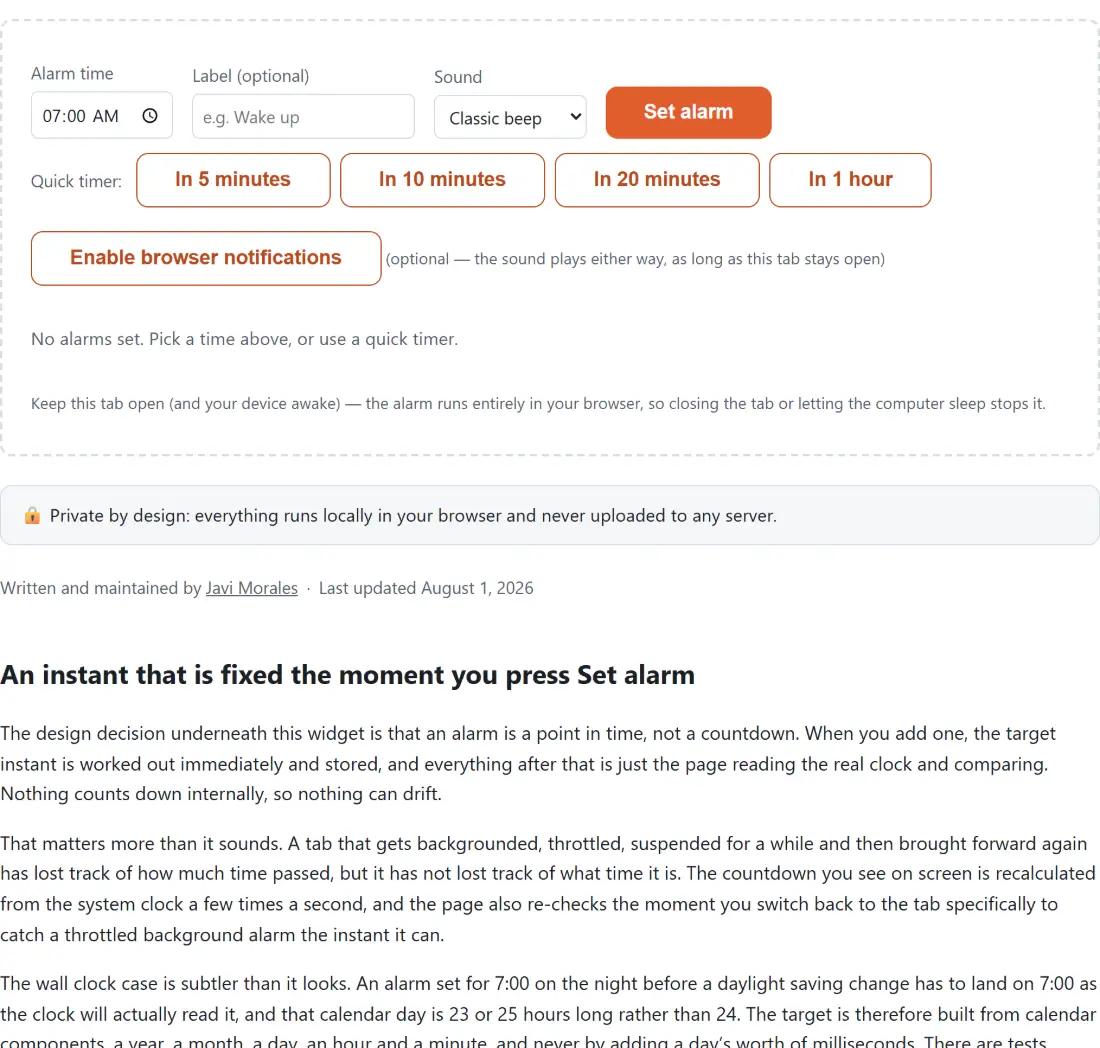
- Pick a time in the “Alarm time” field. It starts on 07:00.
- Optionally type into “Label (optional)”, up to 60 characters, and choose a “Sound”: “Classic beep”, “Gentle chime” or “Urgent buzzer”.
- Press “Set alarm”. The alarm appears in the list below with its target time and a live countdown, and the label box clears itself ready for the next one.
- For a relative alarm, skip all of that and press one of the “Quick timer” buttons: “In 5 minutes”, “In 10 minutes”, “In 20 minutes” or “In 1 hour”. If you have not typed a label, the button’s own wording becomes the alarm’s label.
- When one fires, its row highlights and the sound repeats until you press “Dismiss”. Press “Delete” on any alarm that has not fired yet to drop it.
An empty or malformed time is refused with the message “Enter a valid time.” rather than being silently ignored, so if “Set alarm” seems to do nothing, look for that line under the form.
Today or tomorrow: the rule the time picker follows
Give the picker a time and it schedules the next moment the clock will read it. If that time is still ahead of now, the alarm fires today. If it has already passed, it fires tomorrow. Set 7:00 at ten in the evening and you get tomorrow morning, which is what anyone setting a wake-up expects.
The edge case is handled deliberately too. If the time you pick is exactly the current time to the millisecond, the alarm goes to tomorrow rather than firing instantly, so adding an alarm can never make it go off in your face because the minute happened to tick over as you clicked.
Every row in the list shows its target using your own device’s time formatting, so the same alarm reads as 7:00 AM or 07:00 depending on where you are. If you are setting something for a colleague in another country, work the hour out with the Time Zone Converter first, or check several offices at once on the World Clock, and then set the alarm in your own local time.
Three sounds, and how often each one repeats
The sound choices are short tone patterns, not samples. “Classic beep” is two pips at 880 Hz followed by a longer tone a minor third above, about 850 milliseconds per pass. “Gentle chime” is two slower, lower notes lasting about a second. “Urgent buzzer” is four fast 1200 Hz blips packed into just over half a second.
Whichever you choose, the pattern restarts after a fixed 900 millisecond gap and keeps going until you dismiss it, so a full cycle lands between about 1.4 and 2 seconds. That is the point: a real alarm clock nags. A single beep from a tab you were not looking at is an alarm you will miss.
Dismissing stops the currently playing pass as well as the repeat, so there is no tail of already scheduled beeps ringing out after you have clicked.
Optional desktop notifications, and what they add
If your browser supports notifications and you have not already granted permission, a button reading “Enable browser notifications” appears under the quick timer row. Granting it means each firing alarm also raises a desktop notification titled with its label, or simply Alarm if you left the label blank, which is genuinely useful when the browser window is buried behind other applications.
It is strictly an extra. The sound and the tab title need no permission at all, some browsers or contexts refuse notifications outright, and the code treats a refusal as normal rather than as an error. Decline the prompt and nothing about the alarm changes.
The tab title is the underrated part. While alarms are pending it carries a live countdown to the next one, so the tab strip alone tells you how long is left without switching to this page, and it flips to an alarm reading the instant anything fires. When the last alarm is cleared, the original title comes back.
Hard limits, stated plainly
This runs entirely in one browser tab. There is no service keeping time on your behalf, so closing the tab, quitting the browser or letting the machine sleep stops every alarm silently. For a flight, a medication or an interview, set this and a phone alarm.
Audio also needs you to have interacted with the page, which browsers require before they will let a site make noise. Adding an alarm by clicking satisfies that, so in normal use it is a non issue; it only bites if you expect sound from a page you have never clicked.
For a plain countdown with a start and pause button, the Online Timer and Stopwatch is the better fit, and for something weeks or months away the Countdown to Date page is built for the long horizon rather than for ringing. The rest of the in browser widgets are gathered on the testers hub.