No browser ships an AVIF encoder, so this one is WebAssembly
Almost every other image converter on this site works the same way: hand the file to the browser’s decoder, draw the result on a canvas, ask the canvas for the output format. That approach quietly fails for AVIF, and it fails in the worst possible way.
Asking a canvas to export an image as AVIF, through either of the two available methods, was tested against a current Chromium build while this tool was being written. It does not throw an error and it does not warn. It returns a plain PNG with an AVIF file name, which is exactly what the HTML specification says should happen when a browser is asked for an output type it does not support. Chromium has been able to display AVIF since 2020, and that is what leads people to assume it can write it as well; the two capabilities are entirely separate, and no shipping browser has the second one.
So this page does not pretend. It loads a real AVIF encoder, the open-source libavif build that Squoosh uses, compiled to WebAssembly and running inside the tab. Every file you convert here is genuinely AVIF, verifiable in any decoder, rather than a PNG wearing the wrong extension.
Encoding PNG or JPG to AVIF
- Drop your
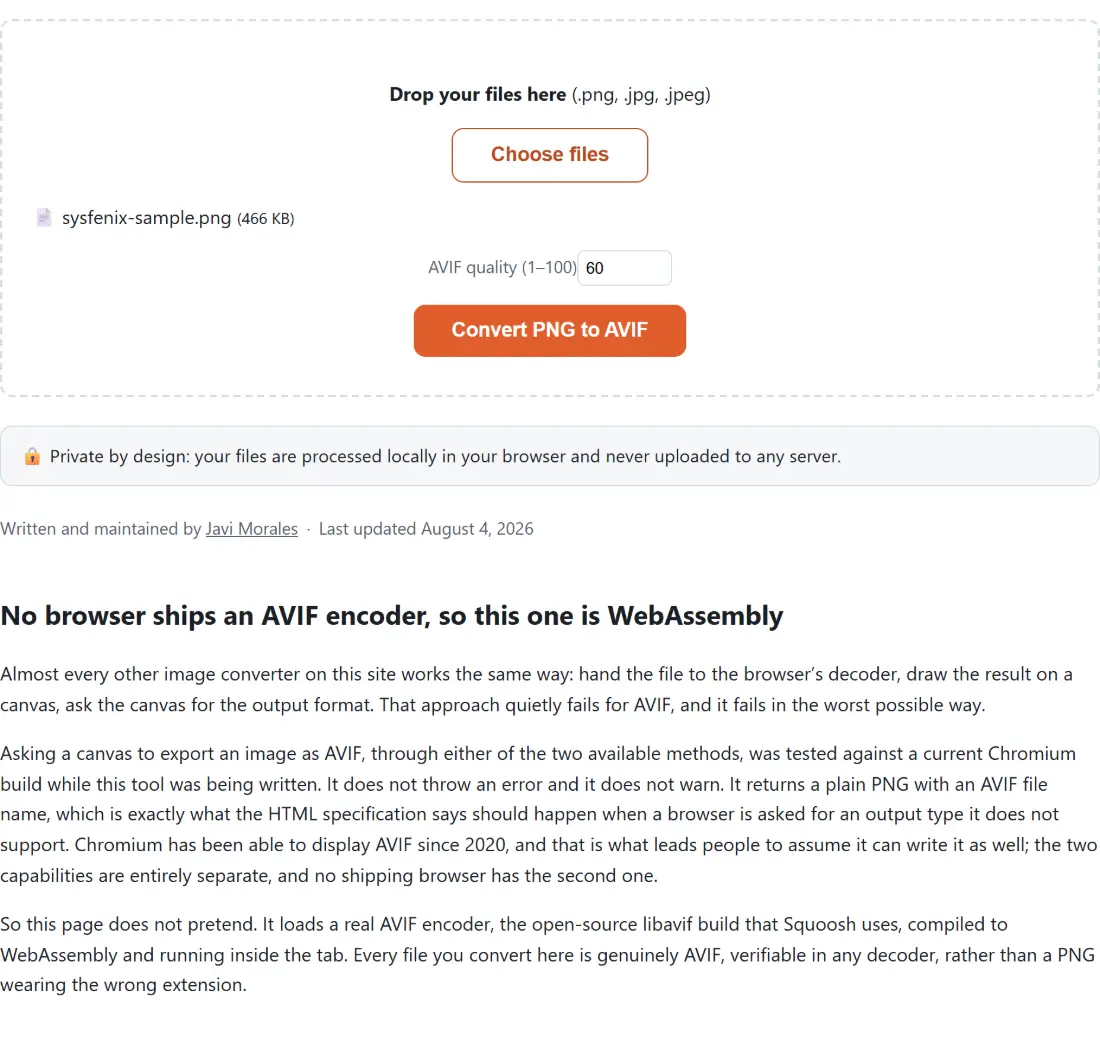
.png,.jpgor.jpegfiles onto the box above, or click Choose files. Later drops add to the same batch and a file already listed under the same name and size is skipped. - Set AVIF quality (1–100) if 60 is not what you want. A figure you type is rounded to a whole number and clamped into range; a box you clear is treated as no value at all and the run falls back to 60.
- Click Convert PNG to AVIF. The encoder module loads on the first run of the tab and is reused after that, and the progress bar then advances one step per finished image.
- Download each
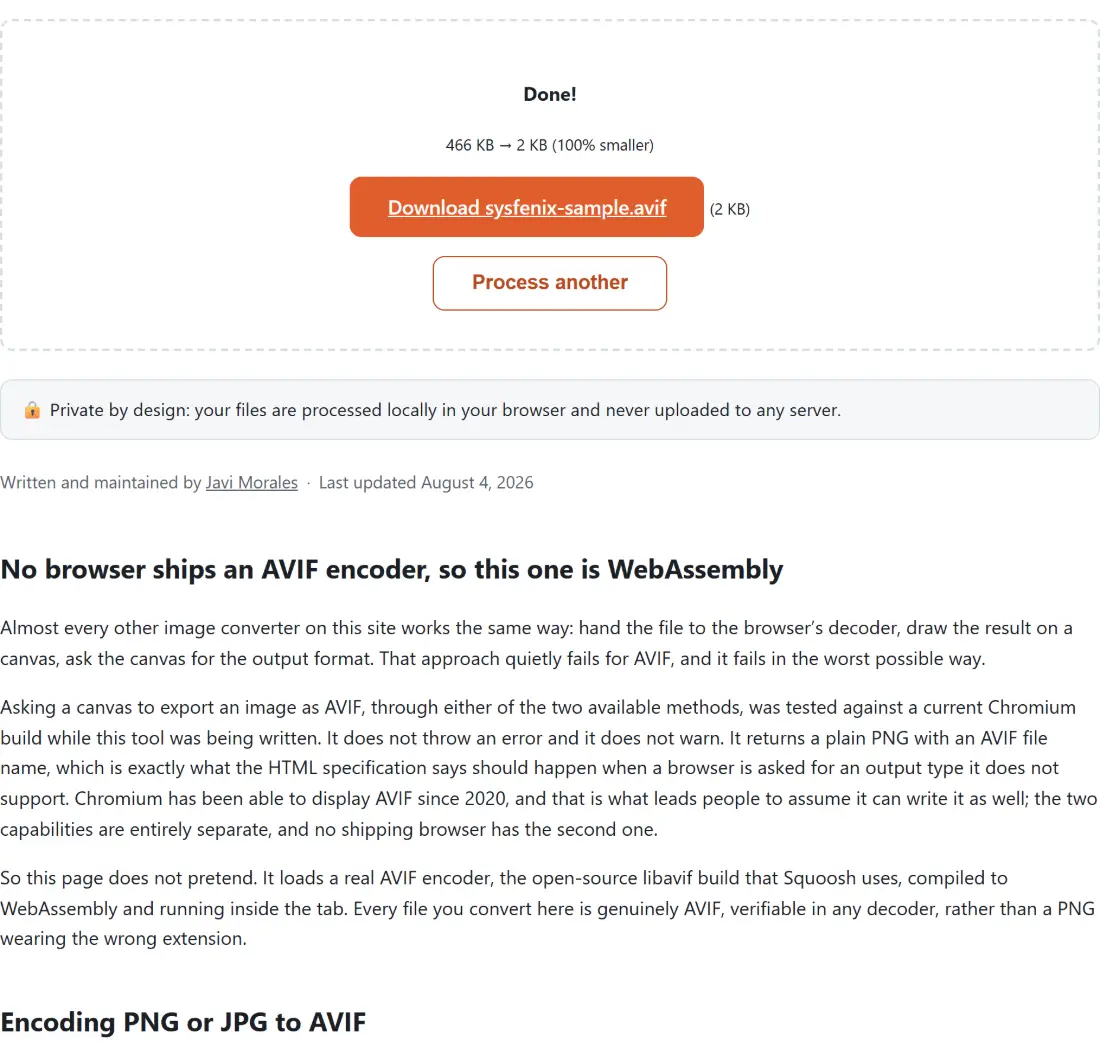
.aviffrom its own link, then use Process another to clear the tool before starting the next batch.
AVIF quality 60 is not JPEG quality 60
The quality field on this page behaves differently from the ones on the JPEG and WebP converters, and it is worth understanding why the default looks low by comparison.
Those converters take your number, divide it by a hundred, and pass the result to the browser’s canvas encoder, which expects a value between zero and one. This one does no conversion at all: AVIF’s own encoder takes a one-to-hundred value natively, so 60 here is 60 in the codec’s own terms. Those terms are not the same terms JPEG uses. The scales were defined independently, they weight different kinds of error differently, and there is no exchange rate between them.
The result is that 60 in AVIF is already a strong setting for photographs, where JPEG at 60 would be visibly rough. The only reliable way to pick a value is to convert one representative image at two or three settings and compare them at full size, which is fast here because nothing has to be uploaded first.
Transparency through the AVIF alpha channel
AVIF has a real alpha channel, in the same sense that PNG and WebP do, and nothing in this pipeline flattens it. The image is drawn onto a canvas that starts fully transparent, the raw pixel data including its alpha bytes is read back, and that whole buffer is handed to the encoder.
That behaviour was checked with an actual encode followed by a decode and a pixel comparison before the tool shipped, rather than assumed from the format specification. So logos, app icons and cut-out product photographs keep their transparent backgrounds, and partly transparent edges keep their intermediate values instead of hardening against white. Converting back with AVIF to JPG will flatten them, because JPEG has nowhere to put alpha, but that is a property of JPEG rather than of anything here.
Feeding it a JPG instead of a PNG
Despite the name, this tool accepts .jpg and .jpeg as well as .png, and the output naming strips all three extensions. That is genuinely useful, because most site assets worth converting are photographs that already exist as JPEGs.
Be aware of what you are doing to them, though. A PNG source is lossless, so the AVIF is the first and only lossy generation. A JPEG source has already been through one lossy codec, and the AVIF encoder cannot distinguish the artefacts that codec left behind from real detail in the scene, so it spends bits preserving both. The output is still usually smaller and perfectly good, but it is a second generation, and pushing the quality very high on an already-compressed JPEG mostly buys you a faithful record of its flaws.
The encode is real CPU work, and it shows
AVIF encoding is expensive by design. The codec searches through far more possible ways of representing each block than JPEG ever did, and that search is where the file size savings come from. On top of that, this site cannot send the cross-origin isolation headers that a multi-threaded WebAssembly build needs, because those headers break the ad frames that pay for the tools. The encoder detects that shared memory is unavailable and falls back to its single-threaded build.
The upshot is one processor core doing a genuinely heavy job. Small graphics finish quickly; large photographs take noticeably longer than the same PNG would through PNG to WebP, which uses the browser’s built-in encoder and takes .png alone. If a batch is going to be resized for the web anyway, running Resize Image first makes the AVIF encode dramatically less work, because the encoder is no longer analysing pixels that will never be displayed.
Where AVIF pays off on a real site
The payoff is bandwidth. AVIF generally produces a smaller file than WebP at a comparable apparent quality, and a much smaller one than JPEG or PNG, which is why streaming services, image delivery networks and large publishers moved to it. Lighthouse and PageSpeed Insights name it directly in their next-generation image formats recommendation.
It is not the right answer everywhere. An image that has to be opened by ordinary desktop software, emailed as an attachment or pushed through an upload form is better off as a JPEG, because AVIF support outside browsers is still patchy. Convert your web-facing assets and keep the originals for everything else. The other format routes, in both directions, are collected on the image tools hub.