What the two dropdowns actually set in the filter chain
The name promises a dimension count that does not exist. What “8D audio” describes is an auto-pan: the whole mix is swept back and forth between the left and right channels on a slow, continuous sine cycle. Because headphones deliver each channel to one ear with no acoustic mixing in between, that sweep is heard as the music orbiting your head. It is a stereo illusion, not binaural or HRTF spatial audio, and no per-ear filtering is involved.
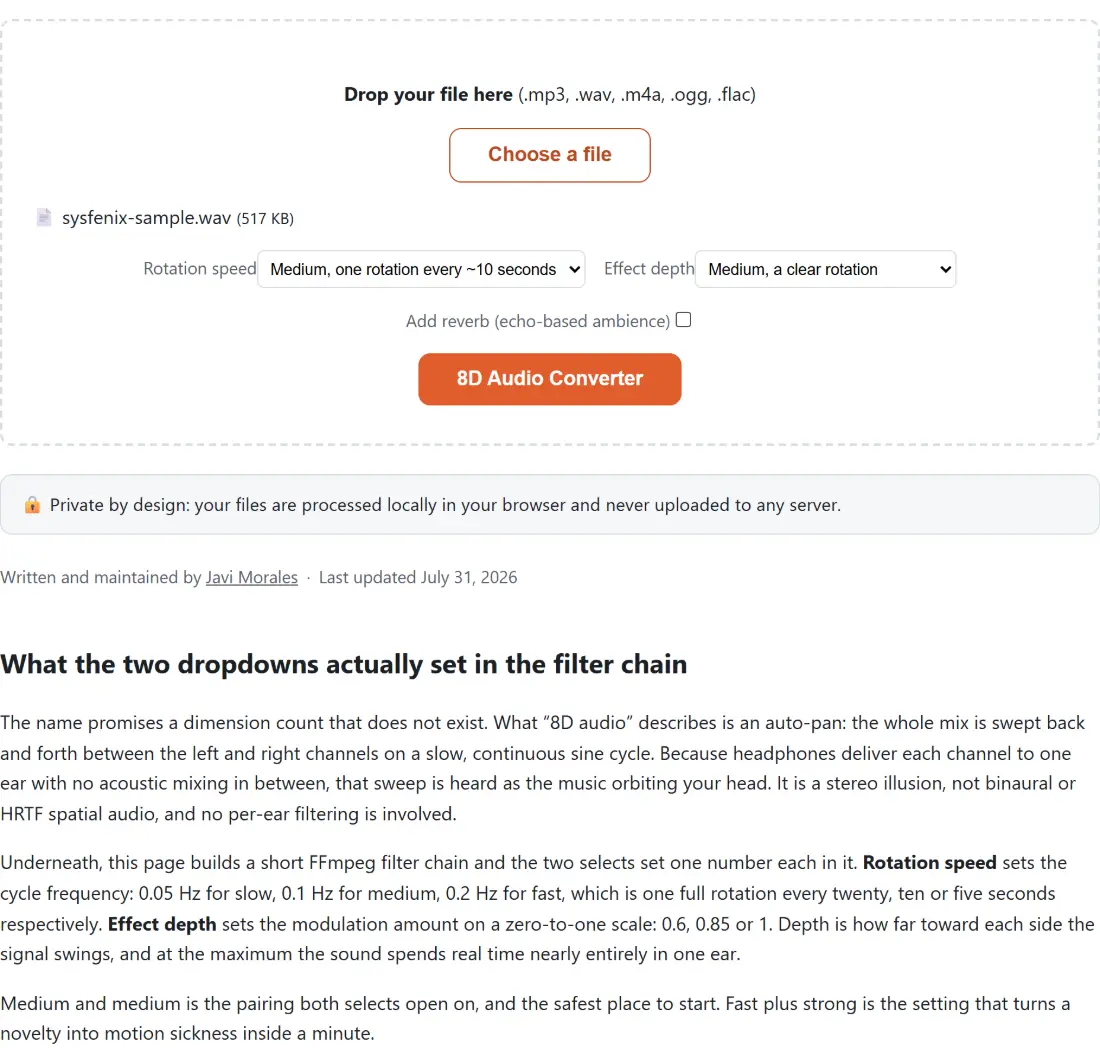
Underneath, this page builds a short FFmpeg filter chain and the two selects set one number each in it. Rotation speed sets the cycle frequency: 0.05 Hz for slow, 0.1 Hz for medium, 0.2 Hz for fast, which is one full rotation every twenty, ten or five seconds respectively. Effect depth sets the modulation amount on a zero-to-one scale: 0.6, 0.85 or 1. Depth is how far toward each side the signal swings, and at the maximum the sound spends real time nearly entirely in one ear.
Medium and medium is the pairing both selects open on, and the safest place to start. Fast plus strong is the setting that turns a novelty into motion sickness inside a minute.
A mono source is upmixed before the pan can do anything
There is a step before the pan that matters more than it sounds. Panning a mono signal achieves nothing audible, because both channels are already identical and moving level between them just moves the same sound around. So the chain begins by forcing a stereo channel layout, which upmixes a mono input to two channels first and is a harmless no-op on a track that was already stereo.
This is worth knowing if your source is a voice memo, a phone recording, or an old mono transfer. The effect will apply and the file will come back with a rotation on it, but it will be a rotation of one signal rather than of a stereo image, so it sounds emptier than the same treatment on a proper stereo mix. Wide, reverb-rich, well-separated productions are the ones where the illusion is strongest.
Rotating a track and checking it back
- Drop one audio file onto the box above, or use Choose a file. MP3, WAV, M4A, OGG and FLAC are accepted, one file per run.
- Set Rotation speed and Effect depth. Leaving both on Medium is the safe starting point if you have not done this before.
- Tick Add reverb (echo-based ambience) if you want a hazier wash behind the movement, or leave it off for a cleaner rotation.
- Press 8D Audio Converter and let the progress bar run, keeping the tab open.
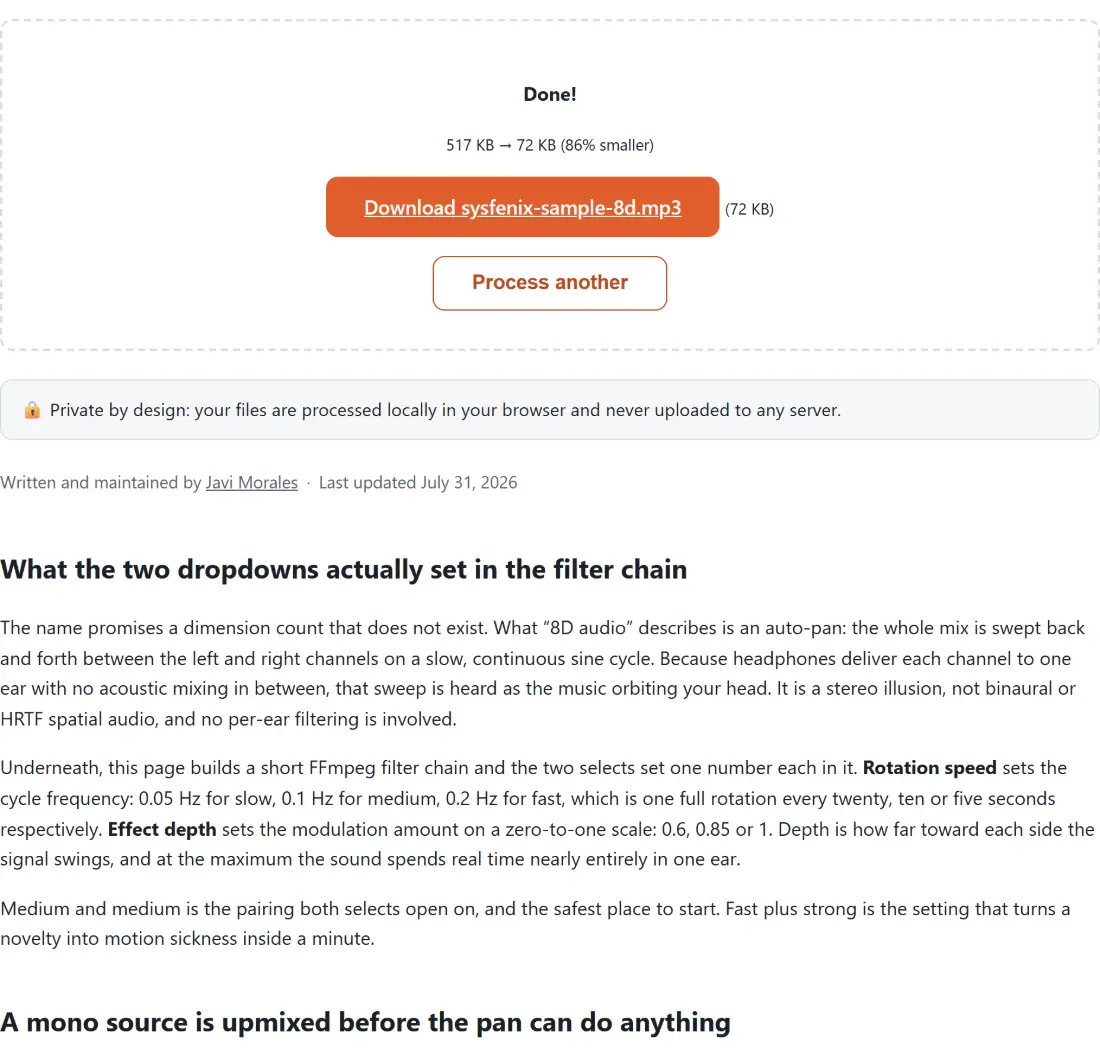
- Download the MP3, which arrives with
-8dappended to your original file’s name, and listen on headphones.
That last step is not optional advice. Checked on speakers, the left and right signals recombine in the room before they reach you and the whole illusion collapses into a plain left-to-right volume wobble.
The reverb tick box is an echo filter, and says so
The optional reverb is not a convolution reverb. It is FFmpeg’s echo filter set to a single soft, widely spaced repeat, which is the usual stand-in for an ambient wash in this genre of edit and the same approach the slowed-and-reverb preset on the audio pitch changer uses. It gets you close to the hazy sound that pairs with slowed edits. It will not match a real reverb plugin in a proper editor, and it is not trying to.
If the goal is atmosphere rather than rotation specifically, it is worth trying the neighbouring effects instead of stacking everything here: Change Audio Speed alters the tempo while leaving the pitch where it was, and Bass Booster lifts a low shelf if the bottom end needs weight before the pan starts moving it around. And if you want genuine two-tone binaural beats rather than a panned song, Binaural Beats Generator synthesises them from scratch instead of processing a file you upload.
Where the illusion falls flat
Three source types disappoint reliably. Anything already heavily side-processed, with instruments hard-panned to the extremes, fights the sweep instead of riding it. Dense mono-ish loudness-war masters have little stereo image left to move. And podcast or spoken-word audio becomes actively hard to follow, because a voice that drifts out of one ear reads as a fault rather than an effect.
Everything on this page runs through a WebAssembly build of FFmpeg inside your browser tab, on your own hardware, so an unreleased demo or a rough mix never gets uploaded anywhere to be processed. The rest of the effect pages sit together under audio tools.