Two different questions, answered in one report
Aspect ratio work splits neatly into two jobs, and most calculators only do one of them. The first is descriptive: you have a width and a height and want to know what shape that is. The second is prescriptive: you know one dimension and the shape you need, and want the other dimension. This page always answers the first and answers the second as well whenever you lock a ratio, so a single run tells you both what you have and what you should target.
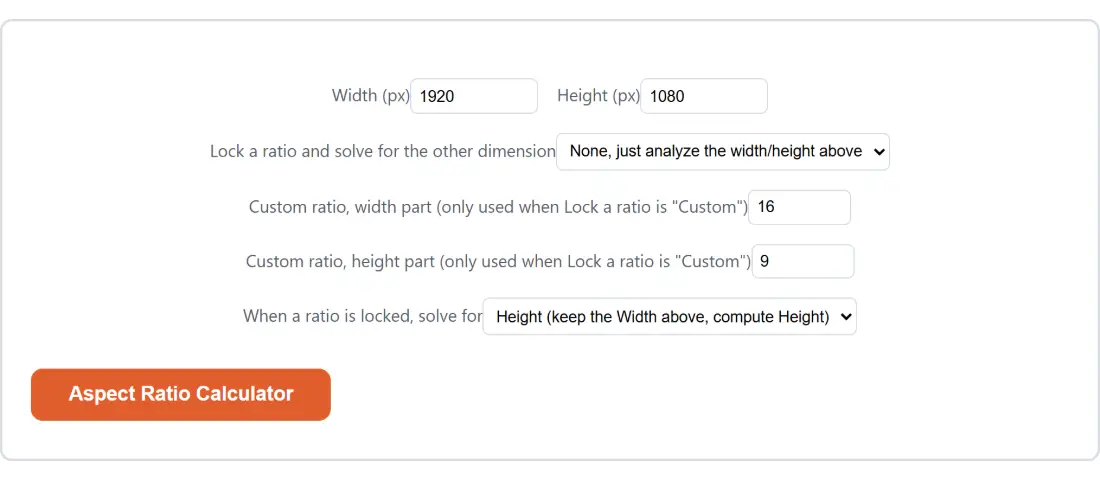
- Type your pixel dimensions into Width (px) and Height (px).
- To solve as well as describe, pick a shape under Lock a ratio and solve for the other dimension.
- Under When a ratio is locked, solve for, choose which side the calculator should compute. The other side keeps the value you typed.
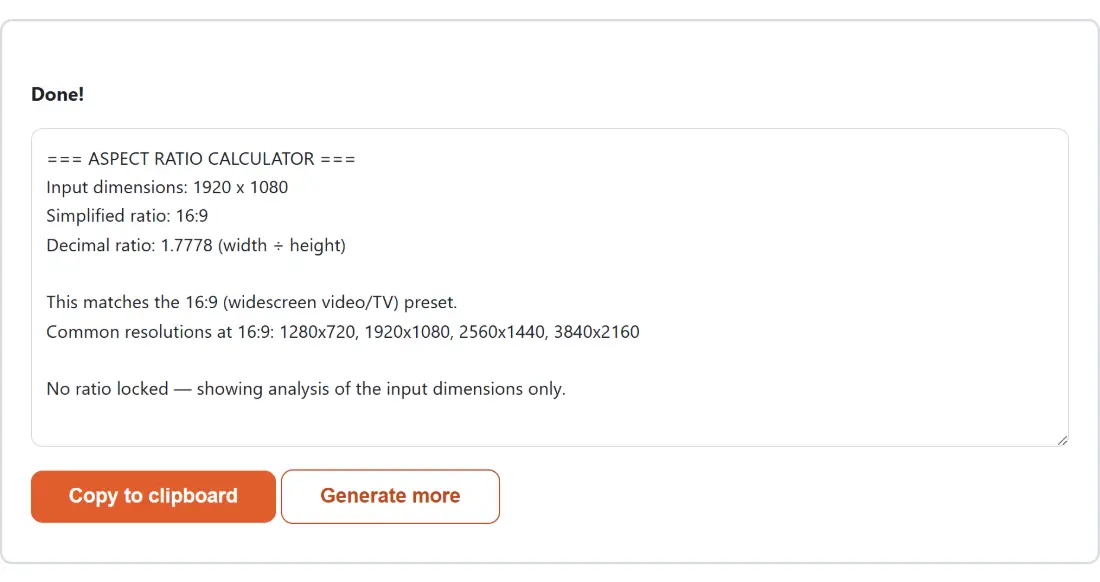
- Click the Aspect Ratio Calculator button and read the report, then copy it if you need to paste the numbers somewhere.
Leave the lock alone and the report simply analyses what you typed and says so explicitly, which is the fastest way to answer “is this screenshot actually 16:9”.
Greatest common divisor is the whole trick
An aspect ratio is a fraction in lowest terms, nothing more exotic. 1920 and 1080 share a greatest common divisor of 120, and dividing both by it lands on 16:9. 3840 by 2160 looks like a different animal but shares a divisor of 240 and lands on exactly the same 16:9, which is why 4K footage drops into a 1080p timeline without letterboxing. The reduction runs through the Euclidean algorithm, so it is not matching your numbers against a table of known shapes; any pair reduces correctly, table or no table.
Alongside the reduced form the report prints the decimal ratio to at most four places, trailing zeros dropped, which is often the more useful number of the two. Comparing 1.7778 against 1.85 tells you instantly how far apart two shapes are; comparing 16:9 against 37:20 does not.
The half pixel the report refuses to hide
Solving is a multiplication, and multiplications do not respect whole pixels. Lock 16:9, keep a width of 1000 and solve for height and the exact answer is 562.5, which becomes 563. That single rounded pixel means the output is no longer mathematically 16:9, and depending on what you feed it to, an encoder may pad, crop or refuse an odd dimension outright.
Rather than print 563 as though it were exact, the report says the value was rounded and shows what it was rounded from. When you see that line, the usual move is to nudge the known dimension to something that divides evenly. A width that is a multiple of 16 always gives a whole 16:9 height, which is why 1280, 1920 and 3840 keep turning up in specification sheets and 1000 does not.
Ultrawide “21:9” is marketing, not arithmetic
This one catches people out constantly. A monitor sold as 21:9 is usually 2560 by 1080 or 3440 by 1440, and neither of those is 21:9. Put 2560 by 1080 in and the report reduces it to 64:27, roughly 2.3704. Put 3440 by 1440 in and it reduces to 43:18, roughly 2.3889. Mathematical 21:9 is about 2.3333, and reduces to 7:3.
The calculator does not paper over this. Because preset matching is done by cross-multiplication against the exact 21 to 9 fraction, an ultrawide resolution correctly matches nothing, and the 21:9 example resolutions the report offers are genuinely 21:9 values rather than the marketing ones. If you are mastering a video for an ultrawide display, take the display’s real reduced ratio from the report rather than trusting the label on the box.
Carrying the numbers into an actual resize
A ratio on its own does not change anything, so the answer usually needs applying somewhere. Resize Images works from a target width and keeps the source proportions, which pairs neatly with a solved height here as a way to check what you are going to get before you get it. For video, Crop Video takes a centred rectangle at 9:16, 1:1 or 16:9 and throws away the overflow, while Resize Video for Social Media hits a target shape at a chosen resolution and lets you choose between cropping to fill and padding with bars. Knowing whether your source is already the target shape decides which of those two you want, and that is precisely what the simplified ratio at the top of the report tells you.
If you are working out what your own display is doing, What Is My Screen Resolution reads the real numbers off the device, including the pixel ratio, and those are the numbers to paste in here.