The five blocks of readout, and what each one holds
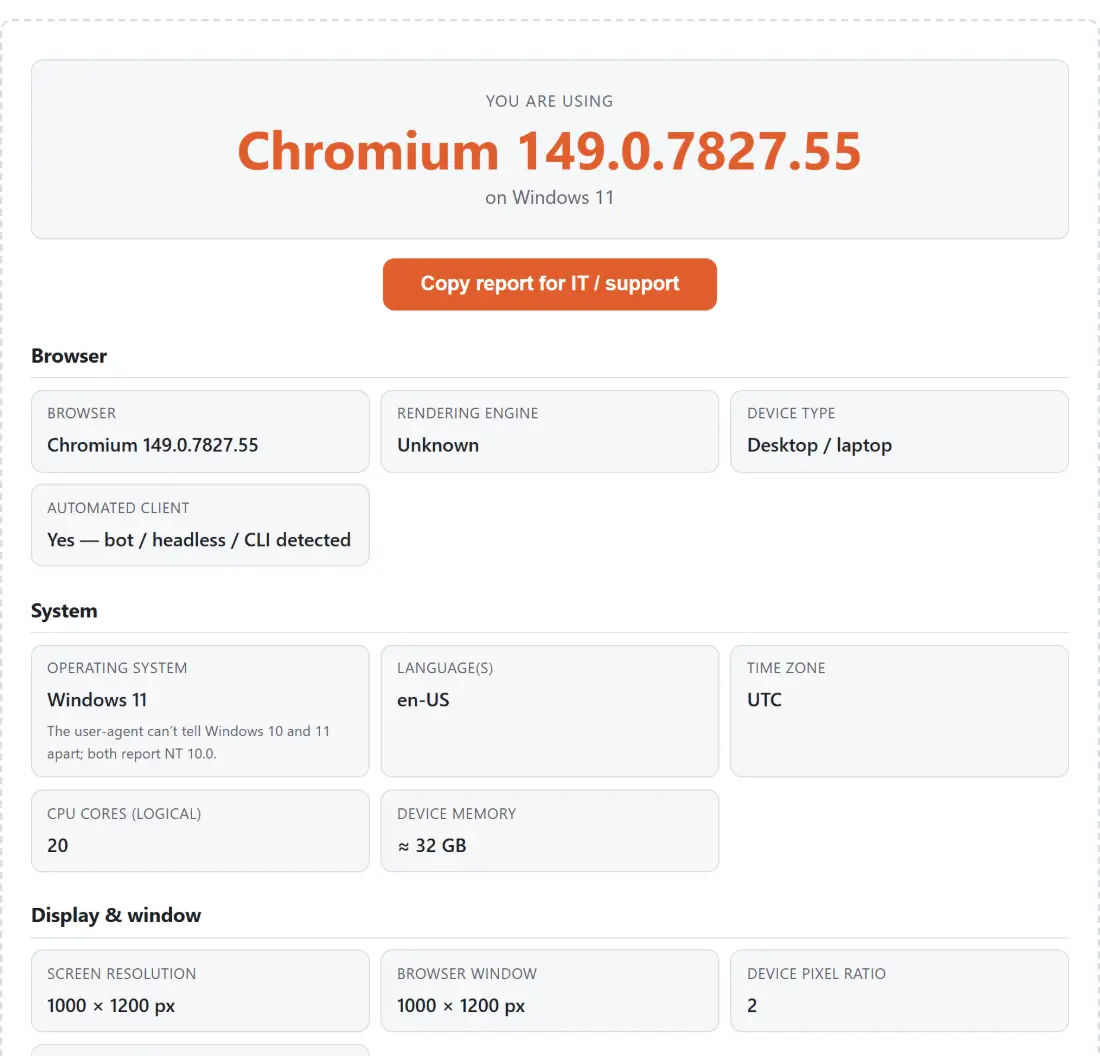
Detection runs as the page loads, so the first thing on screen is a plain line naming your browser and, under it, the operating system. Below that, the detail is grouped into five blocks.
Browser gives the browser and version, the rendering engine (Blink, Gecko, WebKit, or Unknown when the string does not say), whether the client looks like a desktop or laptop rather than a phone or tablet, and whether it looks automated, meaning a crawler, a headless browser or a command line HTTP tool.
System gives the operating system, your configured languages in preference order, the time zone your browser resolves to, the number of logical CPU cores, and device memory where the browser exposes it.
Display & window separates the two numbers people most often confuse: the screen resolution your operating system reports, and the size of the browser viewport right now, alongside the device pixel ratio and the colour depth.
Status & privacy signals covers whether JavaScript is running (trivially yes if you can see any of this), whether cookies are enabled, whether the browser believes it is online, and the state of the Do Not Track setting.
Feature support is a list of capabilities, each marked supported or not supported.
Windows 10 and Windows 11 look identical to a user-agent string
Microsoft never bumped the internal version, so both ship as Windows NT 10.0 and a user-agent genuinely cannot tell them apart. Rather than guess, the readout says 10 or 11 and prints a note under the value explaining why. On Chromium browsers there is a second route: the Client Hints API can be asked for a higher-detail platform version, and that value does separate the two, so a moment after the page settles the label sharpens to Windows 10 or Windows 11. Browsers that do not expose that API, or that decline, keep the honest ambiguous answer.
The other classic traps are handled the same way. Chrome, Edge, Opera and Samsung Internet all carry a Chrome token, so the brand-specific tokens are checked first or Edge would report itself as Chrome. Safari and Chrome both carry a Safari token, so Safari is concluded only when the Chromium and Firefox markers are absent. A current iPad sends a Mac-style user-agent, so a Mac that also reports multiple touch points is reclassified as iPadOS. None of that is guesswork you have to take on faith, but all of it is best effort, and a user-agent can be spoofed outright.
Feature support here is probed, not looked up from a table
Nothing in the capability list is inferred from a version number. WebGL and WebGL 2 are tested by actually creating a canvas and asking it for the context, which is the only way to catch a machine where the driver is blocklisted despite a modern browser. Local storage is tested with a real write and delete round trip, because in some private browsing modes the property exists and still throws the moment you use it. The remainder are direct checks against the live objects for cookies, service workers, WebAssembly, WebRTC, notifications and geolocation, plus a touch check that combines the maximum touch point count with the presence of touch events.
Geolocation is worth spelling out. That row reports whether the API exists in your browser and nothing more: no location is requested, no permission prompt is raised, and no coordinate is ever read. The same is true of the notifications row.
Getting a clean report into a support ticket
- Open the page and let the readout settle. On Chromium browsers a second, more precise pass arrives a moment later, once the high-entropy Client Hints resolve.
- Skim the blocks for whatever the person helping you actually asked about, usually the browser and version, the operating system, and one or two feature rows.
- Click Copy report for IT / support. It assembles a plain-text report from exactly the labelled rows on screen, under a heading line, this tool’s address and a generated timestamp, then confirms on the button itself.
- Paste it into the ticket, chat or email. Rows with an empty value are left out, so what lands is short enough that someone will read it.
The report is built from the same field list the page renders, which means anything not visible above is not in your clipboard either.
The things this page deliberately does not read
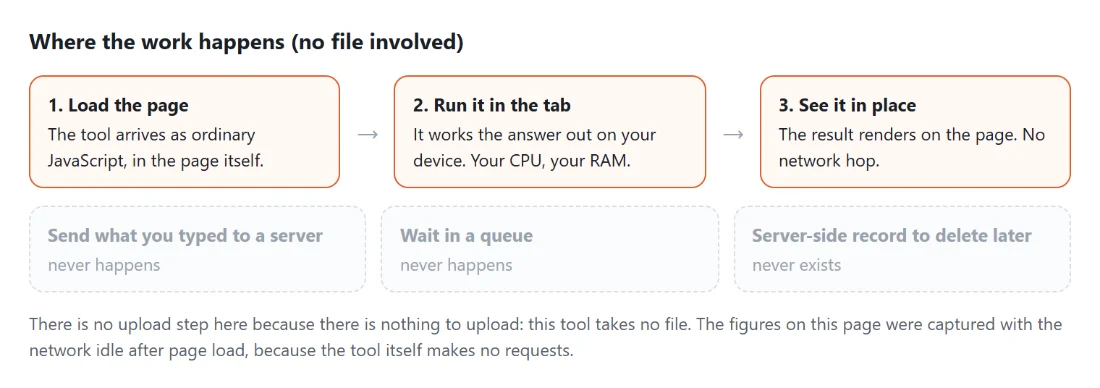
There is no IP address here, and there cannot be, because a browser cannot see its own public address without asking a server and this page makes no network request with your details at all. There is no fingerprint hash, no canvas fingerprinting, no font enumeration and no attempt to build a stable identifier out of the values shown. Every figure is read from your own browser, rendered locally, and gone when you close the tab.
That is a diagnostics posture, not a shield. The same signals are readable by any site you visit, and showing them to you here does not hide them from anywhere else; reducing what sites can see is a job for your browser’s privacy settings. For the neighbouring checks, the screen resolution checker goes further on display geometry with a live viewport readout and orientation, the webcam and microphone test is the one for camera and permission problems before a call, and the keyboard tester is where to go when a key rather than a browser is the suspect.