The seven colors in the cycle, and what each one reveals
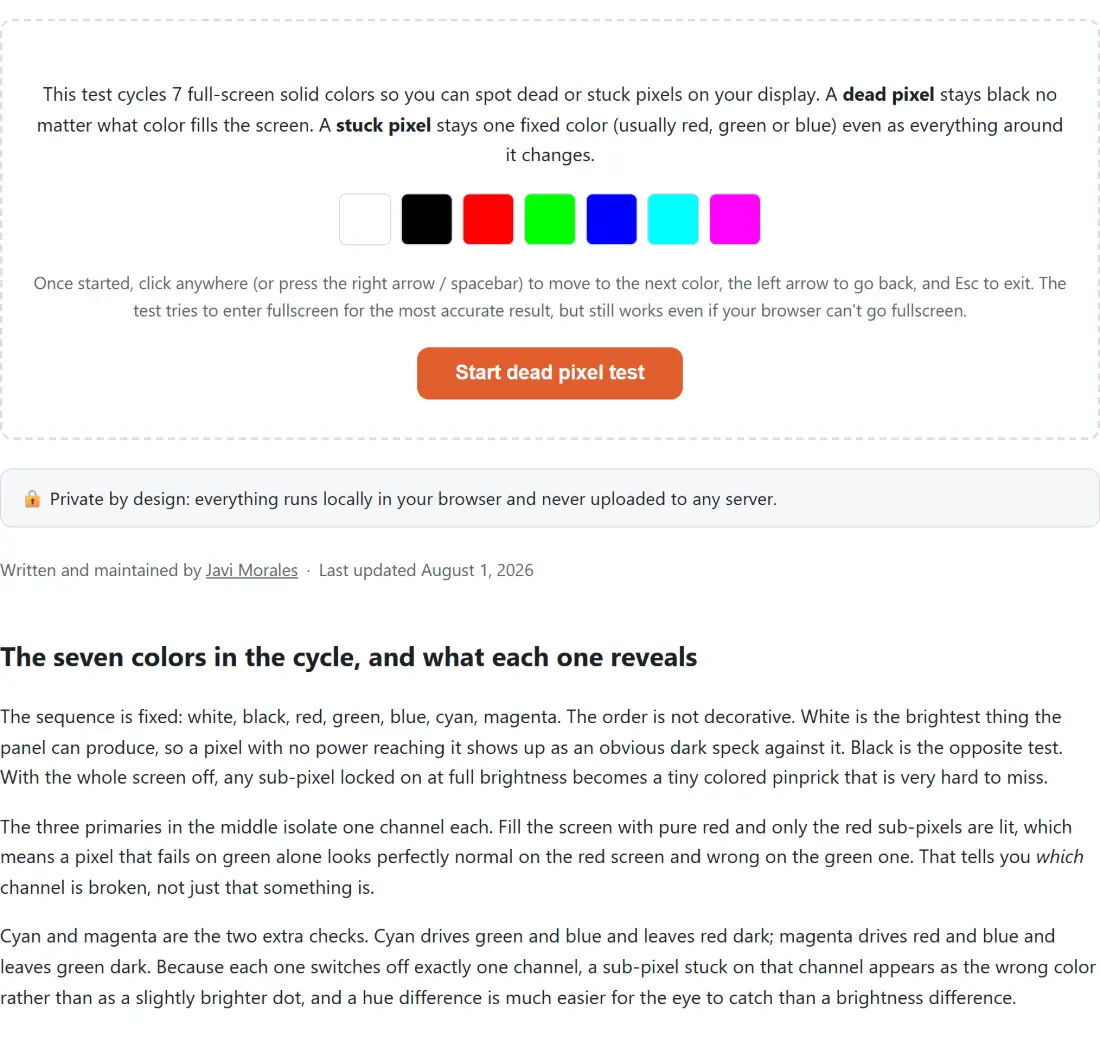
The sequence is fixed: white, black, red, green, blue, cyan, magenta. The order is not decorative. White is the brightest thing the panel can produce, so a pixel with no power reaching it shows up as an obvious dark speck against it. Black is the opposite test. With the whole screen off, any sub-pixel locked on at full brightness becomes a tiny colored pinprick that is very hard to miss.
The three primaries in the middle isolate one channel each. Fill the screen with pure red and only the red sub-pixels are lit, which means a pixel that fails on green alone looks perfectly normal on the red screen and wrong on the green one. That tells you which channel is broken, not just that something is.
Cyan and magenta are the two extra checks. Cyan drives green and blue and leaves red dark; magenta drives red and blue and leaves green dark. Because each one switches off exactly one channel, a sub-pixel stuck on that channel appears as the wrong color rather than as a slightly brighter dot, and a hue difference is much easier for the eye to catch than a brightness difference.
Cycling through the panel, one color at a time
- Click Start dead pixel test. The tool asks the browser for real fullscreen and fills the screen with the first color, white.
- Sweep across the panel in bands, corner to corner, instead of staring at the center. Sit close enough that a single pixel is actually resolvable.
- Click anywhere, or press the right arrow or spacebar, to move on. The hint strip names the color and your position out of seven.
- Press the left arrow, or the ← Previous button in the hint strip, to step back to a color that deserves a second look.
- Press Esc, or the Exit (Esc) button, when you are done.
Fullscreen is attempted, then quietly forgiven
Starting the test fires a real requestFullscreen() call on the tool’s own container, with a WebKit fallback, wrapped in a try/catch that swallows any rejection. This matters because the color layer itself is a plain fixed, full-viewport overlay: it does not need the Fullscreen API to work at all. An iframe without a fullscreen permission, or a user who declines the prompt, still gets a usable test.
Real fullscreen is worth having when it is available, though. Browser chrome, the tab strip, the address bar and a scrollbar all sit over parts of the panel you would otherwise never get a flat color onto, and edges are precisely where you want to look. There is also a fullscreenchange listener wired up, so if the browser drops out of fullscreen on its own through F11 or its own exit affordance, the test closes instead of leaving a colored sheet stranded over the page.
Dead, stuck, and telling them apart in two clicks
A dead pixel receives no power. It stays dark on white, on red, on green, on blue, on cyan and on magenta, and vanishes into the background only on the black screen. A stuck pixel is the reverse: it is powered but locked, so it holds one fixed color while everything behind it changes, and it screams on black.
That is the whole diagnostic. Note the position of the dot, then step through the cycle watching only that spot. If it is always dark, it is dead. If it is always the same bright color, it is stuck, and the primary it matches names the offending sub-pixel channel. Both defects are pixel-sized, so this is one of the few checks worth doing with your nose near the glass.
Where this sits among the other panel checks
A dead pixel is a manufacturing defect, but plenty of the things people blame on one are not. If the whole image tears or stutters, that is a frame timing question rather than a pixel question, and the refresh rate test measures it directly. If you are trying to work out what panel you actually bought, What Is My Screen Resolution reads it back from the browser. On a phone or a tablet, an unresponsive patch of glass is a digitizer fault rather than a display fault, which is what the Touchscreen Test is for.
The same “open a page, check the hardware, close the page” pattern covers the Keyboard Tester and the rest of the testers section, and the hardware testers guide walks through which check answers which symptom.
What this test does not do
It finds nothing by itself. There is no image analysis, no camera, no measurement of the panel in software: seven flat colors and your own eyes are the entire mechanism. A defect you do not personally spot is a defect this page will not report, which is why the slow corner-to-corner sweep on each color matters more than the tool does.
It also cannot distinguish a panel defect from dust, a fingerprint, or a speck trapped under the glass. Clean the screen first. A mark that survives a cloth and holds the same color through all seven backgrounds is a real stuck pixel; one that moves or disappears was never a pixel at all.