Auto-detect, and when to override it
Highlighting is done by highlight.js, running as JavaScript in your tab. Nineteen grammar modules are wired up, each loaded on demand, eighteen real languages plus plain text, and the dropdown shows 22 entries because JSX and TSX map onto the JavaScript and TypeScript grammars and HTML maps onto XML. A language name that is not on the list falls back to Auto-detect rather than erroring.
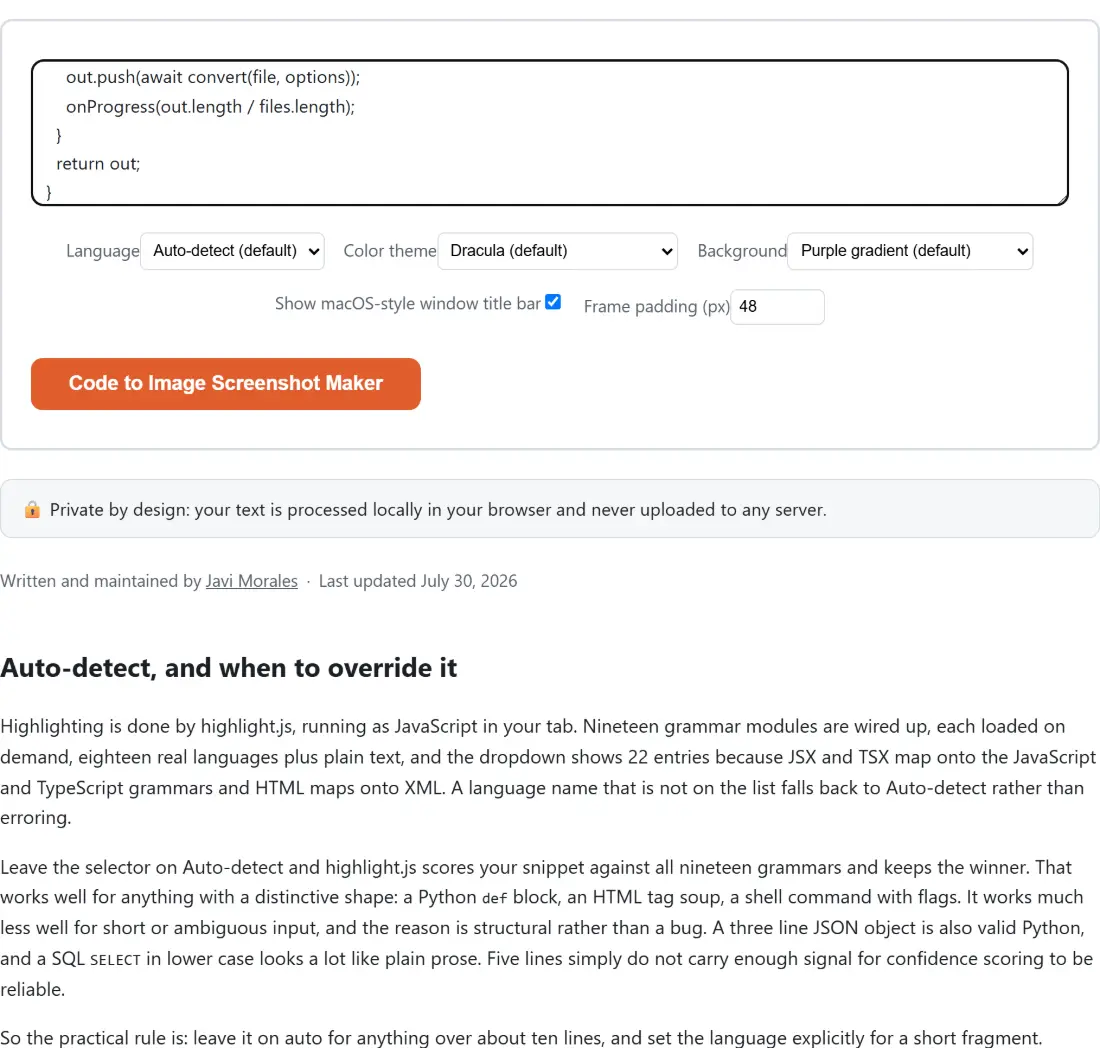
Leave the selector on Auto-detect and highlight.js scores your snippet against all nineteen grammars and keeps the winner. That works well for anything with a distinctive shape: a Python def block, an HTML tag soup, a shell command with flags. It works much less well for short or ambiguous input, and the reason is structural rather than a bug. A three line JSON object is also valid Python, and a SQL SELECT in lower case looks a lot like plain prose. Five lines simply do not carry enough signal for confidence scoring to be reliable.
So the practical rule is: leave it on auto for anything over about ten lines, and set the language explicitly for a short fragment. Naming the language skips detection and loads only that one grammar, which is also marginally faster.
Theme, background, and what survives being projected
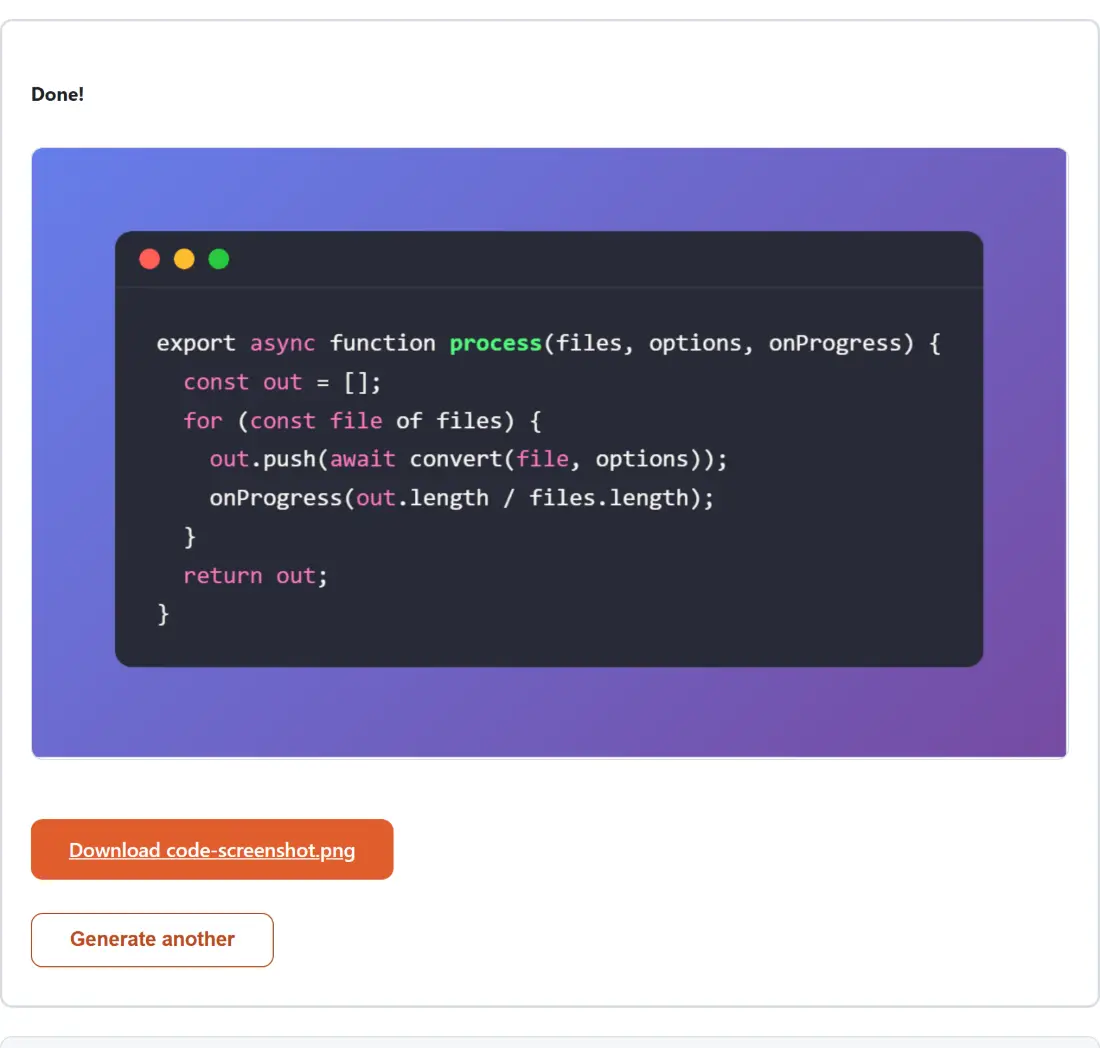
Five themes ship: Dracula, GitHub Dark, Nord, Monokai and One Light. Rather than bundling highlight.js’s own theme CSS, each is a hand written map of token colours, which is why all five cover exactly the same token classes and none has a comment colour that silently falls back to the default foreground.
Choosing between them is mostly about where the image is going. Dracula and Monokai are high-saturation dark themes that look great on a screen and can lose their pink and green keywords on a washed-out projector. Nord is the lowest contrast of the five and the safest for print. One Light is the only light option and the right pick for a white slide deck, because a dark code block on a white page pulls the reader’s eye away from everything around it.
Backgrounds are separate from themes: three gradients (purple, blue, orange), a solid dark, or transparent. The gradients exist because a code frame floating on flat white looks unfinished on social media. If you are compositing the frame into your own design, choose transparent and let your layout provide the backdrop.
From pasted snippet to PNG
- Paste your code into the box. Indentation is preserved verbatim, and tabs render as two spaces.
- Set the Language (or leave Auto-detect), a Color theme and a Background.
- Toggle the window title bar and set the frame padding anywhere from 0 to 128 pixels.
- Generate, then download
code-screenshot.png.
Padding is the outer breathing room between the code window and the edge of the image, drawn in the background colour or gradient. The default 48 is a good social-media value; drop it to 0 when you plan to place the frame inside a layout that already has its own margins.
Escaping, sandboxing, and code you are not allowed to leak
A tool that turns arbitrary pasted text into HTML and renders it is an obvious injection target, so this one has two independent defences and we verified the first one against the real library instead of trusting the documentation.
highlight.js escapes as it tokenises: every <, >, & and " in your input comes back as an HTML entity, for every grammar, including the case where the code genuinely is HTML and you picked the html language on purpose. The test suite fires real payloads (a <script> tag, an <img onerror>, an attempt to break out of the surrounding </code></pre>) through the unmocked library for several languages and asserts the escaping every time.
On top of that, the assembled document is rendered inside a sandboxed iframe with scripting disabled before the capture runs. Even a future bug in this tool’s own template building, say a caption field added later without escaping, could not execute anything. And because both stages are local, your snippet never crosses the network: highlighting is a function call, and the capture reads a hidden frame in your own tab. That is the part that matters when the code comes from a private repo or an unreleased feature.
The dynamic import that only broke in a real browser
Worth recording, because it is a trap. The natural way to load nineteen grammars on demand is one interpolated import: build the path from the language name and call import() on it. That version passed every Node test, because Node’s resolver has no difficulty with a specifier assembled at runtime.
In a real browser it failed outright. Vite can only rewrite a dynamic import into a resolvable URL when the specifier is a static string it can analyse at build time, so the interpolated version shipped as a bare specifier that the browser’s own module resolver rejected with a “Failed to resolve module specifier” error. We caught it by driving the dev server with a real browser rather than by reading the built output. The fix is the tedious thing the file does now: nineteen explicit import statements in a lookup table. That is also why the language list is curated rather than “everything highlight.js can do”, since every grammar has to be named in code.
Where this tool stops
There are no line numbers, no line highlighting, no diff colouring, no filename in the title bar and no font choice; the code is set at 14 pixels in your system monospace stack. Long lines are never wrapped, since wrapping code changes its meaning, so a 300 character line produces a very wide image. The offscreen staging frame is 4000 pixels across, generous but not infinite, and the fix is to break the line yourself before pasting.
If a code frame is not what you need, a few siblings cover adjacent jobs: Markdown to HTML if you want real copyable code on a page instead of a picture, Diff Text for showing what changed between two versions, OG Image Generator for a social preview card with a headline rather than a snippet, and Device Mockup Generator to put a whole screenshot inside a phone or laptop frame.