Markdown is where technical writing starts and rarely where it has to end. Sooner or later the same text needs to live in a CMS field, an email template, or a static page with no build step behind it, and those places want tags. This page does that conversion and hands you the source as text, sanitized on the way through.
From paste to sanitized source in four steps
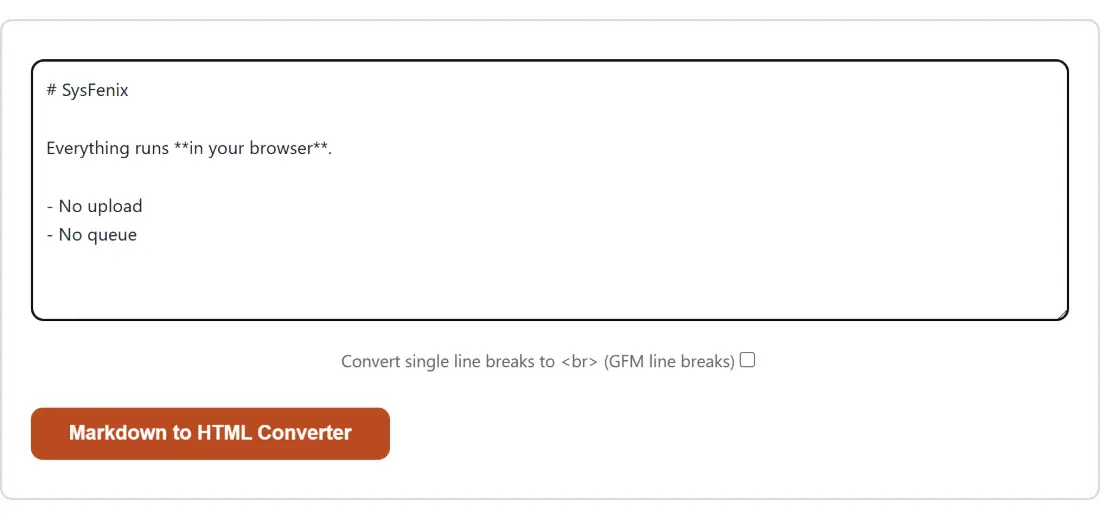
- Paste your Markdown into the box at the top of the page.
- Leave
Convert single line breaks to <br> (GFM line breaks)unticked for standard behavior, or tick it if every newline in your source should become a visible break. - Click Markdown to HTML Converter. The button stays disabled until the box has something in it.
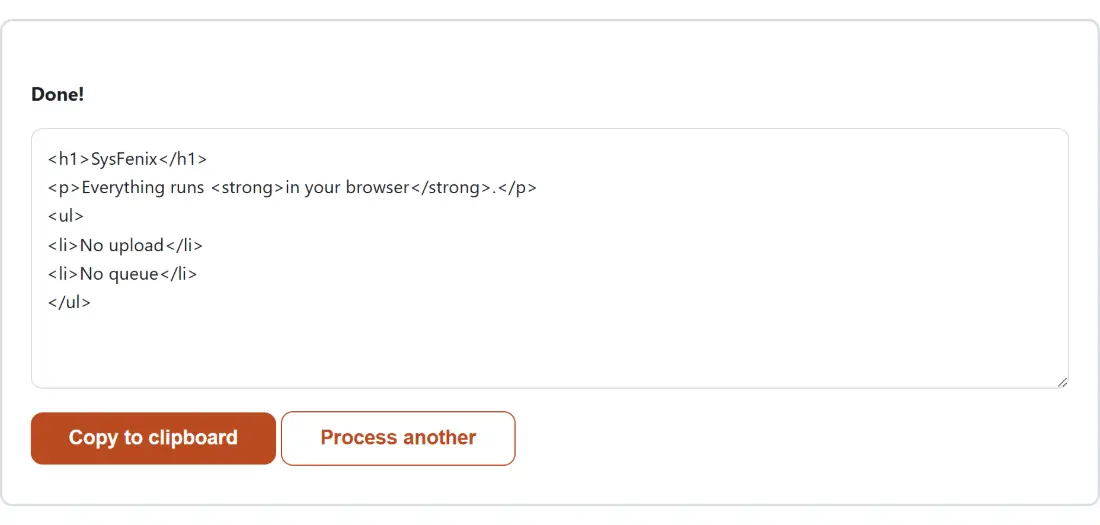
- Take the result with Copy to clipboard, or hit Process another to clear the box and start over.
The input box and the checkbox are replaced by the output box once a conversion finishes, so Process another is the way back to editing rather than the browser’s back button.
What marked actually emits for a GFM document
The parser here is marked, running with GitHub Flavored Markdown extensions switched on. That means the extensions people assume are part of Markdown genuinely work: pipe tables, task list checkboxes, strikethrough with double tildes, and bare URLs turned into links without you writing the bracket syntax.
Concretely, a fenced block tagged as JavaScript becomes a preformatted code element whose code tag carries a class naming that language. A table with colons in its separator row gets align attributes on the matching header and body cells. A task list item written with a lowercase x becomes a checkbox input that is both checked and disabled. Strikethrough becomes a del element. None of it is styled, because the output is source for you to place, not a finished page.
If you need to build the table itself rather than convert one you already have, the Markdown Table Generator gives you a grid editor and emits the table syntax this page then converts.
DOMPurify runs on every conversion, with no switch to turn it off
Markdown parsers pass raw HTML in your source straight through. That is documented, deliberate behavior across essentially every implementation, and it is how people embed a video element or a spacing hack inside otherwise plain Markdown. It also means a script tag, an image with an onerror handler, or a link pointing at a javascript URL survives the parse intact.
So the parser output never reaches you directly. It goes through DOMPurify, Cure53’s widely used HTML sanitizer, and only then into the output box. The result is precise rather than scorched-earth: a script element disappears completely, an image that carried an onerror attribute comes back as a plain image with just its source, and a link with a javascript URL comes back as an anchor element with its text intact and no destination at all. Meanwhile a strong tag you typed by hand, or a table, or a code block, is passed along byte for byte.
There is no option to disable this, and every path this page can hand you output through runs the parse result into it. The reasoning is that this output is as likely to be saved as a file and double-clicked later as it is to be pasted into a template, and a saved file with a live script in it is exactly as dangerous as an inline render.
The line-breaks toggle changes one rule in the parser
Standard Markdown starts a new paragraph only at a blank line. A single newline inside a paragraph is treated as whitespace, so two soft-wrapped lines join into one flowing sentence. That is the default here, and it is off deliberately, because turning it on would riddle any hard-wrapped document with breaks its author never intended.
Tick the option and every single newline becomes a break tag instead. Two lines that would otherwise merge into one paragraph come back as one paragraph containing an explicit break between them. That mode is the right one for chat-style text, comment bodies, or Markdown ported out of a system that already assumed newlines are literal.
Output is source code, not a rendered preview
The box below the button holds text. There is no preview pane, no styling, and no download button on this page: you copy the markup and paste it into whatever is going to render it. That is a deliberate scope choice rather than an omission, and it is why the page is usable for things a preview would get in the way of, like diffing two generated versions of the same document with the Text Diff Checker or escaping a fragment for display with the HTML Encode tool.
There is also no imposed size limit. A one-line note and a full README both convert, and a very large document simply takes your own JavaScript engine a moment longer, since no server is doing the work.
When markdown-to-pdf is the shorter route
If a PDF is the actual destination, do not convert here and then convert again. The Markdown to PDF converter imports this page’s conversion function directly, runs the identical parse and sanitize pass, and lays the result out as a styled, paginated document in one step. The difference in use is that it takes a Markdown file with a .md or .markdown extension rather than pasted text, so save your draft first.
Coming from the other direction, Convert Word to Markdown turns a .docx file into Markdown you can then bring here. The README Generator calls the same sanitized conversion function this page exposes to drive its live preview panel, and the text tools hub collects the rest of the writing utilities alongside them.