The field names the parser accepts, and the aliases it forgives
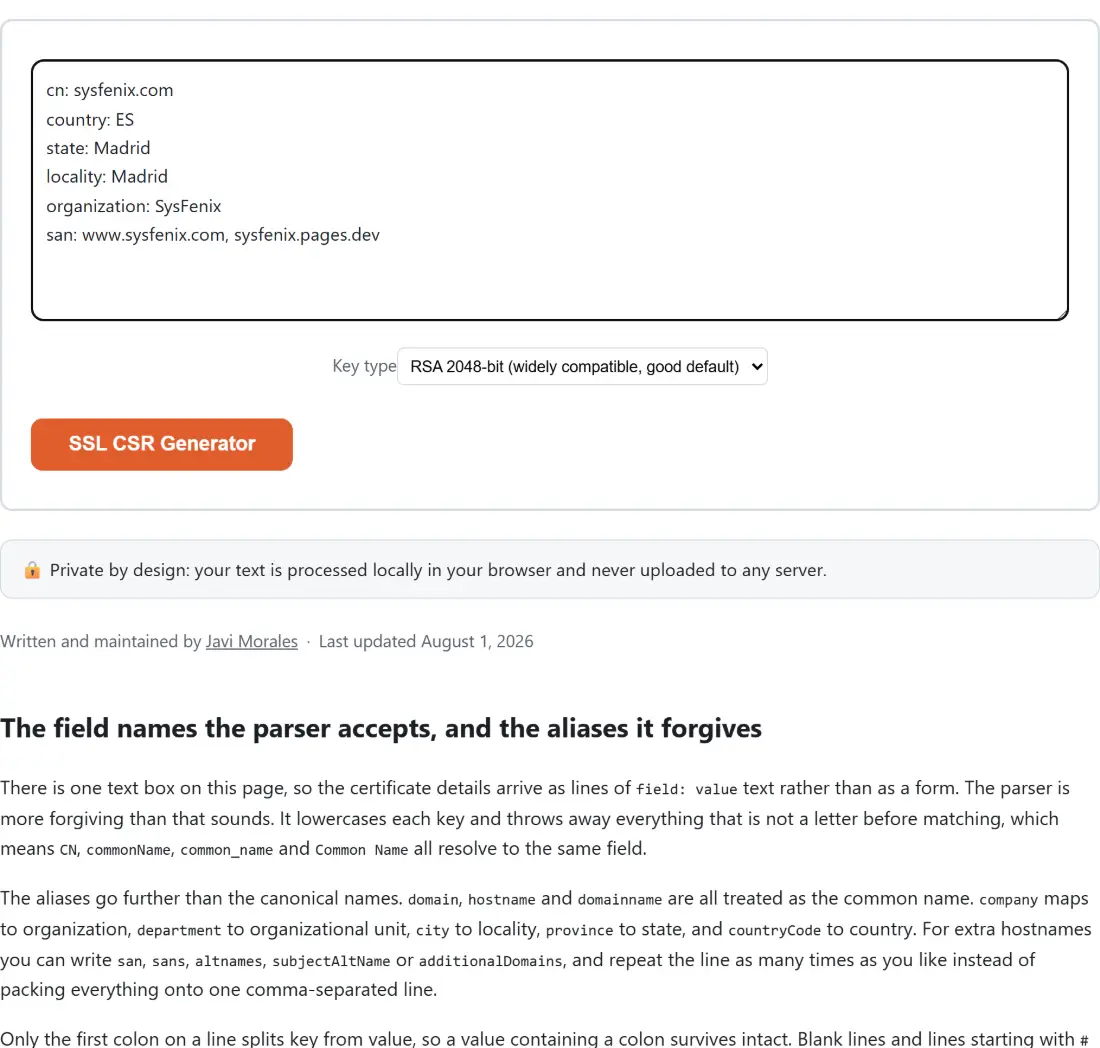
There is one text box on this page, so the certificate details arrive as lines of field: value text rather than as a form. The parser is more forgiving than that sounds. It lowercases each key and throws away everything that is not a letter before matching, which means CN, commonName, common_name and Common Name all resolve to the same field.
The aliases go further than the canonical names. domain, hostname and domainname are all treated as the common name. company maps to organization, department to organizational unit, city to locality, province to state, and countryCode to country. For extra hostnames you can write san, sans, altnames, subjectAltName or additionalDomains, and repeat the line as many times as you like instead of packing everything onto one comma-separated line.
Only the first colon on a line splits key from value, so a value containing a colon survives intact. Blank lines and lines starting with # are ignored outright.
Two values get real validation. Country must be exactly two letters, and it is uppercased and encoded as an ASN.1 PrintableString while every other subject attribute is encoded as a UTF8String. The common name and every SAN entry go through a deliberately permissive hostname check: no whitespace, nothing outside letters, digits, dots, hyphens and asterisks, no leading or trailing dot or hyphen, no doubled dots, and a leading asterisk only when it is followed by a dot. That looseness is on purpose, so internal names like localhost or printer1 are not rejected.
Requesting a certificate for a domain and two subdomains
- Paste your details into the box, one field per line. The only line that is genuinely required is the common name.
- Add
organization,organizationalUnit,locality,stateandcountryas far as your Certificate Authority asks for them. - Add the extra hostnames on a
sanline, comma separated. Your common name is prepended to that list automatically and duplicates are removed case-insensitively, so repeating it changes nothing. - Choose a Key type. The three entries read RSA 2048-bit (widely compatible, good default), RSA 4096-bit (stronger, slower to generate), and ECDSA P-256 (modern, fast, smaller keys).
- Click the action button, which is labeled SSL CSR Generator and switches to a working state while the key pair is produced.
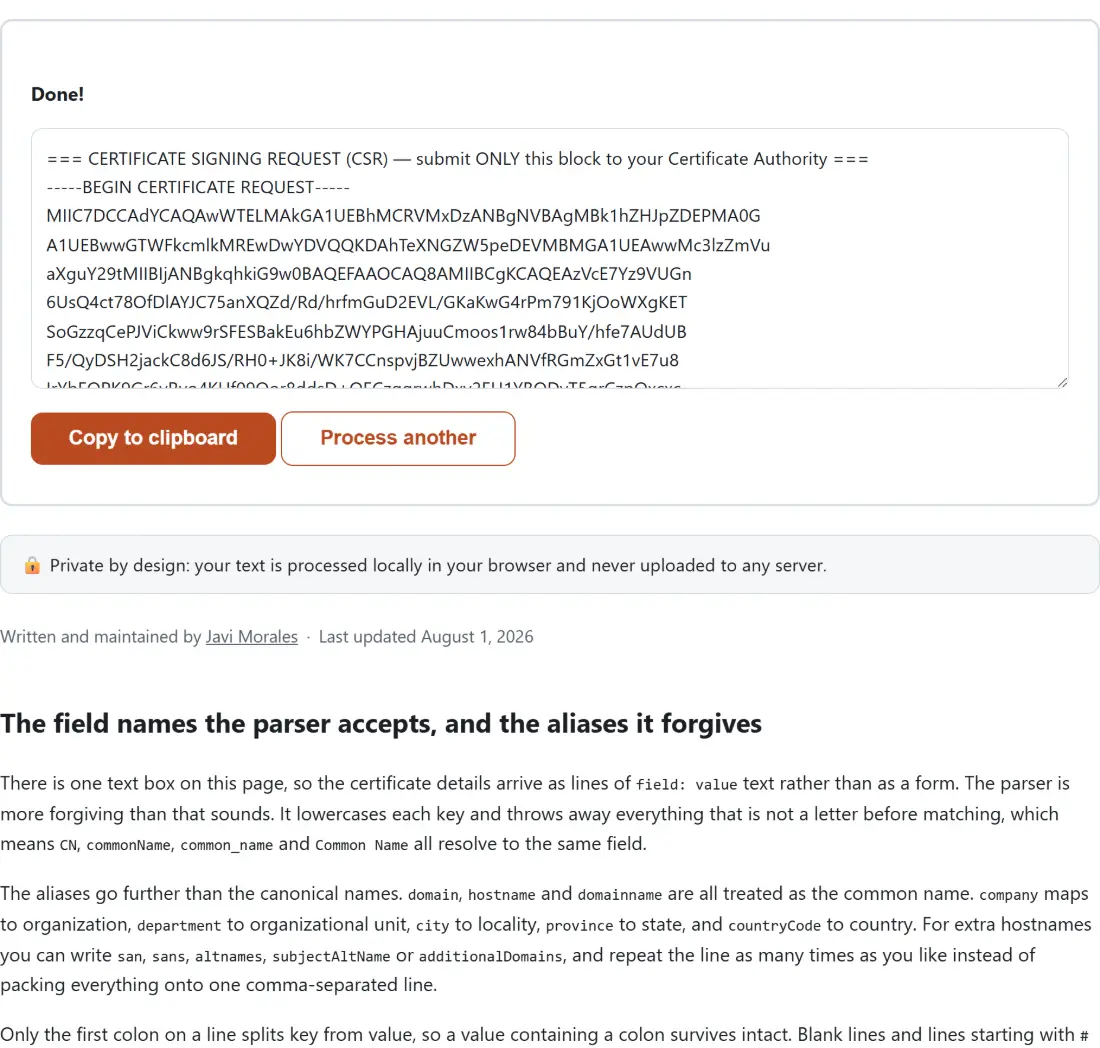
- The input box and the dropdown are replaced by the result. Use Copy to clipboard to take everything, or select just the block you need, then Process another when you are done.
Two PEM blocks in one box, and which one the CA gets
The result is a single labeled text block with three sections. The first holds the certificate signing request, wrapped in a standard CERTIFICATE REQUEST PEM header. The second holds the private key, exported in PKCS#8 and wrapped in a PRIVATE KEY header. The third is a NOTES section listing the key type you picked, the finished subject in comma-separated form, the final SAN list, and any field names the parser did not recognize.
Copying copies both blocks, which is the one trap here. A CA form that asks for a CSR wants the first block and nothing else, so highlight it by hand rather than pasting the whole box. The private key is yours to keep. A Certificate Authority never needs it and should never be sent it.
There is no download button on this shell and no storage of any kind, so the copy in that box is the only copy of the key that has ever existed. Save it to a file before you leave the page. Once you have, SSL Certificate Decoder will read a .csr file back and print its subject, SAN list and signature check, which is a useful sanity pass before you hand it over.
RSA 2048, RSA 4096 and P-256, and what actually changes
RSA 2048 is the default because it is the option nothing anywhere refuses. RSA 4096 is the same algorithm at double the modulus, and the label says the quiet part out loud: it is slower to generate. That work happens through Web Crypto inside your own tab, so the wait is your device’s, not a queue’s. ECDSA P-256 produces a much smaller key and a smaller resulting certificate, and every current CA and browser accepts it.
What does not change is the digest. All three paths sign with SHA-256. There is also no RSA 3072, no P-384 and no Ed25519 here: the key type resolver accepts exactly three values and quietly falls back to RSA 2048 for anything else.
The subject-encoding bug openssl caught before this shipped
Worth telling, because it is the reason this tool builds its own ASN.1 instead of trusting a convenience API. The obvious approach is to push every subject attribute onto the library’s flat attribute array and let it generate the schema. Do that and all six attributes end up bundled into a single multi-valued relative distinguished name, which openssl req -text prints joined with plus signs rather than as the conventional comma-separated form.
The fix was to hand-build the correct shape directly: a SEQUENCE of separate single-attribute SETs, ordered country, state, locality, organization, organizational unit, common name, then hand the library those raw DER bytes. Every key type was re-checked afterwards with openssl req -verify -text. On top of that, the code verifies its own signature before returning anything, and refuses to hand back a request that fails that check.
Limits worth knowing before you rely on this
The private key is unencrypted. There is no passphrase option, deliberately, because shipping an unverified encryption layer for something this sensitive is worse than not shipping one. Run openssl pkey -in key.pem -aes256 -out key-encrypted.pem over the saved file if you need one, since that handles the PKCS#8 block this page emits for all three key types.
The only extension written is subjectAltName, carried in a PKCS#9 extensionRequest attribute. No key usage, no extended key usage, no basic constraints. Nothing is submitted anywhere either: proving you control the domain and collecting the signed certificate are separate steps with your CA or an ACME client.
For server access rather than a website certificate, SSH Key Generator is the right page instead. Once the certificate comes back, Nginx and .htaccess Config Generator will write the HTTPS server block, and the rest of the collection sits on the developer tools hub.