Cards, columns and boards, and what each one holds
The structure is the familiar one. A board owns an ordered list of columns; each column owns an ordered list of cards; a card carries a title, an optional description, any number of labels and an optional due date. Nothing points at anything else. A card’s position is simply which column’s list it currently sits in and at what index, which is the reason a move can never leave a card in two places or in none.
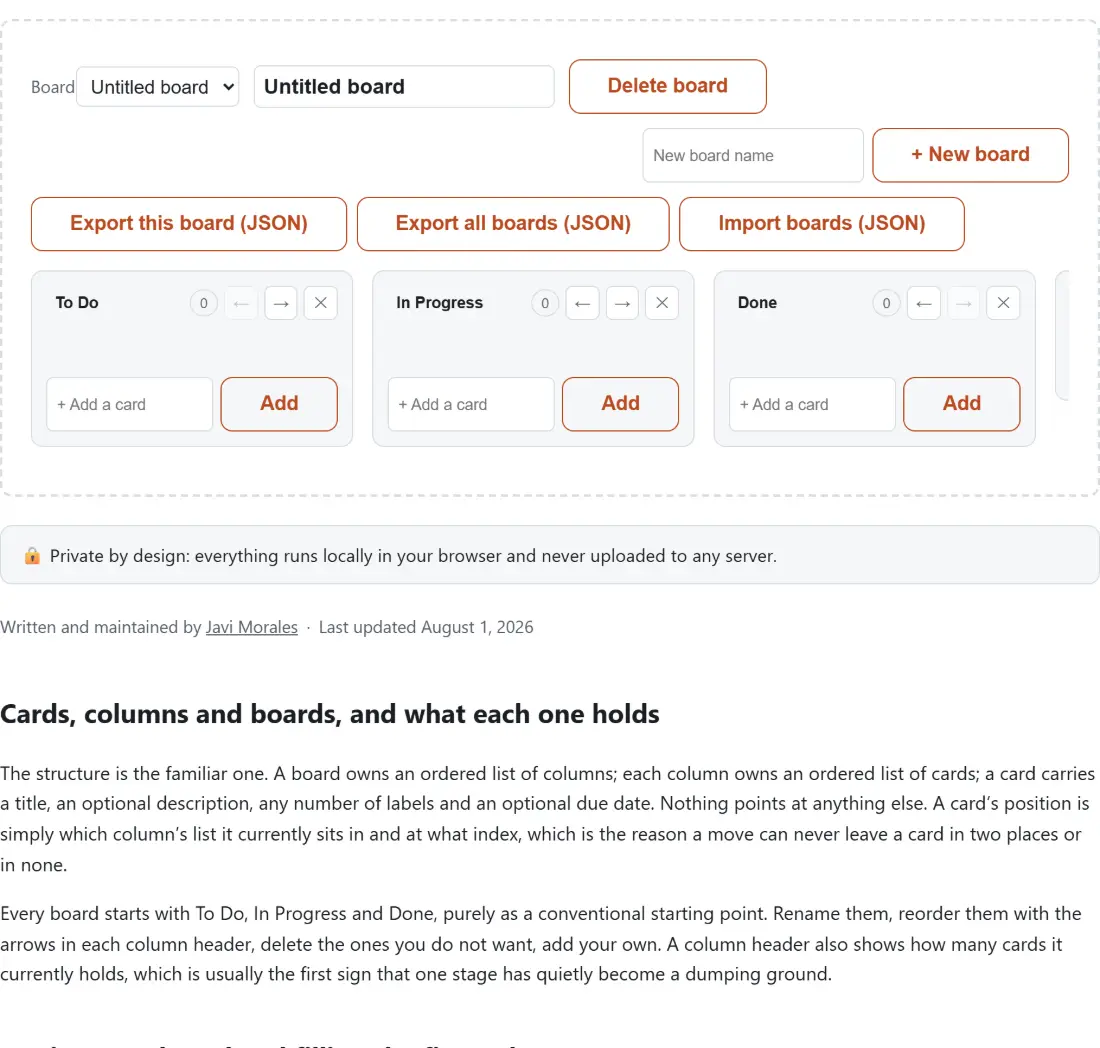
Every board starts with To Do, In Progress and Done, purely as a conventional starting point. Rename them, reorder them with the arrows in each column header, delete the ones you do not want, add your own. A column header also shows how many cards it currently holds, which is usually the first sign that one stage has quietly become a dumping ground.
Setting up a board and filling the first column
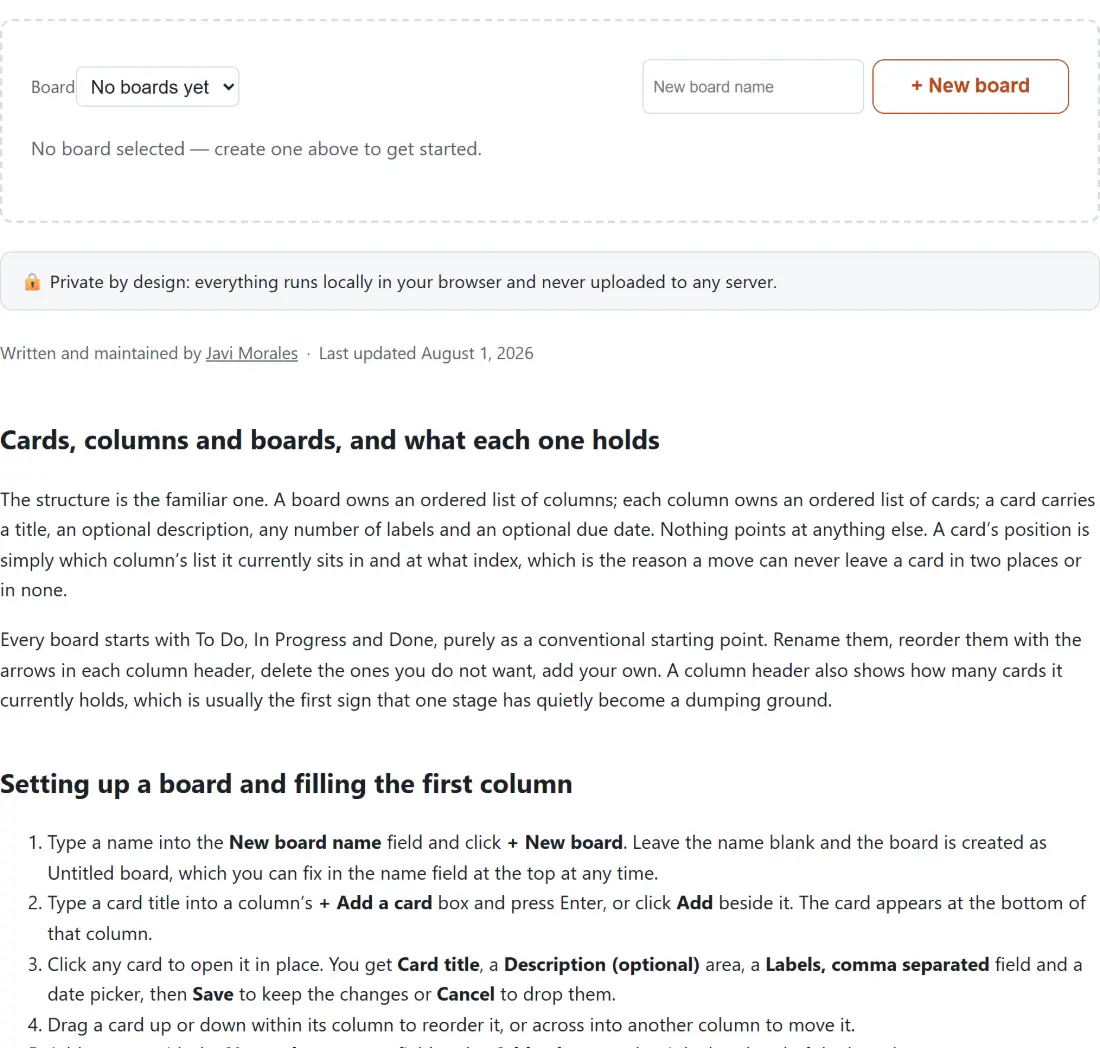
- Type a name into the New board name field and click + New board. Leave the name blank and the board is created as Untitled board, which you can fix in the name field at the top at any time.
- Type a card title into a column’s + Add a card box and press Enter, or click Add beside it. The card appears at the bottom of that column.
- Click any card to open it in place. You get Card title, a Description (optional) area, a Labels, comma separated field and a date picker, then Save to keep the changes or Cancel to drop them.
- Drag a card up or down within its column to reorder it, or across into another column to move it.
- Add a stage with the New column name field and + Add column at the right-hand end of the board.
- Click Export this board (JSON) whenever you want a copy on disk. The file is named after the board, with spaces turned into hyphens and punctuation stripped out.
The drop indicator tells you where the card will land
Drag-and-drop is the browser’s own, with no library involved. Hold a card over another card and a thin bar appears above that card: that is where it will land, directly before it, except when you drag a card further down inside its own column, where lifting it out of the list first settles it just after that card instead. Let go over the empty space below the last card and it is appended to the end of that column instead. There is no midpoint guessing and no animation to wait for.
Behind the indicator, the move is done as a removal followed by an insertion at a clamped index. A drop index that comes back out of range, negative or past the end, or not a number at all, still puts the card somewhere valid rather than throwing, and a same-column reorder computes the target position after the card has already been lifted out, so there is no phantom slot to fall into.
Due dates measured against your own calendar day
A due date is stored as a plain year-month-day string, exactly what the date picker produces, and compared as a string against today’s date read from your device’s local clock. That comparison is exact rather than approximate, because dates in that format sort alphabetically in the same order they sort chronologically, so no time zone arithmetic enters the picture at all.
Each dated card shows one of three states next to the date: overdue when the day has passed, due today when it is today, or upcoming when it is still ahead. There is no time-of-day component, no recurrence and no reminders. A browser tab cannot notify you about a deadline while you are not looking at it, so the tool does not pretend otherwise. If what you actually want is a daily streak rather than a deadline, the Habit Tracker is built for that shape of problem.
The JSON file is the only backup there is
Local storage is per-browser and per-device. A board created here is invisible in another browser on the same machine, and clearing site data removes it for good. Export is therefore not a nice extra, it is the whole backup story, and it is worth doing before anything drastic.
Two buttons write files. One exports the board you are looking at, the other exports every board you have. Both produce the same shape, an indented JSON array, so a single-board file and a whole-collection file import identically. Import adds what it finds to whatever is already there, skips a board whose identifier it already knows, and quietly drops an individual card that has lost its identifier rather than rejecting the entire file for it. That is also how you move a board to a second computer: export, carry the file across, import.
Where a single-user board stops being enough
There is no account, no sync and no shared state, because there is no server behind this page at all. That buys you a board in about three seconds with nothing to sign up for, and it costs you everything that needs a backend. Two people cannot edit one board. Send someone your export and they get an independent copy; edits on either side never rejoin. There are no comments, no attachments, no activity history and no notifications.
For a personal backlog, a house move, a dissertation plan or a small side project, that trade is usually a good one. It sits comfortably beside the other single-user planners here: notes in the Online Notepad, revision decks in the Flashcard Maker, and self-testing in the Quiz Maker. The rest of the generators and planners follow the same rule, everything on your device and nothing behind a login.