From an empty deck list to a first study session
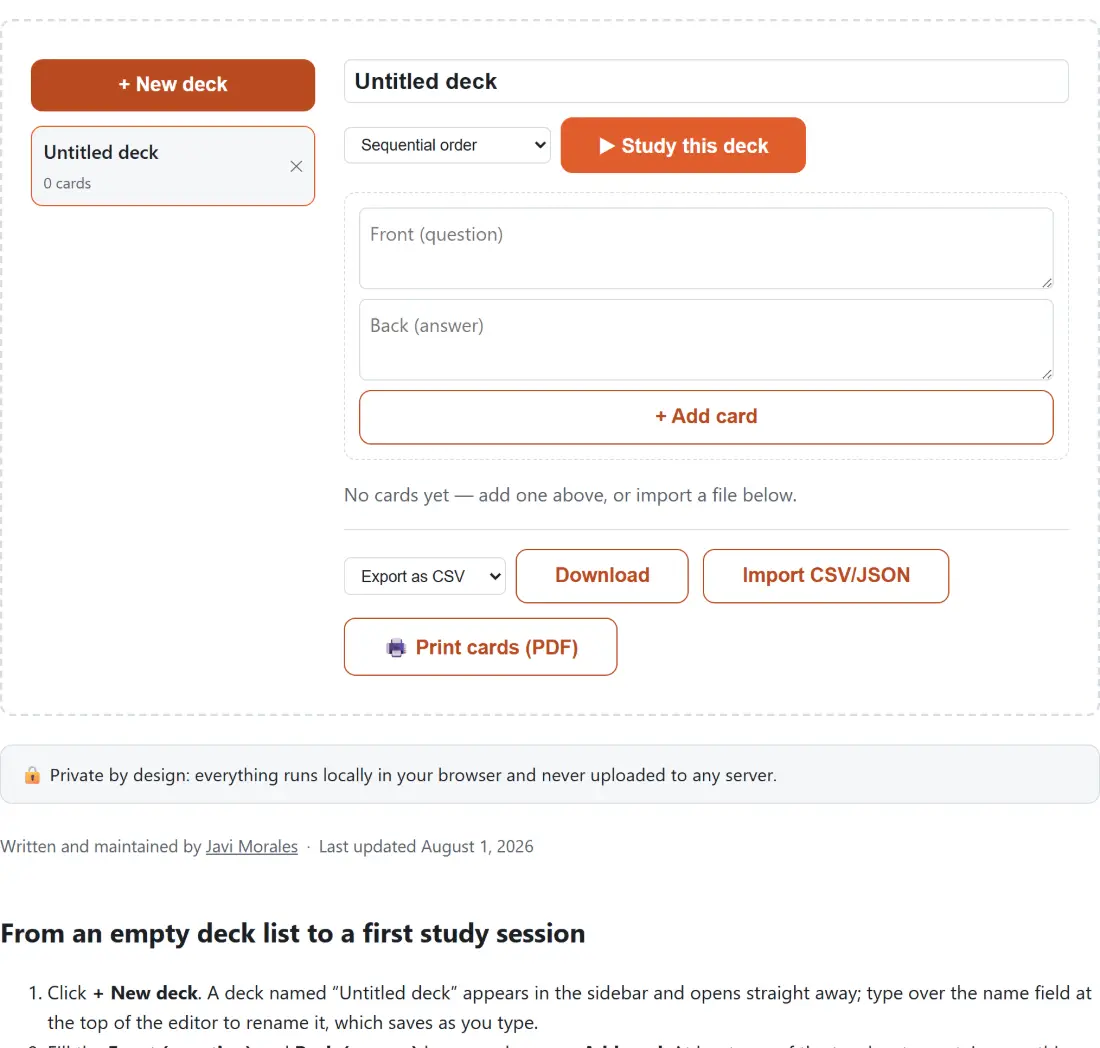
- Click + New deck. A deck named “Untitled deck” appears in the sidebar and opens straight away; type over the name field at the top of the editor to rename it, which saves as you type.
- Fill the Front (question) and Back (answer) boxes and press + Add card. At least one of the two has to contain something, or the button does nothing. Repeat for each card, or press Import CSV/JSON to pull in a list you already have.
- Choose Sequential order, Shuffle or Spaced repetition (lite) from the dropdown and press ▶ Study this deck. The button stays disabled until the deck has at least one card.
- Click the card itself to flip between question and answer, then press ✓ Know or ✗ Don’t know. Skip → moves on without recording a verdict, and the counter in the corner tracks your position in the queue.
- Back in the deck view, pick Export as CSV or Export as JSON and press Download, or press 🖨️ Print cards (PDF) for a sheet to cut up.
Three boxes and a weighted queue
“Spaced repetition (lite)” is a Leitner system with three boxes and nothing else. Every new card starts in box 1. Marking it ✓ Know promotes it one box, up to a ceiling of 3; marking it ✗ Don’t know drops it straight back to box 1 no matter where it was. When you start a spaced session the queue is built by repeating each card according to its box: three entries for a box 1 card, two for box 2, one for box 3, and the whole weighted list is then shuffled so the repeats do not clump.
That means a three-card deck sitting in boxes 1, 2 and 3 produces a session of six draws, not three. It is honest to call this a weighting scheme rather than a scheduler. There are no due dates, no intervals and no across-days tracking, so the tool never tells you “review this on Thursday”. If you want multiple-choice questions with an instant score and a per-question breakdown instead of two-sided cards, the Quiz Maker is the sibling built for that.
What the CSV and JSON exports actually contain
A CSV export is two columns under a front,back header, escaped properly: a field containing a comma, a quote or a newline gets wrapped in double quotes and any internal quote is doubled. A JSON export is an indented array of {"front": ..., "back": ...} objects. Neither carries the box number, the deck name or a timestamp, which keeps the files trivially editable in a spreadsheet at the price of losing your progress on a round trip.
Import is chosen by file extension: a name ending in .json goes down the JSON path, and anything else is treated as CSV. Header names are flexible, so front/back, question/answer and term/definition are all recognised in either order. A file with no header row at all is rejected with a message telling you which column names to add, because there is no dependable way to tell a header from a first card. If you are unsure a JSON file is even well formed, the JSON Formatter will point at the offending line before you try the import, and CSV Viewer will show you the header row of a spreadsheet export as a table.
Cutting up the printable PDF without a duplex gamble
Pressing print builds a real PDF with pdf-lib rather than calling the browser print dialog on a styled page. The sheet is A4, inset 12.7 mm, and tiled two columns by three rows, so each cell is about 92 by 90 mm. Every card is numbered, and the file prints all the fronts first and then all the backs in that same numbering, each cell tagged with its number and the word FRONT or BACK in the corner.
That ordering is deliberate. Automatic duplex alignment depends on whether your printer flips on the long or short edge, which varies by model and driver and cannot be verified from inside a browser tab. Numbering sidesteps the problem: print, cut, then match front 4 with back 4. Card text is centred and wrapped to the cell width at 12 point, and an empty side prints as (blank) so you can see the gap rather than wonder if the page failed. The download is named after the deck, with spaces turned into hyphens and punctuation dropped, so a deck called “French verbs / A1” saves as French-verbs-A1-print.pdf.
Where the decks live between visits
Everything is kept in this browser’s local storage, under a single key holding every deck and card as JSON. There is no account and no sync. Close the tab, come back a week later in the same browser and your decks are where you left them, boxes included, because each edit writes immediately rather than waiting for a save button.
The cost is the obvious one. A deck exists in one browser profile on one machine. Clearing site data removes it, a private window starts empty, and your phone knows nothing about it. Export is the migration path, and the fact that boxes do not travel is exactly why. The same pattern shows up across the tools built this way, from the Kanban Board to the Online Notepad, and it is the trade made in exchange for never sending your study material to anyone.