One storage entry, one browser, no sync
Almost every “quick notes” site wants an account, because an account is what lets your notes follow you between devices. That is a fair trade for some people. It also means every half finished draft, every password hint and every thing you typed and thought better of ends up on infrastructure you do not run and cannot audit.
This notepad takes the opposite position. Every note is kept in a single entry of your browser’s local storage, under one key belonging to this site, holding the whole list as JSON. Nothing is sent anywhere and there is no account to make, which also means there is nothing on anyone’s server for a breach to expose.
The cost is real and worth saying out loud rather than burying: your notes are attached to this browser, on this machine. Open the page in a different browser, or in a private window, and you get a clean, empty notepad. Clear your site data and the notes go with it. For a scratchpad on a locked down work computer, or for something you would rather never leave the desk, that is usually the feature and not the flaw.
Writing, switching and deleting a note, step by step
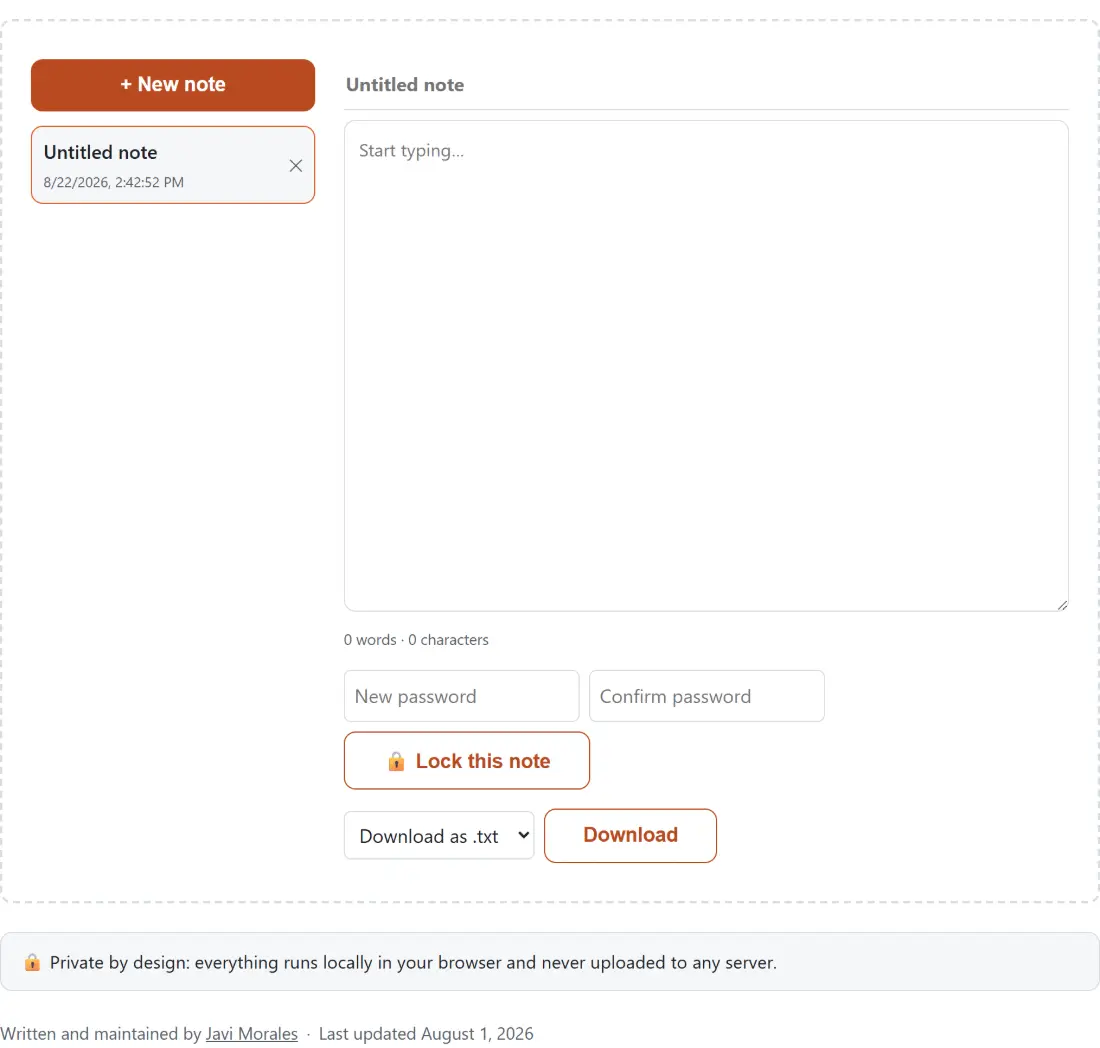
- Press ”+ New note” in the sidebar. It becomes the selected note immediately.
- Type a title in the top field, which shows “Untitled note” as its placeholder, then write in the large box below it.
- Watch the line under the box for a live word and character count, and use the sidebar to click between notes; each row shows its title and when it last changed.
- To remove a note, press the small cross on its sidebar row and confirm the prompt that reads “Delete this note? This cannot be undone.”
- Close the tab whenever you like. Reopening the page restores every note as you left it, with the most recently edited one selected.
There is no Save button anywhere, on purpose. There is nothing to press.
The 400 millisecond autosave, and the one edit it can lose
Every change reschedules a single write for 400 milliseconds after you stop, so a burst of typing produces one save rather than one per keypress. The number is not arbitrary. A locked note that you currently have open is re-encrypted before every write, and encryption here runs a real key derivation pass, so saving on every keystroke would visibly lag typing on a slower machine.
The honest consequence of any debounce is that the last fraction of a second of work is not yet saved. Closing the tab within 400 milliseconds of your final keystroke loses that last edit. In practice you would have to be trying.
Deleting, creating and locking a note all go through the same debounce, since each of them changes the list the write is built from.
Word and character counting, and where the fuller version lives
The counter under the text box reuses the counting functions from Word Counter rather than reimplementing them. Words are whitespace separated runs after trimming, and characters are counted by Unicode code point rather than by internal storage units, which means an emoji counts as one character and not two.
What you do not get here is the rest of that tool’s output: paragraph and sentence counts, and an estimated reading time at an adjustable words per minute setting. If you are checking a draft against a length limit, paste it there. If you are just writing, the two numbers on screen are the two you actually watch.
Encrypting a note body, and what the lock leaves exposed
The optional lock is not a token gesture. It reuses the same verified encryption as Encrypt a File with a Password: AES-256-GCM, with the password stretched through PBKDF2-HMAC-SHA256 at 600,000 iterations and a fresh random salt and initialisation vector on every single write. The resulting encrypted block is stored as text in place of the note’s body.
To lock a note, type the same password into both password boxes and press ”🔒 Lock this note”. A mismatch is refused with “Passwords do not match.” and an empty password with “Enter a password to lock this note.” From then on, what reaches storage is ciphertext.
The password is never stored, not on a server because nothing is uploaded, and not in your browser’s storage either. It exists only in the page’s memory while you are working, which is precisely why a reload closes the note again and asks for it. That also means a forgotten password is final. There is no reset, no recovery and no back door, and if there were, the encryption would be theatre.
Two buttons handle the rest of the lifecycle. ”🔒 Lock now” encrypts the current text and forgets the password immediately, so the editor is replaced by a password prompt on the spot. “Remove password protection” drops the lock entirely and lets the note go back to being stored as plain text. A wrong password at the prompt gives you “Incorrect password, or this note is corrupted.”, which covers both cases deliberately, because the authentication built into AES-GCM genuinely cannot tell a wrong key from tampered data.
Getting a note out as a file
The export control offers “Download as .txt” and “Download as .md”, and it is worth being clear that these differ only in the extension and the declared media type. No Markdown is rendered, converted or transformed on the way out, because a plain text note already is its own Markdown source. The same characters land in the file either way.
File names come from the note title, stripped down to letters, digits, spaces, hyphens and underscores, with runs of spaces collapsed to a hyphen. A note called “Meeting notes: 3 May” downloads as Meeting-notes-3-May, and a note with no usable title at all falls back to the name note.
From there the file is ordinary. Feed the plain text version to Convert TXT to PDF for something printable, or keep working in the text tools hub. For a task list that needs columns and cards rather than paragraphs, the Kanban Board is the neighbouring tool, and it stores its data the same local, no account way this one does.