Five switches that compose
This is a pipeline rather than a single operation, and every stage of it is independently switchable. That sounds like a small design detail and it is the reason the tool is useful for more than one job.
Lines are split, then optionally trimmed, then optionally emptied of blanks, then optionally deduplicated, then optionally sorted. Turn the duplicate removal off and you have a sorter. Turn the sorting off and you have a deduplicator that preserves order. Turn everything off except the blank line filter and you have a compactor.
The order is fixed and chosen deliberately. Trimming has to come before deduplication or two lines differing only in indentation will never match. Sorting has to come last or it will be sorting a set of lines that is about to change.
Cleaning up a pasted list
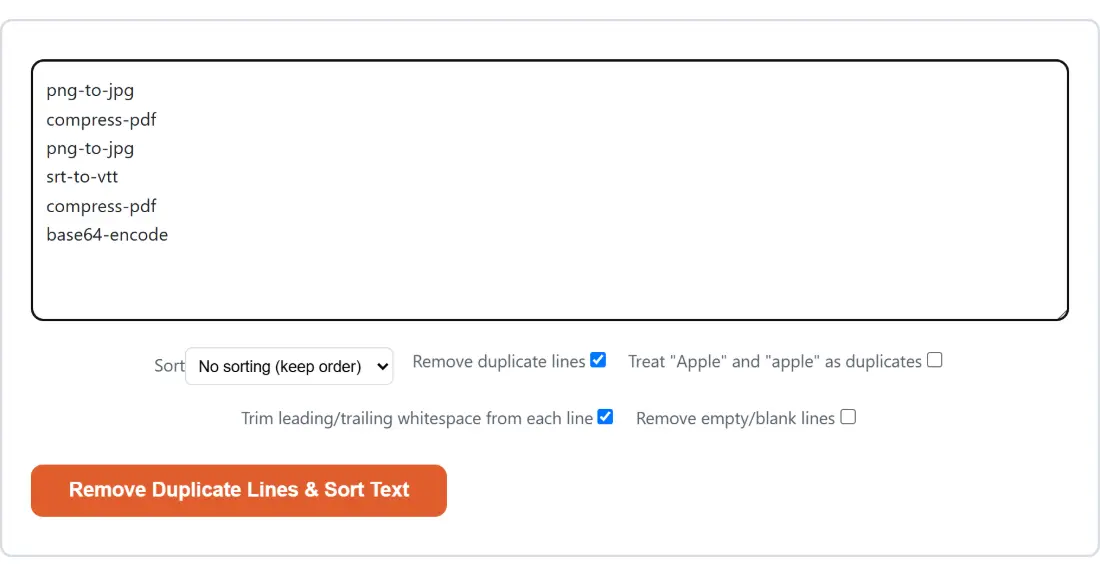
- Paste your list into the box. The action button stays disabled while it is empty.
- Choose a Sort mode, or leave it on No sorting (keep order).
- Remove duplicate lines is ticked by default. Untick it if you only want to sort.
- Tick Treat “Apple” and “apple” as duplicates if capitalisation should not distinguish entries.
- Trim leading/trailing whitespace from each line is ticked by default and is almost always what you want.
- Tick Remove empty/blank lines to drop the gaps.
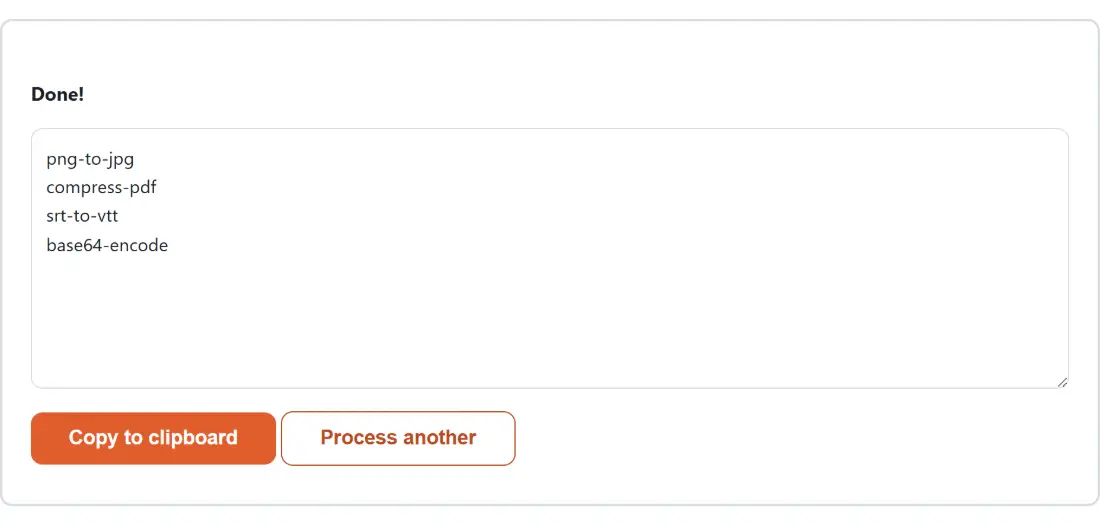
- Click Remove Duplicate Lines & Sort Text, then Copy to clipboard. Process another clears both boxes.
Line endings are normalised on the way in, so a list copied out of a Windows text editor and one copied out of a terminal behave identically. That single detail removes the most common reason a deduplicator appears to do nothing at all.
Whitespace is why your duplicates survived
The overwhelmingly common complaint about deduplication tools is that they miss obvious duplicates. The cause is nearly always invisible.
A line ending with a space is a different string from the same line without one. So is a line indented with a tab. Copy a column out of a spreadsheet or a web page and you will very often get trailing spaces on some rows and not others, and no amount of staring at the screen will show you which.
That is why trimming defaults to on. It removes the leading and trailing whitespace from each line before anything else looks at them, so the comparison happens on the visible content. If duplicates still survive after trimming, the next suspect is a non-breaking space, which looks exactly like a space and is a completely different character.
The two case settings are not the same setting
There are two places case comes up here and they are independent.
Case insensitive duplicate matching decides whether two lines differing only in capitalisation count as the same entry. It defaults to off, because for a list of identifiers, codes or filenames, case usually carries meaning. Turn it on for a list of names or words where it does not. The surviving line keeps its own capitalisation, so turning this on never silently lowercases your data.
Alphabetical sorting, on the other hand, is always case insensitive and also ignores accent differences. That is not configurable, because a case sensitive sort produces the classic unwanted result where every capitalised word comes before every lowercase one, splitting a list into two blocks nobody asked for.
The numeric sort, and where non-numbers go
Numeric sorting reads a number from the front of each line and sorts on that, which is what makes it useful for lists like version numbers with prefixes, or measurements with trailing units.
Lines with no leading number are treated as larger than any real value, so they collect at the end. Because the sort is stable, they arrive there in the order you pasted them rather than shuffled, which keeps a header row or a note at the bottom in one recognisable piece.
Sorting by length is the least obvious mode and genuinely handy for spotting outliers: a mistyped entry in a list of postcodes or product codes will usually be the wrong length, and length sorting puts it at one end.
Where a list goes next
For counting rather than cleaning, Word Counter gives you words, characters, sentences and paragraphs on the same pasted text. To change the capitalisation of every line rather than compare it, Case Converter handles the transformations.
To find what actually differs between two lists rather than deduplicate one, Diff Text is the right tool. If your list is buried in a block of prose, Email Extractor pulls addresses out of it. And once the list is final, TXT to PDF makes it printable. The rest is on the text tools hub.