One move, done exactly
Reordering a PDF is one of those jobs that sounds like it needs a full editor and usually does not. In practice the request is almost always the same shape: a page ended up in the wrong place and needs to go somewhere else, with everything else keeping its relative order.
That is precisely what this does. You name the page to move and the position it should end up in, and the rest of the document closes up behind it and shifts to make room.
Nothing else changes. The pages themselves are copied from the source document into a new one without being touched, so text remains text, images keep their original resolution, and file size stays roughly where it was.
Moving a page to a new position
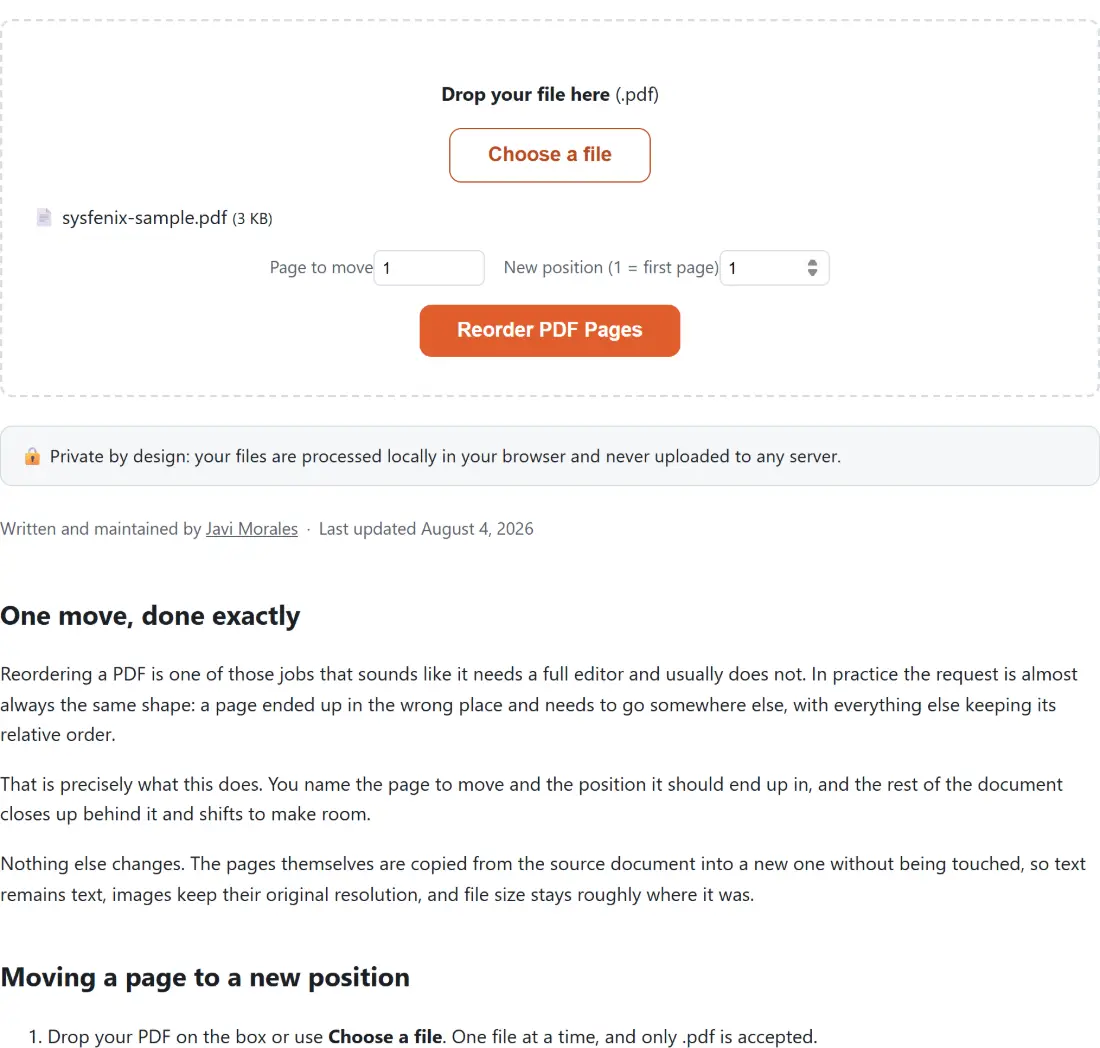
- Drop your PDF on the box or use Choose a file. One file at a time, and only .pdf is accepted.
- Set Page to move to the current position of the page you want to relocate.
- Set New position (1 = first page) to where it should end up in the finished document.
- Click Reorder PDF Pages. The progress bar advances as pages are copied, then finishes as the file is written.
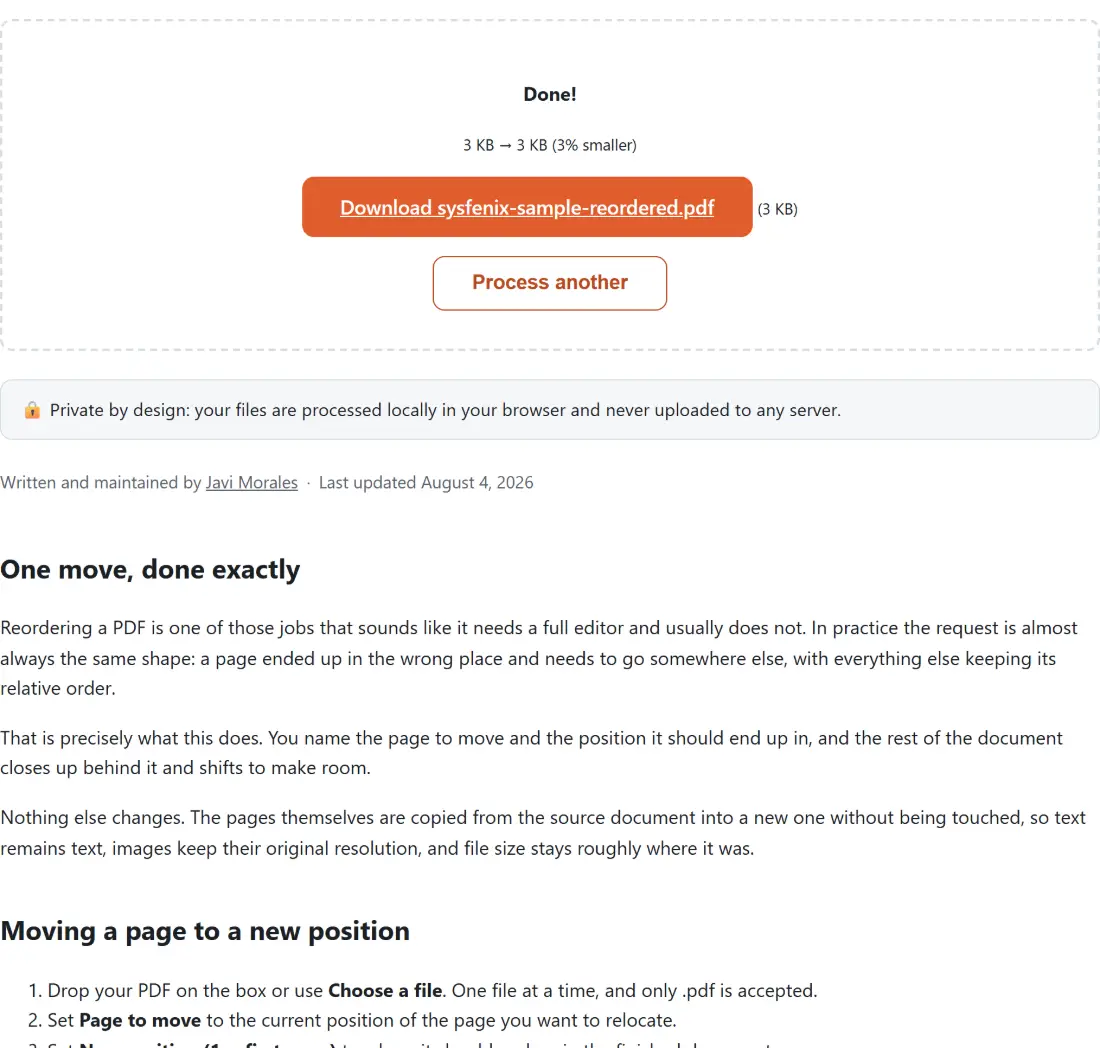
- Download the result, named after your file with a reordered suffix.
- Open it and check the page you moved actually landed where you expected.
- Process another clears the box.
Both fields are one-based, counting physical sheets from the front of the document. If your PDF has unnumbered front matter, count the sheets rather than reading the printed numbers.
How the new position is counted
The arithmetic is worth stating plainly, because off-by-one confusion is the main way this operation goes wrong.
The page is removed from the sequence first, then reinserted at the position you named in the resulting document. So in a five page file, moving page 1 to position 3 gives the order 2, 3, 1, 4, 5, and the page you moved is the third page of the output.
Reading it the other way, as a position in the original document, would give a different result, and the difference only shows up when moving a page forward rather than backward. If a move lands one place off from what you expected, this is why.
Several moves, one at a time
There is deliberately no multi-page shuffle here. One page, one destination.
For a bigger rearrangement, the workable approach is to feed each output back in as the next input and plan the sequence in advance. Write down the order you want, then work out the moves that get you there, rather than improvising and losing track.
For some rearrangements a different tool is faster. Reversing a document, interleaving two scans or extracting a chapter are all jobs where repeated single moves would take far too long.
What does not come across
The output is a newly assembled document rather than an edited copy of the original, and that distinction has a consequence worth knowing before you use this on something important.
Page content is preserved exactly. Document level structure is not. A table of contents built as PDF bookmarks, internal links that jump between pages, interactive form fields and file attachments are not carried into the new document. On a plain scan or an exported report this changes nothing you would notice. On a long bookmarked document it does.
If that matters, do the reordering before adding bookmarks rather than after.
The rest of the page toolkit
To remove pages rather than move them, Delete PDF Pages takes a range. To pull a section out into its own file, Split PDF does that directly and is usually quicker than a run of moves.
Once the order is right, Add Page Numbers to PDF stamps the new sequence so the printed numbers agree with reality. Rotate PDF fixes a sideways scan, N-up PDF puts several pages on one sheet, and Booklet PDF reorders for folded printing, which is a reordering job with its own very specific rules. The rest is on the PDF tools hub.