Rotation is a page flag, not a redraw
Inside a PDF, every page can carry a rotation entry: a single number, always a multiple of 90, that tells a reader how far to turn the page before showing it. The page’s contents are not moved. The scan bitmap, the text drawing instructions and the page’s own dimensions stay exactly where they were, and the viewer does the turning at display time.
This tool changes that number and nothing else. pdf-lib opens the document, sets the new rotation on the pages you selected, and saves. No page is re-rendered, no image is re-encoded, no font is touched. Text stays selectable and searchable, print quality is untouched, and the output is close to the size it started at.
That is the difference between fixing a document and working around it. Turning a page in your reader is a view setting that lives on your machine; writing the flag makes every reader, printer and phone display it correctly for everyone who receives it.
Turning the pages
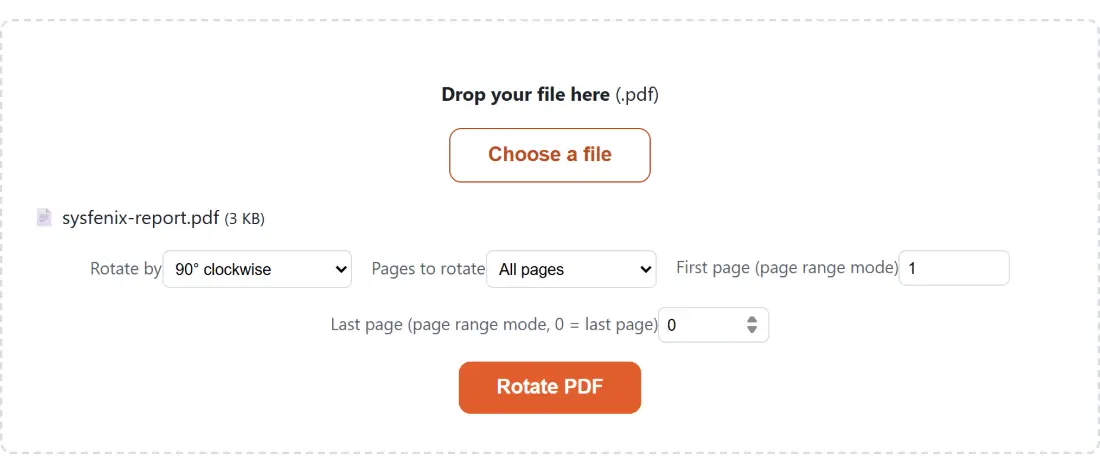
- Drop your PDF into the box above, or click Choose a file.
- Choose an angle under Rotate by: 90° clockwise, 180° (upside down) or 90° counterclockwise.
- Under Pages to rotate, leave All pages selected to fix the whole document, or pick Only a page range.
- For a range, set First page (page range mode) and Last page (page range mode, 0 = last page). Leaving the last field at 0 means “through to the end”.
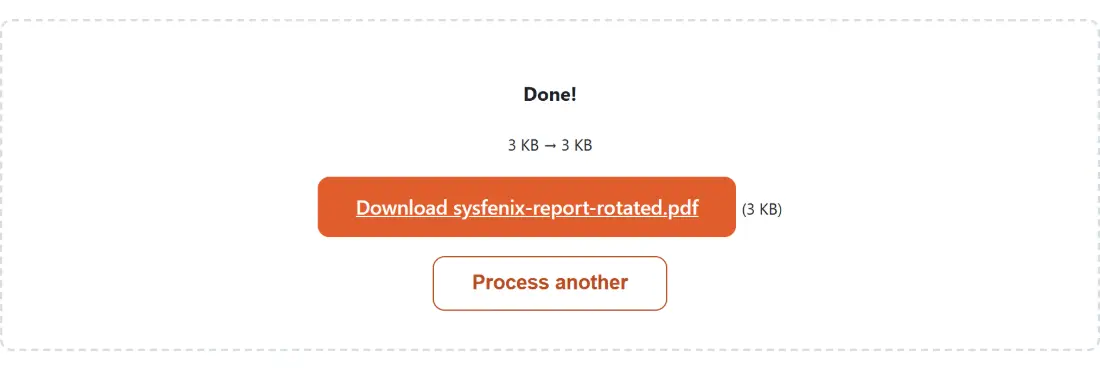
- Click Rotate PDF and save the result, which comes back with
-rotatedadded to the name.
The angle stacks on whatever the scanner already set
A page you receive may already carry a rotation, because scanners set one routinely when paper goes through the feeder the long way round. This tool reads that existing value and adds your angle to it, then normalises the sum back into the range 0 to 359.
The practical effect is that the tool behaves like a physical turn rather than an absolute setting. A page already marked 90 that you turn another 90 becomes 180. Four consecutive 90 degree runs return the document to its starting state. Nothing accumulates past a full circle and no page ends up with a nonsensical value.
It also means “rotate by 90” is not the same instruction as “make this page portrait”. If a document mixes pages that were scanned at different orientations, applying one angle to all of them will straighten some and break others. That is what the range mode is for: fix pages 5 and 6 on their own, download, then run the file again for anything else that is still wrong. The range fields behave exactly as they do in Split PDF, because both tools use the same range code.
Pages that still come out sideways somewhere else
Every mainstream viewer honours the rotation entry, so a corrected file looks right in Acrobat, in a browser tab, in Preview, on a phone and in a print dialog. Two situations still catch people out.
The first is software that reads a page’s contents rather than rendering them. An image extractor pulling the embedded bitmap out of a scan gets the picture exactly as it was stored, sideways, because the flag was never applied to the pixels. The same goes for some text extraction and OCR pipelines that work from the content stream directly.
The second is layout tools that read a page’s dimensions. Rotation does not change the page box, so a page marked as rotated is still, on paper, whatever shape it always was. Anything that arranges pages by their measured size can therefore make surprising decisions, which is worth remembering before you send a rotated document into N-up or booklet imposition or through Resize PDF Pages.
Picking 90, 180 or 270 for a given scan
Work from where the top of the text is pointing.
If the top of the text points to the left edge of your screen, the page needs 90° clockwise. If it points to the right edge, it needs 90° counterclockwise. If the text is upside down but reading horizontally, it needs 180° (upside down), which is the same in either direction and the usual outcome of feeding a stack of paper in the wrong way.
Anything that is not one of those three angles is not offered, because a PDF rotation entry can only be a multiple of 90. Skewed scans, the ones that are a few degrees off true, are a different problem entirely and this tool cannot help with them.
Guessing wrong costs nothing: run the output through again. Nothing is re-encoded on either pass, so there is no accumulated degradation, and the file is only ever read from your device’s memory and rewritten in the same browser tab. Scanned contracts, identity documents and medical results are precisely what comes out of a copier the wrong way up, and none of them go anywhere. Delete PDF Pages is the usual next step, and Add Page Numbers to PDF places its numbers as you expect on any page whose rotation ended up at zero. Further reading: the best PDF tools, compared.