Bursting a document versus pulling out a range
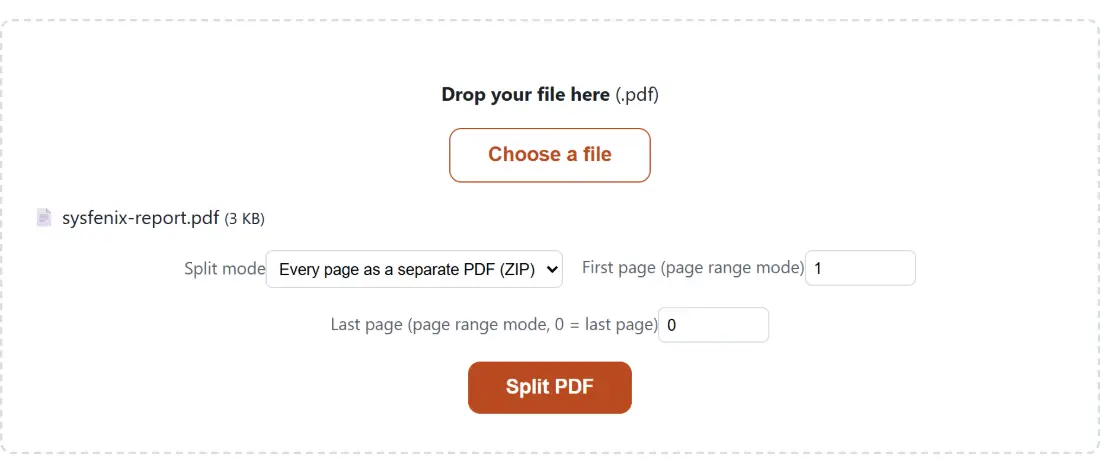
The Split mode select offers two jobs that share a name and almost nothing else.
Every page as a separate PDF (ZIP) is the default. It takes an N page document and produces N single-page documents, then bundles them into one archive. This is the demolition option, and it is what you want when the input was never really one document to begin with: a stack of unrelated receipts fed through an office scanner in a single pass, a batch of certificates printed to one file, an export that glued together things that should have been separate all along.
Extract a page range is surgery instead. It produces one new document containing one continuous stretch of pages and leaves the original untouched. This is what most people actually want when they search for a PDF splitter, because the real task is usually “send only the signed page”, “attach only the three statement pages the visa office asked for”, or “get chapter four under the mail attachment limit”.
How the First page and Last page fields are read
Pages count from 1, and both ends of the range are included, so 3 to 7 gives you five pages. The two fields are read defensively rather than strictly.
A first page that is missing, blank or below 1 falls back to page 1. A last page that is missing, blank or below 1 falls back to the final page of the document, which is what the 0 = last page note in the field label is telling you: leave it alone and the range runs to the end, whatever the page count turns out to be. A last page larger than the document is clamped down to the real final page rather than treated as a mistake.
Only two situations are genuine errors: a first page beyond the end of the document, and a last page that comes before the first. Both stop the run. Fractional values are floored, so 3.7 is treated as 3.
That same resolver is shared code. Rotate PDF and Delete PDF Pages import it rather than reimplementing it, which is why a range means the identical thing on all three tools.
Splitting the document
- Drop your PDF into the box above, or click Choose a file.
- Choose a Split mode. Leave it on Every page as a separate PDF (ZIP) to burst the document, or switch to Extract a page range to pull out one section.
- For a range, set First page (page range mode) and Last page (page range mode, 0 = last page). Set both to the same number to extract a single page.
- Click Split PDF. The bar advances as each output document is written.
- Save the result. A run that produced exactly one document hands you that PDF directly; a run that produced more than one hands you a single ZIP archive. A range is always one file, and so is bursting a document that only had one page to begin with.
The ZIP that arrives when every page becomes a file
Bursting a hundred-page document into a hundred separate downloads would be unusable, so multiple outputs are always packaged into a single archive named after the source, as report-split.zip.
Inside, the files are numbered with zero padding sized to the page count. A nine-page document gives one digit and a ten-page document gives two, which keeps them sorting correctly in a file manager instead of putting page 10 between pages 1 and 2. The archive itself is stored rather than compressed, so its size is close to the sum of the parts and it opens with any extractor.
A range extraction produces a single file and therefore no archive at all: the PDF downloads directly.
What copyPages carries over, and what it leaves behind
Splitting here is not a re-render. Each output is a new empty document into which the chosen pages are copied wholesale, which means text stays selectable, images keep the resolution they had, fonts come along, and print output is identical to the original. Nothing is re-encoded, so nothing degrades.
The limits are at the document level rather than the page level. Bookmarks live in an outline tree that belongs to the document, not to any page, and that tree is not rebuilt in the new file. The same goes for interactive form definitions, document metadata such as title and author, and file attachments. Annotations that sit on a page do travel with it, but a link annotation whose destination was a page that ended up in a different output file has nowhere left to jump to.
For most splitting tasks none of this is noticeable. On a heavily bookmarked technical manual it very much is, and no tool here avoids it: Delete PDF Pages copies the pages it keeps into a new document exactly as this one does, so it drops the outline too. Keep the original.
Ranges the tool refuses
Ask for pages 40 to 45 of a 30-page file and the run stops. Ask for pages 9 to 4 and it stops as well. In both cases the split code produces a precise explanation, but the surrounding interface reports every failure with the same generic message, so the useful detail ends up in the browser console rather than on the page. If a run fails and your range looks reasonable, the usual culprit is a document with fewer pages than you remembered.
Your file stays loaded after an error, so correcting a number and clicking the button again is enough. Nothing about the original is modified at any point; every output is a new document.
Where a 300-page scan gets taken apart
The reason there is no upload progress bar is that there is no upload. The PDF is read out of your device’s memory, opened by pdf-lib in the same browser tab, and the new documents are written there before being handed to your downloads folder.
That is a meaningful difference for the documents people split most: contracts where only the signature page should be forwarded, medical results where one page is relevant, payslips being sent to a letting agent. Splitting is very often the act of sharing less, and it would be odd to accomplish it by first sending the entire document to a stranger’s server. It also removes the usual free-tier limits, since there is no bandwidth bill to defend. The one real ceiling is memory, because the source document and every output live in the tab at once. Once the pieces are ready, Merge PDF puts a new document back together from them, and the wider set of PDF tools covers the rest.